
How to Create a Page in WordPress That Ranks and Converts
Table of Contents
How to Create a Page in WordPress – WordPress remains the world’s most popular content management system, powering over 40% of all websites globally. A significant factor in its dominance is the straightforward process for adding and managing content. In our previous tutorial, we examined how to add blog articles to your site. Now, we’ll explore creating pages beyond your blog – the static, foundational content that defines your website’s structure and purpose.
Business growth demands that your website evolves in tandem with it. You’ll frequently need to update content on short notice, making it vital that you’re comfortable not only editing but also creating entirely new pages in WordPress. Unlike posts designed for temporal content, pages represent your site’s permanent architecture – your brand story, contact information, service offerings, and core messaging.
This guide provides professional techniques for crafting quality pages whilst defining their strategic purpose during site architecture planning. We’ll cover page formatting optimisation, from compelling headlines to conversion-focused calls-to-action, informed by metrics like scroll depth and engagement rates. You’ll learn to extend visual consistency using reusable templates and blocks, alongside insider promotion tactics to amplify visibility through linking techniques and social strategies.
Understanding WordPress Architecture: Pages vs Posts
Before creating your first page, understanding the distinction between WordPress pages and posts prevents structural mistakes that could undermine your site’s organisation and search visibility.
The Fundamental Difference Between Pages and Posts
WordPress offers two primary content types, each serving distinct purposes within your site architecture. Posts function as dynamic, chronologically ordered entries, ideal for blog articles, news updates, and time-sensitive content. Pages, conversely, provide static, evergreen content that forms the structural foundation of your site.
The difference extends beyond mere semantics. Posts appear in your RSS feed, accept categories and tags for organisation, and display in reverse chronological order. Pages exist outside this temporal framework – they’re timeless content pieces that visitors expect to find regardless of when they access your site.
Consider your homepage, about section, contact page, and service offerings. These represent core information that remains relatively constant, making them perfect candidates for pages rather than posts. Your agency’s portfolio, team bios, and service descriptions should all be included as pages within your site’s architecture.
| Feature | WordPress Posts | WordPress Pages |
| Primary Purpose | Time-sensitive content, blog entries | Static, evergreen information |
| Organization | Categories, tags, chronological | Hierarchical parent-child structure |
| RSS Feed | Included automatically | Excluded by default |
| Comments | Enabled by default | Disabled by default |
| Menu Display | Typically excluded | Primary navigation elements |
| SEO Application | Long-tail, topical keywords | Primary, high-value keywords |
Strategic Page Applications for Business Growth
Pages serve as foundational elements that define your digital identity and provide essential, unchanging information. Modern web design treats pages as strategic assets that facilitate user journeys, establish credibility, and support conversion goals.
Your homepage functions as your digital storefront, often carefully designed to capture attention and direct visitors toward key actions. About pages build trust by sharing your story, mission, and team credentials. Contact pages provide clear communication channels through forms, location information, and direct contact details.
Service and product pages detail your offerings in structured, persuasive formats. Landing pages – highly focused pages designed for specific marketing campaigns – guide users toward single conversion actions with minimal navigation distractions. Privacy policies and terms of service establish transparency and legal compliance.
At ProfileTree, we structure client websites with pages targeting primary keywords, whilst posts capture long-tail search traffic through topical content. This dual approach maximises organic visibility across the customer journey.
Page Architecture and Hierarchical Structure
Unlike posts, WordPress pages support hierarchical organisation through parent-child relationships. This structure enables logical content grouping whilst distributing SEO authority throughout your site architecture.
Consider a digital agency offering multiple services. Your primary “Services” page might serve as a parent, with child pages for “Web Design,” “SEO Services,” and “Content Marketing.” This hierarchy creates clean URL structures like example.com/services/web-design/ Whilst establishing topical relationships, search engines recognise.
Page hierarchy also influences navigation menu construction. Parent pages with multiple children can be displayed as dropdown menus, improving the user experience by logically grouping related content. This structure supports both visitor navigation and search engine crawling efficiency.
Creating and Configuring WordPress Pages
The process of creating a WordPress page involves more than simply adding content. Proper configuration from the outset prevents common issues whilst establishing the foundation for optimisation.
Accessing the Page Creation Interface
Navigate to your WordPress dashboard and locate the left-hand sidebar. Hover over “Pages” to reveal the submenu, then select “Add New.” This action opens the page editor interface, where you’ll craft your content.
Different themes and configurations may present slight variations in the interface, but the core functionality remains consistent across WordPress installations. The Gutenberg block editor – WordPress’s default editing interface since version 5.0 – provides the foundation for modern page creation.
Create a page in WordPress screenshot 1
The WordPress admin panel provides straightforward access to page creation through the sidebar navigation.
Upon clicking “Add New,” you’ll encounter a blank canvas ready for content. The interface may appear intimidating initially, but understanding each component transforms this blank slate into a powerful content creation tool.
Adding Content Using the Block Editor
WordPress’s block editor revolutionised content creation by treating each page element – paragraphs, headings, images, buttons – as individual blocks. This modular approach provides flexibility whilst maintaining design consistency.
Start by adding a heading block for your page title. Click the “+” icon in the editor or type “/” to access the block inserter. Select “Heading” and enter your title. The block toolbar above your content allows you to adjust heading levels (H1 through H6), with H1 reserved for your page title and subsequent levels creating your content hierarchy.
Create a page in WordPress screenshot 2
The block editor interface enables intuitive content addition through modular blocks for different content types.
Add paragraph blocks for body content by clicking below your heading or pressing Enter. Type naturally – the editor wraps your text in appropriate paragraph tags automatically. To add images, insert an Image block and either upload files from your computer, select from your media library, or insert via URL.
The block editor supports a wide range of content types beyond introductory text and images. List blocks create bulleted or numbered lists. Button blocks add call-to-action elements. Column blocks enable multi-column layouts. Table blocks organise data clearly. Experimenting with different block types reveals the editor’s full potential.
Formatting Content for Readability and SEO
Content structure significantly impacts both user engagement and search visibility. Break long text passages into shorter paragraphs – aim for three to five sentences maximum per paragraph. This approach enhances mobile readability and prevents the ‘wall-of-text’ effect that causes visitors to abandon pages.
Use heading hierarchy to organise content logically. Your H1 (page title) should contain your primary keyword. H2 subheadings break the content into major sections, each addressing a distinct aspect of your topic. H3 headings nest within H2 sections for further subdivision. This hierarchy helps both readers and search engines understand the content’s structure.
Incorporate your target keywords naturally throughout your content. The primary keyword should appear in your H1, first paragraph, and at least one H2. Secondary keywords and semantic variations should be distributed throughout body paragraphs. Never force keywords unnaturally – readability and user value take priority over keyword density.
Lists improve scannability whilst providing semantic value. Use bulleted lists for unordered items and numbered lists for sequential steps or ranked items. Tables organise comparative data clearly, particularly useful for service comparisons or feature breakdowns.
Working with Page Attributes and Settings
The right sidebar (or settings panel in newer WordPress versions) contains critical page configuration options. Understanding these settings enables proper page structure and control over visibility.
Page Status and Visibility: This section controls the publication state of your page. “Draft” keeps pages unpublished whilst you work. “Published” makes pages live immediately. Scheduled” allows you to set specific publication dates and times – a valuable feature for coordinating content releases with marketing campaigns or product launches.
Visibility options include “Public” (visible to all), “Private” (visible only to administrators and editors), and “Password Protected” (requiring a password for access). Most pages should remain public, but private settings are suitable for internal documentation or staging content.
Create a page in WordPress screenshot 3
Page publishing options provide control over the timing and visibility of your content.
Permalink Configuration: The URL slug – the portion of your web address following your domain – should be concise and keyword-focused. WordPress generates slugs automatically from page titles, but you can edit them before publishing. A page titled “Professional Web Design Services in Belfast” might use the slug web-design-belfast rather than the auto-generated one. professional-web-design-services-in-belfast.
Keep your slug short while including your primary keyword. Avoid stop words like “the,” “and, “or” unless necessary for clarity. Use hyphens to separate words – search engines treat hyphens as word separators, while underscores are often ignored.
Featured Images: Featured images serve as visual identifiers for pages, appearing in theme layouts, social media shares, and search results (when properly configured). Select a relevant, high-quality image representing your page content. Optimise image file sizes to prevent performance issues – aim for under 200KB without sacrificing visual quality.
Add descriptive alt text to featured images for accessibility and SEO value. Alt text should describe the image content concisely whilst incorporating relevant keywords naturally.
Page Attributes: Templates, Parent Pages, and Order
Page Attributes provide structural control over how pages integrate within your site architecture.
Templates: Many themes include custom page templates offering alternative layouts. A full-width template might remove sidebars for landing pages. A contact template could consist of specialised form layouts. Select templates from the “Template” dropdown to apply these pre-designed layouts.
If you’re working with a page builder plugin like Elementor or Divi, you’ll see additional template options. These builders often override default WordPress templates entirely, providing their own design interfaces.
Parent Pages: Establishing parent-child relationships creates a hierarchical structure. If making a “Web Design” page under a “Services” parent, select “Services” from the “Parent” dropdown. This relationship affects your URL structure, navigation menus, and internal linking patterns.
Order: This attribute controls the sequence of pages in menus and lists when sorted by menu order. Lower numbers appear first. This feature primarily affects sites using automatic page lists rather than custom menus.
Publishing Your WordPress Page
Once you’ve added content and configured settings, preview your page before publishing. The “Preview” button (often in the top-right toolbar) opens your page in a new tab, displaying how it appears to visitors. Check formatting, test links, and verify images load correctly.
If satisfied, click “Publish” to make your page live. WordPress displays a confirmation message with a link to view your published page. Visit this link to verify everything appears as intended on the live site.
Don’t treat publication as the final step. Pages require ongoing optimisation based on performance data. Monitor analytics to identify underperforming pages, then refine content, structure, or calls-to-action accordingly.
Page Optimisation for Rankings and Conversions
Creating a page represents only the beginning. Optimisation transforms basic pages into high-performing assets, driving traffic, engagement, and conversions.
On-Page SEO Fundamentals for WordPress Pages
Pages typically target high-value keywords representing primary business offerings. Unlike posts capturing long-tail search traffic, pages compete for competitive commercial terms.
Keyword Research and Selection: Identify keywords with commercial intent that match your offerings. Tools like Google Keyword Planner, Ahrefs, or SEMrush reveal search volume and competition levels. Target keywords visitors use when ready to purchase or engage services, rather than purely informational terms.
For a web design agency, “web design services Belfast” represents a commercial keyword, whereas “how to design a website” indicates an informational intent better suited for blog posts. Pages should target the former; posts address the latter.
Title Tag Optimisation: Your page title (H1) and meta title significantly impact rankings. Include your primary keyword near the beginning whilst maintaining readability. Meta titles appear in search results – they should entice clicks whilst accurately describing page content.
Keep meta titles under 60 characters to prevent truncation in search results. If your full-page title exceeds this limit, craft a shorter meta title variant that incorporates essential keywords and value propositions.
Meta Descriptions: Though not direct ranking factors, meta descriptions influence click-through rates from search results. Write compelling descriptions between 150-160 characters, incorporating primary keywords and clear value propositions.
Treat meta descriptions as advertisement copy – they should persuade searchers to click your result over competitors’. Include action-oriented language and unique selling propositions that distinguish your offering.
Header Tag Hierarchy: Use headers to logically structure content. Your H1 should be unique per page, containing your primary keyword. H2 tags divide content into major sections, each addressing a distinct topic or question. H3 tags provide further subdivision within H2 sections.
Search engines use header hierarchy to understand content structure and topic relationships. Proper hierarchy also improves accessibility for screen reader users navigating your content.
Internal Linking Strategy: Link relevant pages together using descriptive anchor text to enhance navigation and improve user experience. Internal links distribute PageRank throughout your site whilst helping search engines discover and understand content relationships.
When mentioning related services or topics, link to relevant pages using keywords as anchor text. For example, if discussing web design within a content marketing page, link to your web design service page using “web design services” or a similar keyword-rich phrase.
Ciaran Connolly, Director of ProfileTree, emphasises this approach: “Internal linking represents one of the most underutilised SEO tactics. We’ve seen clients increase organic traffic by 30-40% simply by implementing strategic internal linking between service pages, case studies, and supporting content.
Image Optimisation for Performance and SEO
Images enhance visual appeal but can dramatically impact page load speed if not properly optimised. Slow-loading pages can frustrate visitors and lead to ranking penalties.
File Size Reduction: Compress images before uploading to reduce file size. Tools like TinyPNG, ImageOptim, or Squoosh reduce file sizes by 50-80% without visible quality loss. Aim for an image size of under 200 KB, with hero images potentially reaching a maximum of 300 KB.
Responsive Images: WordPress automatically generates multiple image sizes for different screen widths. This feature, called responsive images, prevents mobile devices from downloading unnecessarily large files. Themes should implement this correctly by default, but verify images load appropriately across devices.
Lazy Loading: This technique delays loading images until the user scrolls near them. WordPress implements lazy loading by default since version 5.5; however, you can enhance it with plugins that provide additional control and features.
Alt Text: Every image needs descriptive alt text for accessibility and SEO. Describe image content concisely whilst incorporating relevant keywords naturally. Avoid keyword stuffing – alt text should make sense when read aloud to screen reader users.
Descriptive File Names: Before uploading, descriptively rename image files. Instead of, use belfast-web-design-office.jpg. Search engines consider file names when determining image relevance.
Content Structure and Readability Optimisation
Well-structured content keeps visitors engaged whilst providing clear signals to search engines about your page topics and expertise.
Opening Paragraphs: Your first 100-150 words establish page relevance. Include your primary keyword naturally, whilst clearly stating what visitors will learn or gain. Strong openings reduce bounce rates by immediately confirming visitors found relevant content.
Short Paragraphs: Online readers scan rather than read every word. Break content into bite-sized chunks – three to five sentences maximum per paragraph. This approach accommodates mobile screens whilst preventing overwhelming text blocks.
Subheadings: Use descriptive subheadings incorporating semantic keywords. Subheadings should accurately preview the content that follows, enabling scanners to locate relevant information quickly. Many visitors initially read only the subheadings, then dive deeper into sections that address their specific needs.
Bullet Points and Lists: Lists improve scannability whilst providing semantic value. Use bulleted lists for unordered items and numbered lists for sequential steps. Each list item should be substantial – single-word or very short items offer little value.
Bold and Emphasis: Highlight key phrases and takeaways using bold text sparingly. Over-emphasis dilutes impact whilst creating visual clutter—bold the single most crucial phrase or concept per section rather than multiple items.
White Space: Don’t fear space. Adequate spacing between elements prevents claustrophobic layouts, improving focus and comprehension. Line spacing (line height) should be approximately 1.5 times your font size for optimal readability.
Call-to-Action Optimisation
Pages should guide visitors toward specific actions aligned with business objectives. Clear, compelling calls-to-action convert passive visitors into leads and customers.
Strategic Placement: Position primary CTAs “above the fold” (visible without scrolling) whilst repeating them throughout longer pages. Place CTAs after presenting sufficient information to motivate action – premature requests often fail.
Action-Oriented Language: Use specific, action-oriented button text. Get Your Free Website Audit” outperforms generic “Submit” or “Learn More.” Specify exactly what visitors receive upon clicking.
Visual Prominence: Make CTA buttons visually distinct through contrasting colours, adequate size, and surrounding white space. Buttons should be clearly clickable – avoid designs that resemble static page elements.
Multiple CTA Types: Different visitors respond to different offers. Include varied CTAs addressing different commitment levels, such as free consultations, resource downloads, price quotes, or newsletter subscriptions. Lower-commitment CTAs capture visitors not yet ready for primary conversions.
Mobile Optimisation Essentials
Over 60% of web traffic originates from mobile devices. Pages must function flawlessly across screen sizes.
Responsive Design: Modern WordPress themes typically include responsive design by default, automatically adjusting layouts to accommodate various screen widths. Test your pages across devices to verify proper rendering. Google’s Mobile-Friendly Test tool identifies potential issues.
Touch-Friendly Elements: Buttons and links require adequate size and spacing for finger taps. Minimum touch target sizes should be 44 x 44 pixels. Avoid placing clickable elements too close together to prevent frustration from accidental taps.
Simplified Navigation: Mobile screens facilitate more straightforward navigation. Consider hamburger menus or simplified navigation structures for mobile visitors. Priority navigation items should remain easily accessible.
Page Speed: Mobile users often browse on slower connections. Optimise aggressively for performance – compress images, minimise code, implement caching, and consider AMP (Accelerated Mobile Pages) for content-heavy pages.
Advanced Page Strategies and Integration
Beyond basic creation and optimisation, advanced techniques elevate pages from functional to exceptional, driving superior results.
Page Builder Integration for Design Flexibility
Page builders like Elementor, Divi, and Beaver Builder significantly extend WordPress capabilities beyond the limitations of the default block editor. These tools enable the creation of complex layouts, advanced styling, and interactive elements without requiring coding knowledge.
When to Use Page Builders: Consider using page builders for landing pages that require custom designs, service pages that need sophisticated layouts, or any page where visual presentation carries significant weight. Standard blog posts rarely justify page builder overhead, but cornerstone pages benefit substantially.
Elementor Integration: After installing Elementor, create a new page as you normally would. Before adding content, click “Edit with Elementor” to launch the builder interface. Elementor offers drag-and-drop widgets for text, images, buttons, forms, testimonials, pricing tables, and dozens of other elements.
Create sections to organise page content vertically, then add columns within sections for horizontal layouts. Each column accepts multiple widgets stacked vertically. This section-column-widget hierarchy enables virtually any layout whilst maintaining mobile responsiveness.
Design Consistency: Save frequently-used layouts as templates within your page builder. This approach maintains visual consistency across pages whilst dramatically reducing design time. Create templates for service pages, team member profiles, case studies, or any repeated page types.
Performance Considerations: Page builders generate additional code that can impact load times. Optimise by using only necessary widgets, avoiding excessive animations, and implementing caching. Many page builders offer performance modes or optimisation features – enable these for production sites.
Purpose-Driven Page Design Strategies
Different page types serve distinct purposes requiring tailored approaches.
About Us Pages: Build credibility through authentic storytelling. Include founding history, mission statements, team bios with photos, and company values. Avoid corporate jargon – write conversationally whilst maintaining professionalism. Include a team photo to humanise your brand.
Structure about pages chronologically, thematically, or by team department. Incorporate relevant keywords naturally – “Belfast-based web design agency” or “digital marketing specialists serving Northern Ireland” – without forced insertion.
Service Pages: Detail offerings comprehensively whilst addressing buyer concerns. Structure service pages with clear sections: overview, process/methodology, benefits, case studies/results, pricing (if applicable), and strong CTAs.
Use comparison tables highlighting your approach versus alternatives. Address common objections proactively. Include testimonials or case study snippets demonstrating results.
Contact Pages: Make contacting you effortless. Include multiple contact methods – phone, email, contact forms, and physical address. Embed Google Maps for physical locations. Display business hours prominently.
Contact forms should request only essential information – name, email, and message typically suffice initially. Lengthy forms deter submissions. Consider progressive disclosure for detailed requirements – collect basic details first, then request more specific information during follow-up.
Landing Pages: Purpose-built for conversions, landing pages minimise distractions whilst maximising persuasion. Remove standard navigation to prevent visitors from leaving before completing the conversion. Focus entirely on a single conversion goal.
Structure landing pages around proven formulas: headline, benefits, social proof, objection handling, and strong CTA. Use singular focus – every element should either persuade or convert. A/B test headlines, CTA placement, form lengths, and visual elements to optimise performance continuously.
Setting Static Homepage and Blog Pages
WordPress defaults to displaying recent posts on your homepage. Most business sites benefit from a static homepage that showcases key information while maintaining a separate blog section.
Navigate to Settings > Reading in your WordPress dashboard. Under “Your homepage displays,” select “A static page.” Select your designated homepage from the “Homepage” dropdown menu. Select your blog/news page from the “Posts page” dropdown.
This configuration displays your chosen page as your homepage whilst maintaining a dedicated blog section accessible through your selected posts page. Your blog URL becomes yoursite.com/blog/ (or whatever slug your posts page uses).
Menu Configuration and Navigation Structure
Pages appear in navigation menus only when you explicitly add them. Navigate to Appearance > Menus to configure your site navigation.
Create a new menu or select an existing one. Add pages by selecting them from the left panel and clicking “Add to Menu.” Drag pages to reorder them—indent pages beneath others to create dropdown submenus, which helps organise related pages hierarchically.
You can create multiple menus for different site locations, including primary navigation, footer links, and mobile-specific menus. Assign menus to locations through the “Manage Locations” tab or directly within the menu editor.
Navigation Best Practices:
- Limit primary navigation to 5-7 items for clarity
- Use clear, descriptive labels, avoiding jargon
- Organise logically – group related pages under dropdown menus
- Include your most important pages prominently
- Test navigation on mobile devices to verify usability
Schema Markup for Enhanced Search Visibility
Schema markup helps search engines understand page content, which can potentially result in rich snippets appearing in search results. These enhanced listings improve visibility and click-through rates.
For service pages, implement LocalBusiness or Service schema. For about pages, use the Organisation schema. For team member profiles, use the Person schema. Plugins like Yoast SEO, Rank Math, or Schema Pro simplify schema implementation, eliminating the need for manual coding.
Rich snippets can display star ratings, pricing, availability, event dates, or other structured data directly in search results. These enhanced listings occupy more space whilst providing information that searchers seek, significantly improving click-through rates.
Performance Monitoring and Continuous Improvement
Page optimisation continues after publication. Monitor performance metrics to identify opportunities for improvement.
Key Metrics to Track:
- Organic Traffic: Monitor page visitors from search engines. Declining traffic indicates potential ranking issues or decreased search demand.
- Bounce Rate: High bounce rates suggest content mismatches or poor user experience. Investigate pages with bounce rates exceeding 70%.
- Time on Page: Longer engagement indicates valuable, relevant content. Short times suggest visitors aren’t finding the expected information.
- Conversion Rate: Track how effectively pages achieve their intended goals – form submissions, phone calls, purchases, etc.
- Page Load Speed: Use Google PageSpeed Insights or GTmetrix to monitor load times. Aim for under 3 seconds on mobile devices.
- Search Rankings: Track keyword positions for target terms. Ranking improvements validate optimisation efforts whilst declines signal needed adjustments.
Set up regular review intervals – monthly for critical pages and quarterly for supporting pages – to document changes and their impacts, understanding which optimisations drive results.
Troubleshooting Common WordPress Page Issues
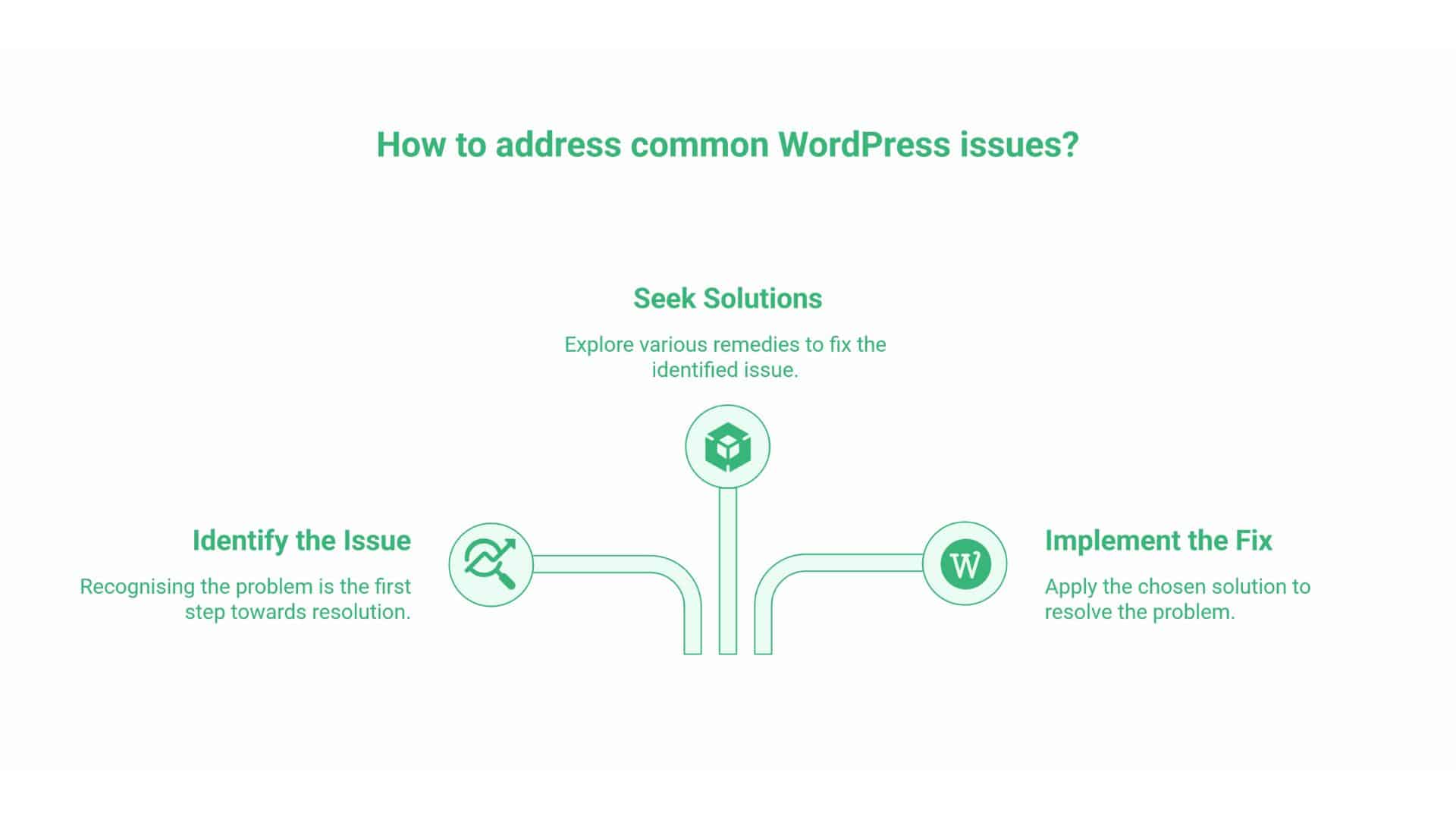
Even experienced WordPress users encounter occasional issues. Understanding common problems and their solutions prevents frustration and downtime.
Page Content Not Saving or Disappearing
If content fails to save or disappears after saving, several factors could be responsible.
Browser Compatibility: Try a different browser. Some browsers interact poorly with WordPress, particularly older versions. Chrome and Firefox typically offer the most reliable WordPress editing experiences.
Plugin Conflicts: Deactivate plugins individually to identify conflicts. Specific plugins – particularly caching, security, or optimisation tools – sometimes interfere with content saving. If deactivating a plugin resolves the issue, contact the plugin developer for support or seek alternatives.
Server Timeout Issues: Large pages or slow servers may timeout before completing save operations. Increase the PHP max execution time through your hosting control panel or by contacting your hosting provider. Alternatively, save smaller sections individually rather than massive pages at once.
Autosave and Revisions: WordPress automatically saves drafts at regular intervals. If content disappears, check the “Revisions” panel to restore a previous version. You can access revisions through the page editor’s right sidebar.
Block Editor Not Loading or Performing Sluggishly
Block editor performance issues frustrate many users, particularly on older computers or when editing complex pages.
Classic Editor Plugin: If the block editor proves persistently problematic, install the Classic Editor plugin to revert to WordPress’s previous editing interface. Whilst less feature-rich, the classic editor consumes fewer resources and often performs better on older systems.
Disable Unnecessary Blocks: Plugins often register custom blocks you may never use. Plugins like EditorsKit or Disable Gutenberg Blocks enable the hiding of unused blocks, thereby reducing editor complexity and improving performance.
Clear Browser Cache: Cached editor files sometimes cause loading issues. Clear your browser’s cache and cookies, then try reaccessing the editor.
Increase WordPress Memory: Insufficient PHP memory allocation causes editor loading failures. Increase PHP memory limits through your wp-config.php file or by contacting your hosting provider.
Permalink and URL Issues
Broken permalinks generate 404 errors, preventing visitors from accessing your pages, despite their existing content.
Flush Permalinks: Often, simply resaving the permalink settings resolves the issue. Navigate to Settings > Permalinks and click “Save Changes” without making any modifications. This action regenerates rewrite rules, often fixing broken URLs.
Confirm .htaccess Permissions: WordPress writes permalink rules to your .htaccess file. Insufficient file permissions prevent updates. Verify .htaccess has appropriate write permissions (typically 644) and isn’t being overwritten by security plugins.
Check for Plugin Conflicts: Security or caching plugins sometimes interfere with permalink functionality. Deactivate plugins systematically to identify culprits.
Pages Not Appearing in Menus
Creating a page doesn’t automatically add it to navigation menus. You must manually add pages to menus through the menu editor.
Navigate to Appearance > Menus, select your menu, and add the page through the “Pages” panel on the left. If your page doesn’t appear in the page list, ensure it’s published, not drafted or private.
Some themes include custom menu locations. Verify you’re editing the correct menu for your desired location – primary navigation menus differ from footer menus or mobile-specific menus.
Conclusion: Building Pages That Drive Business Results
WordPress page creation extends far beyond simply adding content to your site. Strategic page development establishes your digital foundation, targeting high-value keywords, building credibility, and creating conversion pathways that drive business growth.
Start with solid fundamentals – understand the distinction between pages and posts, structure content hierarchically using proper heading tags, and optimise thoroughly for both search engines and human visitors. Implement strategic internal linking, compress images, and craft compelling calls-to-action that guide visitors toward desired actions.
Advanced techniques, such as page builder integration, schema markup, and purpose-driven design strategies, separate adequate pages from exceptional ones. Monitor performance continuously, testing variations and refining based on data rather than assumptions.
At ProfileTree, we’ve guided hundreds of clients through WordPress page optimisation, consistently achieving ranking improvements and conversion rate increases of 30-50% through systematic implementation of these strategies. Whether you’re building your first business website or refining an established presence, these principles provide the framework for pages that attract visitors, engage them effectively, and convert them into customers.
Begin implementing these strategies today. Audit your existing pages against this guide’s recommendations to identify optimisation opportunities. Create a prioritised improvement plan, addressing high-impact changes first. Your WordPress pages represent some of your most valuable digital real estate – invest the time to optimise them properly, and they’ll deliver returns for years to come.