
WordPress Hosting Migration Guide: Move Sites Without Downtime
Table of Contents
The dreaded email lands in your inbox at 4 PM on a Friday: “We’re discontinuing your hosting plan. You have 30 days to migrate.” Your heart sinks. Moving your WordPress site feels overwhelming—like performing surgery while blindfolded. One wrong step could destroy years of hard work, wipe out customer data, or crash your site during your busiest period.
WordPress hosting migration horror stories circulate through business communities like cautionary tales. The Manchester retailer that lost three months of sales data. The Leeds consultant whose email vanished for a week. The Birmingham charity whose Google rankings never recovered. These disasters happen when migrations go wrong—but they don’t have to.
Here’s the truth hosting companies hope you never discover: WordPress migration is remarkably straightforward when executed correctly. The complexity myth keeps you locked into subpar hosting, paying rising fees for declining service. This WordPress Hosting Migration Guide reveals professionals’ exact step-by-step process to move sites without downtime, prevent data loss, and often boost performance immediately.
Whether escaping unreliable hosting or seeking better performance, this guide ensures your migration succeeds flawlessly.
Why WordPress Migrations Fail (And How to Prevent Each Failure)
Understanding what goes wrong prevents it from happening to you. Let’s examine each failure point and its prevention.
The Rushing Disaster
Most migrations fail because businesses panic and rush. If your current host gives 30 days’ notice, you spend 25 days procrastinating, then attempt migration in a caffeine-fuelled weekend panic. This guarantees problems.
The Solution: The 14-Day Timeline
- Days 1-3: Research and choose new hosting
- Days 4-5: Set up new hosting environment
- Days 6-8: Clone site to new hosting
- Days 9-10: Test everything thoroughly
- Day 11: Execute DNS switch
- Days 12-14: Monitor and optimise
A Newcastle agency rushed its migration in one day. The result was two days offline and thousands in lost revenue. Following the 14-day timeline, their second migration was flawless.
The Backup Catastrophe
“I thought the hosting company had backups.” Famous last words before losing everything. Many discover during migration that their backups are corrupted, incomplete, or non-existent.
The Triple Backup Strategy:
- Local backup: Complete copy on your computer
- Cloud backup: Stored in Dropbox/Google Drive
- New host backup: Immediately after migration
A Wolverhampton manufacturer discovered that their “daily backups” only included databases, not files. Their 10,000 product images? Gone. A triple backup strategy would have prevented this disaster.
The DNS Propagation Nightmare
DNS (Domain Name System) tells the Internet where your website lives. Change it wrong, and visitors get lost for days. The classic mistake is changing DNS on Friday evening and then wondering why Monday is chaos.
The DNS Management Protocol:
- Reduce TTL to 300 seconds (5 minutes) one week before
- Change DNS during the lowest traffic period
- Keep both hostings active for 48 hours
- Monitor both servers during propagation
- Only cancel old hosting after complete propagation
A Cardiff restaurant changed its DNS during lunch service. Half their customers reached the old site, half the new. Online orders went to different systems, causing chaos. Proper DNS management prevents this.
The Email Extinction Event
“Where are my emails?” The horrifying realisation that migration broke email often comes on Monday morning when important messages vanish. Email is always migration’s forgotten casualty.
The Email Preservation Process:
- Document all email accounts and passwords
- Export email archives before migration
- Recreate accounts on the new hosting immediately
- Update email clients with new settings
- Test send/receive from every account
- Keep the old hosting active until the email is confirmed to be working
A Sheffield law firm lost a week of client emails during migration. Legal deadlines missed, clients furious, reputation damaged. The email preservation process prevents this entirely.
The Complete WordPress Migration Process
Here’s the exact process professionals use for zero-downtime migrations.
Phase 1: Pre-Migration Preparation (Days 1-5)
Day 1: The Complete Audit
Document everything about your current setup:
- Hosting account details
- Domain registrar information
- WordPress version
- All plugins and versions
- Theme and customisations
- Database size
- Total file size
- Email accounts
- FTP/SSH credentials
- SSL certificate details
- Any custom configurations
Create a spreadsheet. A Liverpool agency’s migration failed because they forgot a critical custom redirect rule. Documentation prevents forgotten details from destroying migrations.
Day 2: Choose Your New Hosting
Selection criteria:
- Migration assistance offered?
- WordPress-specific optimisation?
- UK/EU data centres?
- Staging environment included?
- Quality of support?
- Growth capacity?
Contact support with technical questions before purchasing. Their response reveals what post-migration support will be like.
Day 3: Performance Benchmarking
Record current performance metrics:
- Page load speeds (GTmetrix/Pingdom)
- Server response times
- Core Web Vitals scores
- Current traffic levels
- Conversion rates
- Search rankings for key terms
You can’t prove improvement without baseline measurements. A Bristol retailer discovered their “successful” migration slowed their site by 40%. They had no benchmarks to confirm the problem.
Day 4: Create Complete Backups
The Triple Backup Strategy in action:
- WordPress backup plugin (UpdraftPlus/BackWPup)
- Manual backup via the hosting panel
- Database export via phpMyAdmin
- Complete FTP download of all files
Store backups in multiple locations. Cloud storage is cheap; data recovery is expensive.
Day 5: Set Up New Hosting Environment
- Purchase new hosting
- Create a WordPress installation
- Configure the PHP version to match the current
- Set up a staging environment if available
- Install the SSL certificate
- Create email accounts
Don’t point your domain yet—we’re just preparing the destination.
Phase 2: Migration Execution (Days 6-10)
Day 6: Clone Your Website
Method 1: Migration Plugin
- Install plugin (Duplicator/All-in-One Migration)
- Create a package on the old hosting
- Upload to the new hosting
- Run the installer script
- Verify completion
Method 2: Manual Migration
- Export database from old hosting
- Download all WordPress files
- Upload files to the new hosting
- Import database
- Update wp-config.php
- Update URLs in the database
Method 3: Professional Service
- Most quality hosts offer free migration
- They handle everything
- Usually complete within 24 hours
- Lower risk of errors
A Nottingham business tried manual migration to save £50. After 20 hours of troubleshooting, they paid £500 for emergency developer help. Use free migration services when offered.
Day 7: Update Configuration
Critical configurations to verify:
- Database connection working
- File permissions correct (folders: 755, files: 644)
- .htaccess rules transferred
- PHP settings matched
- Caching configured
- CDN settings updated
- Security rules applied
Day 8: Testing Everything
The comprehensive testing checklist:
Functionality Tests:
- [ ] Homepage loads correctly
- [ ] All pages accessible
- [ ] Images display properly
- [ ] Forms submit successfully
- [ ] Shopping cart works (if applicable)
- [ ] Payment processing functions
- [ ] Search works correctly
- [ ] Comments functioning
- [ ] Social media integrations active
- [ ] Downloads working
Performance Tests:
- [ ] Speed improved or maintained
- [ ] Mobile experience is smooth
- [ ] No broken links
- [ ] No 404 errors
- [ ] Database queries optimised
- [ ] Caching functioning
Email Tests:
- [ ] Send test from each account
- [ ] Receive external emails
- [ ] Contact forms deliver
- [ ] Automated emails working
- [ ] No spam folder issues
A Manchester dentist skipped testing. Their appointment booking form broke during migration. Three days of lost bookings before they noticed.
Day 9: Content Freeze
Stop making changes to the old site. Any content added now won’t appear on the new site. Inform all users:
- No new posts
- No plugin updates
- No order processing (if possible)
- No configuration changes
Day 10: Final Synchronisation
If content was added during testing:
- Export recent database entries
- Copy new media files
- Sync any changes
- Retest critical functions
Phase 3: DNS Switch (Day 11)
The Go-Live Process
Morning (6 AM):
- Final backup of both sites
- Verify the new site is perfect
- Note current DNS settings
- Update DNS records:
- Change an A record to a new IP
- Or update nameservers
- Clear your DNS cache
- Begin monitoring
Throughout the Day:
- Check the site from multiple locations
- Monitor both old and new servers
- Test forms and functions regularly
- Watch error logs
- Check email delivery
- Monitor traffic flow
Common DNS Configurations:
Option 1: A Record Change (Faster)
- Keep current nameservers
- Only change the A record to the new IP
- Propagation usually takes 1-4 hours
- More control over timing
Option 2: Nameserver Change (Simpler)
- Change to the new host’s nameservers
- They control all DNS
- Propagation usually takes 24-48 hours
- Less technical knowledge required
Phase 4: Post-Migration Optimisation (Days 12-14)
Day 12: Performance Tuning
Now optimise for the new environment:
- Enable caching plugins
- Configure CDN
- Optimise database
- Compress images
- Minify CSS/JavaScript
- Enable Gzip compression
A Glasgow retailer’s site was 50% faster after migration, but optimisation made it 200% faster. Don’t skip this step.
Day 13: SEO Verification
Protect your search rankings:
- Submit the new sitemap to Google
- Check robots.txt is correct
- Verify meta tags preserved
- Confirm redirects working
- Monitor Search Console for errors
- Check internal links
- Verify schema markup
Day 14: Final Cleanup
- Document new settings
- Cancel old hosting (after confirming everything works)
- Update monitoring tools
- Inform stakeholders
- Create a new backup schedule
- Document lessons learned
The WordPress Migration Toolkit
Essential tools for successful migration.
Backup Tools
UpdraftPlus (Free/Premium)
- Automatic backups to cloud storage
- Easy restoration
- Selective restoration options
- Migration features in premium
BackWPup (Free/Premium)
- Complete backup solution
- Multiple storage destinations
- Database optimisation included
- Scheduled backups
WP-CLI (Free, Technical)
- Command-line backup
- Fastest for large sites
- Requires SSH access
- Maximum control
Migration Plugins
Duplicator (Free/Premium)
- Creates complete packages
- Handles large sites
- Built-in installer
- Database migration included
All-in-One WP Migration (Free/Premium)
- Simplest interface
- No technical knowledge required
- Limited to 512MB in the free version
- Excellent for smaller sites
WP Migrate DB (Free/Premium)
- Database-focused migration
- Find and replace functionality
- Handles serialised data
- Perfect for development workflows
Testing Tools
Better Search Replace
- Update URLs in the database
- Preview changes before applying
- Handles serialised data
- Essential for URL changes
Broken Link Checker
- Finds broken internal links
- Identifies missing images
- Post-migration cleanup
- Automated monitoring
Query Monitor
- Identifies database issues
- Shows slow queries
- Debugging tool
- Performance analysis
Performance Testing
GTmetrix
- Detailed performance analysis
- Before/after comparisons
- Waterfall charts
- Improvement recommendations
Pingdom
- Multiple test locations
- Response time monitoring
- Uptime tracking
- Historical data
Google PageSpeed Insights
- Core Web Vitals scores
- Mobile/desktop analysis
- SEO impact assessment
- Specific recommendations
Common Migration Problems and Solutions
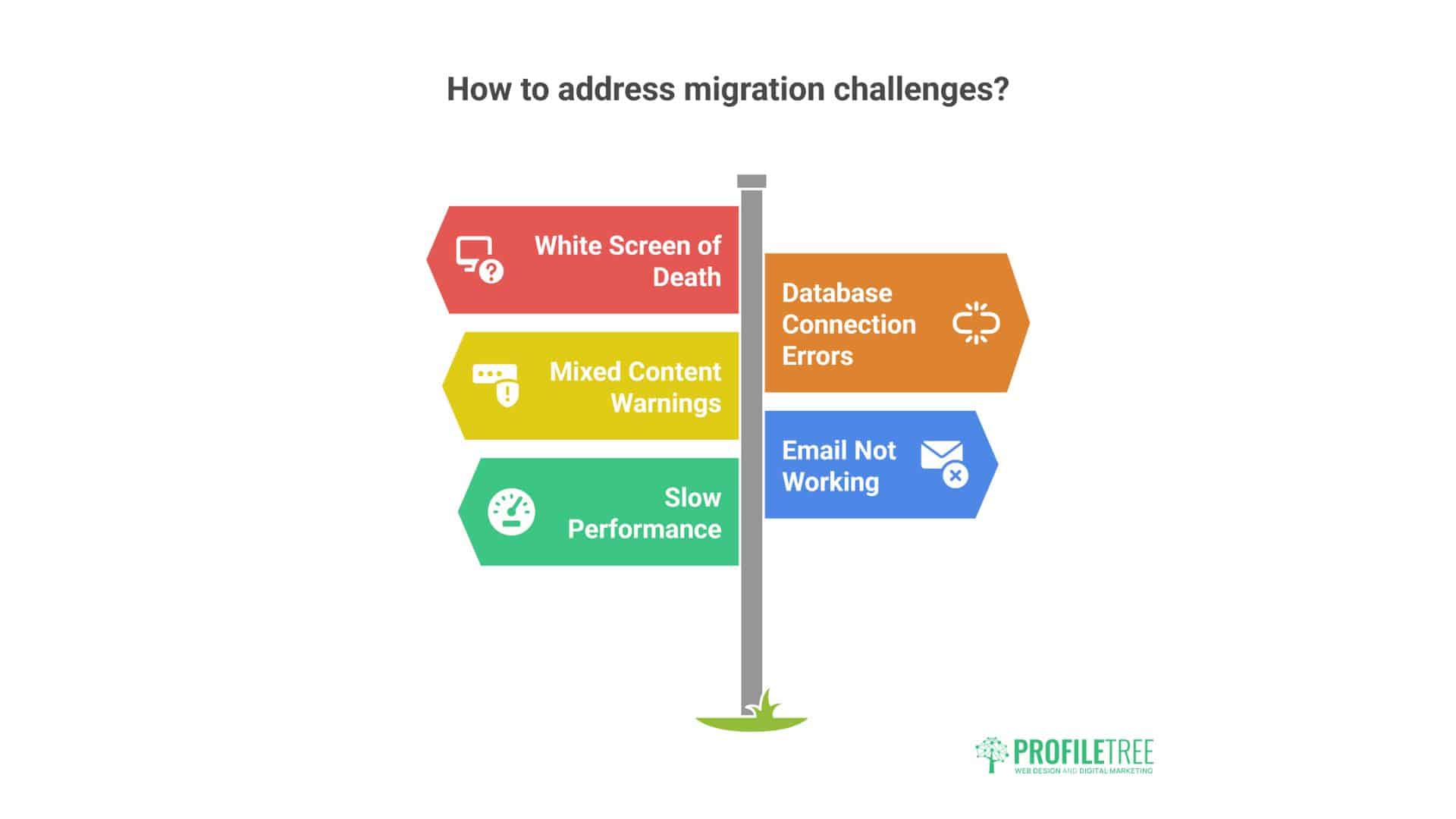
Even careful migrations encounter issues. Here’s how to solve them.
Problem: White Screen of Death
Symptoms: Blank white page, no error messages
Causes:
- PHP version mismatch
- Memory limit exceeded
- Plugin conflicts
- Theme incompatibility
Solutions:
- Enable debug mode in wp-config.php
- Check error logs
- Increase PHP memory limit
- Deactivate all plugins via FTP
- Switch to the default theme
- Reactivate items individually
A Birmingham blogger’s site went white-screened after migration. The cause? PHP 8.0 incompatibility with an old plugin. Downgrading PHP temporarily fixed it.
Problem: Database Connection Errors
Symptoms: “Error establishing database connection”
Causes:
- Wrong database credentials
- Database not imported
- Different database prefix
- Character encoding issues
Solutions:
- Verify wp-config.php credentials
- Test the database connection manually
- Check the database exists
- Verify user permissions
- Check character encoding matches
Problem: Mixed Content Warnings
Symptoms: Security warnings, broken padlock icon
Causes:
- HTTP links in an HTTPS site
- Hardcoded image URLs
- External resources using HTTP
- Incomplete SSL configuration
Solutions:
- Use the Better Search Replace plugin
- Update all HTTP to HTTPS in the database
- Check theme files for hardcoded URLs
- Update .htaccess redirect rules
- Clear all caches
Problem: Email Not Working
Symptoms: Contact forms fail, no email delivery
Causes:
- Email accounts not recreated
- Wrong SMTP settings
- SPF/DKIM not updated
- IP not warmed up
Solutions:
- Verify email accounts exist
- Update email client settings
- Use the SMTP plugin for reliability
- Update DNS email records
- Test with multiple recipients
Problem: Slow Performance After Migration
Symptoms: Site is slower on the new hosting
Causes:
- Caching not configured
- Database not optimised
- PHP settings are not optimal
- CDN not configured
- Resource limits
Solutions:
- Enable the caching plugin
- Optimise database tables
- Configure PHP OpCache
- Set up CDN
- Check resource usage
A Liverpool shop’s site was slower after moving to “faster” hosting. The cause? No caching configured. Enabling caching made it 300% faster than the original.
Special Migration Scenarios
Some migrations require special handling.
E-commerce Migration
Additional Considerations:
- Schedule during the lowest sales period
- Notify customers in advance
- Ensure payment gateway continuity
- Preserve order history
- Maintain customer accounts
- Test checkout thoroughly
Critical Steps:
- Export all orders before migration
- Disable new orders during the switch
- Verify payment processing
- Test customer login
- Confirm order emails are working
- Check inventory sync
High-Traffic Site Migration
Strategy: Rolling Migration
- Set up new hosting
- Sync content regularly
- Use a load balancer
- Gradually shift traffic
- Monitor both servers
- Complete switch when stable
A Manchester news site with 100,000 daily visitors used rolling migration. Zero downtime, seamless transition.
Multi-Site Network Migration
WordPress Multisite Challenges:
- Complex database structure
- Shared user tables
- Network-wide plugins
- Domain mapping
- Larger databases
Approach:
- Migrate the network admin first
- Test with one sub-site
- Migrate remaining sites
- Verify network functions
- Update domain mapping
Membership Site Migration
Preserve:
- User accounts
- Passwords
- Subscription status
- Access levels
- Payment history
- Content restrictions
Never migrate membership sites during renewal periods.
The Cost of Migration (And the Cost of Not Migrating)
Let’s calculate real migration costs versus staying put.
DIY Migration Costs
Direct Costs:
- Your time: 20-40 hours
- Potential downtime: £100-5,000
- Tools/plugins: £0-100
- Emergency support: £0-500
Indirect Costs:
- Stress and anxiety: Significant
- Learning curve: 10-20 hours
- Opportunity cost: What you didn’t do instead
- Risk of errors: High
Total: £500-5,000 plus your time
Professional Migration Costs
Direct Costs:
- Professional service: £100-500
- Or free with many hosts
- Downtime: Usually zero
- Tools: Included
Indirect Costs:
- Your time: 2-4 hours of oversight
- Stress: Minimal
- Risk: Low
Total: £0-500
The Cost of NOT Migrating
Staying with poor hosting costs:
- Lost sales from slow speed
- Customer frustration
- Poor search rankings
- Security vulnerabilities
- Overpaying for poor service
- Competitive disadvantage
A Coventry retailer delayed migration for a year, fearing the process. They calculated that staying cost them £18,000 in lost sales due to poor performance.
Migration Success Stories
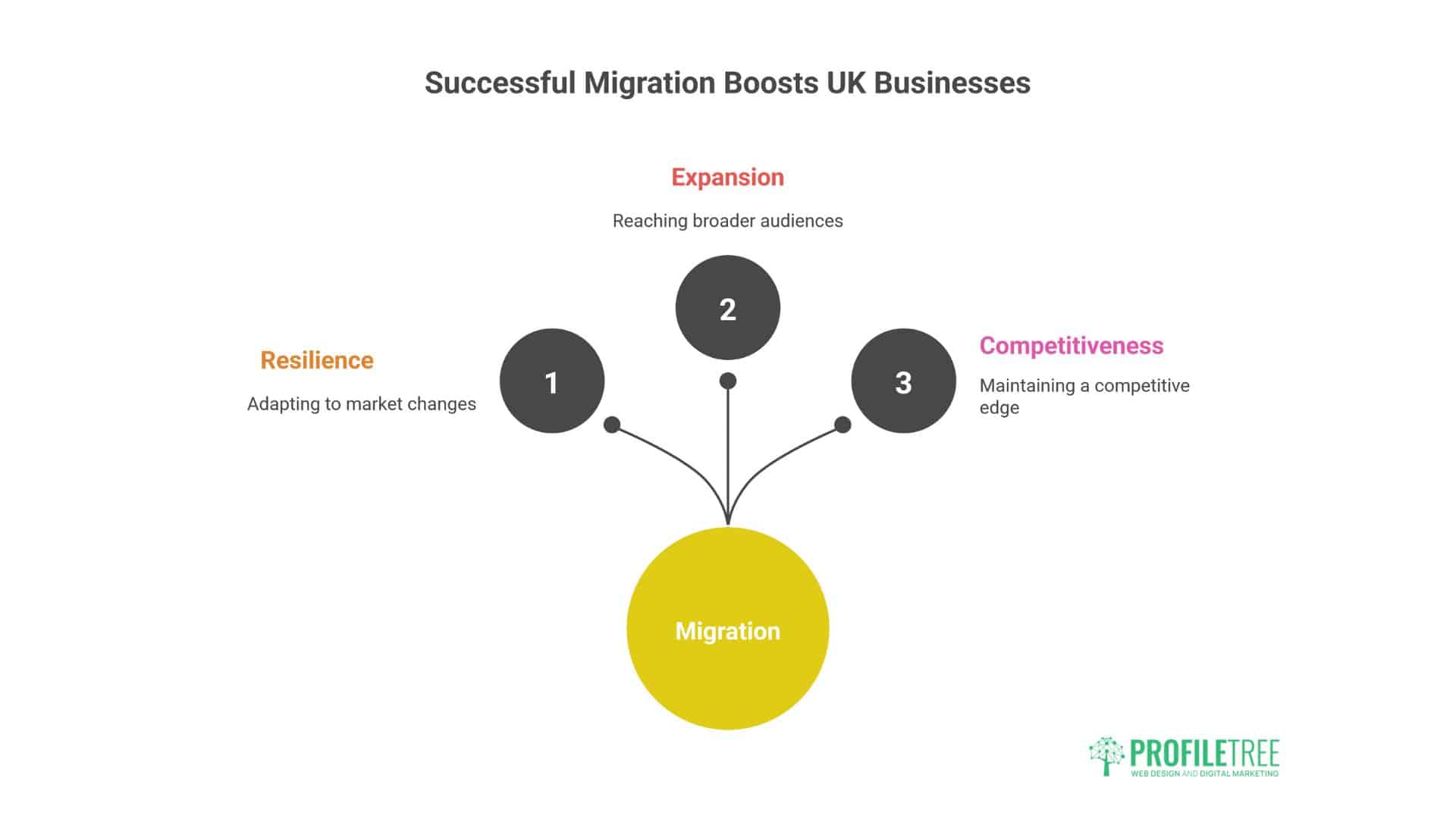
Real UK businesses that migrated successfully.
The Tourism Business
Challenge: Peak season approaching, current hosting can’t handle the traffic
Migration Strategy:
- Migrated in February (quiet period)
- Tested with simulated traffic
- Optimised for mobile visitors
- Prepared auto-scaling
Result:
- 400% traffic increase handled smoothly
- Page load improved from 6s to 1.5s
- Bookings increased 60%
- Zero downtime during migration
The Growing Startup
Challenge: Outgrew shared hosting, frequent crashes
Migration Strategy:
- Moved to managed WordPress hosting
- Implemented staging environment
- Added CDN
- Improved security
Result:
- 99.99% uptime achieved
- Development speed increased
- Customer complaints eliminated
- Growth no longer constrained
The Agency Consolidation
Challenge: 50 client sites across 12 hosting providers
Migration Strategy:
- Phased migration over 6 weeks
- Moved 2-3 sites daily
- Automated monitoring setup
- Standardised configurations
Result:
- Management time reduced by 80%
- Hosting costs reduced by 40%
- Performance improved across all sites
- Client satisfaction increased
Your Migration Action Plan
Ready to migrate? Follow this systematic approach.
Week Before Migration
- [ ] Choose new hosting
- [ ] Benchmark current performance
- [ ] Complete full backup
- [ ] Document everything
- [ ] Reduce DNS TTL
- [ ] Inform stakeholders
- [ ] Clear calendar for migration day
Migration Day
- [ ] Final backup
- [ ] Clone to new hosting
- [ ] Test thoroughly
- [ ] Update DNS
- [ ] Monitor both servers
- [ ] Test continuously
- [ ] Document issues
Week After Migration
- [ ] Optimise performance
- [ ] Submit sitemaps
- [ ] Monitor rankings
- [ ] Check all functions
- [ ] Gather feedback
- [ ] Cancel old hosting
- [ ] Celebrate success
Why Choose ProfileTree for Migration
Our managed WordPress hosting includes free professional migration because we know it’s the most significant barrier to better hosting. Our team has migrated hundreds of WordPress sites with:
- Zero downtime track record
- Complete data preservation
- Performance improvements guaranteed
- Email continuity maintained
- SEO rankings protected
Combined with our development expertise and SEO knowledge, we ensure your migration improves everything, risks nothing.
The Bottom Line: WordPress Hosting Migration
WordPress migration isn’t rocket science—it’s a systematic process that works when followed properly. However, the fear of migration keeps businesses trapped with terrible hosting, paying more for worse service while competitors race ahead.
Most migration horror stories result from rushing, poor planning, or choosing the wrong destination. However, following this guide’s systematic approach can make migration a controlled process with predictable positive outcomes.
Don’t let migration fear keep you with hosting that constrains your business. The temporary complexity of migration delivers permanent benefits: better performance, improved reliability, reduced costs, and eliminated stress.
Your WordPress site can be migrated professionally with zero downtime. Your business deserves hosting that supports growth, and your stress levels deserve infrastructure that just works.
Contact ProfileTree today for a free migration consultation. Whether you do it yourself or use our free migration service, we’ll ensure you move to hosting that transforms your WordPress site from a burden to a business asset.
UK businesses shouldn’t stay trapped with terrible hosting just because migration seems scary. It’s not scary—it’s systematic. Let’s get you moved to better hosting today.