
WordPress Plugins: The SME Owner’s Guide to a Lean, Effective Stack
Table of Contents
Choosing the right WordPress plugins is one of the most consequential decisions a business website owner makes, and most people get it wrong. Not because they choose bad plugins, but because they choose too many, or choose them without a clear business reason.
The WordPress plugin repository holds over 60,000 plugins. That number isn’t helpful; it’s paralysing. This guide cuts through it with a practical framework built for SME owners in the UK and Ireland: which WordPress plugins to install, why each one earns its place, and how to audit the ones already on your site that are doing more harm than good.
The goal isn’t the longest plugin list. It’s the right one.
Why Your Plugin Choices Are a Business Decision
Every WordPress plugin you install adds code that runs on every page load. Some add a few milliseconds. Others add several seconds. At the business level, that difference is measurable: Google’s own research has shown that conversion rates drop as page load time increases, and Core Web Vitals scores are now a confirmed ranking factor.
The framing that matters isn’t “what does this plugin do?” It’s “does this plugin deliver a business outcome that justifies its performance cost?”
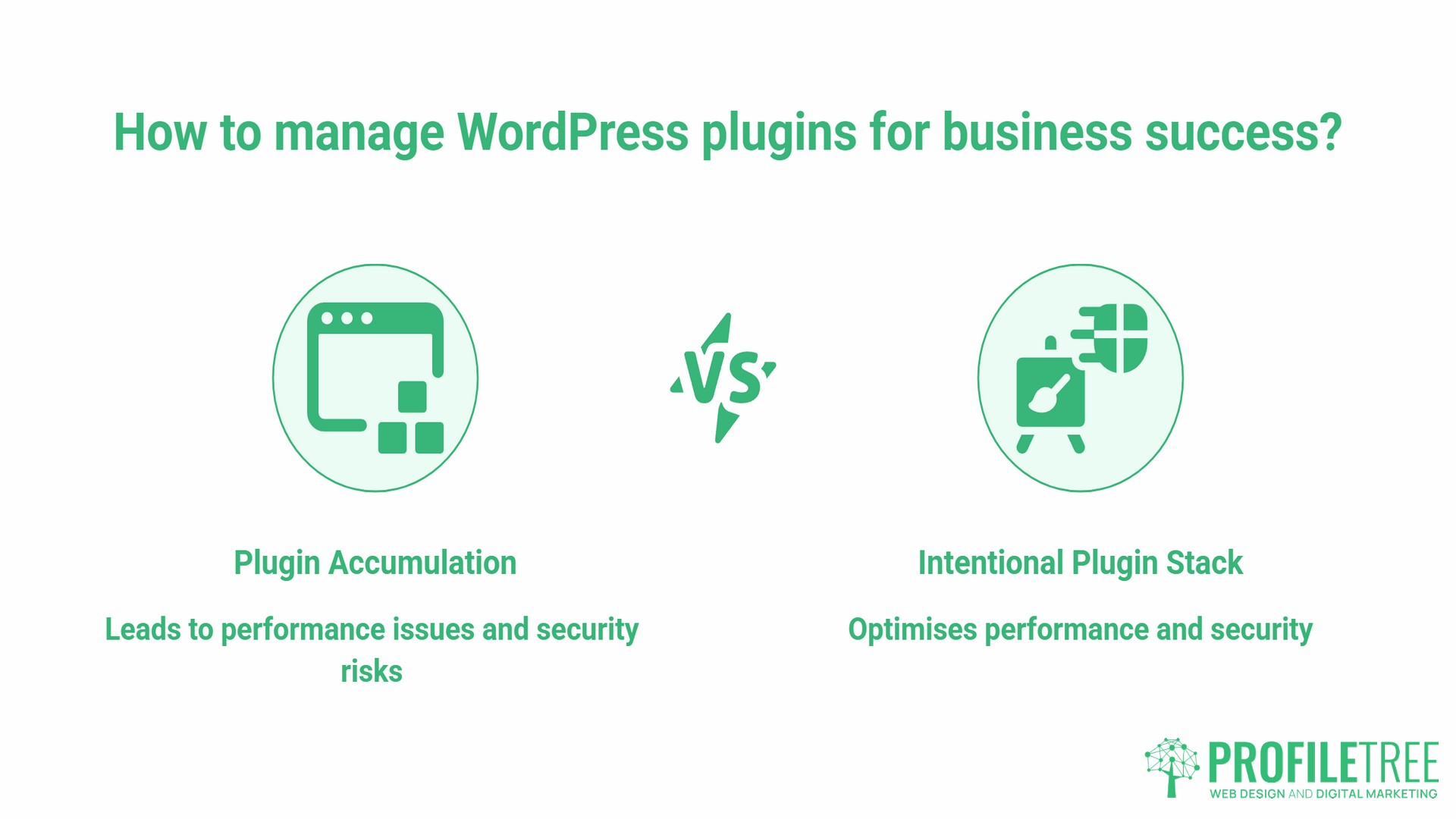
That’s the lens ProfileTree, a Belfast-based web design and digital marketing agency, applies when building and auditing WordPress sites for clients across Northern Ireland, Ireland, and the UK. The plugin stack on a site should be intentional, not accumulated.
“The most common issue we see when auditing client WordPress sites isn’t missing plugins, it’s the ones that were installed once and never removed,” says Ciaran Connolly, founder of ProfileTree. “Each one is a liability until you can name the specific business reason it’s there.”
Before installing anything new, check your existing plugins. Deactivate anything you cannot name a clear purpose for. Then delete it. Unused, inactive plugins remain a security risk if left unpatched.
The Performance Foundation: Speed, SEO, and Core Web Vitals
These are the WordPress plugins that affect how search engines see your site and how quickly it loads for your visitors. Get this layer wrong, and no amount of content or marketing investment will fully compensate.
SEO Visibility: Rank Math vs Yoast SEO
Both Rank Math and Yoast SEO are solid choices for on-page SEO management. For most SME sites, the practical difference comes down to two things: interface preference and server efficiency.
Rank Math is lighter on server resources and includes schema markup, redirection management, and keyword tracking in the free version. Yoast SEO has a longer track record and a larger support community, which matters when you’re troubleshooting at 11 pm before a product launch.
For a new WordPress build, Rank Math is the stronger starting point. For an established site already running Yoast, switching mid-flight isn’t worth the migration risk unless there’s a specific feature gap.
Both plugins handle the fundamentals: XML sitemap generation, management of meta titles and descriptions, breadcrumb markup, and control of the canonical tag. These technical signals help Google understand what each page is about and how your site is structured. Without them configured correctly, your content is working at a disadvantage regardless of how well it’s written.
ProfileTree’s SEO services for UK businesses cover these technical foundations as part of every site audit.
Site Speed: WP Rocket and LiteSpeed Cache
Page speed is not optional. Google’s Core Web Vitals, Largest Contentful Paint, Interaction to Next Paint, and Cumulative Layout Shift are ranking signals, and both WP Rocket and LiteSpeed Cache address them directly.
WP Rocket is a premium caching plugin that requires no technical knowledge to configure. It handles page caching, browser caching, GZIP compression, image lazy loading, and JavaScript deferral from a single dashboard. For most SME owners managing their own WordPress site, it’s the most straightforward route to a passing Core Web Vitals score.
LiteSpeed Cache is free and performs well on servers running LiteSpeed (a growing number of managed hosting providers use it). If your host supports it, it’s worth testing before paying for WP Rocket.
One important note: do not run two caching plugins simultaneously. They conflict. Pick one, configure it, and leave it alone unless a developer advises otherwise.
Plugin stack comparison by business stage:
| Business Stage | SEO Plugin | Speed Plugin | Annual Cost (GBP, approx.) |
|---|---|---|---|
| Starter (launch) | Rank Math Free | WP Rocket | £49 |
| Growth (scaling content) | Rank Math Pro | WP Rocket | £109 |
| E-commerce | Rank Math Pro | WP Rocket + ShortPixel | £180–£220 |
Image Optimisation: ShortPixel or Smush
Unoptimised images are the single most common cause of slow WordPress sites. A hero image uploaded at 4MB does not belong on a web page. Either ShortPixel or Smush will automatically compress images on upload, converting them to WebP format where supported and reducing file sizes by 60–80% without visible quality loss.
ShortPixel offers a pay-as-you-go credit model suited to sites with steady but not huge image volumes. Smush’s free tier is sufficient for most small business sites. Both integrate with the WordPress media library and process existing images in bulk on first install.
Security and UK-GDPR Compliance
This is the section most plugin listicles handle superficially. For UK and Irish businesses, it’s where the stakes are highest.
Wordfence vs Sucuri: Threat Protection
Wordfence Security is the most widely used WordPress security plugin, and for good reason. Its free version includes a web application firewall, a malware scanner, login security (brute-force protection, two-factor authentication), and real-time traffic monitoring. The premium version adds real-time threat intelligence with firewall rules updated as new threats emerge, rather than 30 days after the fact.
Sucuri operates as a cloud-based web application firewall, filtering traffic before it reaches your server. For high-traffic sites or e-commerce stores processing payments, this architecture provides better protection against DDoS attacks. It is more expensive and requires DNS-level configuration, which typically means involving a developer.
For most SME WordPress sites, Wordfence Free is sufficient. For any site handling customer payments or sensitive personal data, upgrading to Wordfence Premium or moving to Sucuri is a reasonable business decision.
Backups: UpdraftPlus
Your hosting provider almost certainly offers backups. Do not rely on them as your only copy.
Hosting-level backups are stored on the same infrastructure as your site. If the server has a catastrophic failure, both your site and the backup can be affected simultaneously. UpdraftPlus solves this by storing backups off-site: to Google Drive, Dropbox, Amazon S3, or several other destinations.
Configure UpdraftPlus to run daily backups, retain at least 30 days of history, and store them to a location entirely separate from your host. The free version handles this adequately for most sites. The Premium version adds incremental backups (faster and smaller) and multisite support.
One restorable off-site backup is worth more than ten backups on the same server.
UK-GDPR and Cookie Consent: Complianz or CookieYes
This is the gap that almost every generic WordPress plugin list ignores. Generic “accept cookies” banners do not meet UK-GDPR or EU GDPR requirements. The ICO (Information Commissioner’s Office) requires that consent be:
- Freely given, specific, informed, and unambiguous
- As easy to withdraw as to give
- Logged with a timestamp and a record of what was consented to
Both Complianz and CookieYes are purpose-built for this. They scan your site for tracking cookies, generate a compliant consent banner, and maintain a consent log. CookieYes has a usable free tier. Complianz’s paid version includes more granular control over geo-targeting (showing different banners to UK vs EU vs US visitors) and better documentation for ICO compliance evidence.
A standard “we use cookies, click OK” banner is not compliant. If your business operates in the UK or Ireland and collects any personal data through your website, this plugin category is not optional.
ProfileTree’s guide to GDPR-compliant web forms covers data collection in more detail.
Converting Visitors: Lead Generation and Sales Plugins
A fast, secure WordPress site that nobody converts on is a wasted asset. These plugins handle the commercial layer.
Contact Forms: WPForms vs Gravity Forms
WPForms is the right choice for most SME sites. Its drag-and-drop builder, conditional logic, and spam protection work well out of the box, and the free version handles basic enquiry forms adequately. The Pro tier adds payment integrations, multi-page forms, and CRM connections.
Gravity Forms is more powerful and better suited to complex workflows, such as multi-step applications, conditional pricing calculators, or forms that trigger automated processes. It requires a paid licence but offers capabilities that go well beyond standard contact forms. For a service business with a detailed enquiry process, the investment is often justified.
The choice comes down to complexity. Start with WPForms. If you find yourself hitting its ceiling within six months, upgrade to Gravity Forms.
CRM and Email Integration: Mailchimp for WordPress
Connecting your WordPress forms to a CRM or email marketing platform is where lead capture becomes lead nurturing. The Mailchimp for WordPress plugin (MC4WP) is the most reliable integration for connecting form submissions to Mailchimp lists. It works with most major form plugins and supports double opt-in, which is required for UK-GDPR-compliant email marketing.
For businesses using HubSpot, the official HubSpot WordPress plugin installs a tracking pixel, syncs form submissions to the HubSpot CRM, and adds live chat functionality. It’s free at the base level and represents a meaningful step up in lead management capability without additional development work.
WooCommerce for Online Sales
WooCommerce is the standard choice for adding e-commerce functionality to a WordPress site. It handles product listings, inventory, checkout, and order management, and supports payment gateways including Stripe, PayPal, and Square.
For UK businesses, the key WooCommerce configuration decisions include:
- Payment gateway: Stripe is generally preferred for lower transaction fees and a cleaner checkout experience. PayPal remains important for customer trust, particularly for older demographics.
- Tax configuration: WooCommerce’s built-in tax settings handle UK VAT correctly when configured properly. The WooCommerce Tax plugin (powered by Automattic) automates rate calculation.
- Shipping: The Royal Mail Click & Drop integration is available as a third-party plugin and automates label generation for businesses shipping via Royal Mail.
WooCommerce adds significant database and server load compared to a standard WordPress site. If you’re launching an online store, discuss hosting requirements with your developer before going live. A shared hosting plan that works fine for a brochure site will often struggle under WooCommerce at any meaningful order volume.
ProfileTree’s web development services include WooCommerce build and configuration for SMEs across the UK and Ireland.
The Plugin Bloat Audit: How Many is Too Many?
This is the question most guides avoid answering directly.
The honest answer: plugin count matters far less than plugin quality and necessity. Five poorly coded or abandoned plugins will do more damage to your site’s performance and security than fifty well-maintained, purpose-built ones.
That said, the risk of accumulation is real. Most WordPress sites accumulate plugins gradually: one installed for a feature that was later handled differently, one installed to test something and never removed, one bundled with a theme and never needed. Over time, this creates a stack where nobody is quite sure what each plugin does or whether it’s still needed.
How to Audit Your Plugin Stack
- Step 1: Open your Plugins dashboard and read every plugin name. For each one, ask: what business function does this serve? If you cannot answer in one sentence, flag it for investigation.
- Step 2: Check the “Last Updated” date in the WordPress plugin repository for any plugin you’re uncertain about. A plugin that hasn’t been updated in more than 12 months is a potential security liability. One that hasn’t been updated in two years or more, and hasn’t been tested with recent WordPress versions, should be removed unless it’s serving a function that nothing else can replicate.
- Step 3: Install Query Monitor (free, developer-oriented) to identify which plugins are generating the most database queries or slowing down page load. This takes the guesswork out of performance diagnosis.
- Step 4: Deactivate, then delete. Inactive plugins are not neutral. They still appear in file system scans and can contain vulnerabilities. If you’re not using it, delete it.
A practical target for most SME WordPress sites: 15 to 25 active plugins covering clearly defined functions. Below 10 and you’re likely missing important functionality. Above 30, and you should be able to justify every single one with a specific business reason.
Technical Maintenance: Keeping Your Plugin Stack Safe
Installing plugins is the easy part. Maintaining them is where most SME site owners fall short.
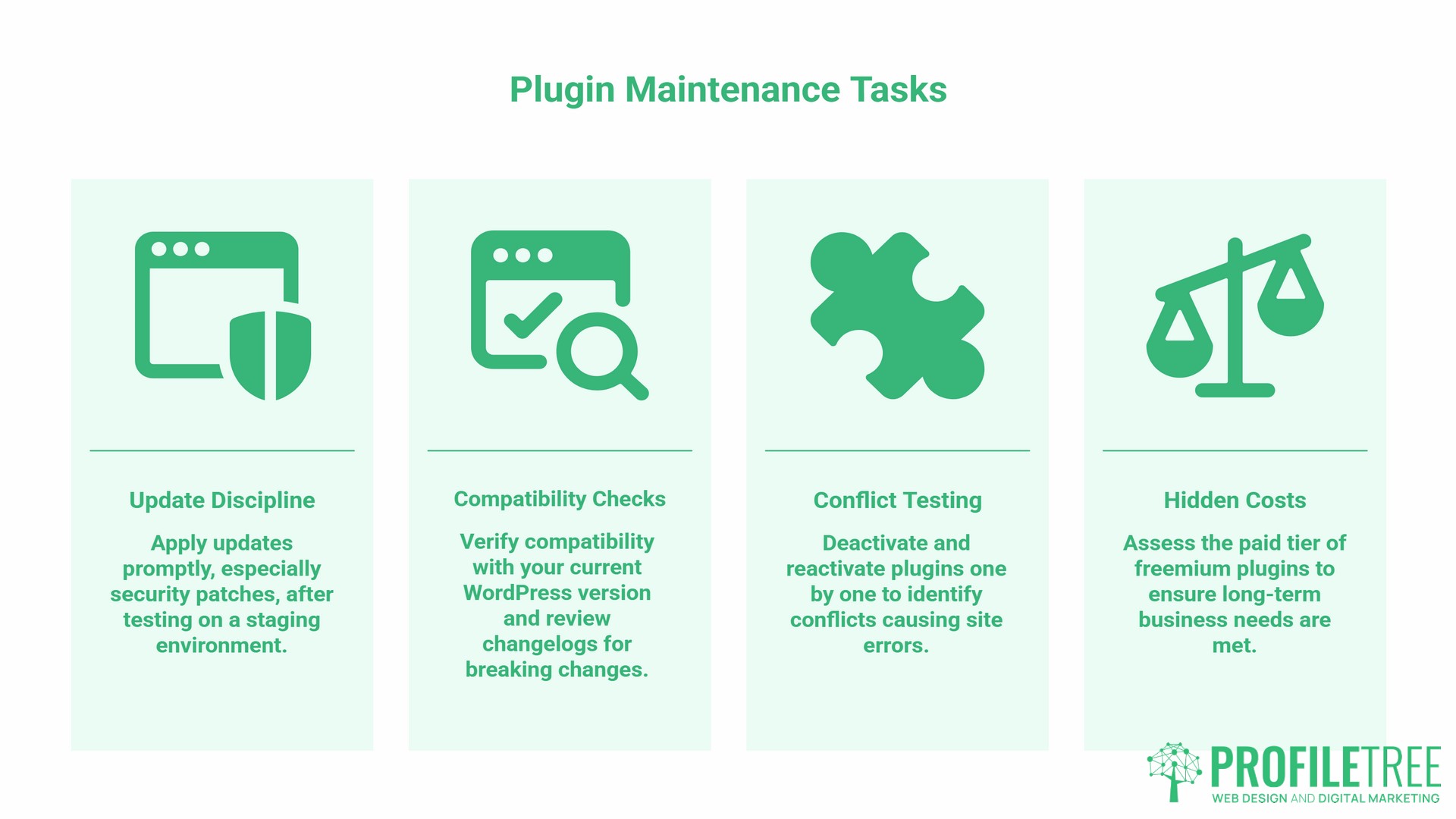
- Update discipline: Plugin updates should be applied promptly, particularly security-related patches. However, applying updates directly to a live site without testing is a risk. The safer process is to maintain a staging environment (most quality WordPress hosts provide one) and test updates there before pushing to production.
- Compatibility checks: Before updating a plugin, check whether the new version has been tested with your current WordPress version. The plugin repository displays this information. If a major plugin (WooCommerce, a page builder, or your SEO plugin) has a significant update pending, check the changelog for breaking changes before applying.
- Conflict testing: Plugin conflicts are a common cause of WordPress errors. When something breaks on your site, the fastest diagnostic is to deactivate all plugins and reactivate them one by one until the issue reappears. This identifies the conflicting plugin without guesswork.
- The hidden cost of “free” plugins: Many well-known free WordPress plugins are freemium products where the security updates, priority support, and essential features live behind the paid tier. Before committing to a free plugin for a business-critical function, check what the paid version offers and whether the free tier will genuinely meet your long-term needs.
ProfileTree’s digital training programmes cover WordPress site management for business owners who want to handle updates and maintenance confidently without relying on a developer for every change. Details are available on the digital training services page.
WordPress Plugin Stack: Quick Reference
| Function | Recommended Plugin | Free Tier Available | Priority Level |
|---|---|---|---|
| SEO management | Rank Math or Yoast SEO | Yes | Essential |
| Page speed/caching | WP Rocket or LiteSpeed Cache | LiteSpeed only | Essential |
| Image optimisation | ShortPixel or Smush | Yes | Essential |
| Security/firewall | Wordfence Security | Yes | Essential |
| Backups | UpdraftPlus | Yes | Essential |
| UK-GDPR consent | CookieYes or Complianz | Yes (limited) | Essential (UK/EU) |
| Contact forms | WPForms | Yes | High |
| Email/CRM integration | Mailchimp for WP or HubSpot | Yes | High |
| E-commerce | WooCommerce | Yes | If selling online |
| Audit/diagnostics | Query Monitor | Yes | Recommended |
Frequently Asked Questions
Can too many plugins slow down my WordPress site?
Yes, but plugin count is not the direct cause. The cause is poorly coded plugins, plugins that make excessive database queries, or multiple plugins duplicating the same function. Twenty well-chosen plugins from reputable developers will perform better than eight badly written ones. Audit quality and necessity, rather than aiming for a specific number.
Do I need to pay for the Pro version of WordPress plugins?
It depends on the plugin and the function. For security plugins, the paid tier often means real-time threat intelligence rather than 30-day-delayed updates, which is a meaningful difference. For SEO plugins, Rank Math’s free tier covers most SME needs. For consent management (UK-GDPR), the paid tiers of CookieYes and Complianz offer better compliance documentation. Evaluate each on its own merits rather than defaulting to free across the board.
Which plugin is best for UK-GDPR cookie consent?
Both CookieYes and Complianz are purpose-built for GDPR compliance and significantly more capable than generic “accept cookies” banners. CookieYes is easier to set up and has a usable free tier. Complianz gives more control over geo-targeting and consent logging, which matters if your site handles significant volumes of personal data or serves audiences across multiple jurisdictions.
How do I safely update WordPress plugins?
Use a staging environment if your host provides one. Apply the update to staging first, check that your site functions correctly, then apply it to production. For sites without staging access, take a full backup via UpdraftPlus immediately before applying updates, so you can restore within minutes if something breaks.
What should I do if a plugin breaks my WordPress site?
If you have access to the WordPress admin, go to Plugins and deactivate the most recently updated plugin. If admin access is broken, connect to your site via FTP or your host’s file manager, navigate to wp-content/plugins, and rename the suspect plugin’s folder. WordPress will automatically deactivate it. From there, restore from your most recent backup if needed.
Are free WordPress plugins a security risk?
Only if they have been abandoned by their developers. Check the “Last Updated” date in the WordPress plugin repository. Any plugin not updated in the past 12 months warrants scrutiny. Two years without an update, with no tested compatibility with recent WordPress versions, should be treated as a liability and replaced.