
WordPress Hosting Migration: UK Business Guide to a Risk-Free Move
Table of Contents
Moving your WordPress site to a new host is one of those jobs that sounds straightforward until something goes wrong. When it does go wrong, the consequences can be serious: lost search rankings, broken e-commerce orders, emails that vanish, and downtime that costs real money during your busiest trading period.
This WordPress hosting migration guide is written for UK and Irish businesses and SMEs who want to understand the full scope of a migration, decide whether to handle it themselves or work with a specialist, and get through the process without avoidable problems. Whether you are escaping an unreliable shared hosting plan or upgrading to managed WordPress infrastructure, the decisions you make before, during, and after the move determine the outcome.
Beyond the Technical: Why WordPress Migration is a Business Decision
Most guides treat WordPress hosting migration as a purely technical task. Connect to FTP, export the database, update wp-config.php, and change the DNS. That framing misses the point for a business owner.
Your WordPress site is not just a collection of files. It carries your SEO authority, customer data, order history, email infrastructure, and brand reputation. A migration that goes wrong does not just create a technical inconvenience; it can cause ranking drops that take months to recover from, data loss that cannot be reversed, and downtime during peak trading periods that directly affects revenue.
The right question before any WordPress hosting migration is not “how do I move the files?” It is “what does a responsible migration plan look like for a business of my size and complexity?”
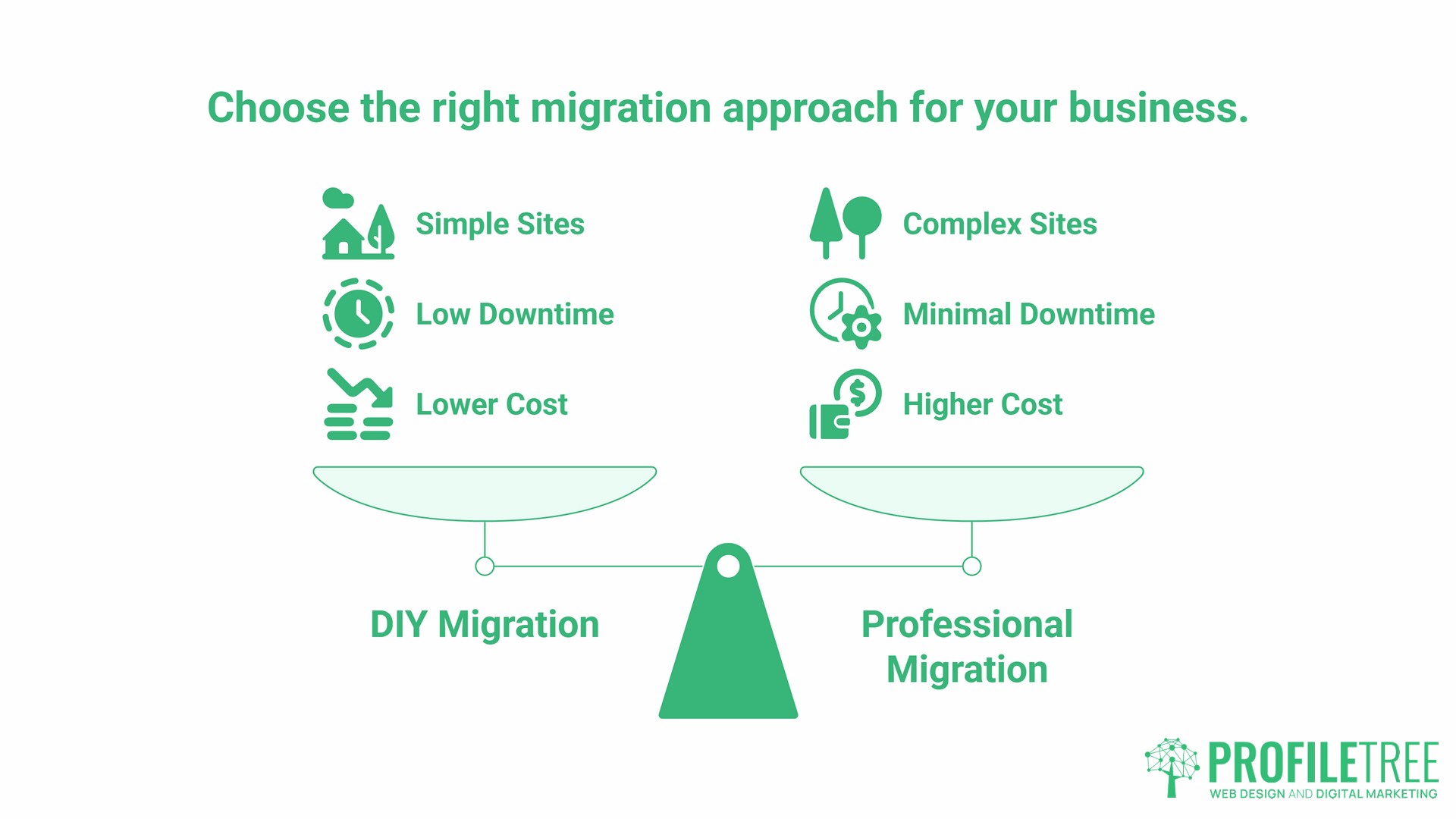
For a simple brochure site with no e-commerce, no complex plugin dependencies, and low traffic, a competent DIY migration using a modern migration plugin is a reasonable option. For a WooCommerce store, a membership platform, a multi-site network, or any site where downtime has a direct financial cost, working with a web development team from the planning stage is a sound investment. The cost of professional migration is almost always lower than the cost of emergency recovery after a migration goes wrong.
“The most common mistake we see is businesses treating migration as a one-day job they can squeeze in over the weekend,” says Ciaran Connolly, founder of ProfileTree. “A proper WordPress hosting migration needs pre-migration benchmarking, a staged testing environment, and a post-migration SEO check. Skipping any of those three steps is where the problems start.”
DIY vs. Agency-Managed Migration: Choosing the Right Approach
The choice between handling your own WordPress hosting migration and engaging a specialist is not solely about technical ability. It is about risk tolerance, site complexity, and the cost of your time.
When DIY Migration Is Appropriate
A plugin-based DIY migration is a reasonable choice when your site is a standard WordPress blog or brochure site with no transactional functionality, your total database and file size is under 2GB (which keeps you within the free tier of most migration plugins), you have access to both hosting environments and basic familiarity with WordPress admin, and you can afford a short testing period on a staging URL before switching DNS.
The most accessible tools for this approach are Duplicator and All-in-One WP Migration. Both create a complete package of your site files and database, which you then upload and install on the new host. Duplicator handles larger sites more reliably; All-in-One WP Migration has a simpler interface but a 512MB file size limit on its free version.
When Specialist Intervention Makes Business Sense
Certain site types consistently produce the most complex migration problems, and these are where agency support pays for itself quickly.
WooCommerce stores carry live order data, customer accounts, payment gateway configurations, and inventory records. A migration that loses even a short window of orders can be difficult to reconcile, and payment gateway re-verification after a server move sometimes requires direct contact with the gateway provider.
High-traffic sites, particularly those running news, media, or community platforms, need a rolling migration strategy rather than a single-point cutover. Moving the entire site at once during a busy period is not appropriate; a phased approach using load balancing or gradual DNS traffic shifting is required.
Membership sites carry subscription status, access levels, and user authentication data that must be preserved exactly. A membership migration during a billing renewal period creates immediate support problems.
Enterprise WordPress installations, including multi-site networks and heavily customised builds, have database structures and plugin interdependencies that require developer-level knowledge to migrate without breaking site functionality.
If your site falls into any of these categories, or if your site generates revenue that would be directly affected by even a few hours of downtime, the professional migration route is worth discussing with a web development specialist.
The 5-Phase Professional WordPress Hosting Migration Framework
Whether you are managing the migration yourself or working with a team, the same five-phase process applies. When you are doing it yourself, this framework gives you a structured approach. Where a developer is handling it for you, this is what the work should cover.
Phase 1: Pre-Migration Audit
Before any files move, the current environment needs to be fully documented and measured.
The documentation checklist covers: WordPress version, all active plugins and their versions, your theme and any customisations, database size, total file storage, email accounts and their configuration, FTP or SSH credentials, SSL certificate details, custom server rules in .htaccess, and any third-party integrations such as CRM connections, booking systems, or analytics platforms.
Alongside documentation, record your current performance baseline. Use GTmetrix or Google PageSpeed Insights to capture page load times and Core Web Vitals scores before migration. Record your current search rankings for the keywords that matter to your business. Note your current Google Search Console verification status. These baselines are your reference point for confirming that the migration went cleanly, and they are your evidence if something degrades.
The audit stage is also where PHP version compatibility is checked. A site running on PHP 7.4 on its current host may encounter plugin conflicts when moved to a host running PHP 8.1 or 8.2. Identifying this before the move prevents the white screen of death on day one of the new environment.
Phase 2: Staging Environment
The professional standard for WordPress hosting migration is to set up the new environment, run the site on a staging URL, and test thoroughly before making any DNS changes. This means the live site continues to serve visitors while the migration is built and verified in parallel.
Most quality managed WordPress hosts provide a staging environment as standard. If your new host does not offer this, you can access the new server via a temporary IP or a hosts file modification, which lets you view the migrated site through a browser without affecting DNS.
The staging phase is when the vast majority of migration problems surface and can be fixed without any impact on visitors. PHP conflicts appear here. Plugin incompatibilities show up here. Database URL mismatches are resolved here. Resolving these issues in a staging environment takes the same amount of time as resolving them on a live site, but without the downtime and reputational cost.
Phase 3: Data Transfer and Security Considerations
For most sites, a migration plugin handles the data transfer cleanly. The process involves creating a complete export package on the old host, uploading it to the new environment, and running the installer script. The plugin handles file transfer, database import, and the find-and-replace process that updates old domain URLs in the database.
For larger sites or those with complex database structures, a manual transfer gives more control. This involves exporting the database via phpMyAdmin, downloading all WordPress files via FTP or SSH, uploading files to the new environment, importing the database, and editing wp-config.php to reflect the new database credentials.
After transfer, the critical configuration checks are: database connection verified, file permissions set correctly (755 for folders, 644 for files), .htaccess rules confirmed as transferred, PHP settings matched between old and new environments, SSL certificate installed and active, and all hard-coded URLs updated.
Security deserves specific attention at this stage. Patchstack’s State of WordPress Security in 2026 report recorded 11,334 new vulnerabilities in the WordPress ecosystem during 2025, a 42% year-on-year increase, with 91% found in plugins rather than WordPress core. The weighted median time from vulnerability disclosure to first mass exploitation was five hours. This means that on a self-managed hosting environment, keeping plugins updated is a genuine ongoing security obligation, not an occasional housekeeping task. A managed hosting arrangement, handled by a development team, applies server-level protection rules automatically, including those for vulnerabilities that have not yet received a developer patch.
WooCommerce stores require one additional step: disable new order processing on the old site before the data transfer begins, and re-enable it only after the new environment has been verified and DNS has fully propagated. This prevents a split-order scenario where some orders land in the old database and others in the new.
Phase 4: The DNS Switch and Zero-Downtime Migration
DNS (Domain Name System) is what tells the internet where your website lives. Changing it incorrectly or at the wrong time is one of the most common causes of WordPress hosting migration problems.
A zero-downtime migration is achieved by running both environments simultaneously during the DNS transition period. The old site continues to serve traffic while the new site is live and verified on a staging URL. Once DNS is changed, visitors are gradually routed to the new server as the change propagates across global DNS networks. Both servers remain active until propagation is confirmed complete.
Two preparation steps make this work:
- First, reduce your DNS TTL (Time to Live) to 300 seconds (5 minutes) at least one week before your planned migration date. TTL controls how long DNS resolvers cache your records. A low TTL means the change propagates quickly when you make it, rather than taking 24 to 48 hours.
- Second, schedule the DNS switch during your lowest traffic period, typically between midnight and 6 AM on a weekday. Avoid Friday evenings, public holidays, and any period that coincides with known busy periods for your business.
For DNS configuration, you have two main options. Changing only the A record at your current nameservers points your domain to the new server IP while keeping your current nameserver setup intact; this typically propagates within 1 to 4 hours. Changing to the new host’s nameservers transfers all DNS control to the new host; this is simpler to manage but takes longer to propagate, typically 24 to 48 hours.
Keep your old hosting account active for at least 48 hours after DNS change. Do not cancel it until propagation is confirmed complete and all email accounts on the new server have been verified as working.
Enterprise or high-traffic migrations require a more sophisticated approach. A gradual traffic shift using a load balancer, or a rolling migration that moves sections of a site incrementally, keeps risk contained. If your site has substantial daily visitor numbers, the basic DNS cutover approach is not appropriate; discuss the options with your web development team before planning.
For businesses operating across both the Republic of Ireland and Northern Ireland, server location choices at this stage carry data compliance implications. Our dedicated guide to Irish WordPress hosting covers the GDPR and data residency considerations specific to that market, and our guide to WordPress hosting in Northern Ireland addresses the cross-border compliance picture for NI businesses serving both jurisdictions.
Phase 5: Post-Migration Quality Assurance
The migration is not complete when DNS propagates. It is complete when every function of the site has been verified on the new environment, and performance has been measured against the pre-migration baseline.
The verification checklist:
- Functionality: All pages load without errors. All forms are submitted and delivered correctly. Images display across the site. Search functions work. Payment processing functions on e-commerce builds. Social integrations are active. User logins work on membership sites.
- Performance: Page load speeds match or improve on the pre-migration baseline. Core Web Vitals scores are maintained. As of 2024, only 48% of mobile pages pass all three Core Web Vitals tests (Chrome User Experience Report data). Migration is an opportunity to improve on that position, not just preserve it. Caching must be configured and active on the new environment before any performance comparison is meaningful.
- Email: All email accounts exist on the new server. Send and receive tests to confirm deliverability. Contact forms deliver to the correct inbox. Automated transactional emails are firing.
- Security: SSL certificate is installed and active. All pages load over HTTPS with no mixed content warnings. Security rules are applied.
Once the functional checks are complete, the performance tuning phase begins. This is where the benefits of migrating to a better hosting infrastructure are realised. Enabling caching plugins, configuring a CDN, optimising database tables, enabling PHP OpCache, and compressing images on the new environment can produce significant performance improvements beyond the baseline.
Migration Toolkit: Choosing the Right Tools
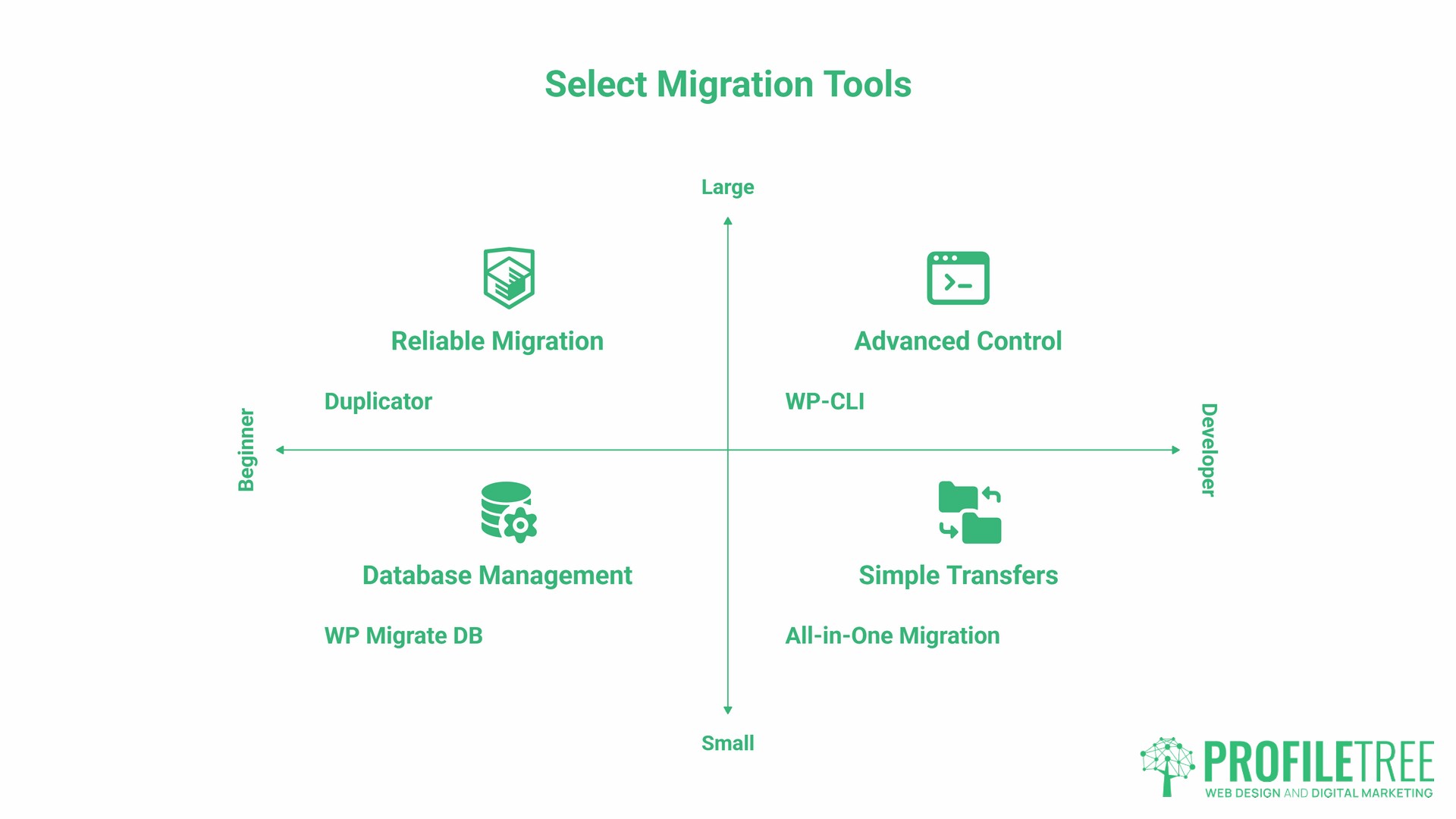
The right tools depend on your site’s size and complexity. Here is a practical comparison for UK and Irish businesses.
| Tool | Best For | Free Tier Limit | Notes |
|---|---|---|---|
| Duplicator | Sites up to 10GB | 500MB | More reliable for larger sites than All-in-One WP Migration |
| All-in-One WP Migration | Beginners, small sites | 512MB | Simplest interface; premium needed for larger sites |
| WP Migrate DB | Developer workflows | Database only | Excellent for URL find-and-replace; files handled separately |
| WP-CLI | Large sites, developers | No limit | Command-line tool; requires SSH access |
| UpdraftPlus | Backup-first migrations | Limited | Better as a backup tool; migration is a secondary function |
For sites over 2GB, the free tier of most consumer plugins will not cover the full export. The options are to purchase the premium version of your chosen plugin, use WP-CLI via SSH if your host supports it, or ask your new host whether they offer a free managed migration service. Most quality managed WordPress hosts do, and it is worth using this service where available.
The SEO Preservation Checklist: Protecting Your Rankings Through Migration
WordPress hosting migration can affect search rankings if SEO continuity is not treated as a first-class concern throughout the process. A temporary dip in rankings immediately after migration is common as Google recrawls the site on its new infrastructure. A sustained dip, or rankings that do not recover, indicates that something went wrong during the migration.
The most common SEO problems after migration are: redirect chains created by the move, canonical tag changes, robots.txt misconfiguration that accidentally blocks crawlers, sitemap not resubmitted to Search Console, and internal link URLs that were not fully updated in the database.
Google’s own research on page speed and bounce behaviour shows that as load time increases from 1 to 3 seconds, the probability of a visitor bouncing increases by 32%. At five seconds, that figure rises to 90%. A migration that moves a site to faster infrastructure and has caching correctly configured afterwards should improve these metrics, not worsen them. Failing to configure caching after migration is the most frequent reason a site performs worse on nominally faster hosting.
Before migration, record the rankings for your key target terms and run a full crawl export using Screaming Frog or a similar tool. This gives you a reference point to quickly identify any post-migration changes.
After migration, run through this SEO verification sequence:
- Search Console: Re-verify ownership on the new server. Submit the XML sitemap. Monitor the Coverage report for any new errors that appear in the days after the migration.
- Redirects: If any URLs changed during the migration, 301 redirects must be in place from old to new. Use the Screaming Frog crawl export to identify every URL that existed on the old site, and confirm each one resolves correctly on the new environment.
- Robots.txt: The default WordPress installation includes a “Discourage search engines from indexing this site” setting that is sometimes left active on new staging environments. Check Settings > Reading in the WordPress admin immediately after the migration and confirm that this box is not checked. This is one of the most frequently missed post-migration steps.
- Canonical tags: Verify that canonical tags across the site point to the correct URLs. A migration that changes the URL structure without updating canonicals creates duplicate-content signals.
- Internal links: Run a database search-and-replace for any hardcoded old domain references that were not caught by the migration plugin. The Better Search Replace plugin handles this well and shows a preview before committing changes.
- Core Web Vitals: Run Google PageSpeed Insights on your key pages within 24 to 48 hours of migration and compare against the pre-migration baseline. If scores have dropped significantly, investigate caching configuration first.
For businesses that depend on organic search traffic for leads and sales, it is worth engaging SEO support before and after a migration to ensure the process is managed with ranking continuity in mind.
UK and Irish Compliance: Data Residency and Server Location
For UK and Irish businesses, the location of your hosting server is not just a performance question. It also has data protection implications if your site collects, stores, or processes personal data from UK or EU residents.
Businesses in the Republic of Ireland must comply with the EU GDPR in full. Under the EU GDPR, personal data transferred outside the European Economic Area requires an appropriate safeguard to be in place. Moving a site from EU-based infrastructure to a US-hosted environment without a documented legal basis for that transfer creates a compliance gap that most generic migration guides do not address.
Northern Ireland businesses operate in a distinct position. The UK GDPR applies to all UK-based data processing, and any NI business with customers in the Republic of Ireland is also subject to EU GDPR obligations for that data. Choosing a host with data centres in the UK or the EEA meets this dual requirement without additional legal documentation.
There is also a performance argument for geographically appropriate servers. A site hosted on a Dublin or London server will typically respond faster for UK and Irish visitors than an equivalent site on US-based infrastructure. This matters for Core Web Vitals scores and, therefore, for search rankings. When evaluating providers before migration, ask specifically where data centres are located and whether that is confirmed in writing in the data processing agreement.
Common Migration Problems and How to Resolve Them
Even well-planned migrations encounter problems. Most are resolvable quickly when you know what to look for.
- White screen of death. A blank white page with no error message is almost always caused by a PHP version mismatch, an exceeded memory limit, or a plugin conflict. Enable WP_DEBUG in wp-config.php to surface the error message. Check the error logs on the new host. Try deactivating all plugins via FTP and switching to a default WordPress theme to isolate the cause.
- “Error establishing a database connection.” This means WordPress cannot reach the database. Verify the database name, username, password, and host in wp-config.php. Confirm that the database was fully imported. Check that the database user has the correct permissions assigned in the hosting panel.
- Mixed content warnings. The broken padlock icon in the browser address bar indicates that some page resources (images, scripts, or stylesheets) are loading over HTTP rather than HTTPS. Use the Better Search Replace plugin to update all HTTP references to HTTPS in the database. Check theme files for any hardcoded HTTP URLs.
- Email is not delivering. Recreate all email accounts on the new host and update DNS email records (MX, SPF, DKIM). Test sending and receiving from each account before cancelling the old hosting. Using an SMTP plugin for transactional email adds reliability that is independent of the host’s mail server configuration.
- Site performance slower than expected. Confirm caching is enabled and configured. Check PHP OpCache settings. Run a GTmetrix report to identify the specific bottlenecks. In most cases, caching and CDN configuration are the first places to look when performance does not improve after migration to nominally faster infrastructure.
Special Scenarios: E-Commerce, Enterprise, and Multi-Site Migrations
WooCommerce and E-Commerce Sites
The unique challenge with WooCommerce migration is protecting order continuity. Orders placed between the start of data transfer and the completion of DNS propagation can be lost or duplicated if the migration is not managed carefully.
The recommended approach is to put the site into maintenance mode using a maintenance plugin before beginning the data transfer, complete the migration and verify the new environment, then remove maintenance mode once DNS is confirmed to point to the new server. For sites where even brief maintenance mode is commercially unacceptable, a developer-managed rolling migration with database synchronisation between old and new environments is the appropriate approach.
Before any WooCommerce migration, confirm payment gateway credentials are ready to be re-entered or re-authorised on the new environment. Some payment gateways verify merchant accounts against server IP addresses and will require re-authorisation after an IP change.
WordPress Multi-Site Networks
Multi-site networks have a more complex database structure than standard WordPress installations, with shared user tables and network-wide plugin configurations. The correct sequence is to migrate the network admin install first, test with a single sub-site, confirm everything is working, then migrate the remaining sites. Domain mapping settings will need to be updated to reflect the new server environment.
Migrating from a Local Environment to Live Hosting
Migrating a locally developed site from a tool such as LocalWP to a live server is a common step for businesses whose sites were built by a developer. The key difference from host-to-host migration is that the local and live environments use different domain URLs, so a thorough database search-and-replace for the localhost URL is essential before going live. Confirm that the local PHP version matches the version the live server is running before transferring.
ProfileTree’s Managed WordPress Hosting and Migration Support
ProfileTree’s managed WordPress hosting includes professional migration support as a standard part of the onboarding process. The migration is handled by the development team and covers pre-migration audit, staging environment setup, data transfer, DNS management, and post-migration SEO verification.
For businesses managing a migration independently, ProfileTree’s web development services include migration consultancy and post-migration performance optimisation. For businesses that want to build the internal knowledge to manage their own WordPress infrastructure going forward, digital training covers WordPress management, hosting configuration, and site maintenance at a practical level suitable for non-technical business owners and marketing teams.
WordPress Hosting Migration: Pre-Migration and Go-Live Checklists
Week Before Migration
- [ ] Choose new hosting and confirm data centre location (UK or EEA)
- [ ] Benchmark current performance: GTmetrix, Core Web Vitals, key rankings
- [ ] Take a complete backup: files, database, local copy, cloud copy
- [ ] Document all plugins, themes, PHP version, and email accounts
- [ ] Reduce DNS TTL to 300 seconds
- [ ] Inform any team members or stakeholders of the planned migration date
- [ ] For e-commerce: notify customers if any maintenance window is expected
Migration Day
- [ ] Final backup of the live site immediately before transfer
- [ ] Clone site to new hosting using chosen migration method
- [ ] Verify database connection and file permissions on the new environment
- [ ] Test all key functions on the staging URL
- [ ] Confirm robots.txt and “Discourage search engines” setting in WordPress admin
- [ ] Switch DNS during the lowest-traffic period
- [ ] Monitor both servers during propagation
- [ ] Test forms, checkout, and email delivery on the new live site
Week After Migration
- [ ] Confirm full DNS propagation using a DNS propagation checker
- [ ] Re-verify Google Search Console and submit sitemap
- [ ] Run post-migration GTmetrix and compare against baseline
- [ ] Check Search Console Coverage report for new errors
- [ ] Verify all email accounts are sending and receiving correctly
- [ ] Cancel old hosting only after confirming everything is stable
- [ ] Document the new server configuration for future reference
WordPress hosting migration is a structured process, not a single technical action. The businesses that approach it as a planned, multi-phase project, with proper documentation, staging, and post-migration verification, consistently get through it without lasting problems. Those who treat it as a weekend job typically do not.
Frequently Asked Questions
Is it hard to migrate a WordPress site yourself?
For a standard brochure site under 500MB with no e-commerce functionality, a plugin-based migration is manageable for someone comfortable working in WordPress admin. For larger or more complex sites, particularly those with WooCommerce, membership systems, or heavy customisation, the risk of data loss or downtime makes professional support a sound choice. The difficulty is less about the technical steps and more about knowing what to check when something does not work as expected.
How do I avoid downtime during a host switch?
The key is running both environments simultaneously during the transition. Fully set up and test the new environment on a staging URL before touching DNS. Reduce your DNS TTL to 5 minutes a week before the switch. When you change DNS, keep the old hosting active for at least 48 hours. During the propagation window, some visitors will reach the old server and others the new; both should serve the same content.
Does WordPress hosting migration affect my SEO?
A well-managed migration should not cause lasting SEO damage. A brief dip in visibility while Google recrawls the site on new infrastructure is normal. Lasting ranking problems after migration are almost always caused by one of a small number of issues: robots.txt accidentally blocking crawlers, redirects not in place for changed URLs, canonical tags pointing to the wrong domain, or the sitemap not being resubmitted. The post-migration SEO checklist in this guide covers each of these.
What is the best hosting for a UK or Irish WordPress site?
Look for hosts with data centres in London, Dublin, or elsewhere within the UK or EEA. This matters for both data protection compliance and for server response times for UK and Irish visitors. Managed WordPress hosting that includes automatic backups, staging environments, and responsive support removes the infrastructure management burden from your team.
How much does a professional WordPress migration cost?
For a standard WordPress site, professional migration is often included with managed hosting onboarding. For more complex migrations involving WooCommerce, multi-site networks, or custom builds, development time typically ranges from a few hours to a full day, depending on the site’s complexity. The cost of professional migration is almost always lower than the cost of recovering from a failed migration.
Can I migrate to a new domain and a new host at the same time?
You can, but it significantly increases the complexity and the risk. Moving the host and changing the domain at the same time means every URL on the site changes, requiring a complete 301 redirect mapping, a full database URL update, and re-verification in Search Console under the new domain. Unless there is a strong business reason to change the domain and host simultaneously, doing them as two separate steps with a testing period between them is the safer approach.