
How to Speed Up a WordPress Website: Practical Fixes
Table of Contents
Slow websites cost businesses money. A one-second delay in page load time reduces conversions by 7%, and 53% of mobile visitors abandon sites that take longer than three seconds to load.
ProfileTree, a Belfast-based web design and digital marketing agency, has optimised hundreds of WordPress sites for businesses across Northern Ireland, Ireland, and the UK, and in almost every case, the root causes are the same. For these businesses, the loading speed of WordPress websites is not a technical nicety. It is a direct commercial variable. Poor WordPress loading speed affects rankings, revenue, and customer trust in equal measure.
WordPress powers 43% of the internet, which is part of why it attracts so many performance problems. Bloated plugins, poorly compressed images, cheap shared hosting, and legacy code gradually eat into speed. The good news: most of these issues are fixable, and the fixes are well established. This guide walks through the full stack of improvements, from the quick wins any business owner can action today to the technical fixes that often need a developer.
Why the Loading Speed of WordPress Websites Matters
Google confirmed Core Web Vitals as a ranking signal, meaning your site’s loading performance directly influences where you appear in search results. The three metrics that matter are:
- Largest Contentful Paint (LCP): measures how quickly your main content appears; Google’s “good” threshold is under 2.5 seconds
- Interaction to Next Paint (INP): measures how fast the page responds to user interaction; under 200 milliseconds is the target
- Cumulative Layout Shift (CLS): measures visual stability, penalising pages where elements shift position as the page loads
Beyond rankings, speed affects behaviour. Mobile users, who account for the majority of web traffic in the UK, are especially unforgiving of slow sites. A Belfast retailer or Dublin consultancy that loads in four seconds is handing business to a faster competitor before the visitor has even seen the page.
Google publishes exact thresholds for each Core Web Vital. Use these as your targets rather than the vague “under three seconds” advice that most guides offer.
| Metric | What it Measures | Good | Needs Improvement | Poor |
|---|---|---|---|---|
| Largest Contentful Paint (LCP) | How fast main content loads | Under 2.5 seconds | 2.5 to 4 seconds | Over 4 seconds |
| Interaction to Next Paint (INP) | Page responsiveness to clicks | Under 200 milliseconds | 200 to 500 milliseconds | Over 500 milliseconds |
| Cumulative Layout Shift (CLS) | Visual stability as page loads | Under 0.1 | 0.1 to 0.25 | Over 0.25 |
Most UK business websites that ProfileTree audits fail on LCP first, usually because of a large hero image with no preload hint, or a slow server response compounding image delivery time.
How to Test Your WordPress Speed First
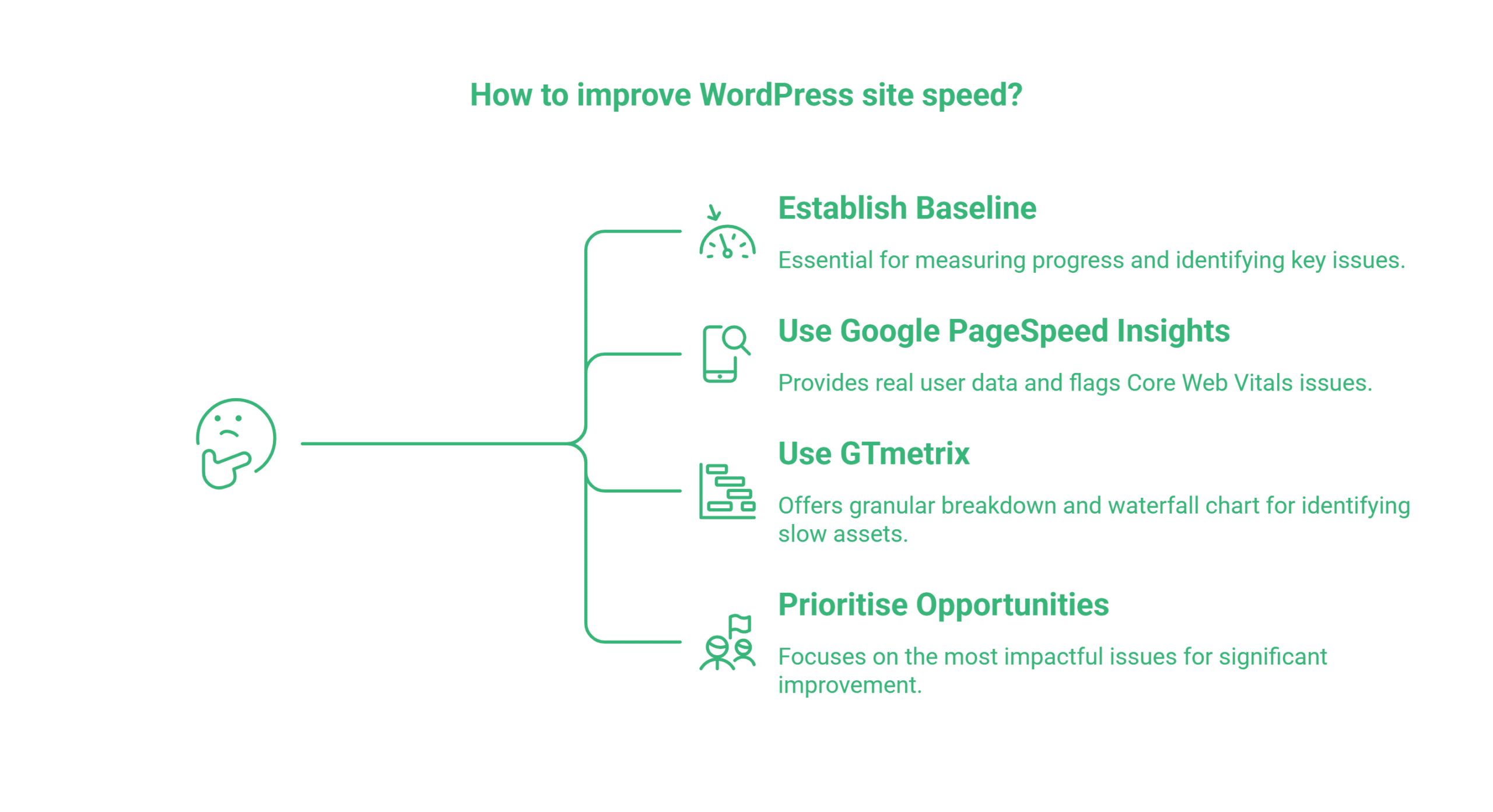
Before making any changes to improve your WordPress site speed, establish a baseline. Changing things without knowing your starting point makes it impossible to measure progress.
Google PageSpeed Insights is the most important tool to check. It reports your Core Web Vitals using real user data from Chrome and flags the specific issues causing problems. Go to pagespeed.web.dev, enter your URL, and run both the mobile and desktop reports. Mobile scores are typically lower, and they are what Google weights for rankings.
GTmetrix gives a more granular breakdown of what loads, in what order, and how long each resource takes. The waterfall chart is particularly useful for identifying a single slow-loading asset (often a large image, a third-party script, or a render-blocking resource) that is dragging down the whole page.
When reading the reports, prioritise the opportunities flagged in red and amber. Most sites have two or three root causes rather than twenty separate problems; fix those first.
The Quick Wins: Do These First
These four changes have the highest return on time invested. Most can be completed without a developer and deliver noticeable improvements within hours.
Install a Caching Plugin
Every time a visitor loads a WordPress page, the server runs PHP, queries the database, and assembles HTML — work that takes time. A caching plugin short-circuits this by storing a static HTML version of each page and serving that instead, eliminating most of the processing overhead.
- WP Rocket is the best-regarded premium caching plugin and works reliably across most WordPress configurations.
- W3 Total Cache is a capable free alternative, though it requires more careful setup.
- For sites hosted on LiteSpeed servers, increasingly common among UK-managed WordPress hosts, LiteSpeed Cache is the natural choice and often delivers the best results in that environment.
Properly configured caching typically reduces server load by 80 to 90% and visibly cuts page load times. For e-commerce sites, configure the plugin to exclude cart and checkout pages from caching, as those pages need to remain live rather than served from a static copy.
Compress and Convert Images to WebP
Images are responsible for 50 to 70% of a typical page’s total file size. Large, unoptimised images are the most common cause of slow loading speed on WordPress websites and usually the fastest fix.
WordPress plugins such as Imagify, ShortPixel, and EWWW Image Optimiser compress images automatically on upload and convert them to WebP format. WebP files are 25 to 35% smaller than equivalent JPEGs while maintaining comparable visual quality. Browser support for WebP now exceeds 95% of the UK market, making it safe to use by default.
Run a bulk optimisation pass on your existing media library first. On an established site, this single step can reduce page weights by several megabytes.
Remove Unused Plugins
Every active plugin adds PHP execution, database queries, and often front-end assets to your pages; all of which chip away at your WordPress site speed. Plugins that load resources site-wide, even on pages where those resources are irrelevant, create overhead that compounds across every visit.
Go through your active plugin list and deactivate anything that is not currently serving a clear purpose. Audit whether any two plugins duplicate functionality. A contact form plugin, a pop-up plugin, and a survey plugin all loading their JavaScript on every page is a common pattern on sites that have grown organically over several years.
Use a profiling tool like Query Monitor to check how much processing time and how many database queries each plugin adds. Some plugins that appear minor contribute disproportionate overhead.
Use a Content Delivery Network
A CDN stores copies of your static assets (images, CSS, JavaScript, fonts) on servers distributed around the world and delivers them from the location nearest to each visitor. For a business serving customers across the UK and Ireland, this reduces latency on every file transfer.
Cloudflare is the most widely used option and offers a capable free tier that works for most small and medium businesses. BunnyCDN is a cost-effective paid alternative with strong performance across European endpoints. Beyond delivery speed, CDNs also reduce the load on your origin server and improve resilience during traffic spikes.
Medium-Effort Fixes
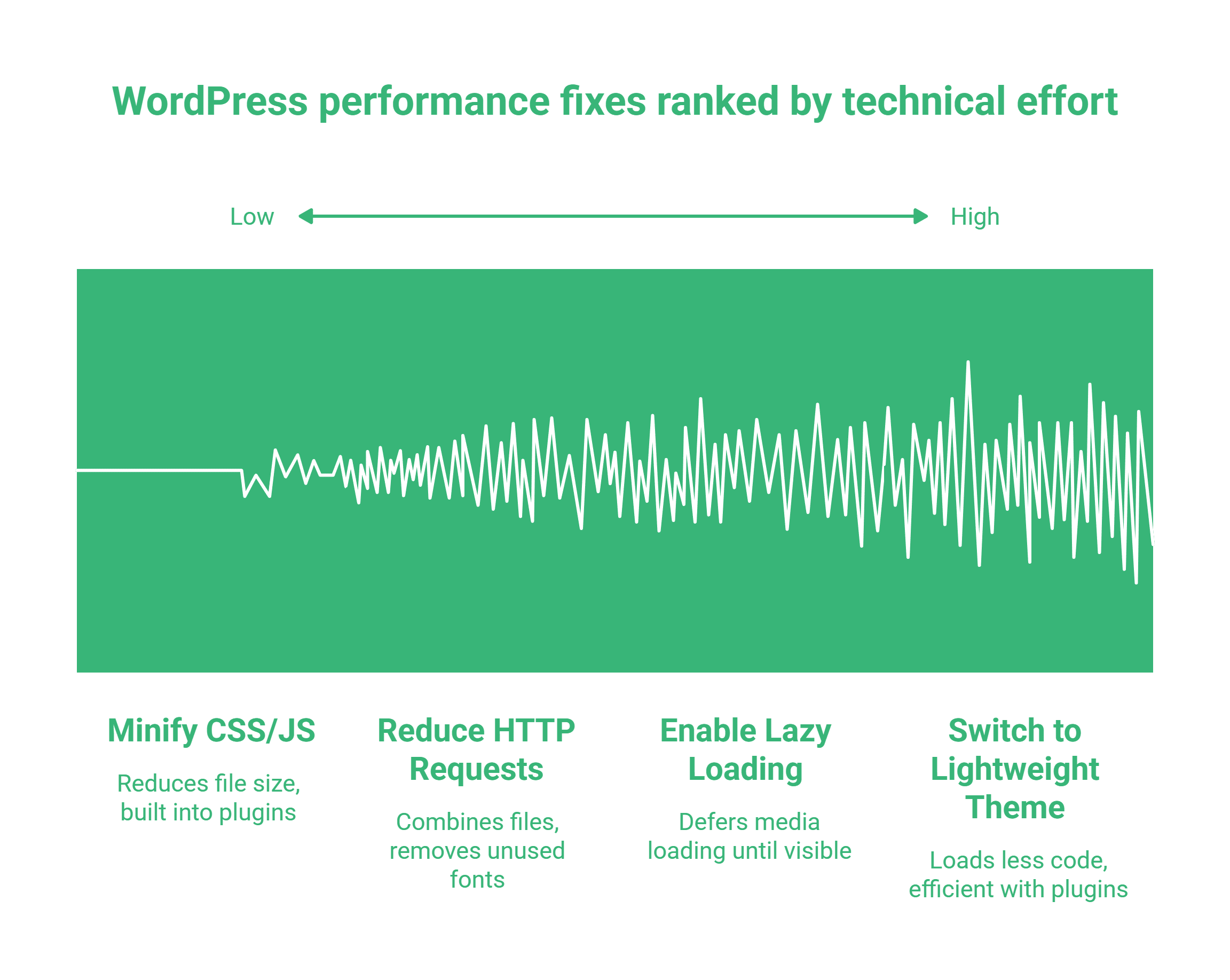
Once the quick wins are in place, these improvements deliver further gains without requiring deep technical knowledge.
Switch to a Lightweight Theme
Many WordPress themes, particularly those bought from ThemeForest or built with multipurpose frameworks, load dozens of CSS files, large JavaScript libraries, and design elements that are never used on a typical page. The DOM bloat created by these themes often generates the “Avoid excessive DOM size” warning in PageSpeed Insights.
Lightweight themes such as GeneratePress, Astra, and Kadence load far less code by default and are built to work efficiently with block builders and caching plugins. If your current theme is causing performance problems that no amount of plugin configuration can resolve, a theme switch is often the most effective medium-term solution.
Minify CSS and JavaScript
Minification removes whitespace, comments, and verbose formatting from code files, reducing their size by 30 to 50% without changing how they function. Most caching plugins include minification as a built-in feature; WP Rocket, for example, handles CSS and JavaScript minification with a checkbox.
If minification causes visual or functional breakages, enable it selectively. JavaScript combination, in particular, can occasionally conflict with scripts that depend on a specific loading order. Test after enabling and check your site across different pages before treating the job as done.
Reduce HTTP Requests
Every file your page loads, including each CSS file, JavaScript file, font file, and image, requires a separate HTTP request. Pages with 80 to 100 requests take longer to load than pages with 30, even if the total file size is similar. Reducing request count is particularly impactful on mobile connections.
Combine CSS files where possible. Remove fonts and icon libraries that are only partially used. Load third-party scripts conditionally rather than site-wide. Each reduction in request count translates directly into faster page assembly.
Enable Lazy Loading
Lazy loading defers the loading of images and videos until they are about to enter the visitor’s viewport. Rather than downloading the full page’s media on arrival, the browser downloads only what the visitor can currently see, loading additional assets as they scroll.
WordPress has included native lazy loading since version 5.5. Most image optimisation plugins extend this with more granular controls, and plugins like a3 Lazy Load offer compatibility improvements for older themes. This change is particularly impactful on pages with large image galleries or long blog posts.
Technical Fixes That Often Need a Developer
These improvements address the root causes of performance problems on sites where surface-level fixes have reached their limit. They typically require server access or code changes, and this is where a web development partner pays for itself quickly.
Switch to Better Hosting or a Faster Server
No caching plugin can compensate for an underpowered server. Cheap shared hosting environments allocate minimal resources to each site, creating bottlenecks during traffic spikes and returning slow Time to First Byte even on simple pages.
For UK and Irish businesses, server location matters as much as server quality. Hosting your site on a server in Utah rather than London or Dublin adds 80 to 120 milliseconds of latency on every request before the page even begins loading. Choose a host with data centres in London, Dublin, or Frankfurt and verify it with a TTFB test from your target location. This is a particularly important fix for businesses targeting local search in Northern Ireland and elsewhere in the UK, where WordPress page load speed optimisation must account for geographic proximity to your visitors.
Managed WordPress hosting, where the server environment is configured specifically for WordPress, typically delivers better performance than generic shared or VPS hosting at a comparable price point. ProfileTree’s WordPress hosting and management service is configured for exactly this: fast, UK-based infrastructure managed by people who understand WordPress performance requirements.
Optimise Your Database
WordPress databases accumulate unnecessary data over time: post revisions, expired transients, spam comments, orphaned plugin options, and trash. On an established site running for several years, this bloat can run to tens of thousands of rows that slow every database query.
WP-Optimise is a reliable tool for database maintenance, identifying and removing safe-to-delete entries and rebuilding fragmented table indexes. Run it once manually to clear the backlog, then set up a scheduled weekly clean. Limit post revisions in wp-config.php to prevent further accumulation. For businesses that need efficient data storage and display across large WordPress content sets, including product catalogues or membership databases, database optimisation at the code level delivers results that plugin-level tools cannot reach alone.
For sites with custom functionality or heavy WooCommerce catalogues, database query optimisation at the code level may also be needed. Query Monitor can identify the slowest database calls and the plugin or theme responsible for them.
Eliminate Render-Blocking Resources
Render-blocking resources are JavaScript and CSS files that prevent the page from displaying until they have fully loaded and executed. They are one of the most common causes of poor LCP scores and are consistently flagged in PageSpeed Insights.
Deferring JavaScript, loading it after the main HTML has rendered, resolves most render-blocking issues without breaking functionality. The defer attribute ensures scripts execute in order after HTML parsing; the async attribute loads and executes scripts independently. Non-critical scripts, including analytics tracking, chat widgets, and social sharing buttons, are the primary candidates for deferral.
Third-party marketing scripts deserve specific attention. A Meta Pixel, Google Tag Manager container, Hotjar snippet, and Intercom widget loading simultaneously on every page can add 500 to 800 milliseconds to mobile load times. Delaying these scripts until after user interaction, using a script management plugin or a custom implementation, is one of the most impactful fixes available for commercial WordPress sites.
Fix Core Web Vitals Issues in Google Search Console
Google Search Console’s Core Web Vitals report shows which pages on your site are failing Google’s thresholds and groups them by issue type. This is the most direct signal of what Google is measuring and what to prioritise for WordPress speed, and it is where to start if you want to speed up your WordPress site in a way that translates into ranking improvements.
Work through flagged pages systematically. LCP failures are most often caused by a large above-the-fold image that has not been optimised or pre-loaded. CLS failures are typically caused by images without defined dimensions, dynamically injected content, or GDPR consent banners that push page content downward on load. INP failures usually point to heavy JavaScript execution blocking user interaction.
For sites built with Elementor or Divi, DOM size is a persistent issue. These page builders generate extensive background markup for every design element. Disabling unused Elementor features, removing unused widget types, and avoiding the visual builder for simple pages where it adds unnecessary overhead are the practical levers available within those environments.
ProfileTree’s website development team works through Core Web Vitals issues as part of technical SEO audits and new build projects alike. For businesses where organic search is a primary acquisition channel, getting these scores into the green is among the highest-leverage improvements available.
Measuring Your Results
After making changes, give PageSpeed Insights 24 to 48 hours to reflect improvements before drawing conclusions. Core Web Vitals data in Google Search Console updates on a 28-day rolling basis, so week-on-week comparisons are more meaningful than day-to-day readings.
Set a WordPress speed baseline score before you start and track your LCP, INP, and CLS individually rather than fixating on the composite performance score. Run both mobile and desktop tests; mobile performance is what Google indexes. A quarterly review of PageSpeed Insights scores for your key commercial pages will catch regressions before they affect rankings.
WordPress speed optimisation is not a one-time task. New plugins get installed, images get uploaded without compression, and WordPress updates occasionally introduce overhead. The sites that stay fast are the ones with a maintenance habit, not just a one-off sprint.
Five-Minute Speed Checklist
Before calling in a developer to work on the loading speed of your WordPress website, run through these safe, code-free checks. Each one can be completed inside your WordPress dashboard or browser.
- Activate a caching plugin if none is installed; WP Rocket or LiteSpeed Cache for a quick win without configuration headaches
- Run your homepage through Google PageSpeed Insights and note the top two flagged opportunities
- Open your media library and check the file size of your largest images; anything over 200KB on a standard page is worth recompressing
- Go to Plugins > Installed Plugins and deactivate any plugin that has not been used in the past three months
- Check your hosting control panel to confirm your PHP version is 8.1 or higher; if it is on 7.x, ask your host to upgrade it
- Test your TTFB at tools.pingdom.com from a European test location; anything over 600ms points to a hosting problem, not a content problem
If all six pass and your PageSpeed score is still below 70 on mobile, the remaining issues are technical and worth a professional audit.
What to Expect from WordPress Speed Optimisation
For most UK SMEs starting a WordPress speed project from scratch, the realistic improvement timeline looks like this:
- Quick wins (caching, image compression, plugin audit) take a day to implement and typically improve PageSpeed scores by 15 to 25 points.
- Medium-effort fixes, including theme changes and proper minification, take a week and can move scores into the green range on their own.
- Technical fixes (hosting migration, Core Web Vitals remediation, and database overhaul) take longer and may require developer time, but they address root causes rather than symptoms.
The return on investment is real. Faster sites rank higher, convert better, and reduce bounce rates on paid traffic. For businesses running Google Ads, the Quality Score on landing pages is partly determined by page experience, meaning a slow site costs more per click as well as per organic ranking.
FAQs About the Loading Speed of a WordPress Website
The questions below reflect what business owners across the UK most commonly ask when they start working on WordPress speed. Each answer is intentionally direct rather than exhaustive; if you need a tailored assessment, a technical audit of your specific site will tell you far more than a general guide can.
Why is my WordPress website loading slowly?
Run Google PageSpeed Insights on your URL first; it gives a specific, prioritised list of causes for your site. The most common issues are images that were never compressed, a server that is too slow for the traffic load, and JavaScript from unused plugins loading on every page. On sites built with Elementor or Divi, excessive DOM size is a frequent culprit that PageSpeed Insights will flag directly.
What is the fastest WordPress caching plugin?
WP Rocket consistently performs well across most WordPress environments and is the most straightforward to configure correctly. LiteSpeed Cache is the top performer, specifically on LiteSpeed servers. W3 Total Cache is a capable free option but requires more careful setup than the alternatives. The fastest plugin is ultimately the one correctly configured for your specific server environment and theme.
How do I check my WordPress site speed?
Run your URL through Google PageSpeed Insights at pagespeed.web.dev and through GTmetrix. PageSpeed Insights shows your Core Web Vitals using real Chrome user data and is the most accurate reflection of what Google measures. GTmetrix provides a waterfall breakdown that helps identify which specific asset is causing the most delay. Always check both mobile and desktop scores; mobile performance is the one that affects rankings.
Do WordPress plugins slow down a website?
Yes, though the impact varies. Every active plugin adds some PHP execution and often adds CSS and JavaScript to your pages. The quality of the plugin code matters more than the raw number, but keeping your active list lean is a good practice. Plugins that load assets site-wide regardless of where they are needed (common with form builders, sliders, and some social media plugins) tend to have the greatest impact on the loading speed of WordPress websites.
How much does WordPress speed optimisation cost in the UK?
A basic optimisation pass (caching setup, image compression, plugin audit) can largely be done in-house, with the main cost being a premium caching plugin such as WP Rocket at around £40 to £60 per year. Professional WordPress speed optimisation services in the UK typically range from £300 to £1,500, depending on site complexity and the scope of work required. For sites with Core Web Vitals failures needing development work, or where a hosting migration is necessary, costs can be higher. ProfileTree offers technical audits and performance optimisation as part of broader web development and site management services for businesses across Northern Ireland and the UK.
Working through a WordPress speed project on your own is realistic for the quick wins. When the issues are at the server level, in the build, or buried in Core Web Vitals failures that PageSpeed Insights flags but does not explain, that is where professional input pays for itself.
ProfileTree’s web development and hosting teams work with businesses across Belfast, Northern Ireland, and the wider UK to diagnose performance problems, fix the root causes, and keep sites fast on an ongoing basis. If your site is losing rankings or traffic to a faster competitor, get in touch to discuss what a technical audit would cover.