
WordPress Tutorial: Build a Professional Website in 6 Steps
Table of Contents
Building a professional WordPress website requires more than clicking “install” and hoping for the best. Whether you’re a business owner launching your first site or a marketing manager tasked with digital transformation, understanding the fundamentals of WordPress setup separates websites that generate leads from those that simply exist online.
WordPress powers over 43% of all websites globally, making it the dominant platform for businesses across the UK, Ireland, and Northern Ireland. This popularity stems from its flexibility, extensive plugin ecosystem, and ability to scale from simple blogs to complex e-commerce platforms. However, this power comes with responsibility—poor initial setup decisions can plague your website for years, affecting everything from search rankings to security vulnerabilities.
This tutorial walks you through building a WordPress site correctly from the ground up. We’ll cover the technical foundations, essential configuration steps, and professional optimisation techniques that digital agencies use to create high-performing client websites. Following these steps, you’ll build a site optimised for search engines, user experience, and conversion from day one.
Foundational Setup Decisions
Before touching WordPress itself, three critical decisions determine your website’s long-term success: hosting infrastructure, domain strategy, and development environment: these choices impact site speed, security, and your ability to scale as traffic grows.
Understanding WordPress.com vs WordPress.org
Many newcomers confuse WordPress.com with WordPress.org, leading to frustration when expected features aren’t available. WordPress.com offers hosted solutions with limited customisation—suitable for basic blogs but restrictive for businesses. WordPress.org provides self-hosted software that gives you complete control over your site.
For professional websites, WordPress.org is the clear choice. You download the software, install it on your chosen hosting, and gain access to thousands of themes and plugins without arbitrary restrictions. This tutorial focuses on self-hosted WordPress (WordPress.org), which offers businesses the flexibility for custom functionality, advanced SEO, and integration with marketing tools.
Choosing Professional WordPress Hosting
Your hosting provider determines website performance more than any other factor. Cheap shared hosting might seem appealing, but slow loading times directly impact conversion rates and search rankings. Google research shows 53% of mobile users abandon sites that take longer than three seconds to load.
Essential Hosting Requirements:
- UK-Based Data Centres: For businesses serving UK markets, hosting with UK data centres reduces latency and improves loading speeds for your primary audience
- SSD Storage: Solid-state drives deliver faster data access than traditional hard drives, improving page load times
- Automatic Backups: Daily automated backups protect against data loss from security breaches or technical failures
- SSL Certificate: HTTPS encryption is mandatory for GDPR compliance and affects search rankings
- PHP 8.0+: Modern PHP versions improve site performance and security
- Staging Environment: Professional hosts provide staging areas for testing changes before pushing to production
Hosting Categories:
Shared Hosting (£3-10/month): Multiple websites share server resources. Suitable for new sites with limited traffic, but performance suffers during traffic spikes.
Managed WordPress Hosting (£15-50/month): Servers optimised specifically for WordPress with automatic updates, enhanced security, and expert support. Ideal for businesses prioritising performance and reliability.
VPS Hosting (£25-100/month): Dedicated server resources with complete configuration control. Requires technical expertise but offers maximum performance and flexibility.
Ciaran Connolly, Director of ProfileTree, notes: “We’ve migrated dozens of client websites from budget shared hosting to managed WordPress solutions. The performance improvement alone typically increases conversion rates by 15-30%. When you’re running a business, that difference pays for premium hosting many times over.”
Selecting Your Domain Name
Your domain name represents your brand online. Choosing between .com, .co.uk, or .uk extensions affects local search visibility and customer trust for UK businesses. Local domain extensions can signal regional relevance to search engines and potential customers.
Domain Selection Best Practices:
- Keep it short and memorable (under 15 characters)
- Avoid hyphens and numbers that create confusion
- Choose .co.uk or .uk for UK-focused businesses to improve local SEO
- Secure common variations and misspellings to protect your brand
- Enable domain privacy to prevent spam and protect personal information
- Register domains through reputable registrars with strong security policies
Domain and Hosting Selection Process
Once you understand hosting types and domain strategy, the actual setup process begins. This section covers purchasing hosting, configuring domains, and preparing your environment for WordPress installation.
Step 1: Purchase Professional Hosting
Navigate to your chosen hosting provider’s website. Most offer WordPress-specific plans that include one-click installation, automated backups, and SSL certificates. When comparing plans, look beyond monthly costs to evaluate:
- Included domain registration (often free for the first year)
- Bandwidth and storage allocations
- Number of websites permitted
- Email hosting capabilities
- Support response times and availability
Complete the registration process by providing contact information, selecting your billing cycle (annual plans typically offer discounts), and choosing additional services. Skip unnecessary upsells like website builders or premium themes—you’ll choose better options later.
Step 2: Configure Your Domain
After purchasing hosting, you’ll receive login credentials for your hosting control panel (typically cPanel or a proprietary interface). Access this panel and navigate to the domain management section.
For New Domains:
If you purchased a domain through your host, it’s automatically configured. Verify the domain appears in your control panel and note the nameserver settings.
For Existing Domains:
If you registered your domain elsewhere, update the nameservers to point to your new host. This process varies by registrar, but typically involves:
- Logging into your domain registrar account
- Locating nameserver settings for your domain
- Replacing existing nameservers with those provided by your host
- Waiting 24-48 hours for DNS propagation
Step 3: Install SSL Certificate
Modern hosting providers include free SSL certificates through Let’s Encrypt. Navigate to your control panel’s SSL/TLS section and enable HTTPS for your domain. This encrypts data transmission between your server and visitors’ browsers, which is mandatory for GDPR compliance and trusted by search engines.
If your host doesn’t install automatic SSL, most control panels include tools like “AutoSSL” or “SSL/TLS Manager” that generate certificates in minutes. Once installed, configure WordPress to force HTTPS sitewide, preventing mixed content warnings.
WordPress Installation Process
With hosting and domains configured, you’re ready to install WordPress. Most hosts offer one-click installation through control panel interfaces, dramatically simplifying what was once a complex technical process. However, understanding manual installation provides valuable troubleshooting knowledge.
One-Click WordPress Installation
Most hosting providers offer WordPress installation through tools like Softaculous, Fantastico, or proprietary installers. Access your hosting control panel and locate the WordPress installer (often under “Website” or “Software” sections).
Installation Steps:
- Select Installation Location: Choose your primary domain and specify whether to install in the root directory (recommended for main sites) or a subdirectory.
- Configure Admin Settings: Create a strong admin username (never use “admin”), complex password (minimum 16 characters with mixed case, numbers, and symbols), and admin email address
- Site Settings: Enter your site title and tagline—these can be changed later, but should reflect your brand from the start
- Database Configuration: The installer typically creates a database automatically, but note the database name and credentials for future reference
- Advanced Options: Enable automatic updates for WordPress core and plugins to maintain security
Click “Install” and wait 1-2 minutes for completion. You’ll receive an email confirmation with your WordPress admin URL (typically yoursite.com/wp-admin), username, and password.
Manual WordPress Installation
For complete control or when one-click installation isn’t available, manual installation teaches you WordPress’s structure and proves invaluable for troubleshooting.
Manual Installation Process:
- Download WordPress: Visit WordPress.org and download the latest version as a .zip file
- Create Database: Use your hosting control panel’s MySQL Database Wizard to create a new database, database user, and password. Grant the user all database privileges.
- Upload Files: Using FTP software (FileZilla, Cyberduck) or File Manager in your control panel, upload the extracted WordPress files to your web root directory (public_html or www)
- Run Installation Script: Navigate to your domain in a browser, triggering the WordPress installation wizard.
- Configure Database Connection: Enter database name, username, password, and host (usually localhost)
- Complete Setup: Provide site title, admin username, password, and email, then click “Install WordPress”
Manual installation typically takes 10-15 minutes but provides a deeper understanding of WordPress’s file structure and database relationships.
Post-Installation Security Configuration
Immediately after installation, implement these security measures:
Change Database Table Prefix: The default “wp_” prefix makes databases easier to target. Edit wp-config.php to use a unique prefix (e.g., “xyz_” or “companyname_”)
Modify Security Keys: WordPress uses cryptographic keys to secure cookies and sessions. Generate new keys at api.wordpress.org/secret-key/1.1/salt/ and replace the default values in wp-config.php
Disable File Editing: Add define('DISALLOW_FILE_EDIT', true); to wp-config.php, preventing hackers from modifying theme and plugin files through the admin panel
Remove Default Content: Delete the default “Hello World” post, “Sample Page,” and placeholder comment to prevent content duplication issues
Essential Configuration Steps
A fresh WordPress installation requires configuration before launching publicly. These settings affect everything from search engine visibility to user experience, and changing them later can create SEO complications.
General Settings Optimisation
Navigate to Settings > General in your WordPress admin panel. Configure these fundamental settings:
Site Title: Your business or website name as it appears in browser tabs and search results. Include your primary keyword naturally (e.g., “ProfileTree – Digital Marketing Agency Belfast”)
Tagline: A brief description of your site’s purpose. This appears in some themes and search results. Keep it under 120 characters and focus on benefits rather than features.
WordPress Address (URL): Where WordPress core files are installed. Typically matches your site URL
Site Address (URL): The address people type to access your site. Ensure this uses HTTPS.
Email Address: The administrative email for system notifications. Use a professional business email address.
Timezone: Set to your business location (Europe/London for the UK) to ensure post timestamps display correctly
Date and Time Format: Configure to UK standards (DD/MM/YYYY)
Permalink Structure Setup
The permalink structure determines the URL format for posts and pages. The default “Plain” structure (yoursite.com/?p=123) provides no SEO benefit and confuses visitors. Navigate to Settings > Permalinks and select an SEO-friendly structure.
Recommended Permalink Structures:
Post Name (yoursite.com/sample-post): Clean, readable URLs that include page titles. Best for blogs and most websites
Custom Structure (yoursite.com/blog/sample-post): Adds category structure while maintaining readability. Useful for sites with distinct content sections
Avoid date-based structures as they make content appear outdated. Never change the permalink structure after launching without implementing proper redirects—broken links damage SEO and user experience.
Reading Settings Configuration
Settings > Reading controls homepage display and search engine visibility. Configure these options based on your site’s purpose:
Homepage Display: Choose between displaying the latest posts (blog-style) or a static page (business site). Most businesses select a static homepage with a separate blog section
Posts Per Page: Display 10-15 posts per page to balance content exposure with page load times
Search Engine Visibility: Keep “Discourage search engines from indexing this site” unchecked unless building a staging site specifically. Checking this box prevents search engines from discovering your content.
Discussion Settings Management
Settings > Discussion controls comment functionality. Comment spam remains a significant WordPress problem, so configure these settings carefully:
Default Article Settings: Disable “Allow people to submit comments on new posts” if you don’t want comment functionality
Other Comment Settings: Require comment author name and email, and hold comments in the moderation queue before publishing
Email Notifications: Enable notifications when comments await moderation
Before a Comment Appears: Require manual approval for first-time commenters to prevent spam
Comment Moderation: Add common spam keywords to flag suspicious comments automatically
Disallowed Comment Keys: Blacklist known spam terms and links
Many organisations disable comments for professional business sites, handling customer interactions through contact forms and social media instead.
Privacy Policy Page Creation
GDPR compliance requires every website collecting personal data to display a privacy policy. Navigate to Settings > Privacy and create your privacy policy page. While WordPress provides a template, professional sites need custom policies covering:
- Data collection methods (forms, cookies, analytics)
- How data is used and stored
- Third-party data processors
- User rights (access, deletion, portability)
- Contact information for data protection enquiries
Consider consulting a solicitor specialising in UK data protection law to verify your privacy policy meets legal requirements. Non-compliance can result in substantial fines under GDPR.
Professional Optimisation Techniques
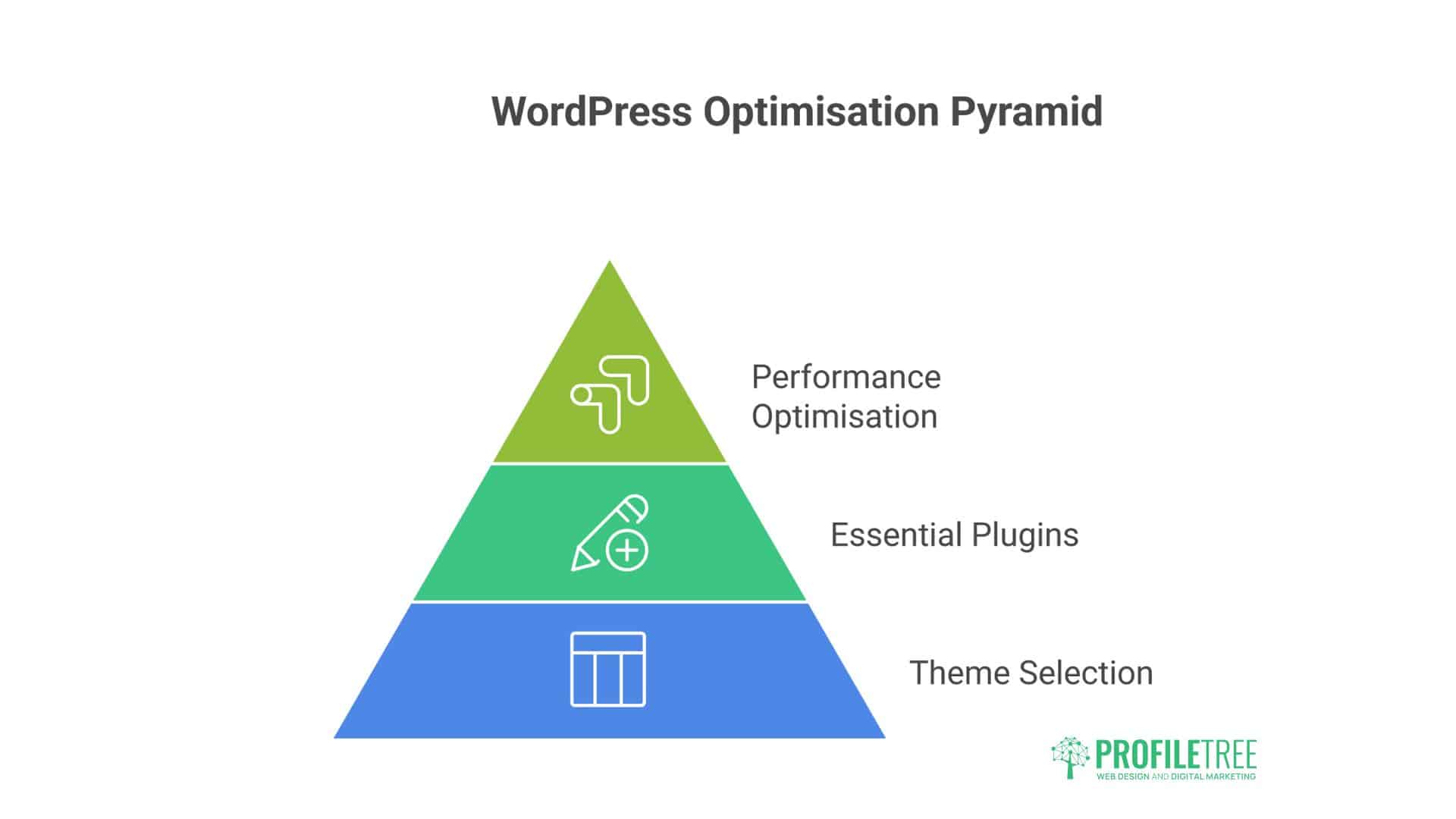
Basic WordPress installation provides a functional website, but professional optimisation transforms it into a high-performing marketing asset. This section covers theme selection, essential plugins, and performance optimisation techniques.
Strategic Theme Selection
Your theme controls website appearance and functionality. Thousands of free and premium themes exist, but choosing poorly impacts performance, security, and long-term maintenance.
Professional Theme Selection Criteria:
- Performance: Test theme speed using GTmetrix or Google PageSpeed Insights before purchasing. Themes bloated with features you won’t use slow down your entire site
- Regular Updates: Verify the theme receives regular updates addressing security vulnerabilities and compatibility with WordPress core updates
- Documentation and Support: Premium themes should include comprehensive documentation and responsive support channels
- Mobile Responsiveness: Test theme appearance on multiple devices. Mobile traffic exceeds desktop for most sites, making responsive design mandatory
- SEO Optimisation: Themes should use semantic HTML5 markup, schema.org structured data, and proper heading hierarchy
- Page Builder Compatibility: If using page builders like Elementor or Divi, verify theme compatibility
Recommended Theme Categories:
- GeneratePress: Lightweight, fast-loading theme with extensive customisation options. Ideal for businesses prioritising performance
- Astra: Popular multipurpose theme with pre-built templates for various industries. Strong page builder integration
- Neve: Modern, flexible theme suitable for creative professionals and agencies. Excellent mobile performance
- Custom Development: For unique brand requirements, custom theme development provides complete control over design and functionality
Essential Plugin Installation
WordPress plugins extend functionality beyond core capabilities. However, excessive plugins slow down sites and create security vulnerabilities. Install only essential plugins, choosing well-maintained options with regular updates.
Security Plugins:
- Wordfence Security: Comprehensive security suite including firewall, malware scanning, and login security. Free version suitable for most sites
- Sucuri Security: Alternative security plugin with post-hack cleanup services available. Strong focus on website hardening
- Configuration: Enable two-factor authentication, limit login attempts, and schedule regular malware scans
SEO Plugins:
- Yoast SEO: Industry-standard SEO plugin with on-page optimisation, XML sitemaps, and content analysis
- Rank Math: Modern alternative to Yoast with additional features including schema markup and keyword tracking
- Configuration: Complete setup wizard, submit sitemap to Google Search Console, and configure social media integration
Performance Plugins:
- WP Rocket: Premium caching plugin that dramatically improves page load times through browser caching, GZIP compression, and lazy loading
- LiteSpeed Cache: Free alternative for sites on LiteSpeed servers. Includes image optimisation and CDN integration
- Configuration: Enable page caching, browser caching, and GZIP compression at a minimum
Backup Plugins:
- UpdraftPlus: Popular backup solution with cloud storage integration (Dropbox, Google Drive, S3)
- Duplicator: Backup and migration plugin useful for moving sites between hosts
- Configuration: Schedule daily automated backups, store backups offsite, and test the restoration process
Form Plugins:
- WPForms: User-friendly form builder with spam protection and email notification capabilities
- Contact Form 7: Lightweight alternative for simple contact forms
- Configuration: Create contact forms with spam protection (reCAPTCHA), configure email notifications, and comply with GDPR requirements
Performance Optimisation Implementation
Website speed directly impacts conversion rates, search rankings, and user experience. Google research indicates that pages loading within 1-3 seconds convert significantly faster than slower pages.
Image Optimisation:
Images typically account for 50-80% of page weight. Optimise images before uploading to WordPress:
- Resize pictures to the required display dimensions (avoid uploading 4000px images for 400px display areas)
- Compress images using tools like TinyPNG or ShortPixel (aim for under 200KB per image)
- Use appropriate formats: JPEG for photographs, PNG for graphics with transparency, WebP for modern browsers
- Implement lazy loading so images load only when scrolled into view
Caching Configuration:
Caching stores static versions of dynamic content, reducing server load and improving response times. Most caching plugins offer multiple cache levels:
- Page caching stores complete HTML pages
- Browser caching instructs visitors’ browsers to store assets locally
- Object caching stores database query results
Enable all cache types unless specific functionality conflicts arise.
Content Delivery Network (CDN):
CDNs distribute website assets across global servers, serving content from locations nearest to visitors. Cloudflare offers free CDN services with UK data centres for UK businesses serving primarily UK markets.
Benefits include:
- Reduced server load on your hosting
- Faster content delivery regardless of visitor location
- An additional security layer protecting against DDoS attacks
- SSL management and optimisation
Database Optimisation:
WordPress databases accumulate unnecessary data over time—post revisions, spam comments, and transient options. Regular database optimisation maintains performance:
- Limit post revisions to 3-5 per post
- Delete spam comments and trash regularly
- Remove unused plugins and themes
- Optimise database tables monthly using plugins like WP-Optimise
Mobile Optimisation Configuration
Mobile optimisation isn’t optional, with mobile traffic exceeding desktop traffic for most websites. Beyond responsive themes, specific configurations improve mobile user experience:
- Accelerated Mobile Pages (AMP): While controversial, AMP can improve mobile search visibility for content-heavy sites. Test carefully, as AMP restricts design flexibility
- Mobile Menu Optimisation: Ensure navigation menus work smoothly on touchscreens with adequately sized tap targets
- Form Simplification: Mobile users abandon complex forms. Reduce form fields to essentials and use mobile-friendly input types
- Click-to-Call Buttons: Add clickable phone number buttons for mobile users, improving conversion for service businesses
Security and Maintenance
Professional WordPress websites require ongoing maintenance to maintain security, performance, and functionality. Neglected sites become vulnerable to attacks, suffer performance degradation, and break entirely.
WordPress Security Best Practices
WordPress security extends beyond installing security plugins. Comprehensive protection requires multiple layers addressing different threat vectors.
User Account Security:
- Strong Passwords: All users must maintain complex passwords (16+ characters, mixed case, numbers, symbols). Use password managers rather than browser-saved passwords.
- Two-Factor Authentication: Implement 2FA using apps like Google Authenticator or Authy. This prevents unauthorised access even if passwords are compromised
- User Role Management: Grant minimum necessary permissions. Contributors shouldn’t have administrator access
- Regular User Audits: Review user accounts quarterly and remove inactive accounts
Login Protection:
- Limit Login Attempts: Block IP addresses after failed login attempts to prevent brute force attacks
- Change Login URL: Modify the default /wp-admin login URL to reduce automated attack attempts
- Disable XML-RPC: This WordPress feature enables remote attacks if not needed for specific functionality
File Security:
- File Permissions: Set correct CHMOD permissions—directories to 755, files to 644. Never use 777 permissions
- Disable File Editing: Prevent theme and plugin file editing through the admin panel
- Security Keys: Regenerate security keys in wp-config.php periodically
- htaccess Protection: Add rules preventing access to sensitive files like wp-config.php and .htaccess itself
Malware Scanning:
Schedule regular malware scans using security plugins. Configure automated scans to run weekly during low-traffic periods. Review scan results immediately and quarantine suspicious files for analysis.
Automated Backup Strategy
Backups provide recovery options when sites are compromised, hosting fails, or updates break functionality. Professional backup strategies include:
- Backup Frequency: Daily backups for active sites, weekly for static sites. Store backups for 30 days minimum
- Backup Components: Include both website files and databases. Full backups once weekly, incremental daily
- Offsite Storage: Store backups separately from your hosting. Use cloud services (Dropbox, Google Drive, Amazon S3) or dedicated backup services.
- Restoration Testing: Test backup restoration quarterly to verify backups work correctly. Untested backups provide false security.
- Automated Monitoring: Configure backup plugins to send email confirmations after successful backups and alerts for failures
Update Management Process
WordPress, themes, and plugins receive regular updates that address security vulnerabilities and add features. Outdated software represents the primary security risk for WordPress sites.
Update Strategy:
- Automatic Minor Updates: Enable automatic updates for WordPress minor versions (5.9.1 to 5.9.2)
- Manual Major Updates: Test major WordPress updates on staging sites before applying to production
- Plugin and Theme Updates: Review update changelogs before updating. Major version updates may include breaking changes.
- Staging Environment Testing: Test all updates on staging sites first, verifying functionality before pushing to live sites
- Update Schedule: Check for updates weekly, applying security patches immediately
Performance Monitoring
Regular performance monitoring identifies issues before they impact user experience or search rankings. Implement these monitoring practices:
- Speed Testing: Use GTmetrix or Google PageSpeed Insights to test page load times weekly. Set baselines and investigate when speeds decline
- Uptime Monitoring: Services like UptimeRobot monitor site availability and alert you to downtime
- Search Console Monitoring: Check Google Search Console weekly for crawl errors, security issues, or ranking changes
- Analytics Review: Monitor traffic patterns, bounce rates, and conversion rates to identify performance issues
Advanced Configuration for Professional Sites
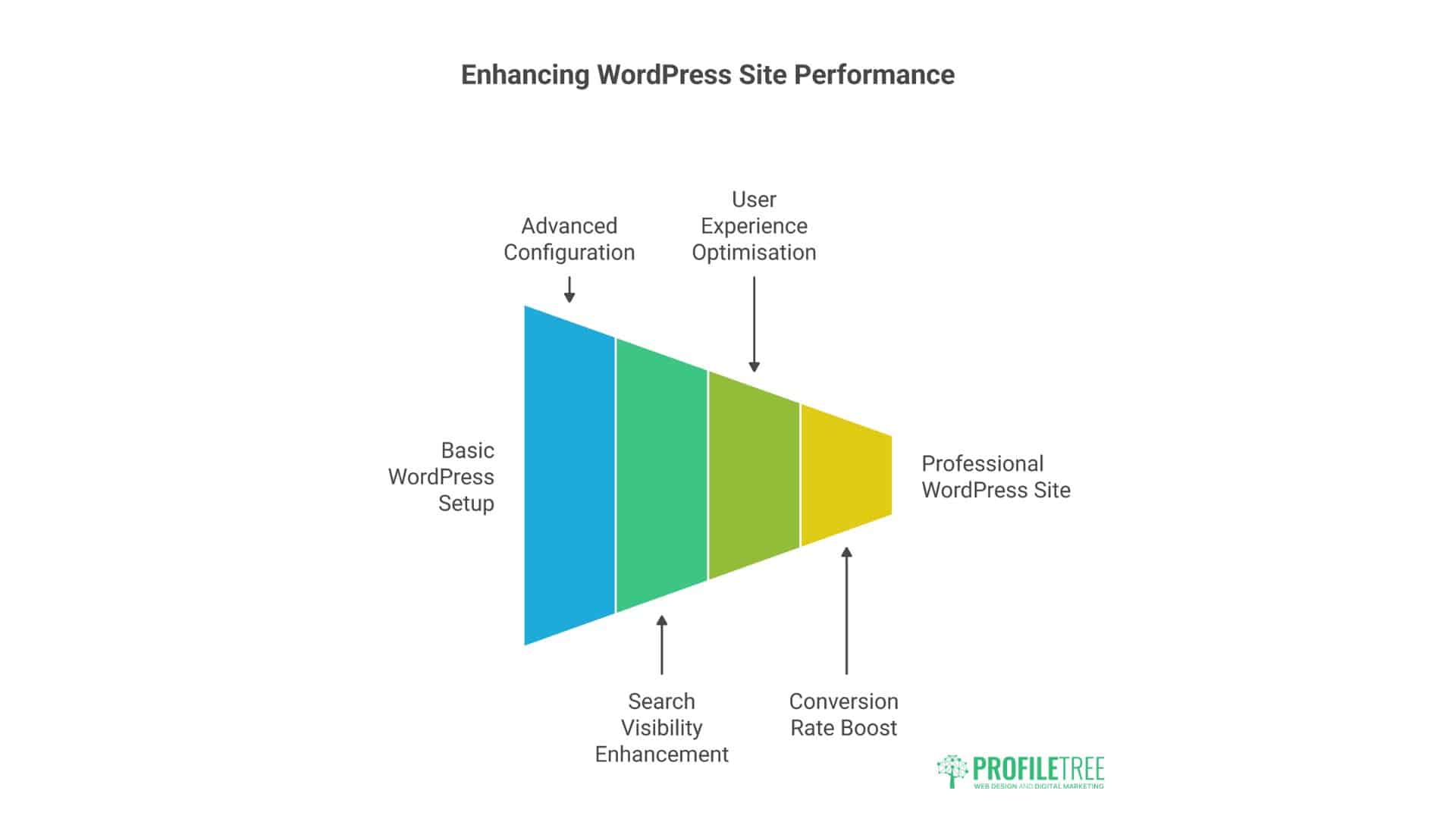
Professional WordPress sites serving business purposes require additional configuration beyond basic setup. These advanced techniques improve search visibility, user experience, and conversion rates.
Search Engine Optimisation Configuration
Proper SEO configuration helps search engines understand and rank your content effectively. Beyond installing SEO plugins, implement these techniques:
- XML Sitemap Submission: Generate XML sitemaps using Yoast or Rank Math, then submit to Google Search Console and Bing Webmaster Tools
- Robots.txt Optimisation: Configure robots.txt to allow search engine access while blocking administrative areas and sensitive pages
- Schema Markup Implementation: Add structured data helping search engines understand content context. Implement Organisation, LocalBusiness, Article, and FAQ schemas as relevant.
- Internal Linking Strategy: Link related content together, distributing authority throughout your site and helping search engines discover all pages
- Canonical URL Configuration: Specify canonical URLs to prevent duplicate content issues
- Page Speed Optimisation: Google uses page speed as a ranking factor. Target sub-3-second load times on mobile devices
Conversion Rate Optimisation
Professional websites prioritise conversions over traffic. Implement these conversion optimisation techniques:
- Precise Call-to-Action Placement: Every page should include obvious next steps for visitors—contact forms, product pages, newsletter signups
- Strategic Form Placement: Place lead generation forms where natural in content flow rather than immediately upon page load
- Trust Signals: Display client logos, testimonials, industry certifications, and security badges to build credibility
- Exit-Intent Popups: Capture leaving visitors with targeted offers or content upgrades
- A/B Testing: Test different headlines, CTAs, and page layouts to identify the highest-converting variations
GDPR Compliance Implementation
UK websites must comply with GDPR when collecting personal data. Implement these compliance measures:
- Cookie Consent Banner: Display clear cookie consent notices before setting non-essential cookies. Use plugins like Cookie Yes or Complianz
- Privacy Policy Accessibility: Link to privacy policy from every page footer and before data collection forms
- Data Processing Agreements: Ensure third-party services (email providers, analytics) include data processing agreements
- User Rights Support: Implement processes for handling data access requests, deletion requests, and data portability
- Consent Management: Store records of user consent for marketing communications
Local SEO Optimisation
Businesses serving local markets in Northern Ireland, Ireland, or the UK benefit from local SEO configuration:
- Google Business Profile: Create and optimise Google Business Profile (formerly Google My Business) with accurate business information, photos, and regular posts
- NAP Consistency: Ensure Name, Address, and Phone number match exactly across your website, social media, and directory listings
- Local Schema Markup: Implement LocalBusiness schema, including physical address, phone numbers, and opening hours
- Local Content Creation: Publish content addressing local market needs, referencing local areas, events, and news
- Local Link Building: Earn links from local organisations, chambers of commerce, and regional news outlets
Taking Your WordPress Site Further
Building a professional WordPress website is just the beginning of your online journey. The platform’s flexibility supports business growth from simple brochure sites to complex e-commerce platforms handling substantial daily traffic.
WordPress success requires ongoing commitment—regular updates, fresh content, performance monitoring, and adaptation to evolving search algorithms. Businesses that view their website as a dynamic marketing tool rather than a static digital brochure consistently achieve superior results.
Partnering with experienced digital agencies accelerates growth for organisations without in-house technical expertise while preventing costly errors. ProfileTree helps businesses across Northern Ireland, Ireland, and the UK build WordPress websites optimised for search rankings, user experience, and lead generation.
The principles in this tutorial establish your foundation for sustained online success. Focus on delivering genuine value to visitors, maintaining technical excellence, and continuously refining your approach based on performance data. Your WordPress site represents your business in the digital world—build it right, maintain it properly, and use it strategically to drive business growth.