
Editing a Website in Wix: The Complete UK Business Guide
Table of Contents
Most small business owners open the Wix editor because something needs fixing rather than because they fancy a redesign. A phone number changes, a product sells out, or last season’s homepage banner is still live in the middle of summer. Editing a website in Wix is meant to be a basic operational skill, not a specialist task, yet the platform has grown more complicated since a second visual editor launched alongside the Classic Editor. ProfileTree, a Belfast-based web design and digital marketing agency, fields this exact question regularly from SME clients trying to make a quick change without breaking something else.
This guide covers the full editing process for both interfaces and addresses the areas where UK and Irish businesses most often run into trouble: GDPR-compliant cookie banners, mobile responsiveness, and the gap between saving a draft and publishing changes live.
- Wix Studio and the Classic Editor handle mobile layouts differently, so check which one you’re using before you start.
- Saving a draft does not publish it; visitors only see changes after you click Publish.
- UK and Irish sites need extra configuration for GDPR cookie consent, VAT display, and .co.uk or .ie domain mapping.
At a glance: Wix runs two separate editors, Classic and Studio, and moving a site between them is not automatic; Wix’s own support documentation confirms a site built in the Classic Editor cannot be migrated to Studio and must be rebuilt. Saving a draft never publishes it; visitors only see changes after Publish is clicked. UK and Irish sites also need extra configuration for GDPR cookie consent, VAT display, and .co.uk or .ie domain mapping, and the rules around cookie consent changed materially in 2026.
Accessing the Wix Dashboard
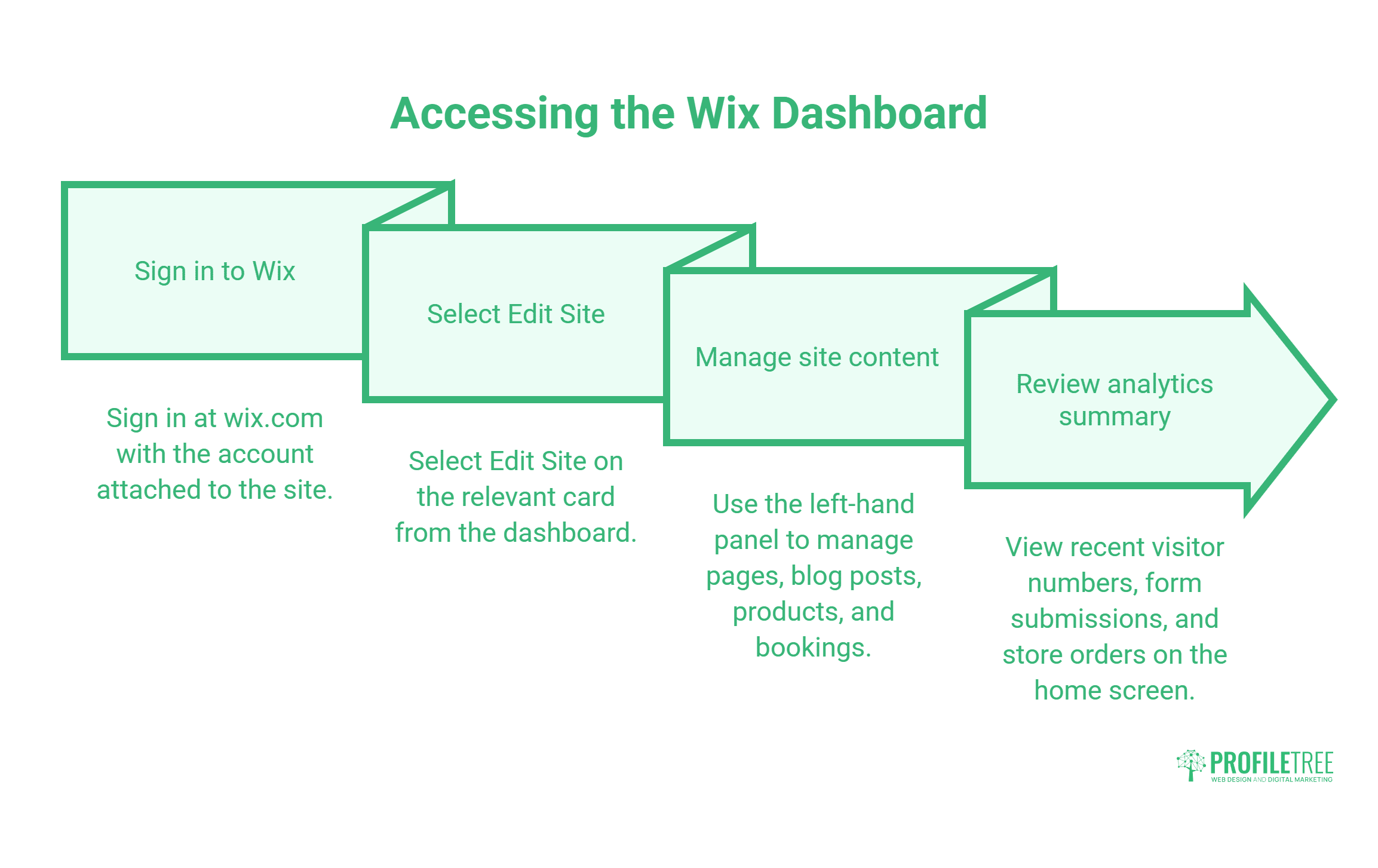
Editing a website in Wix starts with knowing where to log in and which Wix editor loads by default. Wix separates dashboard management from the visual editor, and confusing the two wastes time on updates that could take seconds.
Logging In and Finding Your Site
Sign in to wix.com with the account associated with the site, then select Edit Site on the relevant card in the dashboard. If someone else built the site, ask them to add you as a contributor through Roles and Permissions before the edit option appears. Bookmark wix.com directly, rather than searching for the login page each time a change is needed.
Businesses running more than one site, a main company site and a separate campaign page, for example, get a simple switcher at the top of the dashboard. Each site keeps its own editor, apps, and billing plan, so changes to one never affect the others.
What You Can Do Without Opening the Editor
The dashboard’s left-hand panel lets you manage pages, blog posts, products, and bookings without opening the visual editor at all. This works well for routine text changes, correcting a blog title, or updating business hours on a services page. Save the visual editor for layout changes, image swaps, and anything involving sections or interactive elements.
Wix also shows a basic analytics summary on the dashboard home screen: recent visitor numbers, form submissions, and store orders where relevant. For a fuller picture of search performance, connect Google Analytics or check the Reports section, since knowing how a page performs matters as much as keeping it up to date. For businesses that would rather hand off day-to-day maintenance entirely, ProfileTree’s website hosting and management service covers exactly this kind of ongoing upkeep.
Wix Editor vs Wix Studio
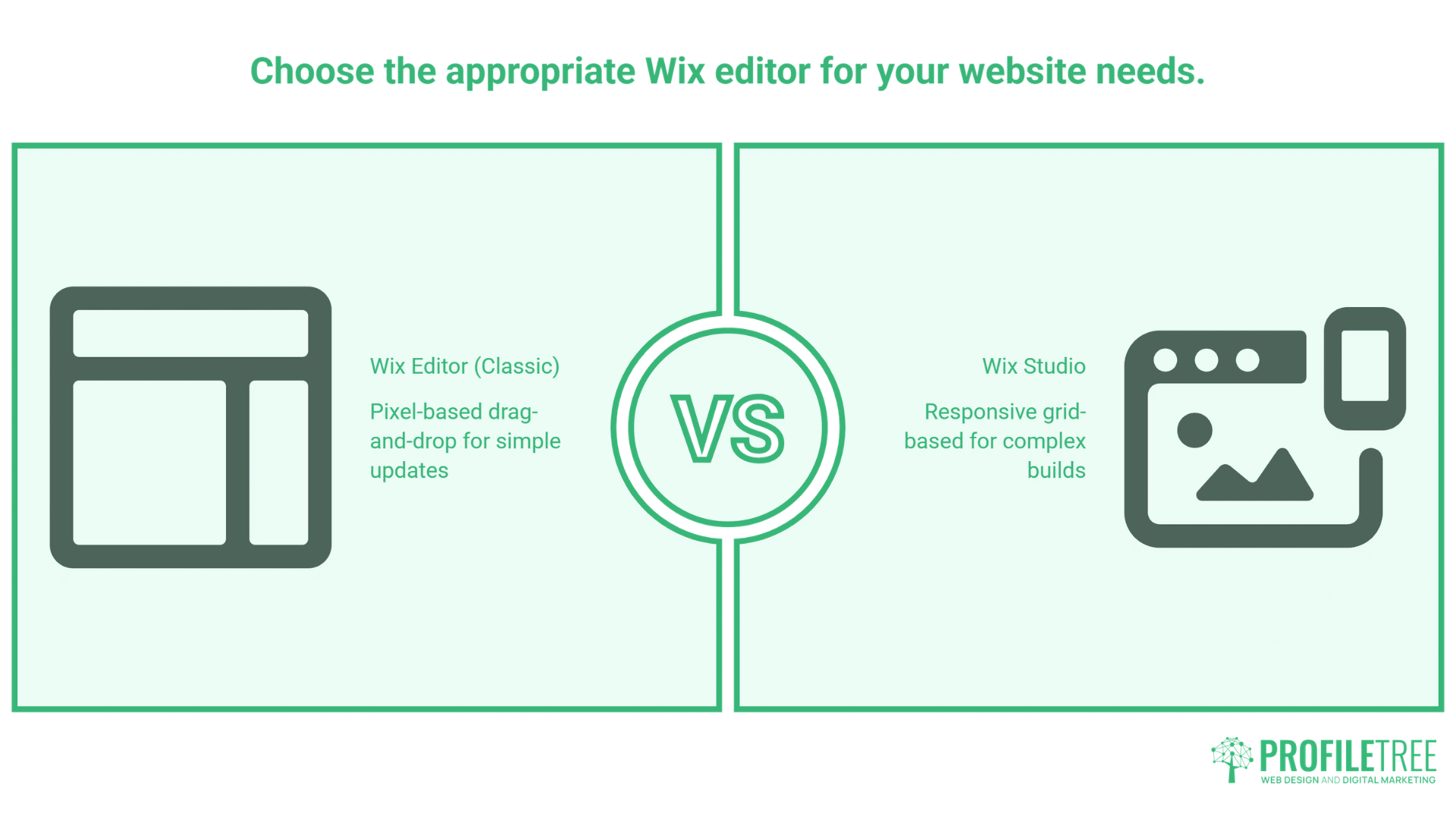
This is the question that trips up the most business owners right now. Wix runs two separate visual editors, and they behave very differently. Editing a website in Wix without knowing which Wix website editor you’re using leads to wasted effort because settings, mobile responsiveness, and design flexibility differ between the two.
The Classic Wix Editor
The Classic Editor uses a pixel-based, drag-and-drop system. You place elements exactly where you want them on the canvas, and what you see on the desktop is what desktop visitors see. Mobile needs separate attention here: Wix generates a mobile layout automatically, but it usually needs manual correction, since elements positioned freely on desktop can overlap or stack badly on smaller screens if left unchecked.
Most sites built before 2023 use the Classic Editor. If you can drag any element to any position without a grid snapping into place, that’s the version you’re in. It suits simple updates well, but it has real limits for businesses that need consistent behaviour across tablets and phones.
Wix Studio, the Responsive-First Option
Wix Studio uses a grid-based, responsive approach instead. Elements adapt to screen width rather than requiring a separate mobile version, which matters for businesses whose customers browse mainly on phones. The interface looks more like design tools such as Figma: sections are arranged in rows and columns, and breakpoints control how the layout shifts at different widths. If your toolbar shows grid handles and breakpoint controls, you’re working in Studio.
New sites built from 2024 onwards typically default to it. One thing worth knowing before you commit: Wix’s own Help Centre states plainly that a site originally created in the Classic Editor cannot be migrated to Studio, and that the only way to access Studio’s features is to rebuild the site there. A handful of certified third-party Wix partners advertise their own migration tooling, but it sits outside Wix’s official process, and results vary. For an established site that already works, that disruption rarely pays off unless a full redesign is already planned.
If you’re building a new site, Studio is usually the better starting point. If your business has outgrown a self-managed Wix build entirely, ProfileTree’s website development services in Belfast can take it to a fully custom site built around your commercial goals, and ProfileTree’s guide to WordPress website costs is a useful comparison point before deciding whether that move makes financial sense.
| Feature | Wix Editor (Classic) | Wix Studio |
|---|---|---|
| Interface style | Drag-and-drop, pixel-based | Responsive, grid-based |
| Mobile handling | Separate mobile editor | Built-in responsive breakpoints |
| Coding access | Velo (JavaScript) | Velo plus advanced CSS |
| Best suited for | Beginners, simple sites | Agencies, complex builds |
Making the Essential Edits
Whichever Wix editor you’re using, Classic or Studio, editing a website in Wix follows a logical order: text and branding first, then images and video, then structure. Working out of sequence is the most common reason edits look right on one page and wrong on another.
Text, Fonts, and Brand Colours
Click any text element to select it. A formatting toolbar appears above the canvas, letting you edit copy directly and switch between heading and body styles. For consistency across the site, avoid changing fonts on individual elements one at a time. Instead, open Site Design in the left panel and update the global text theme; that single change cascades across every text element and saves considerable time on a larger site.
Colour works the same way. Changing one button’s colour affects only that button. To update brand colours everywhere, edit the palette through Site Design instead. It’s the approach a professional designer would take, and it makes a future rebrand or seasonal refresh far quicker.
Adding and Swapping Images and Video
Select an image in the Wix website editor to reveal Change Image in the toolbar. You can upload from your device, pick from Wix’s media library, or use the built-in free stock sources. For business use, upload your own photography wherever you can; stock images look generic, and Google’s image indexing favours original visual content when deciding what to surface in image search.
To add video to a section background, click the section itself rather than an element inside it, then choose Change Section Background. Keep background videos under 30 seconds, muted by default, and test on a real phone before publishing, since large files slow load times and affect both rankings and bounce rates. ProfileTree’s video marketing services cover how to plan and produce footage that works across a website, not just social channels.
Managing Pages and Navigation
Add new pages through the Pages panel on the left. Click the plus icon, choose a blank page or a relevant template, and give it a descriptive name; it appears in your navigation automatically, though you can hide it or reorganise the menu manually.
For service and e-commerce businesses, give each product or category its own page rather than one long listing, since separate URLs can rank independently for specific search terms. A florist in Belfast, for example, benefits from distinct pages for wedding flowers, funeral arrangements, and corporate work rather than all three competing on a single page.
Editing for Mobile
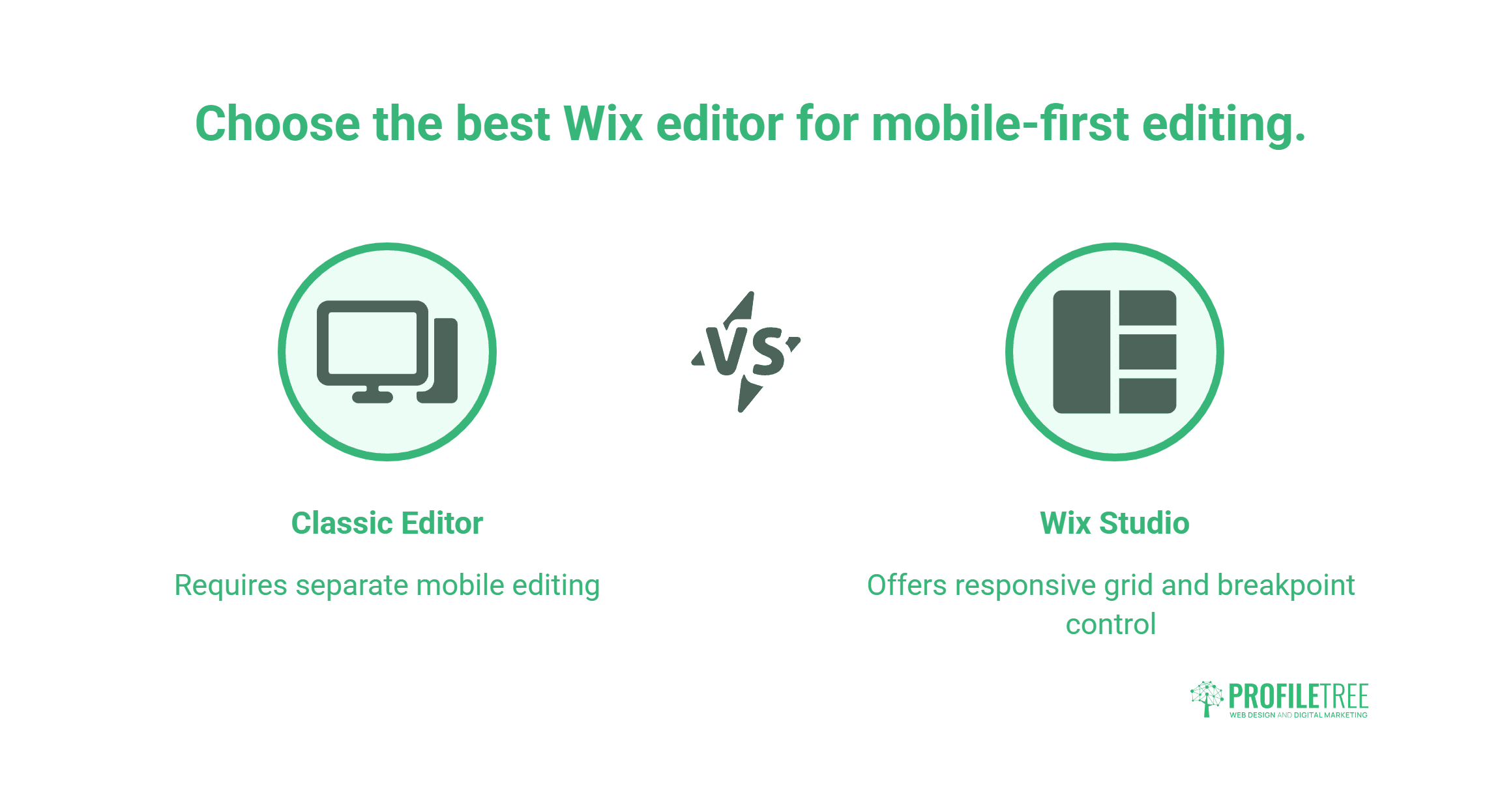
Editing a website in Wix on desktop only tells half the story: layouts that look polished there can still fall apart on a phone, and publishing without checking mobile first is one of the costliest mistakes a business makes with its Wix site. Google’s mobile-first indexing means the mobile version of a page is what search engines assess for quality.
In the Classic Editor, switch to mobile view using the phone icon at the top of the toolbar. Changes made there are independent of the desktop layout; they don’t carry across automatically. The issues that come up most often are text too large for a narrow screen, images that overflow the viewport, and buttons placed too close together to tap accurately.
Wix Studio handles this differently. Because it’s built on a responsive grid, most adjustments cascade from the desktop layout automatically. You can still fine-tune specific breakpoints by clicking the responsive controls and selecting phone or tablet view; changes made at a breakpoint apply only at that width and narrower, giving precise control without touching the desktop experience.
“Mobile-first editing isn’t optional anymore. If you’re not checking your breakpoints every time you make a change, you’re not really editing your site, you’re guessing.” — Ciaran Connolly, Founder, ProfileTree
Whichever Wix editor you use, treat the mobile preview as the real test of a change, not the desktop canvas. A layout that looks right on a wide screen and breaks on a narrow one is not finished.
UK and Irish Settings
Editing a website in Wix is straightforward until you reach the settings aimed at a UK or Irish audience, since most Wix guides are written for a US audience and skip this configuration entirely. The sections below cover what to check in the Wix website editor before a site with a UK or Irish audience goes live.
GDPR-Compliant Cookie Banners
Under the UK GDPR and PECR (the Privacy and Electronic Communications Regulations), non-essential cookies require informed consent before they’re set, and the rules are tightening in 2026. The Data (Use and Access) Act 2025 raised the maximum PECR penalty to match UK GDPR levels, up to £17.5 million or 4% of global turnover. The ICO published its final updated guidance on storage and access technologies on 29 April 2026. That guidance sets out five narrow categories of technology exempt from consent (broadly: transmitting a communication, delivering a service the user requested, and basic statistical counting) but confirms that anything used for analytics, personalisation, or advertising almost always still needs an opt-in.
Wix’s built-in Cookie Consent tool is in the Privacy Centre, reached via Dashboard > Settings > Privacy Centre > Cookie Settings. The default banner is a basic notification bar telling visitors that cookies are in use, and that alone falls short of the ICO’s current expectations, particularly for any site running Facebook Pixel, Google Analytics, or other third-party advertising tools.
Switch to granular consent mode instead, so visitors can accept or decline analytics, marketing, and functional cookies separately, with “Accept all” and “Reject all” given equal visual weight. The ICO has been explicit that pre-ticked boxes and continued browsing no longer count as valid consent. The guidance at ico.org.uk is worth checking at least once a year, since it continues to be refined. If your forms also collect personal data, ProfileTree’s guide to designing GDPR-compliant web forms covers the consent and data-handling aspects separately.
Connecting .co.uk and .ie Domains
Connecting a .co.uk or .ie domain to Wix involves a few steps that differ from the standard .com process. If the domain is with a UK registrar such as 123 Reg, GoDaddy UK, or Blacknight, update the CNAME and A records in that registrar’s control panel rather than in Wix.
Wix shows the exact DNS values needed in Dashboard > Settings > Domains > Connect a Domain; copy them precisely, since a single wrong character stops verification. Propagation usually takes a few hours, though some registrars take up to 48 hours. The site stays reachable on its Wix subdomain while you wait, and it’s worth leaving the old DNS records in place until the new ones are confirmed active. ProfileTree’s walkthrough on adding a domain to a Wix site covers the process step by step for more detail.
VAT and Shipping for UK Stores
For Wix Stores, shipping and tax settings are located under Dashboard > Store > Settings. UK sellers of physical goods need a shipping zone for mainland Great Britain and, often, a separate one for Northern Ireland, which can carry different carrier arrangements. Wix connects with DPD, Evri, and other UK carriers through its App Market for third-party fulfilment.
VAT setup means choosing the correct rate, 20% standard for most goods, and deciding whether displayed prices include or exclude it. B2C sites usually show VAT-inclusive prices; B2B operations often show prices excluding tax, with VAT added at checkout. Check this before anything goes live, and revisit it if you expand into the Republic of Ireland, where Irish VAT rules apply instead.
Troubleshooting Common Problems
Editing a website in Wix runs smoothly most of the time, but a handful of Wix editor problems account for most support requests, whether you’re working in the Classic Editor or Wix Studio. Knowing the fix in advance saves the frustration of assuming something is broken when it’s actually a quick setting change.
Elements You Can’t Select or Move
The most common complaint is an element that won’t select or edit. Usually, it’s one of three things: the element sits inside a locked group and can’t be clicked into directly; it belongs to the header or footer, which needs a direct click on that specific element to select it rather than the section as a whole; or another element is layered on top of it, intercepting the click. Click Layers at the bottom left of the editor to see every element on the page in stacking order, grouped by header, page, and footer.
From there, you can select, reorder, or free up anything, regardless of what’s overlapping it on the canvas. It is also worth checking whether the element is meant to be hidden on that view. ProfileTree’s guide to hiding elements on a Wix site explains how that setting works and where it can cause confusion.
Editor Not Loading or Changes Not Appearing
If published changes aren’t showing on the live site, browser caching is the usual cause. Open the live URL in a private or incognito window to bypass the local cache and load the currently published version. If the change appears there but not in your regular browser, a hard refresh, Ctrl+Shift+R on PC or Cmd+Shift+R on Mac, forces the browser to pull the latest version from the server.
If the Wix website editor still won’t show your change after publishing and a hard refresh, contact Wix support directly, since propagation across their content delivery network occasionally takes a few minutes longer than expected. For businesses wanting to go beyond drag-and-drop fixes, adding custom HTML code to a Wix page unlocks adjustments the visual editor can’t make on its own.
Saving a Draft vs Publishing Live
Wix auto-saves work continuously, but auto-save is not the same as publishing. The save preserves a working draft for that session; nothing changes on the live site until Publish is clicked in the top right of the editor. This distinction catches out plenty of business owners who close the editor after making changes and assume visitors can already see them.
Before publishing, use Preview to check the page as a visitor would experience it: read the text for errors, confirm image proportions, and test any interactive elements. For pages with forms or booking widgets, submit a test entry to check the confirmation flow before making the change live.
What Editing Well Does for Search Performance
Getting a page technically sound is the foundation; ranking well is the next step, and the two are connected more directly than most business owners expect when editing a website in Wix. Google’s mobile-first indexing means the mobile version built in the Wix editor is what’s actually assessed, so the settings covered above aren’t cosmetic; they affect visibility.
Page load time, driven partly by video and image choices made in the editor, factors into both rankings and how long a visitor stays before leaving. Structuring pages so each product or service has its own URL, rather than cramming everything onto one page, gives each page a fair chance to rank for its own search terms instead of competing with itself.
None of this replaces a proper SEO strategy, but it removes the technical barriers that stop good content from being found. ProfileTree’s SEO services for Northern Ireland and Irish businesses go into the strategy side once the technical foundation from this guide is in place.
5-Point Pre-Publish Checklist
Run through these five checks before clicking Publish on any UK or Irish Wix site.
- Cookie consent banner set to granular mode, with equal-weight Accept and Reject options.
- UK or Irish contact details visible in the footer.
- Domain mapping, .co.uk or .ie, confirmed and resolving.
- Mobile view checked at phone and tablet breakpoints.
- Preview tested before clicking Publish.
Keeping a Wix Site Reliable Once It’s Live
Editing a website in Wix is manageable once you know which editor you’re in, how the publishing workflow works, and where the UK-specific settings are located. The steps in this guide, from GDPR cookie consent through mobile testing to fixing a frozen element, are what separate a site that remains reliable from one that quietly frustrates its visitors.
Knowing how to edit is the starting point. Using those edits to improve how the site is found, how visitors respond to it, and how it supports the rest of the business is where the real value sits. Get in touch with ProfileTree if you’d like support at any point in that process, whether that’s a full Wix rebuild, a move to a custom site, or ongoing management, so this list never needs to become part of your job.
FAQs About Editing a Website in Wix
How do I edit my Wix site after it’s already live?
Log in at wix.com, open your dashboard, and click Edit Site on the site you want to change. You’re editing a draft alongside the live version, and nothing changes for visitors until Publish is clicked in the top right corner.
Can I switch from the Classic Wix Editor to Wix Studio?
Not through Wix’s own tools. Wix’s Help Centre confirms there’s no automated migration path, so moving to Studio means rebuilding the site from scratch there, and existing pages, content, and apps don’t carry over automatically.
Why can’t I edit certain parts of my Wix page?
The usual causes are a locked group, a header or footer element that needs a direct click to free up, or another element layered on top intercepting the click. Open the Layers panel, Ctrl+L or Cmd+L, to see everything stacked in order and select what’s needed.
How do I make my Wix site GDPR compliant for UK visitors?
Go to Dashboard > Settings > Privacy Centre > Cookie Settings, and switch from the default notification bar to granular consent mode with equal-weight Accept and Reject buttons. Review the privacy policy and confirm tools such as Facebook Pixel or Google Analytics only activate after a visitor gives consent, in line with the ICO’s April 2026 guidance.
Can I edit a Wix site from my phone?
Basic edits are possible through the Wix Owner app on iOS and Android, including updating text, publishing posts, and responding to form submissions. Full layout and design editing still needs the desktop editor.