
How to Use Screaming Frog SEO Spider for Website Audits
Table of Contents
Screaming Frog SEO Spider is a desktop website crawler used by SEO professionals, in-house teams, and agencies to run technical audits, spot broken links, analyse metadata, and map site architecture. It is one of the most widely used SEO audit tools available, and for good reason: it gives you direct, unfiltered access to how search engines see your site.
This guide explains how Screaming Frog works, what it finds, and how to get practical value from it, whether you are running your first crawl or adding AI-assisted workflows to your process.
What Is Screaming Frog SEO Spider?
Screaming Frog SEO Spider is a desktop program (available on Windows, macOS, and Linux) that mimics how a search engine bot moves through your website. It follows links from page to page, recording what it finds: HTTP status codes, page titles, meta descriptions, heading tags, canonical tags, redirect paths, images, and more.
The tool runs locally on your machine, which means it is not dependent on cloud infrastructure and can crawl staging environments, password-protected sites (using form-based authentication), and local development builds that third-party cloud tools cannot reach.
Unlike database-driven platforms such as Ahrefs or Semrush, which show you historical keyword and backlink data pulled from their own index, Screaming Frog is an active crawler. It tells you what is happening on your site right now, at a technical level. Both types of tools belong in a full SEO workflow, but they serve different stages, and that distinction matters when deciding which to reach for.
Screaming Frog is developed by a UK-based company headquartered in Henley-on-Thames, which partly explains its strong adoption across UK and Irish agencies. It is updated regularly: version 24.0 (May 2026) introduced Model Context Protocol (MCP) server capabilities, covered in a later section.
Screaming Frog Free vs Paid: What You Actually Get
The free version is a genuine, usable tool, not a stripped demo. The main constraint is the 500-URL crawl limit, which covers small business websites and individual landing page audits comfortably. Beyond that limit, you need the paid annual licence.
| Feature | Free Version | Paid Licence (£199/year) |
| URL crawl limit | 500 URLs | Unlimited |
| Custom extraction (XPath, CSS, RegEx) | No | Yes |
| Google Search Console integration | No | Yes |
| Google Analytics integration | No | Yes |
| JavaScript rendering (Puppeteer) | Limited | Full |
| Scheduled crawls | No | Yes |
| Command-line / cloud deployment | No | Yes |
| AI/LLM prompt integration | No | Yes |
| MCP server connection | No | Yes |
| Crawl comparison | No | Yes |
| PageSpeed Insights API | No | Yes |
For SMEs with sites under 500 pages, the free version handles most standard audit tasks. If you are running a site above that threshold, auditing multiple client properties, or want to automate workflows with AI integrations, the paid licence is the relevant option.
Step-by-Step: How to Configure and Run Your First Crawl
Download Screaming Frog SEO Spider from the official site at screamingfrog.co.uk, install it for your operating system, and open it. You will see an address bar at the top where you enter the URL you want to crawl.
Before you hit Start, there are a few configuration decisions worth making.
Adjusting Memory and Storage for Larger Sites
Screaming Frog runs on your local machine’s RAM by default. For sites under 10,000 URLs, this works well on most modern hardware. For larger crawls, the software will warn you when it is approaching memory limits.
If you are crawling a large site, go to Configuration > System > Storage and switch from RAM to Database Storage. This writes crawl data to your hard drive (an SSD is strongly recommended) rather than holding everything in memory. It is slower but prevents out-of-memory crashes during crawls above 50,000 URLs. For reference, 16GB of RAM is the practical minimum for large crawls in RAM mode.
To increase the RAM allocation directly, go to Configuration > System > Memory and raise the value. The default is often set conservatively relative to what your machine can provide.
Configuring User-Agents and JavaScript Rendering
By default, Screaming Frog identifies itself as its own crawler. You can switch the user-agent to Googlebot under Configuration > User-Agent, which gives you a closer approximation of what Google would see when it visits your pages.
For JavaScript-heavy sites built on React, Angular, or Vue, enable JavaScript rendering under Configuration > Spider > Rendering and select Screaming Frog. This uses a Puppeteer-based headless browser to render pages as a real browser would. Be aware that JavaScript rendering significantly increases crawl time and memory usage; test it on a smaller section of the site first before running a full crawl.
Core Technical Audits: The Standard SEO Checklist
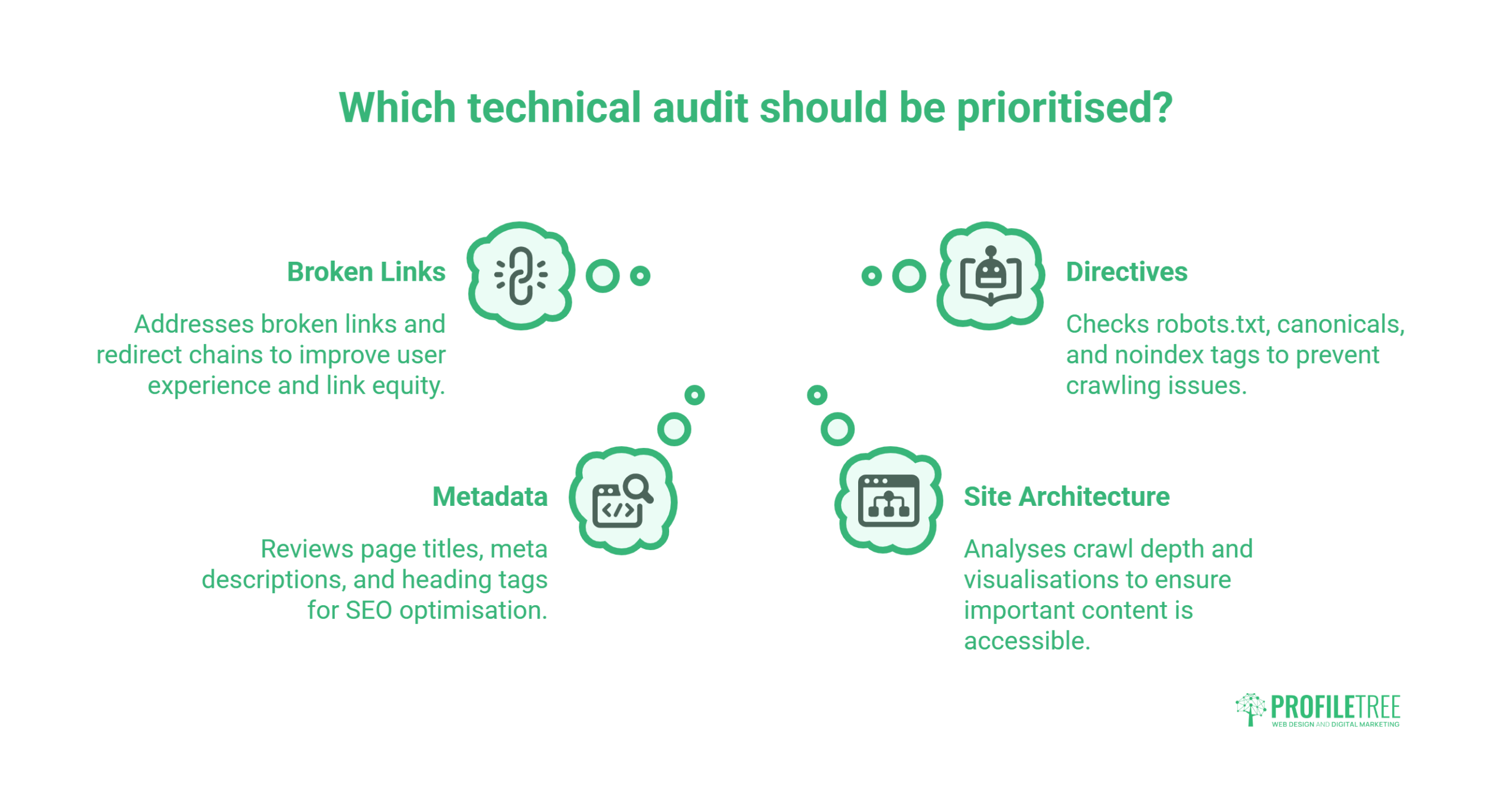
Once a crawl completes, the data is organised into tabs at the top of the interface. Below are the core areas to work through systematically. The volume of information can look overwhelming at first, but working through these four areas in order covers the most common technical issues on most sites.
Spotting Broken Links, Redirect Chains, and Loops
Click the Response Codes tab and filter for 4xx errors. These are your broken links. The Inlinks column shows you which pages are pointing to each broken URL, giving you the context to fix or remove each one efficiently.
For redirects, click the Redirect Chains tab. A redirect chain occurs when a URL redirects to a second URL, which then redirects to a third, creating unnecessary delays and diluting link equity with each additional hop. The goal is a single 301 from the original URL directly to the live destination. Chains with three or more hops are worth flattening as a priority.
Redirect loops occur when URL A redirects to URL B, which then redirects back to URL A; these appear as errors and prevent pages from loading entirely.
Ciaran Connolly, founder of ProfileTree, a Belfast-based web design and digital marketing agency, puts it this way: “Redirect chains are one of the most common technical issues found during client audits. They’re invisible to the visitor but consistently slow down crawling and dilute the equity passing through the site. Flattening them is low-effort, high-impact work.”
Reviewing Page Titles, Meta Data, and Heading Tags
Select the Page Titles tab to review every title tag across the site. Screaming Frog flags titles that are missing, duplicated, too short (under 30 characters), or too long (over 65 characters). The same logic applies to meta descriptions under the Meta Description tab.
The H1 tab reveals pages with missing H1 tags, multiple H1s on a single page, or H1s that duplicate the title tag without adding anything useful. Cross-referencing these three tabs together gives you a clear metadata audit in minutes, replacing what would otherwise take hours of manual checking.
Analysing Site Architecture, Crawl Depth, and Visualisations
The Crawl Depth column shows how many clicks from the homepage it takes to reach each URL. Pages buried at depth 5 or deeper are unlikely to be crawled regularly or ranked well. If important content is sitting deep in the architecture, it needs either a restructure or a stronger internal linking path.
The Visualisations menu (top right) generates a crawl diagram showing how pages connect. This is particularly useful for presenting architectural issues to clients or development teams who need a visual representation rather than a spreadsheet.
Checking Directives: Robots.txt, Canonicals, and Noindex
Under the Directives tab, filter for pages marked noindex. Confirm that these are intentionally excluded; accidental noindex tags on commercial pages are a surprisingly common cause of ranking drops.
The Canonicals tab shows every canonical tag on the site. Check for self-referencing canonicals (correct), canonicals pointing to redirect sources (problem), and canonicalised pages that also carry noindex tags (usually redundant but worth flagging to the dev team).
To test your robots.txt, go to Configuration > Robots.txt and load the file. Any rules blocking Screaming Frog in that file will also show you what Googlebot may be blocked from crawling.
Advanced Auditing: Custom Data Scraping with XPath and Regex
Custom extraction is one of the most powerful features in the paid version. It lets you pull specific data points from any element on a page using XPath, CSS selectors, or RegEx patterns, then outputs the results into a column you can filter and export alongside the rest of your crawl data.
Go to Configuration > Custom > Extraction, then Add, and select your extraction method. Some practical examples to get started:
Extracting JSON-LD schema markup:
//script[@type=”application/ld+json”]This pulls all structured data blocks from every crawled page into a single column, letting you audit schema coverage across the entire site at once.
Extracting H2 tags in bulk:
//h2Use this to export every H2 across the site for a content audit or to check heading consistency against a target keyword list.
Scraping product prices:
//span[@class=”price”]Adjust the class name to match your site’s markup. This is useful for e-commerce audits where you need to verify that pricing is rendering correctly for both users and crawlers.
Extracting author metadata:
//meta[@name=”author”]/@contentThis became more relevant after Google’s February 2026 update, which made author credentials a first-class ranking input. Confirming that author markup is present and correct across all content pages is now worth building into a standard audit.
These extraction patterns can be saved as configuration templates and reloaded for future crawls, making them reusable across client projects without having to rebuild them each time.
AI Automation: Running LLM API Prompts and MCP Inside the SEO Spider
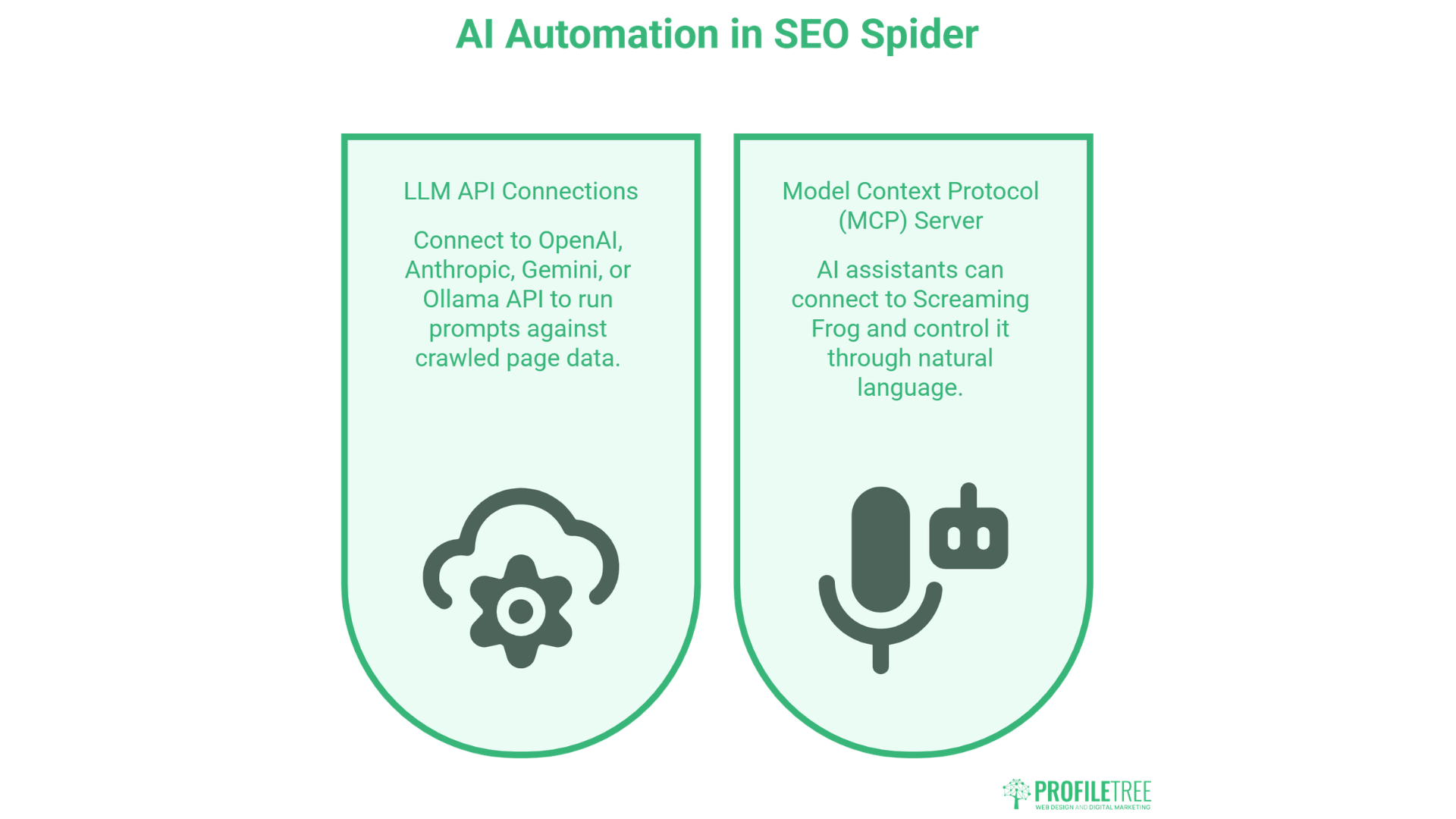
Version 24.0 introduced two features that change how technical SEO can be automated: direct LLM API connections and a Model Context Protocol (MCP) server. Neither replaces the need for SEO judgement, but both compress significant amounts of manual work into a single crawl pass.
Connecting the OpenAI or Anthropic API
Go to Configuration > AI > API. You can connect Screaming Frog directly to the OpenAI, Anthropic (Claude), Gemini, or Ollama API. Once connected, you can write prompts that run against crawled page data at scale. The tool passes each row through the prompt and returns the output as a new column.
Practical prompt examples:
Bulk meta description generation: Prompt: “Write a meta description under 155 characters for a page with this title and H1. Focus on the page’s primary value to the reader. UK English. No marketing superlatives.”
Pass the title and H1 columns as inputs. Screaming Frog runs the prompt against every row and outputs the generated descriptions into a new column, ready for review and upload.
Content quality scoring: Prompt: “Score this page’s body copy for readability on a scale of 1-5. Flag if the content is thinner than 300 words or if it fails to answer the primary question implied by the title.”
Schema gap identification: Prompt: “Review this page’s title and URL. Identify the most appropriate structured data type (Article, Product, FAQPage, LocalBusiness, etc.) and explain why.”
These prompts do not replace editorial judgement, but they compress what would be hours of manual review into a single crawl pass.
Model Context Protocol (MCP) Server
Version 24.0 also added an MCP server that allows AI assistants (including Claude desktop and other MCP-compatible tools) to connect to Screaming Frog and control it through natural language. You can start and stop crawls, request reports, and filter data by speaking to the assistant directly without touching the interface.
In practice, a strategist who understands SEO but is not a developer can ask: “Show me all pages returning a 404 that have inlinks from the homepage”, and receive the data without touching the Screaming Frog interface. For a broader look at how AI-assisted workflows fit into technical SEO strategy, ProfileTree’s guide to AI for technical SEO covers the wider context.
The MCP setup requires a paid licence. To enable it, go to Extras > MCP Server in the Screaming Frog menu and follow the connection instructions for your preferred AI assistant.
Localised Technical SEO: Managing UK, ROI, and Northern Ireland Dual Setups
Screaming Frog is a UK tool; it handles the multi-market configurations that are common in the UK and Irish markets better than most guides acknowledge. For businesses operating across the UK and the Republic of Ireland, including agencies that audit those clients, there are specific workflows worth knowing about.
Auditing Hreflang Between .co.uk and .ie Domains
To validate an hreflang setup between a UK and Irish domain, start two separate crawls: one seeded from the .co.uk homepage, one from the .ie homepage. In each crawl, go to the Hreflang tab. Screaming Frog checks whether the hreflang return tags are in place: if the .co.uk page points to the .ie equivalent, the .ie page must point back.
Common failures in cross-border setups include:
- hreflang pointing to a URL that has since been redirected (a redirect, not a 200)
- hreflang pointing to a canonicalised URL rather than the canonical itself
- hreflang attributes present in the HTML but absent from the XML sitemap (or vice versa)
Any of these breaks the reciprocal relationship Google requires for hreflang to function correctly.
The validation flow looks like this:
[Crawl UK seed URL (.co.uk)]
└──► Extract hreflang=”en-ie” → target .ie URL
└──► Does target return 200?
├──► Yes: Check return tag exists on .ie page
└──► No (301/404): Flag hreflang error
[Crawl ROI seed URL (.ie)]
└──► Extract hreflang=”en-gb” → target .co.uk URL
└──► Does target return 200?
├──► Yes: Confirmed
└──► No: Flag
IP-Based Redirection and Googlebot
Some UK/Ireland e-commerce sites redirect users based on IP address: UK visitors go to .co.uk, Irish visitors to .ie. Googlebot typically crawls from US IP addresses, which means it may never see the site it is supposed to index.
To test this in Screaming Frog, change the user-agent to Googlebot under Configuration > User-Agent and run the crawl. Any IP-based redirect that catches Googlebot will appear as a redirect in the Response Codes tab. This is a documented indexing failure mode and is worth checking on any site using geo-redirect middleware.
Integrating with Google Search Console and Analytics
Connecting Screaming Frog to GSC and Google Analytics is one of the most practical things you can do with the paid licence. It brings performance data into the crawl view, so you are not switching between tools to cross-reference technical issues against actual traffic.
To connect GSC with the paid licence, go to Configuration > API Access > Google Search Console. Authenticate, then crawl the site. After the crawl, go to Configuration > API Access > Google Search Console > Download and merge the data.
This pulls clicks, impressions, CTR, and average position into the crawl data, giving you a combined view of what Screaming Frog found technically alongside what GSC reports for performance. You can then filter for pages with technical issues (missing metadata, noindex tags, redirect chains) and immediately see whether those pages are also losing traffic, which tells you where to prioritise fixes.
The same workflow applies to Google Analytics. Go to Configuration > API Access > Google Analytics, connect, and select the metrics you want to import (sessions, bounce rate, goal completions). This lets you see whether pages with thin content or metadata problems are also underperforming on engagement metrics.
Head-to-Head: Screaming Frog vs Cloud-Based Crawlers
The most common comparison is Screaming Frog against Ahrefs or Semrush. These are not equivalent tools; they operate at different stages of the SEO workflow.
| Screaming Frog | Ahrefs / Semrush | |
| Type | Local desktop crawler | Cloud-based database |
| Data source | Your live site, right now | Third-party index (historical) |
| Backlink data | No | Yes |
| Keyword research | No | Yes |
| Technical crawl depth | Full, customisable | Limited / scheduled |
| Staging site access | Yes | No |
| Custom extraction | Yes (XPath/CSS/RegEx) | No |
| AI/LLM integration | Yes (v21+) | No |
| Price | Free / £199/year | £99–£449+/month |
Use Screaming Frog for technical audits, on-site diagnosis, and custom data extraction. Use Ahrefs or Semrush for keyword research, competitor analysis, and backlink monitoring. In a well-resourced SEO workflow, both are present; they answer different questions.
The cloud-based alternative most comparable to Screaming Frog for enterprise use is Lumar (formerly Deepcrawl). Lumar runs scheduled crawls from cloud infrastructure, which removes the hardware dependency but also removes the ability to crawl staging environments, authenticate into private portals, and run custom extraction at the same granularity. Screaming Frog is more flexible and more cost-effective for most agency and in-house use cases.
Taking the Next Step with Technical SEO
Working through a Screaming Frog audit for the first time surfaces more issues than most people expect. The tool does not prioritise findings for you; that judgement call comes from knowing which technical problems are actually costing rankings and which are background noise. If you want experienced support interpreting audit results and building a fix plan around them, ProfileTree’s SEO services cover the full process from initial diagnosis through to implementation and monitoring.
For teams building their own SEO capability, ProfileTree also provides digital marketing training for businesses across Northern Ireland and remotely, covering the strategic and analytical skills needed to manage organic performance in-house.
Frequently Asked Questions
Is Screaming Frog SEO Spider free?
Yes. The free version crawls up to 500 URLs and covers the core functions: broken link detection, metadata analysis, redirect auditing, and basic crawl reporting. It is genuinely useful for small business websites. The paid annual licence (£199/year) removes the URL limit and accesses custom extraction, API integrations, AI prompt functionality, scheduled crawls, and the MCP server connection.
What are the system requirements for crawling large websites?
For sites under 10,000 URLs, most modern laptops with 8GB of RAM handle crawls in RAM mode without problems. For larger crawls, 16GB is the practical minimum in RAM mode. Switch to Database Storage mode (Configuration > System > Storage) for sites above 50,000 URLs; this writes crawl data to your SSD rather than holding it in memory, preventing out-of-memory crashes. An SSD is strongly recommended over an HDD for this mode.
Can I run Screaming Frog in the cloud?
Yes. The paid version can be installed on cloud virtual machines from Microsoft Azure, Google Compute Engine, or AWS EC2. Once installed, you can run scheduled crawls via the command line without a graphical interface. This is the typical setup for agencies running nightly automated audits across multiple client sites.
How do I fix “Out of Memory” errors?
Two routes: first, increase the RAM allocation in Configuration > System > Memory and set it higher than the default (up to the amount your machine can spare). Second, switch from RAM storage to Database Storage in Configuration > System > Storage. The second option is more reliable for large sites and does not require powerful hardware.
Can Screaming Frog crawl password-protected websites?
Yes. Under Configuration > Authentication, you can set up form-based authentication to allow the spider to log into staging environments or private portals using credentials. This is one of the significant practical advantages over cloud-based tools, which cannot access private environments.
What is the difference between Screaming Frog and Lumar (Deepcrawl)?
Screaming Frog runs on your local machine or a cloud VM you control, giving you full flexibility over crawl configuration, custom extraction, and private site access. Lumar runs scheduled crawls from managed cloud infrastructure, which suits large enterprise sites that need automated monitoring without touching hardware. Screaming Frog is more cost-effective and more flexible for most agency and in-house SEO use cases; Lumar is better suited to organisations running crawls across thousands of URLs on a fully automated schedule without developer involvement.
How do I use Screaming Frog for a basic SEO audit?
Enter your site URL, start the crawl, and work through the Response Codes tab (fix 4xx errors), the Page Titles and Meta Description tabs (fix missing, duplicated, or out-of-length values), the Redirect Chains tab (flatten multi-hop redirects), and the Directives tab (confirm noindex and canonical tags are intentional). These five areas address the most common technical issues on most sites.
Is Screaming Frog better than Ahrefs or Semrush?
They serve different purposes. Screaming Frog is an active crawler; it tells you what is on your site right now at a technical level. Ahrefs and Semrush are database tools built for keyword research, backlink analysis, and competitor intelligence. A complete SEO setup uses both. If you can only afford one, Screaming Frog’s free version plus free tiers on GSC and Google Analytics covers the core technical and performance-monitoring workflow at no cost.
Running a technical SEO audit without a crawler is guesswork. Screaming Frog SEO Spider gives you the exact data you need to find and fix what is holding your site back. If you want support setting up your first crawl, interpreting the results, or building a full SEO strategy around the findings, talk to ProfileTree’s SEO team to take it from there.