
Vector Graphics for Small Business Websites: A Practical Guide
Table of Contents
Most small business logos are saved as JPEGs or PNGs. On a phone screen or a large monitor, those files blur, pixelate, and slow the page down. Vector graphics solve all three problems at once, and understanding them does not require a background in design.
This guide explains what vector graphics are, why they matter for website performance and brand consistency, and how to get them working on the most common UK business platforms. It also covers when to handle things yourself and when to brief a professional.
Whether you are preparing assets for a new site build or auditing what your current designer delivered, the sections below give you a clear checklist for both.
All prices and figures in this guide are indicative UK examples and correct at the time of writing; use them as a benchmark rather than fixed quotations.
What Are Vector Graphics? (The Non-Technical Definition)
Think of a raster image as a mosaic made from thousands of tiny coloured tiles. Look at it from across the room, and it appears sharp. Zoom in, and you start to see the individual tiles. Enlarge the whole mosaic, and the gaps between tiles become visible. Vector graphics work differently: instead of tiles, they store a set of mathematical instructions that tell the screen how to draw each shape, curve, and line at whatever size it needs to be.
The practical result is that a vector logo looks as crisp on a 4K display as it does on a printed business card. No blurring, no pixelation, no second version needed. For UK SMEs, investing in a consistent brand identity means that consistency across every medium is a genuine commercial advantage.
The Main Vector File Formats
Three formats appear most often in design and web workflows, and knowing which does what saves time when briefing a designer or uploading to your CMS.
| Format | Full Name | Best For | Who Handles It |
|---|---|---|---|
| .ai | Adobe Illustrator | Source/editing file | Designer keeps this |
| .eps | Encapsulated PostScript | Print and large-format output | Printers and sign-makers |
| .svg | Scalable Vector Graphic | Web use on any CMS | You upload this to your site |
The SVG is the format that belongs on your website. The .ai or .eps source file belongs in your brand asset folder so you can reproduce, edit, or hand off the logo in future without starting again.
Vector vs Raster: A Direct Comparison
The table below covers the four qualities that matter most to a business owner rather than a designer.
| Quality | Vector (SVG/EPS/AI) | Raster (JPEG/PNG) |
|---|---|---|
| Quality when resized | Stays sharp at any size | Degrades when enlarged |
| Typical file size (logo) | 5 to 25 KB | 80 to 400 KB |
| Ideal use case | Logos, icons, illustrations, UI elements | Photographs, complex imagery |
| Editability | Fully editable: colours, shapes, text | Destructive editing only |
Photographs are not a good candidate for vector conversion because they contain millions of subtle colour variations that vectors cannot replicate faithfully. For brand assets, icons, and illustrations, vectors are the appropriate standard.
Five Reasons Your Small Business Website Needs Vector Graphics
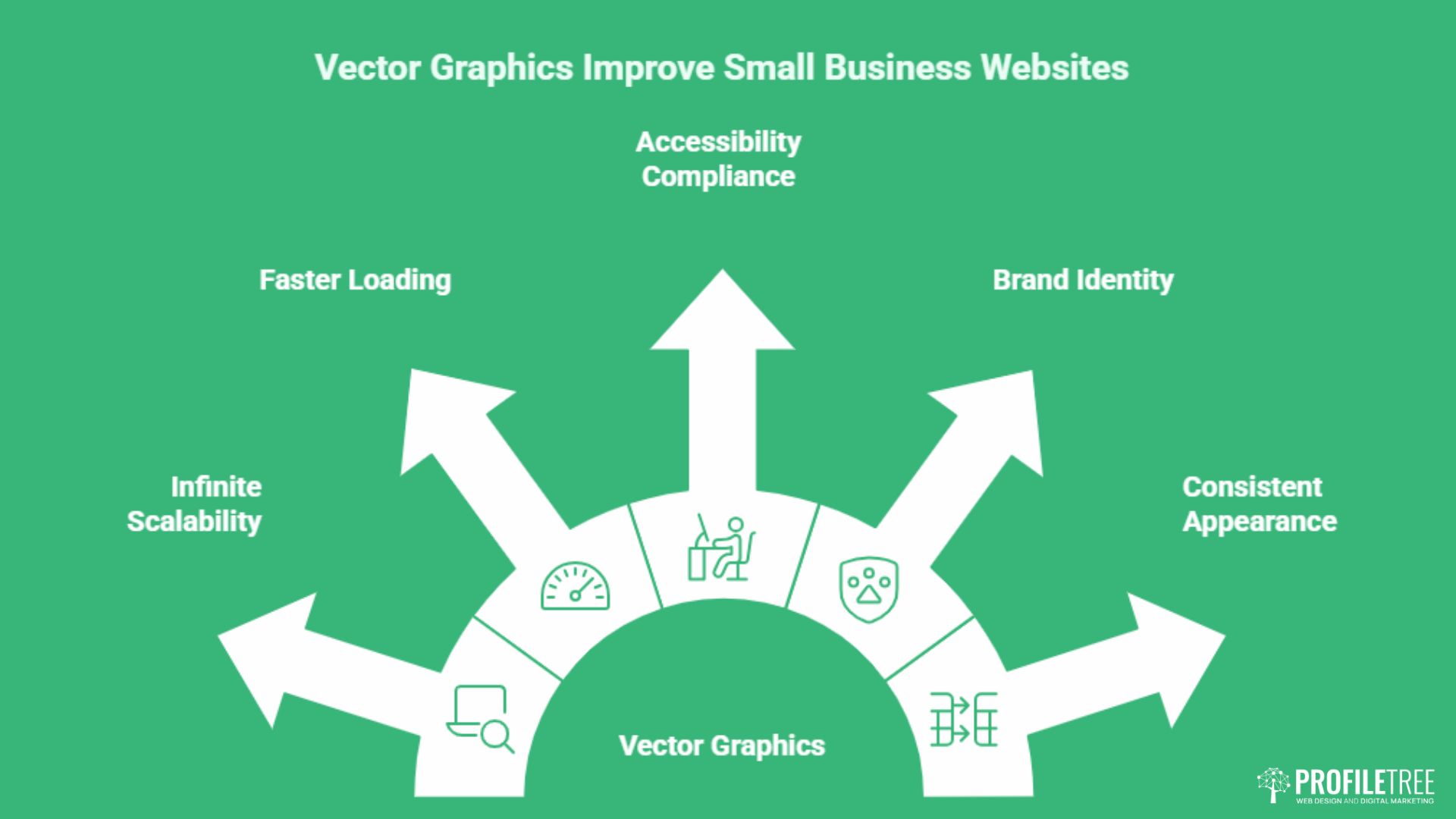
The decision to switch from raster to vector files is not purely aesthetic. Each of the five points below affects something measurable: load time, search rankings, accessibility compliance, or brand recognition. For a UK SME with a limited design budget, these are arguments for vectors that go well beyond how the logo looks.
1. Infinite Scalability for Retina and High-Resolution Displays
Modern smartphones and laptops now render screens at double or quadruple the pixel density of screens from ten years ago. A PNG logo that looked acceptable on a 2015 laptop can appear noticeably soft on a current iPhone or a 4K desktop monitor. Because SVGs are rendered mathematically by the browser rather than read pixel-by-pixel from a stored image, they appear identically sharp on every display regardless of resolution.
This matters practically when a potential customer views your website on a high-end device. A blurry logo signals an out-of-date website before a single word is read.
2. Measurable Improvements to Page Load Speed and Core Web Vitals
Google’s Core Web Vitals framework includes Largest Contentful Paint (LCP), which measures how quickly the main visible element of a page loads. Logos and hero section graphics often qualify as that element. A logo saved as a PNG can weigh 200 to 400 KB; the same logo exported as an optimised SVG typically weighs 5 to 25 KB.
That file size reduction directly shortens the time before your page appears usable to a visitor, which affects both user experience and search rankings. If your current site scores poorly on PageSpeed Insights, replacing heavy PNG logos and icons with SVGs is one of the lowest-effort improvements available. The ProfileTree guide to web design best practices covers further technical optimisation steps.
3. Web Accessibility Compliance (WCAG) That Most Competitors Miss
SVG files are written in code rather than stored as pixel data. That code can contain an accessible title and description, meaning a screen reader can announce what the image depicts to a visually impaired user. A PNG or JPEG logo with an empty alt attribute provides no equivalent information.
For UK businesses covered by the Equality Act 2010, web accessibility is not optional. Most competitor blogs on this topic do not mention this benefit, which means implementing it properly gives you a genuine differentiator. Our guide to ARIA and accessibility explains how to add these attributes to any CMS.
4. Future-Proofing Your Brand Identity
Brand assets need to work across every channel a business uses: the website, printed leaflets, vehicle livery, exhibition banners, and social media profile images. A raster logo has a fixed resolution ceiling. Once you scale it beyond a certain size, quality degrades. A vector source file has no such ceiling.
A business that holds its logo in .ai or .eps format can brief a print shop, a sign-maker, or a new web agency without paying a designer to rebuild assets from scratch. That is a practical cost saving, not a theoretical one. The guidance on brand consistency covers the wider case for keeping these assets in order.
5. Consistent Appearance Across Print and Digital
When a business sends a CMYK print file to a printer and an RGB version to a web developer, managing colour accuracy across two separate raster files introduces risk. A single vector source file can be exported in either colour mode, keeping colours consistent whether the logo appears on a screen or on 10,000 printed leaflets.
This is particularly relevant for SMEs in industries where brand recognition depends on colour precision: food and drink, retail, hospitality, and professional services. If your current branding looks slightly different in print compared to on-screen, mismatched raster files are often the cause.
Watch: How ProfileTree approaches web design for UK and Irish SMEs https://www.youtube.com/embed/uShx_rtAwsI
How to Implement Vector Graphics on Your Website Platform
Knowing that SVGs are better than PNGs does not immediately tell you how to get them onto your site. Each major CMS handles SVG uploads differently, and a few have restrictions that catch business owners off guard. The following covers WordPress, Shopify, and Wix because they account for the majority of UK small business websites.
Using SVGs in WordPress
WordPress blocks SVG file uploads by default. This is a deliberate security measure: SVG files are code, and malicious code can be embedded in them. The block does not mean you cannot use SVGs; it means you need to handle them safely before uploading.
The recommended approach is to install a sanitisation plugin such as Safe SVG. This plugin strips any potentially harmful code from SVG files on upload while leaving the visual content intact. Once installed, SVG uploads proceed through the standard Media Library like any other file type.
An alternative for developers is to add a code snippet to the site’s functions.php file that permits SVG uploads for administrator-level users only. This works but offers less protection than a dedicated plugin. For most small business owners managing their own WordPress sites, the plugin route is the appropriate choice. If you need hands-on support with your site’s setup, ProfileTree’s WordPress guidance covers the technical foundations.
Adding SVGs to Shopify
Shopify permits SVG uploads natively through its Files section and through the theme editor. You can upload an SVG logo directly in Settings > Store details, and it will display correctly across the storefront.
The limitation on Shopify is that some third-party theme sections restrict which file types can be used in certain spots. If an SVG is not accepted in a particular section, exporting the same graphic as a high-resolution PNG at 2x the display size is the fallback, though this sacrifices the file size advantage.
For product images, SVGs are less relevant because product photography is raster by nature. The main SVG applications on Shopify are the logo, navigation icons, and decorative illustrations in banner sections.
Uploading Vectors to Wix
Wix does not support SVG uploads directly through its standard media manager for all elements. The logo panel accepts SVGs, but general SVG upload to the media library for use as section backgrounds or decorative elements requires Wix’s Vector Art library or the use of a custom HTML embed for externally hosted SVG files.
In practice, businesses on Wix are best served by uploading the SVG through the official logo field and using PNG exports at double resolution for all other graphics. If the platform’s SVG limitations are causing visible quality or speed issues, migrating to a more flexible CMS may be worth evaluating. Our overview of design tools for SMEs covers the wider toolkit available to small business owners.
Sourcing Vector Assets: DIY, Free Libraries, or a Professional Designer
Not every business needs a bespoke illustration. For icons, simple decorative elements, and placeholder graphics, free and paid resource libraries are a practical starting point. The decision about when to brief a professional hinges on whether the asset represents the business itself (logo, brand mark) or supports the content (blog illustrations, section dividers).
Free and Paid Vector Libraries
Several reputable libraries offer vector assets under licences that permit commercial use. The key distinction is between assets licensed under Creative Commons Attribution (which require a credit line) and those under royalty-free commercial licences (which do not).
- SVGRepo: A large free library of icons and simple illustrations under CC0 and CC Attribution licences. Suitable for icons and UI elements where attribution requirements are manageable.
- Noun Project: Icon-focused with both free-with-attribution and paid royalty-free options. Good for consistent icon sets across a website.
- Flaticon: Large commercial library with a subscription model. Suitable for businesses that need a consistent style across many icons without per-item licensing concerns.
- Freepik: Mixed free and premium content. Always check the individual asset licence before use on a commercial website.
For businesses in Northern Ireland and the Republic of Ireland interested in place-based or culturally specific imagery, local context matters. The Connolly Cove guide to Northern Ireland’s cities is a useful starting point for understanding regional visual identity before commissioning bespoke assets.
UK Licensing: Staying Legal
The most common licensing mistake small business owners make is treating “free to download” as equivalent to “free for commercial use.” The two are not the same. An asset available under Creative Commons Non-Commercial (CC NC) cannot be used on a commercial website without either purchasing a commercial licence or finding a different asset.
Before using any free vector asset on a business website, check for one of the following: CC0 (no restrictions), CC BY (attribution required), or an explicit royalty-free commercial licence. Assets licensed under CC NC, CC ND (no derivatives), or “personal use only” terms are not suitable for commercial websites, regardless of how they are used.
If a specific asset is important to a campaign, contact the creator directly about commercial licensing. Most respond, and the cost is typically modest compared to the risk of using an asset improperly.
When to Brief a Professional Designer
Free libraries are suitable for supporting graphics. They are not suitable for logos, brand marks, or primary visual identities. A logo built from a library asset is, by definition, not unique; another business may be using the same base graphic. For anything that represents the business itself, bespoke vector work is the appropriate investment.
When briefing a designer for brand assets, request the following in writing before work begins:
- The editable source file in .ai or .eps format
- An optimised .svg export for web use
- PNG exports at 1x and 2x resolution as fallbacks
- Colour values in both RGB (for digital) and CMYK (for print)
- A version with a transparent background and a version on white
Requesting these upfront avoids going back to a designer weeks later for files they may charge additionally to supply. The logo design checklist on ProfileTree covers the broader brief requirements for a new brand identity.
Creating Vector Graphics and Patterns in Adobe Illustrator
Adobe Illustrator remains the industry-standard application for professional vector work. Business owners rarely need to use it directly, but understanding what it does helps when reviewing work from a designer or when using AI-assisted tools that export SVGs. The pattern creation workflow in particular ranks well in search for this page and is worth covering accurately.
How to Create a Pattern in Illustrator
Creating repeating patterns in Illustrator is a common task for brand assets, backgrounds, and printed materials. The process is straightforward once you understand the basic steps.
- Draw or place the artwork element you want to repeat on the canvas.
- Select the artwork, then go to Object > Pattern > Make.
- Illustrator opens the Pattern Options panel. Choose a tile type (Grid, Brick, Hex) depending on how you want the repeat to work.
- Adjust spacing, size, and overlap within the panel until the repeat looks right.
- Click Done. The pattern is saved to your Swatches panel and can be applied to any shape or background.
To edit a saved pattern, double-click it in the Swatches panel or select an object using it and choose Object > Pattern > Edit Pattern. Changes apply across every instance automatically.
Tips for patterns that will translate cleanly to web use:
- Keep the tile design simple. Complex patterns with many anchor points produce large SVG files.
- Check the repeat at both small and large scales before exporting.
- Export patterns used as web backgrounds via File > Export > Export As, selecting SVG and choosing “Presentation Attributes” in the SVG options for cleaner code.
Converting Raster Images to Vectors
If an existing logo or illustration was only ever saved as a JPEG or PNG, Illustrator’s Image Trace function can convert it to an editable vector. The results vary significantly depending on the complexity and quality of the original image.
The process: open the raster image in Illustrator, select it, and click the Image Trace button in the control bar. Adjust the settings in the Image Trace panel to control how many colours and paths are detected. Higher path counts produce more accurate traces but larger, more complex SVG files. Once satisfied, go to Object > Expand to convert the trace to editable paths.
Simple logos with clean lines and flat colours trace well. Complex photographs or hand-drawn artwork with gradients rarely produce clean results through automatic tracing and typically need manual path work. For a logo that only exists as a JPEG, professional vectorisation is often a more reliable outcome than an automated trace. The guide to creating infographics covers similar considerations for turning content into clean visual assets.
AI-Assisted Vector Generation
Recent versions of Adobe Illustrator include a Text to Vector Graphic tool that generates vector illustrations from text prompts. The outputs are editable vector paths rather than raster images, which means they can be scaled, recoloured, and modified like any other Illustrator artwork.
For SMEs, this opens up a practical option for generating supporting illustrations without commissioning a custom illustration each time. Brand marks and logos still require bespoke design: AI-generated vectors are not unique in any defensible sense and carry the same risk as library assets when used as primary brand identifiers. For supporting content illustrations, however, the time saving is real. ProfileTree’s training programmes for SMEs, covered in our AI team training guide, address how to evaluate which design tasks are genuinely appropriate for AI tools.
The SME Vector Audit: Five Things to Check Today
- Download your logo from your own website and zoom to 400%. Does it stay sharp?
- Check your site’s PageSpeed Insights score. Are images listed as a cause of slow load times?
- Open your brand asset folder. Is there an .ai or .eps source file, or only JPEGs and PNGs?
- View your site on a high-resolution phone screen. Does the logo look as sharp as the text?
- Check one SVG icon or illustration on your site for an accessible title attribute using browser developer tools.
Conclusion
Vector graphics are not a specialist concern; they are a baseline standard for any small business website that needs to load quickly, display cleanly on modern screens, and hold up across print and digital simultaneously. The switch from raster assets to SVGs is low-effort when done during a site build and progressively more disruptive the longer it is left. Start with the five-point audit above, request source files from your designer, and treat SVG as the default for every logo and icon on your site.
Need help getting your site’s assets and performance in order?
ProfileTree is a Belfast-based web design and digital marketing agency that has delivered over 1,000 projects for businesses across Northern Ireland, Ireland, and the UK. See how design supports your content strategy, or get in touch to discuss a web design or performance audit.
FAQs
Can I turn a JPEG into a vector automatically?
Yes, using the Image Trace function in Adobe Illustrator or a similar tool. The results depend heavily on the complexity of the original image. Simple logos with flat colours and clean lines trace reasonably well. Complex artwork, photographs, or images with gradients often result in messy, file-heavy SVGs that require significant manual editing.
Do SVGs help my Google ranking?
Indirectly, yes. SVGs reduce file sizes, which shortens page load times and improves Core Web Vitals scores, particularly Largest Contentful Paint. Google uses page experience signals, including Core Web Vitals, as ranking inputs. SVGs also support accessible title attributes that screen readers can interpret, helping ensure full accessibility compliance.
Is it safe to upload SVGs to WordPress?
WordPress blocks SVG uploads by default because SVG files are code-based and can contain malicious scripts. The safe approach is to install a dedicated sanitisation plugin such as Safe SVG, which strips potentially harmful code from uploaded SVG files before they enter the media library.
What is the best free tool for simple vector editing?
Inkscape is a free, open-source vector editor that handles SVG files natively and supports most tasks a small business owner would need: resizing, recolouring, and exporting logos or icons. Canva also exports certain designs as SVG, though its vector editing capabilities are limited compared to a dedicated tool.
Will my vector logo work for shop signage and large-format print?
Yes. This is one of the primary advantages of holding brand assets in vector format. A single .ai or .eps source file can be used for a business card, a roller banner, vehicle livery, or a billboard without any loss of quality, because the file is rendered from mathematical instructions rather than stored pixel data. Pass the source file directly to your print supplier; most commercial printers and sign-makers work with .ai and .eps as standard.