
Accessible Web Forms for UK Small Businesses: Compliance and Conversion
Table of Contents
Every time someone tries to book an appointment, request a quote, or send a message through your website and cannot complete the form, you lose a customer. For many small business owners in Northern Ireland, Ireland, and across the UK, that is happening more often than they realise. Not because the form is broken, but because it was never designed to work for everyone.
Web form accessibility is not a specialist concern reserved for large corporations or public sector bodies. Any business that collects information online has both a legal obligation and a commercial incentive to get this right. An accessible contact form or booking request can be the difference between a completed enquiry and an abandoned page.
This guide walks you through what web form accessibility means in plain terms, what UK law says about it, and how to fix the most common problems, whether you manage your own WordPress site or work with a web design agency.
Why Accessible Web Forms Are a Conversion Issue, Not Just a Compliance Issue
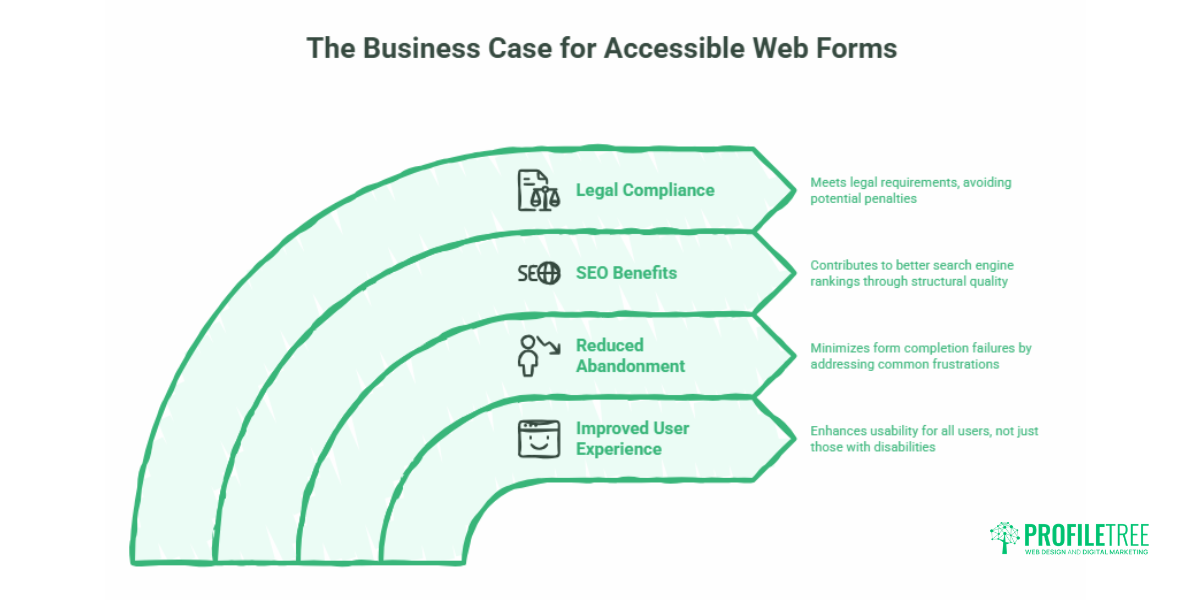
Most business owners hear “accessibility” and think of it as a legal box to tick. That framing misses the bigger picture. An accessible form is, almost by definition, a better form for everyone.
Consider what makes a form inaccessible: unclear labels, error messages that only appear in red with no explanation, fields that cannot be navigated with a keyboard, and instructions hidden inside placeholder text that disappear the moment someone starts typing. These problems do not only affect users with disabilities. They frustrate anyone filling in a form on a mobile device, anyone whose first language is not English, anyone using an older browser, and anyone who simply misses a field and cannot figure out what went wrong.
The Link Between Accessibility and Reduced Abandonment
Form abandonment is one of the most common conversion problems ProfileTree identifies when auditing client websites. Poorly designed forms with unclear instructions or unhelpful error messages push users away at the exact moment they intend to make contact. Accessible form design (persistent visible labels, descriptive error messages, logical tab order) addresses the same issues that cause abandonment across all user groups.
How Accessible Forms Support Your SEO
Google’s crawlers cannot fill in forms, but they do evaluate the structural quality of a page. Semantic HTML, proper label associations, descriptive heading hierarchy, and clear link text all overlap directly with accessible form design principles. A well-built, accessible form contributes to a better-quality page in Google’s assessment. ProfileTree’s SEO services consistently show that technical quality and accessibility improvements compound over time, with better structure supporting better rankings.
The UK Legal Position: What Small Businesses Actually Need to Know
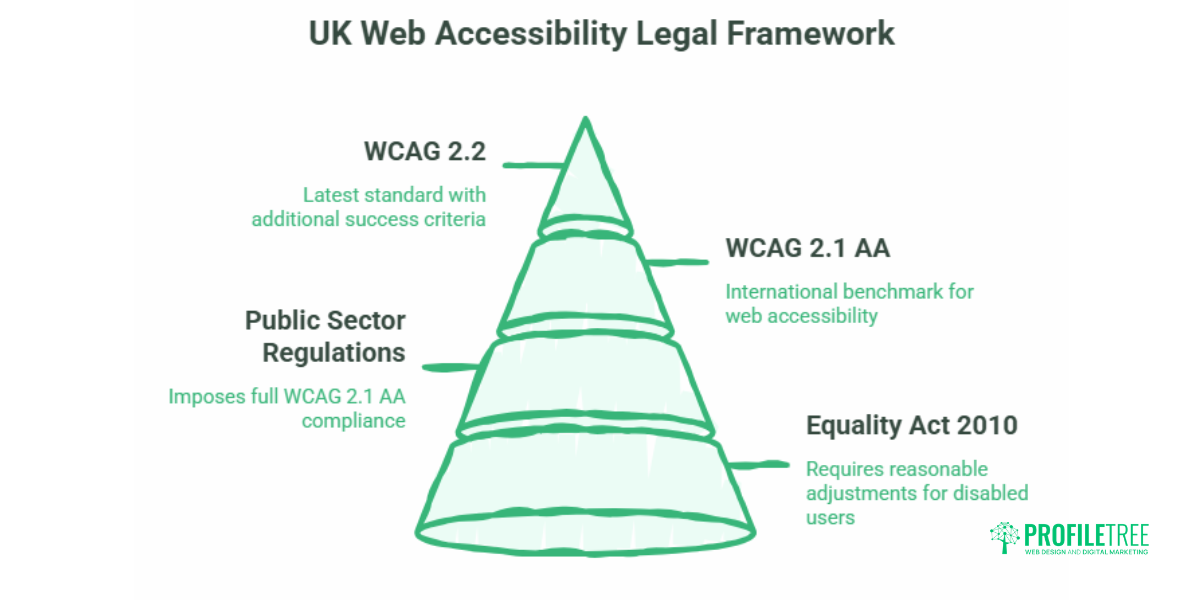
This is where most guides fail UK audiences. The dominant legal references online point to the Americans with Disabilities Act (ADA), which has no direct jurisdiction in the UK. The relevant framework here is different, and it matters for any business operating online.
Does the Equality Act 2010 Apply to My Website?
Yes. The Equality Act 2010 requires service providers in England, Scotland, and Wales to make “reasonable adjustments” to remove barriers that put disabled people at a substantial disadvantage. This applies to digital services, including websites and online forms. There is no minimum size threshold: a sole trader offering services through a website falls within scope.
In Northern Ireland, the Disability Discrimination Act 1995 (as amended) remains the operative legislation, but the practical obligations are equivalent.
What About the Public Sector Bodies Accessibility Regulations?
The Public Sector Bodies (Websites and Mobile Applications) Accessibility Regulations 2018 apply to public sector organisations and impose a stricter obligation: full WCAG 2.1 AA compliance. These are not directly binding on private sector small businesses, but they are increasingly relevant if you supply services to public bodies, councils, or government-funded organisations. Bidding for a public contract often means your digital touchpoints, including enquiry forms, will be evaluated against these standards.
What is WCAG and Which Version Applies?
The Web Content Accessibility Guidelines (WCAG), produced by the W3C’s Web Accessibility Initiative, are the international benchmark. WCAG 2.1 AA is the current standard referenced in UK regulations. WCAG 2.2 was published in October 2023 and introduced additional success criteria, notably around touch targets and focus appearance. While WCAG 2.2 is not yet formally written into UK legislation, it represents best practice and the direction of travel.
The 5-Minute Keyboard Test Any Business Owner Can Do Right Now.
Before calling a developer, test your own form using only your keyboard. This takes five minutes and requires no technical knowledge.
How to Run the Test
Open your website’s contact or booking form. Put your mouse to one side. Press the Tab key. The cursor should move to the first form field, and you should see a visible focus indicator (a coloured outline or underline) showing you where you are. Keep pressing Tab to move through each field in a logical order. Press Shift+Tab to go backwards. Try filling in the fields using only your keyboard. When you reach the submit button, press Enter.
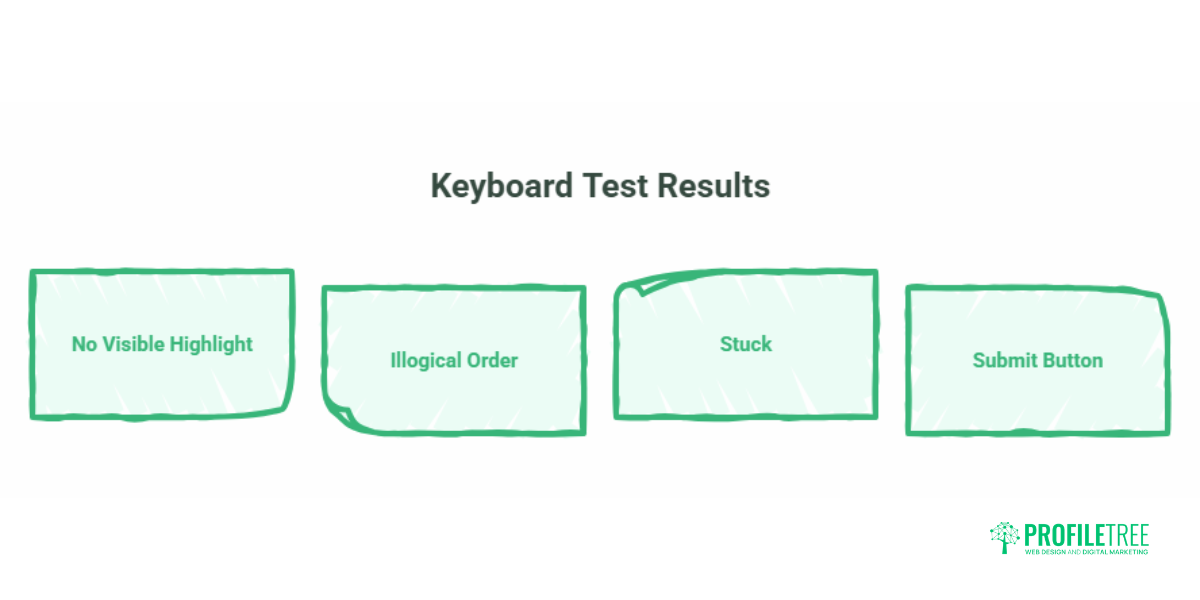
If any of the following happen, your form has accessibility problems:
- You cannot tell which field is currently active because there is no visible highlight
- The Tab key jumps to fields in a random or illogical order
- You get stuck and cannot move forward or backward
- The submit button cannot be activated with the Enter key
This is exactly how a screen reader user, a keyboard-only user, or someone with a motor impairment experiences your form every day. If you cannot complete it with a keyboard in five minutes, you cannot complete it at all.
Seven Practical Steps to Accessible Web Forms
These changes resolve the majority of form accessibility failures. They are listed in order of impact.
1. Use Persistent, Visible Labels
Every form field must have a visible label that remains visible when the field is active. Placeholder text (the grey hint text inside an empty field) is not a label. It disappears the moment someone starts typing, which means users with short-term memory difficulties, or anyone who pauses mid-form, lose the instruction entirely.
The correct approach uses the HTML <label> element explicitly linked to its input using the for and id attributes. This is not optional: without it, screen readers cannot tell users what a field is for.
Before: A field containing only the placeholder text “Enter your email”
After: A visible label “Email address” above the field, with the placeholder removed or used only as a supplementary formatting hint (e.g. “name@example.com“)
2. Group Related Fields with Fieldsets and Legends
When your form includes related fields (a set of radio buttons for preferred contact method, or a group of address fields), wrap them in a <fieldset> element with a <legend> that names the group. This tells screen readers that these fields belong together and gives context for each individual option within the group.
A booking form that asks “How would you prefer to be contacted?” with radio button options (Phone / Email / Either) should wrap all three options in a fieldset with “Preferred contact method” as the legend.
3. Write Error Messages That Explain the Problem
The most common form of error message is “This field is required.” That tells the user something is wrong, but not how to fix it. An accessible error message identifies the specific field, explains what is missing or incorrect, and suggests a remedy.
Before: “Error: Invalid input”
After: “Please enter your email address in the format name@example.com“
Error messages must not rely on colour alone to signal a problem. A red border is invisible to users with certain colour vision deficiencies and is not read by screen readers unless the error text is also linked to the field using aria-describedby. Every error must appear as descriptive text, not just a visual indicator.
4. Keyboard Navigation and Focus Indicators
Tab order must follow the visual layout of the form from top to bottom, left to right. Focus indicators (the outline that shows which field is currently active) must be visible. WCAG 2.2 introduced new minimum requirements for focus appearance (Success Criterion 2.4.11) that go beyond the basic outline many sites use by default.
Never suppress the browser’s default focus ring with outline: none in your CSS without replacing it with a clearly visible custom indicator. This is one of the most common and most harmful accessibility mistakes made during web development.
5. Write Instructions Clearly and Completely Before the Field
If a field has a specific format requirement (a phone number without spaces, a date in DD/MM/YYYY format), include that instruction as visible text before the field, not as placeholder text inside it. Instructions placed after a field can be missed by screen reader users who navigate directly to the input.
6. Colour Contrast and Field Size
Form fields and their labels must meet WCAG 2.1 contrast requirements: 4.5:1 for normal text, 3:1 for large text (18pt or 14pt bold). Field borders themselves must meet a 3:1 contrast ratio against the surrounding background. Use WebAIM’s Contrast Checker (webaim.org/resources/contrastchecker/) to verify your colours.
Touch targets (the tappable area for a checkbox, radio button, or submit button) must be large enough for users with limited dexterity. WCAG 2.2’s Success Criterion 2.5.8 sets a minimum of 24×24 CSS pixels at the AA level.
7. Provide Alternatives to Visual or Audio CAPTCHAs
Standard image or audio CAPTCHA is a significant barrier. Image CAPTCHA cannot be completed by screen reader users without an audio alternative. Audio CAPTCHA is inaccessible to users who are deaf-blind. Where you use CAPTCHA for spam prevention, provide a text-based alternative or use behaviour-based solutions (such as honeypot fields or Google’s reCAPTCHA v3, which works invisibly) rather than requiring users to complete a perceptual challenge.
Common Form Accessibility Errors and How to Fix Them
| Problem | Why It Fails | Fix |
|---|---|---|
| Disappears on input; not read as a label by screen readers | Required fields marked with an asterisk only | Add a persistent <label> element above the field |
| Red border as the only error indicator | Invisible to colour-blind users; not read by assistive tech | Add descriptive error text linked via aria-describedby |
| No visible focus indicator | Keyboard users cannot tell where they are | Remove outline: none or replace with a custom visible indicator |
| Blocks screen readers and deaf-blind users entirely | Screen readers do not interpret * as “required” | Add the required attribute and a visible text instruction |
| Tab order does not match visual layout | Disorienting for keyboard and screen reader users | Check and set tabindex or reorder DOM elements |
| CAPTCHA with no alternative | The error message appears only at the top of the page with no field link | Use invisible reCAPTCHA v3 or honeypot spam prevention |
| The error message appears only at the top of the page with no field link | Users lose their place and cannot identify the problem | Link error messages to their fields using aria-describedby |
Platform-Specific Guidance: WordPress, Wix, and Shopify
Most small business websites are built on one of a small number of platforms. The approach to accessible forms varies by platform.
WordPress
WordPress itself is accessibility-ready, but the form plugin you choose matters significantly. Gravity Forms and WPForms both generate semantic HTML with proper label associations by default, provided you use their standard field types and do not override the output with custom CSS that removes focus indicators. Contact Form 7, the most widely installed free plugin, requires more careful configuration. Its default output does not always link labels to fields correctly, and error messages need custom configuration to meet WCAG standards.
If you are building or rebuilding a WordPress site and want forms that are accessible from the start, this is best planned at the development stage rather than retrofitted. ProfileTree’s web development team builds WordPress sites with accessibility baked in, including correctly structured forms and tested keyboard navigation.
Wix
Wix has made significant progress on accessibility in recent years. Its Wix Forms tool generates label-associated fields and includes focus indicators. The main gaps are in custom-styled forms where designers have overridden default styles, particularly focus indicator styles. If you use Wix, avoid disabling the default focus styles in the design panel and test using the keyboard method described earlier.
Shopify
Shopify’s checkout forms are largely accessible by default, and the platform has invested in meeting WCAG 2.1 AA for its core checkout experience. Custom forms built with third-party Shopify apps vary considerably. If you use a custom contact or enquiry form app, test it with the keyboard method and run it through WAVE (wave.webaim.org) before publishing.
Free Tools for Testing Your Forms
You do not need a specialist accessibility consultant to identify the most common form problems. These tools are free and require no technical knowledge to use.
WAVE (WebAIM): A browser extension and web tool (wave.webaim.org) that visually flags accessibility errors on any live webpage, including missing labels, contrast failures, and empty form fields. It is the most useful starting point for a non-technical audit.
axe DevTools (Deque): A browser extension that runs automated checks against WCAG criteria. Available for Chrome and Firefox. The free version catches a substantial proportion of common form errors.
Colour Contrast Analyser (TPGi): A desktop application for checking foreground/background contrast ratios against WCAG levels. Useful for checking form field borders, label text, and button colours.
Keyboard testing: As described in the section above, it is free, takes five minutes, and catches the errors that automated tools miss.
None of these tools catches everything. Automated tools typically identify around 30 to 40% of WCAG issues. Manual keyboard testing and, where budget allows, testing with actual screen reader users, are the only ways to validate the full experience.
“The businesses we work with that take accessibility seriously from the start always end up with forms that convert better. Not just because they reach more users, but because cleaner form design removes friction for everyone,” says Ciaran Connolly, founder of ProfileTree.
If your team needs to build accessibility knowledge more broadly, ProfileTree’s digital training programmes cover practical web standards for non-technical business owners and in-house marketing teams.
Why Accessibility Overlays Are Not the Answer
A number of products market themselves as accessibility “overlays” or “widgets” (JavaScript plugins that claim to make any website accessible with a single line of code). These products are popular because they promise a quick fix, but they consistently fail to deliver genuine accessibility.
The fundamental problem is that overlays work on top of the page’s existing HTML rather than fixing it. If a form field has no label in the source code, an overlay cannot reliably add one in a way that screen readers correctly interpret. Users who rely on assistive technologies frequently find that overlays actively interfere with their own software settings.
The overlay approach also creates a false sense of compliance. Deploying an overlay does not satisfy the Equality Act’s reasonable adjustment duty if the underlying forms remain genuinely inaccessible to disabled users.
Genuine accessibility requires the form to be built correctly in the first place. If your current website has inherited forms with structural problems, a development review is a more reliable path than an overlay. ProfileTree’s web design services include accessibility audits as part of site redesign projects for SMEs across Northern Ireland, Ireland, and the UK.
Conclusion
Accessible web forms are not a specialist add-on for large organisations with dedicated accessibility teams. They are the standards any UK business that collects information online should be meeting, both because the law expects it and because inaccessible forms quietly cost you, customers, every day.
Start with the keyboard test. Run WAVE on your contact page. Fix the labels. Write error messages that actually help people. These are not technically demanding changes, but they make a real difference to the users trying to reach you. If your forms need more structural work than a quick fix can provide, that is a conversation worth having with your web development team at the next opportunity.
Frequently Asked Questions
Is web form accessibility a legal requirement for UK small businesses?
Yes. Under the Equality Act 2010, service providers must make reasonable adjustments to remove barriers for disabled people. This applies to digital services, including online forms. There is no minimum business size that creates an exemption. The Public Sector Bodies Accessibility Regulations 2018 impose stricter requirements on public sector organisations and, in practice, on suppliers to public bodies bidding for government contracts.
How can I make my WordPress contact form accessible without touching code?
Use a form plugin that generates accessible HTML by default. Gravity Forms and WPForms both provide correct label associations and semantic structure in their standard output. Avoid using placeholder text as your only field instruction, and do not apply CSS that removes the focus indicator from active fields. Test the completed form using the Tab key before publishing.
Are asterisks enough to mark required fields?
No. An asterisk is a visual convention that screen readers do not interpret as indicating a required field. You need to add the HTML required attribute to the input element and include a visible text instruction at the top of the form explaining that fields marked with an asterisk are required. The combination of the visual convention and the semantic attribute covers both sighted users and screen reader users.
Can an accessibility overlay widget fix my forms?
Generally, no. Overlay products work on top of your existing HTML and cannot reliably correct structural problems, such as missing label associations or incorrect tab order. Many screen reader users find overlays actively disruptive. True accessibility requires the form itself to be built correctly. If your forms have inherited structural issues, a development review will be more effective and more defensible under the Equality Act than deploying an overlay.
Does accessible form design affect my Google ranking?
Not directly, but the structural quality that makes a form accessible also contributes to the technical quality signals Google evaluates. Semantic HTML, descriptive labels, logical heading hierarchy, and correct use of ARIA attributes all align with what Google’s systems consider good page construction. Separately, accessible forms reduce abandonment, which improves engagement metrics that influence how Google assesses the quality of a page.
What is the simplest way to test a form if I am not a developer?
Use your keyboard only. Open the form, set your mouse aside, and press Tab to move through every field. Check that each field shows a visible highlight when active, that the order is logical, and that you can submit the form by pressing Enter on the submit button. Then run the page through the free WAVE tool at wave.webaim.org. These two steps combined will surface the most common and most impactful problems.