
How to create a custom Mailchimp template
Table of Contents
To create a custom Mailchimp template, design one email in the new builder with your brand fonts, colours, logo, and footer, test it, then choose Save as a template from the Save and exit menu. For companies registered in the UK or Ireland, the footer must also carry the registered details that company law requires, and this ProfileTree guide covers both.
A template stores the design, so every campaign starts from the same layout and nobody has to rebuild the header or check the footer each time. This guide follows the current Mailchimp interface and the disclosure rules for the UK and the Republic of Ireland. If you would prefer to hand the wider email planning to an agency, our digital marketing Belfast team can advise on where email fits alongside your website and content.
Which Mailchimp builder your account can use
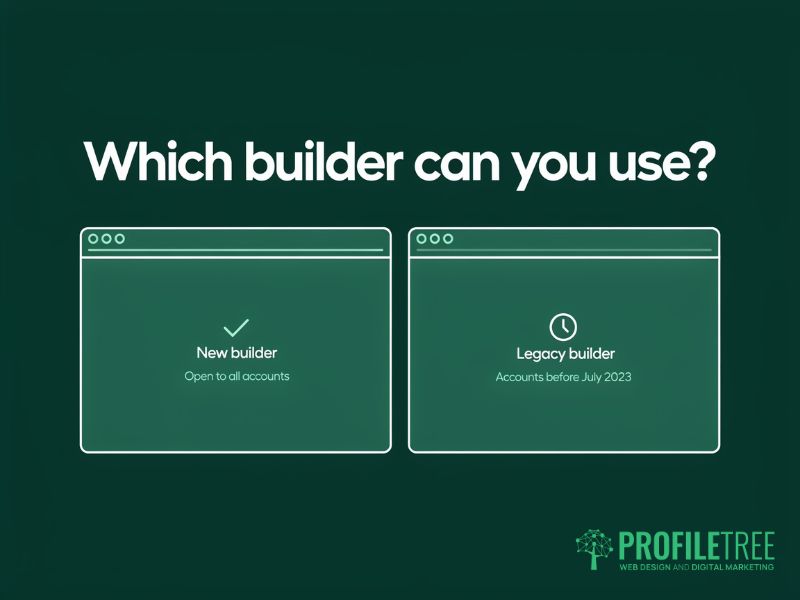
Mailchimp now has two email builders, and which one you see depends on when your account was opened. According to Mailchimp’s comparison of its email builders, the new builder is open to every customer. The legacy builder (the older drag-and-drop editor) is only available to accounts created before July 2023.
The difference matters for custom work. Custom-coded templates, where a developer writes the whole email in HTML (the markup language that web pages and emails are built from), can only be created in the legacy builder. The new builder offers a Code content block instead, which lets you drop a section of your own HTML into an otherwise standard layout.
| New builder | Legacy builder | |
|---|---|---|
| Who can use it | All Mailchimp accounts | Accounts created before July 2023 |
| Coding needed | None | None, unless you choose a custom-coded template |
| Custom HTML | A Code content block inside the layout | Fully custom-coded templates |
| Where saved templates can be used | The new builder only | The legacy builder, and one-column designs also open in the new builder |
| Suits | Most business owners and marketing managers | Teams with existing legacy templates or an in-house developer |
For most small and medium-sized businesses, the new builder does the job, and the rest of this guide follows it. If your account predates July 2023 and your legacy templates work well, there is no pressing reason to move them. Templates saved in the new builder will not open in the legacy one, though, so agree on one builder for the whole team before anyone starts. If you sell through Shopify and have not settled on a platform yet, our comparison of Shopify Email and Mailchimp sets out where each one is stronger.
Building a custom Mailchimp template in the new builder
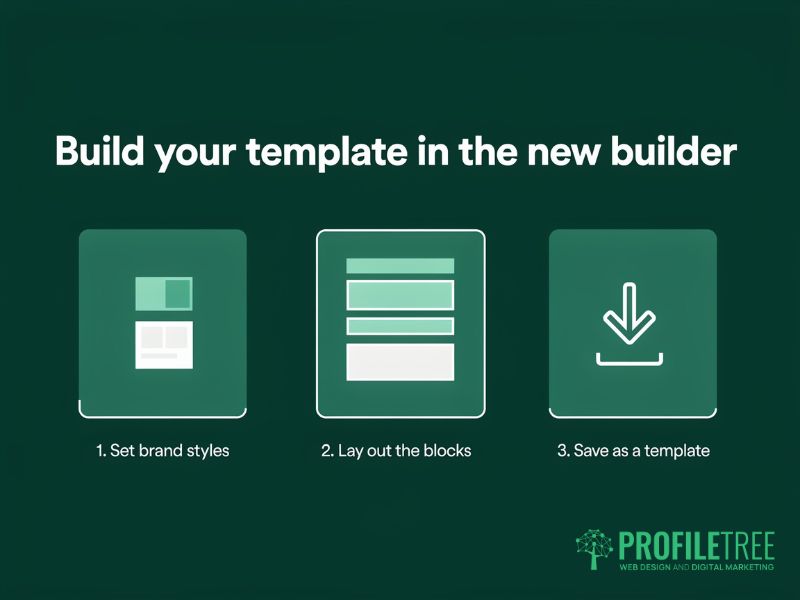
The most reliable way to make a template in the new builder is to design a real email first and save it as a template once it looks right. Working with actual content shows you how headings, images, and buttons behave with real text, which a blank layout cannot.
Set your brand defaults first
Start a new email from Campaigns, open the Content section and choose a simple one-column layout. Before adding any content blocks, set the email-wide styles. These cover the background colour, text and link colours, button colours, and the fonts for headings and body text. Setting them once means every block you add afterwards picks them up, and nobody on the team has to match hex codes (the six-character codes that define a colour on screen) by eye.
Fonts need a fallback. Mailchimp offers a selection of web fonts, but some email apps, Outlook for Windows desktop in particular, ignore them and show a standard system font in their place. Choose a fallback such as Arial or Georgia that sits close to your brand font, so the email still looks deliberate when the web font does not load.
Upload your logo at about twice the width it will display at, so it stays sharp on high-resolution phone and laptop screens. A logo that displays at 200 pixels wide, for example, looks crisp when uploaded at 400 pixels.
Lay out the header, body, and call to action
A business template usually needs four zones: a header with the logo, a body area for the message, a call to action (the button you want readers to press), and the footer. Keep the header short, because a tall banner pushes the first line of your message below the visible part of a phone screen.
Single-column layouts read best on mobile and break least often across email apps. A two-column section can work in the middle of a newsletter with several stories, but preview it on mobile before saving, because columns stack on narrow screens and the order of items can change. Place the main button near the top of the body so readers can act without scrolling, and give it a default link that you replace in each campaign.
Add guide text in each block that tells colleagues what goes where, such as “Headline of no more than eight words” in the heading block. Small prompts like this keep later campaigns consistent without anyone needing to open a style guide.
Save a finished email as a template
Mailchimp’s help centre sets out the steps for saving a finished draft:
- In the Content section, select Edit Design.
- Open the Save and exit drop-down and choose Save as a template.
- Name the template and select Save.
- Select Return to Campaign.
The template then appears on the Email templates page and in the Saved templates tab whenever someone on the account designs a new email.
You can do the same with an email you have already sent, which is useful when your best-performing newsletter is the design you want to standardise. Replicate the sent campaign first, because Mailchimp saves templates from drafts, then follow the same steps on the copy. To use a saved template later, select Design Email in the Content section, open Saved templates and choose Apply.
Footer details UK and Irish companies must show
The footer is the one part of a template with legal consequences. A Mailchimp footer that holds only an unsubscribe link and a postal address does not cover what company law in either jurisdiction asks a limited company to show. Build those details into the template once, and every campaign inherits them.
Ciaran Connolly, founder of ProfileTree, sees this most with businesses on this side of the border: “Northern Ireland businesses sell into two markets with two sets of rules, and most of their emails only follow one. Deciding which customer the email is for, and whose company law the footer has to meet, is one of the first questions ProfileTree asks when we review a client’s digital marketing in Belfast.”
UK limited companies and LLPs
UK companies follow the Company, Limited Liability Partnership and Business (Names and Trading Disclosures) Regulations 2015, made under the Companies Act 2006. Regulation 24 requires the registered name on all business correspondence. Regulation 25 requires the part of the UK where the company is registered, its registered number and its registered office address on business letters, order forms and websites. Regulation 29 confirms that these documents count in electronic form as well as on paper.
In practice, the footer reads as one line: the registered company name, the words “Registered in Northern Ireland” (or England and Wales, or Scotland), the company number and the registered office address. Mailchimp’s required footer pulls its postal address from the contact details saved for each audience. Check that it shows your registered office and not a home address or a mailbox service.
Republic of Ireland companies and directors’ names
Irish companies work under section 151 of the Companies Act 2014, which asks for more on business letters than UK law does. Letters must show the company name and legal form, where it is registered, its registration number and registered office, and the names of its directors. Where a director is not Irish, their nationality must also be shown.
The section does not define a business letter, so whether every marketing email counts is not settled in the text itself. Adding the directors’ names to the email footer costs nothing and removes the doubt, and a solicitor can confirm exactly what your company needs. Disclosure rules generally follow where a company is registered. A Northern Ireland company emailing customers south of the border therefore usually works to the UK rules, although registering a branch there changes that.
Sole traders, partnerships and the unsubscribe link
Sole traders and partnerships trading under a name other than their own are covered by Part 41 of the Companies Act 2006. It asks for the owners’ names and an address for serving documents on letters, orders, invoices and receipts. A sole trader using their own name has no such disclosure duty, but still needs to follow the marketing rules below.
Every marketing email, whatever the business structure, also falls under the Privacy and Electronic Communications Regulations (PECR, the UK rules on electronic marketing). These require you to say who is sending and to give a valid address where the recipient can ask you to stop. Senders in the Republic follow equivalent rules enforced by the Data Protection Commission.
Mailchimp adds an unsubscribe link and a postal address automatically, so the job in the template is to keep both readable. Use 11 or 12-pixel text in a colour that contrasts clearly with the footer background. Our guide to GDPR compliant email marketing covers the consent side of these rules in more detail.
Sizes and settings that hold up across inboxes
Most email apps display a message in a column about 600 pixels wide, so building to that width keeps the layout intact in Outlook, Gmail and Apple Mail on a desktop. The figures below are working conventions used by email designers and are not limits set by Mailchimp, so treat them as a starting point and confirm them in your own tests.
| Setting | Starting point | Reason |
|---|---|---|
| Email width | 600 pixels | Fits the reading pane of most desktop email apps |
| Header image | Full email width, kept short | Keeps the opening message in view on mobile |
| Body text | 14 to 16 pixels | Readable on a small screen without zooming |
| Headings | 20 to 24 pixels | Clear hierarchy without awkward wrapping on narrow screens |
| Buttons | At least 44 pixels tall | Easy to tap with a thumb |
| Footer text | 11 to 12 pixels with high contrast | Small enough to stay out of the way, large enough for legal text |
Add alt text (a short written description that appears when an image does not load) to every image in the template. Some business email systems block images until the reader allows them, and without alt text the header becomes an empty box with no clue about who sent the email. Write the alt text as the message the image carries, such as “Spring servicing offer, book before April”, and avoid labels like “banner image” that tell the reader nothing.
Dark mode checks and test sends before going live
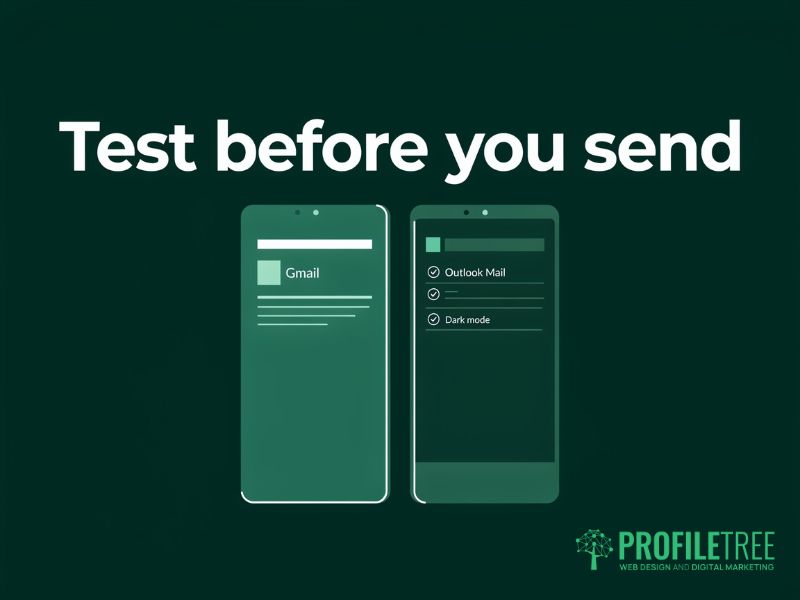
Dark mode (a display setting that turns light backgrounds dark) changes how many email apps show your template, and it is a common reason a design that looked fine in the builder fails in a real inbox. Some apps invert every colour and others only some. A dark logo on a transparent background can vanish, and pale grey footer text can disappear into the background.
Two changes prevent most of these problems. Export a version of your logo with a solid white or brand-coloured background for use in email. Avoid placing text directly over a background image, because the app may darken one and leave the other.
Before treating the template as finished, use the Send test button in the new builder and check the results in four places: a Gmail account, an Outlook account, Apple Mail and a phone with dark mode switched on. On each one, check these points:
- The header loads at the right size.
- The fonts or their fallbacks look acceptable.
- The layout stacks sensibly on mobile.
- Every button opens the right link.
- The footer details are complete and legible.
A fault in a template repeats in every campaign built from it, so ten minutes of testing now saves correcting the same error later in front of customers.
Naming and managing templates as your team grows
Name templates by purpose and layout, for example “Newsletter, one column” or “Offer, hero image and button”, so colleagues can pick the right one without opening each in turn. Names such as “Template 1” quickly cause mistakes once more than one person sends campaigns, and dates in template names go stale within months.
Keep separate templates for separate jobs, such as a monthly newsletter and a promotional offer, because stretching one layout to cover every kind of email is where formatting errors creep in. Mailchimp lets you save as many templates as you need, so there is no reason to overload one. Order confirmations and other customer service emails are transactional messages, which Mailchimp handles through its paid Transactional add-on and not through standard campaign templates. Once your templates are in place, our guide to Mailchimp campaigns covers the planning behind the emails you build from them.
Getting your team confident with email templates
A tested template with a correct footer takes most of the routine work out of every campaign. The next step for most teams is making sure more than one person can use and adjust it. If only one colleague knows how the template was built, a holiday or a new starter is enough to break the layout.
ProfileTree is a Belfast web design and digital marketing agency, founded in 2011 and based at the McSweeney Centre. Our digital training is built around each business’s own website and tools, with sessions from £350 plus VAT, so your team works on real material and leaves with the changes already made. If you are still deciding whether Mailchimp is the right platform at all, our buyer’s guide to email marketing platforms sets out the options for SMEs.
FAQs
1. How do I turn a campaign into a template in Mailchimp?
Open the draft email, select Edit Design in the Content section, choose Save as a template from the Save and exit drop-down, and give it a clear name. If the campaign has already been sent, replicate it first, because Mailchimp saves templates from drafts, and then save the copy. The template will appear in the Saved templates tab the next time anyone on the account designs an email.
2. What size should a Mailchimp header image be?
Make the header image the full email width of 600 pixels, which displays cleanly on both desktop and mobile. Keep it shallow enough that your opening sentence still shows on mobile without scrolling. Upload the image at double the display width, 1,200 pixels, to keep it sharp on high-resolution screens; Mailchimp scales it down for display.
3. Can I use custom HTML in the new Mailchimp builder?
Yes, through the Code content block, which adds a section of your own HTML to an email built in the new builder. Templates coded entirely by hand are only possible in the legacy builder, which only older accounts can use, as the builder section above explains. If your account is newer and you need a fully coded design, a developer can build the key sections as Code blocks inside a standard layout.
4. How do I change the footer in Mailchimp?
Edit the footer block directly to add your company details and adjust the styling. Then update the postal address in your audience settings, because Mailchimp’s required footer content pulls from there. For a UK or Irish company, add the registered name, number, place of registration, and registered office before saving the template, so every campaign carries them automatically.
5. Can I use custom fonts in Mailchimp templates?
You can use the web fonts on Mailchimp’s font list, but not every email app will display them. Outlook for Windows desktop, for example, falls back to a system font, so set a fallback such as Arial or Georgia that sits close to your brand font. Send a test to an Outlook account before saving the template, so you see what those readers will see.