
Canva for Marketing Design: The UK Professional’s Guide
Table of Contents
Canva for marketing design has shifted from a ‘quick graphics’ shortcut to a fully formed production platform that marketing teams across the UK rely on daily. Whether you’re producing LinkedIn carousels for a B2B pitch, A4 brochures for a trade show at the NEC, or social media templates for a Boxing Day sale, Canva’s combination of Brand Kits, AI-assisted tools, and Canva for marketing teams workflows makes it a practical choice for agencies, in-house teams, and SMEs alike.
ProfileTree’s digital marketing team has used Canva extensively across client campaigns in Northern Ireland, Ireland, and the UK, and it’s a platform that continues to improve in ways that matter to professional marketers. This guide moves beyond the basics to show you how to build a Canva marketing system that scales, how to use Canva’s AI features intelligently, and how to avoid the pitfalls that cause brand inconsistency and wasted effort.
You’ll find a plain-English plan comparison, a UK print specification table, a practical walkthrough of Magic Studio tools, and guidance on setting up Canva templates that keep your whole team on-brand.
Why Canva Is Now Essential for UK Marketing Teams
The argument for using Canva for marketing design has moved well beyond ease of use. The platform now supports the full design lifecycle, from initial brief to final print-ready or screen-optimised export, in a single environment. For UK digital marketing teams working under tight deadlines and tighter budgets, that’s a meaningful operational advantage.
Three changes have driven wider professional adoption of Canva for marketing teams: the Brand Kit system (now supporting multiple brand identities), the Magic Studio suite, and a fully developed collaboration system with comment and approval workflows. Together, these close the gap between Canva and more expensive tools for the vast majority of everyday Canva marketing tasks.
Canva’s free tier suits individuals experimenting with design. Any business producing consistent digital marketing materials across multiple channels should move to Canva Pro or Canva for Teams; the Brand Controls alone justify the upgrade for teams managing more than one brand identity.
| Feature | Free | Canva Pro | Canva for Teams |
|---|---|---|---|
| Brand Kit (logos, colours, fonts) | 1 kit, limited | Up to 100 kits | Up to 100 kits + controls |
| Background Remover | No | Yes | Yes |
| Magic Resize (all formats) | No | Yes | Yes |
| Magic Switch (AI repurposing) | No | Yes | Yes |
| Canva Templates (all premium) | No | Yes | Yes |
| Team Approval Workflows | No | No | Yes |
| Brand Controls (lock fonts/colours) | No | No | Yes |
| Storage | 5 GB | 1 TB | 1 TB per member |
| Price (approx. 2025) | Free | ~£10/month | ~£22/month (2 users min) |
Setting Up a Professional Canva Marketing Design System
A Canva account without a properly configured design system is a missed opportunity. Whether you’re running Canva for marketing design across one brand or ten, the same three components make the difference: a complete Brand Kit, a logical folder structure, and a library of approved Canva templates. Get these right upfront, and every campaign after runs faster.
Brand Kits: Beyond Logos and Colours
Most teams using Canva for marketing design set up a Brand Kit by uploading a logo and picking a few colours, then stop there. That’s the beginning, not the end. A complete Brand Kit should include every element that defines your visual identity, so anyone on a Canva for marketing teams plan can open Canva and produce on-brand work without referring to a separate guidelines document.
Start with your full colour palette in hex codes, covering primary, secondary, and accent colours. Add your type hierarchy: heading font with weight, body font, and a supporting font for captions. Upload at least three logo variations: full colour, reversed (white on dark), and single-colour. If your brand uses a consistent graphic device such as a geometric frame, upload that as a brand element too.
On Canva for Teams, you can lock Brand Kit elements so team members can view and use them, but can’t alter the palette or fonts. This is the single most important Brand Controls feature for businesses that have invested in a brand identity and want to protect it across all Canva marketing design output.
If your brand guidelines aren’t yet structured clearly enough to translate directly into a Canva Brand Kit, ProfileTree’s brand identity services can help you build that foundation before you move into production.
Canva Templates: Building a Reusable Asset Library
Canva templates are the engine of a scalable Canva for marketing design workflow. Rather than starting from scratch for every campaign, your team builds and saves a core set of Canva templates covering the formats you use most: social media posts, email headers, presentation slides, and print collateral. Each template automatically carries your Brand Kit settings, so every new design starts on-brand.
The most effective Canva templates for Canva for marketing design work are those built around specific campaign needs. A template for a promotional social post, a template for a client-facing case study PDF, and a template for a LinkedIn carousel give your team real starting points. Lock these Canva templates on Canva for Teams so the core layout and brand elements can’t be accidentally altered; team members add copy and images into designated zones.
Canva’s template sharing works across the whole team account, so a template built by a senior designer is immediately available to everyone on Canva for Teams. This is where compounding returns appear: the time invested in building one strong Canva template pays back across every campaign that uses it.
Folder Structures for Multi-Campaign Management
A well-organised Canva account saves hours across a year. The structure that works best for most Canva for marketing teams groups folders first by brand or client, then by campaign type. For an in-house team managing a single brand, the top-level folders might be Social Media, Print, Email, and Presentations; for a digital marketing agency, the top-level is the client name with campaign subfolders inside.
Within each campaign folder, keep all Canva for marketing design assets together: source design, resized variants, and exported files. Use consistent naming: a structure such as [BrandName][CampaignName][Format]_[Date] takes thirty seconds to set up and saves time on every retrieval.
High-Impact Canva Marketing Use Cases for UK Teams
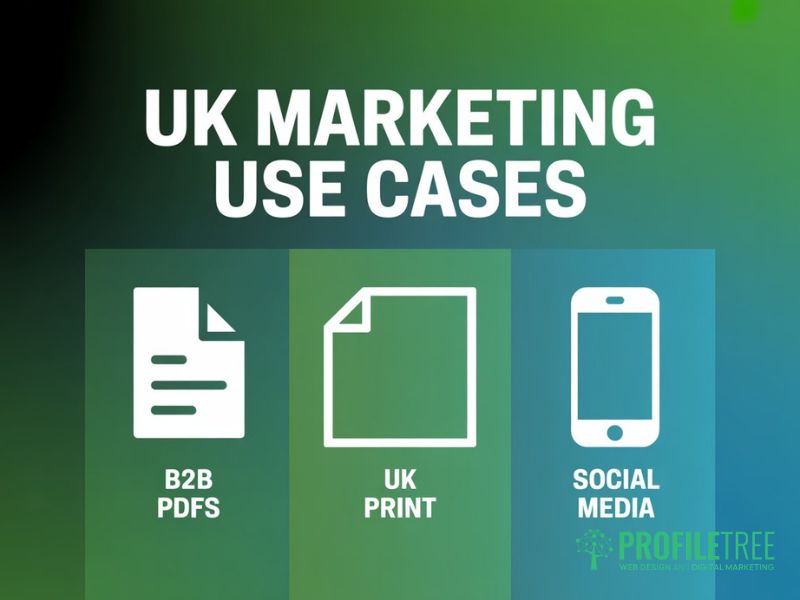
These three areas represent where Canva for marketing design adds the most practical value for UK digital marketing teams, and where the gaps in most Canva guides are widest.
B2B Lead Magnets: Whitepapers and Case Studies
B2B digital marketing teams consistently underuse Canva for marketing design for document production, defaulting to Word or PowerPoint. Canva’s document templates, combined with a locked Brand Kit, produce whitepapers, case study PDFs, and sales decks that look genuinely professional and export cleanly as print-ready PDFs.
The workflow is straightforward: choose a multi-page Canva template, apply your Brand Kit, drop in your content sections, and export as a PDF. Canva’s infographic elements work well for presenting results data, such as percentage improvements or timeline comparisons, in a format that’s visually engaging without requiring a dedicated designer.
Canva-produced lead magnets work well alongside a broader content marketing strategy that maps each asset to a specific stage of the sales funnel.
UK Print Specifications: Mastering A4, A5, and DL Formats
This is the gap that almost every Canva marketing guide aimed at the UK market ignores. UK businesses use A-series paper standards, not US Letter, and professional printers require designs set up with the correct dimensions and bleed. Getting this wrong means unusable print files or expensive reprints.
When creating UK print materials in Canva for marketing design work, set your document size to the correct A-series dimensions and add a 3mm bleed on all sides. Canva Pro’s ‘PDF Print’ export option (under Downloads) includes bleed marks and is the format your UK printer expects. The standard settings for common UK print formats are in the table below.
| Format | Trim Size (mm) | With 3mm Bleed (mm) | Canva Pixels at 300 DPI |
|---|---|---|---|
| A4 (flyer, brochure) | 210 x 297 | 216 x 303 | 2551 x 3508 |
| A5 (leaflet, card) | 148 x 210 | 154 x 216 | 1748 x 2551 |
| DL (envelope insert) | 99 x 210 | 105 x 216 | 1169 x 2551 |
| Business Card | 85 x 55 | 91 x 61 | 1075 x 720 |
| A3 (poster) | 297 x 420 | 303 x 426 | 3508 x 4961 |
Before sending any file to a UK printer, run this pre-flight checklist: confirm 3mm bleed on all sides; keep critical content at least 5mm from the trim edge; export as ‘PDF Print’, not ‘PDF Standard’; verify fonts are embedded (Canva handles this automatically). Canva Pro exports in RGB; most UK digital printers accept this and convert to CMYK on their end.
Social Media: Designing for LinkedIn vs Instagram ROI
Canva for marketing design delivers some of its clearest returns on investment in social media production, but only when teams treat LinkedIn and Instagram as separate design challenges. They’re different audiences with different content expectations, and your Canva marketing templates should reflect that.
LinkedIn content performs best with a structured, data-led visual approach. Carousel posts built from a consistent Canva template perform well for B2B audiences. Use Canva’s presentation format (1920×1080 pixels) for LinkedIn carousels, download as a PDF, and upload natively to LinkedIn. For Instagram, visual contrast and bold colour drive engagement; Canva’s 1080×1080 or 1080×1350 templates work best for feed posts.
Magic Resize is the practical shortcut here: design your primary asset at the format that takes most thought, then use Magic Resize to generate Instagram, Facebook, and story variants from the same Canva template. You’ll still need to adjust text placement and check for cropping, but the core design work is done once.
Leveraging AI: The Canva Magic Studio Workflow
Canva’s Magic Studio is a suite of AI-powered tools within Canva Pro and Canva for Teams that speeds up Canva for marketing design production. The tools most relevant to digital marketing teams are Magic Switch (content repurposing), Magic Resize (format adaptation), Magic Write (AI-assisted copywriting), and the AI image generator. Used with a clear process, these tools cut the time between a content idea and a finished, publish-ready asset.
Magic Switch: One Asset Into Many
Magic Switch is the most commercially useful AI tool in Canva’s Magic Studio suite for Canva for marketing design workflows. It takes a single piece of content and converts it into a different format; for example, turning a blog post into a slide deck, a presentation into a document, or a social post into a different social format. It’s not perfect on first pass, but it removes the mechanical layout work.
The practical workflow for a UK digital marketing team running a webinar might look like this: produce the webinar slide deck using a Canva template, then use Magic Switch to generate a LinkedIn carousel summary, an email header, and a social post graphic from the same source. The structural and visual work is largely done; you review and refine the output rather than build from scratch.
AI Data Visualisation: Turning Data Into Infographics
Canva’s data visualisation tools allow Canva for marketing design teams to turn spreadsheet data into infographic-style visuals without exporting to a separate tool. For marketing reports, social proof assets, or campaign results summaries, this saves a meaningful amount of production time.
The most effective use is creating shareable results graphics: a bar chart showing campaign performance, a progress indicator for percentage improvement, or a comparison table. These visuals perform well in B2B content because they present credibility signals in a scannable format. Start from a data-focused Canva template and swap in your figures rather than building from scratch.
Canva’s AI design tools sit within a broader AI-enhancing marketing toolkit that includes automation, personalisation, and performance analytics beyond design production.
Collaboration and Approvals: Managing the Design Lifecycle
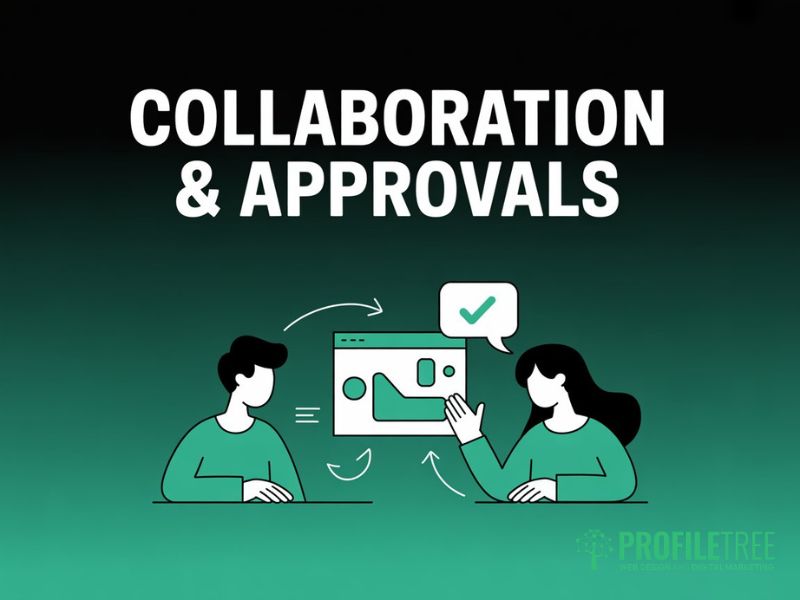
One of the most underused aspects of Canva for marketing design is the collaboration and approval workflow in Canva for Teams. For in-house digital marketing teams and agencies, having a structured review process inside the design platform, rather than across email threads, reduces errors and speeds up sign-off.
Canva for Teams includes a comment and approval system. A team member creates a design from a shared Canva template and tags a reviewer in the Comments panel; the reviewer leaves comments on the relevant element and approves or requests revisions. All feedback stays attached to the specific design version rather than scattered across email inboxes.
For external client reviews, Canva’s ‘Share via link’ option lets you send a view-only or comment-enabled link to someone without a Canva account. They can leave comments without needing a paid plan, which is useful for approval stages where a written sign-off is needed before a design goes to print or goes live. Canva automatically saves previous versions, so if a client changes their mind, you can restore an earlier version without rebuilding.
Canva Pro vs Teams vs Adobe Express: A Professional Review
Choosing the right plan matters because the features that make Canva for marketing design genuinely useful for teams, particularly Brand Controls and Approval Workflows, sit exclusively in the Canva for Teams tier. Here’s a plain-English breakdown for UK digital marketing teams.
Canva Pro is the right choice for freelancers and solo digital marketing managers who need Magic Resize, unlimited Brand Kits, background remover, and the full Magic Studio suite. The limitation is that it doesn’t include team-level Brand Controls; anyone on the account can technically override the Brand Kit.
Canva for Teams adds the governance layer that makes Canva for marketing design viable for multi-person teams. Brand administrators can lock fonts, colours, and logos so they can’t be altered, set design approval workflows, and manage Canva templates access by sub-teams. For teams without Adobe dependencies, Canva for Teams is the more practical choice over Adobe Express for day-to-day Canva marketing production.
For most UK SMEs and digital marketing agencies: start with Canva Pro for individuals, upgrade to Canva for Teams when two or more people are producing branded content regularly. The Brand Controls feature alone will recover the cost difference quickly.
Building a Design-Led Digital Marketing Strategy With Canva
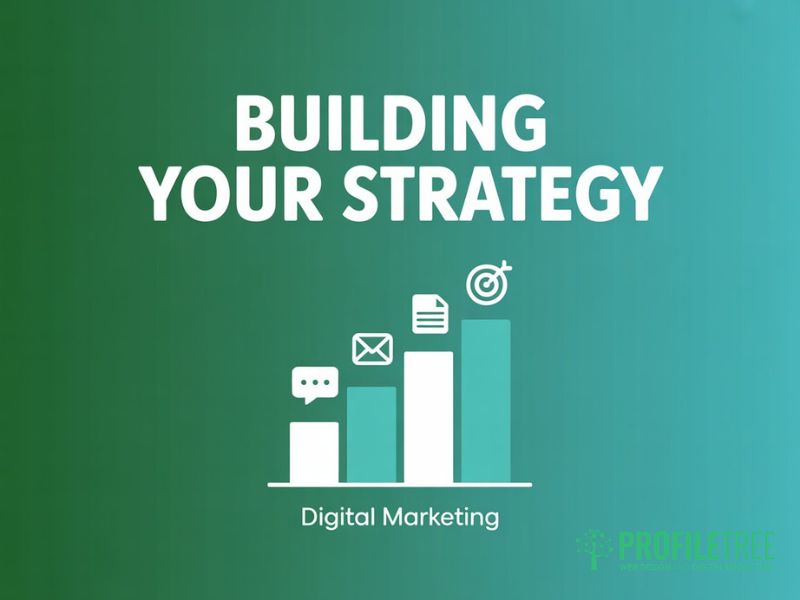
Canva for marketing design works best when it’s treated as an infrastructure decision rather than a tool choice. The teams that get the most from Canva for marketing teams plan to invest upfront in a complete Brand Kit, a strong Canva templates library, and consistent folder structures, then use that infrastructure to produce digital marketing materials faster and more consistently.
Well-designed Canva marketing materials support SEO through better engagement metrics and strengthen paid campaigns through higher ad relevance scores.
If you want to connect your Canva for marketing design work to a wider strategy, ProfileTree’s digital marketing services cover everything from SEO and content marketing through to AI integration and training for SMEs across Northern Ireland, Ireland, and the UK.
FAQs
1. Is Canva Pro or Canva for Teams better for a UK marketing agency?
For an agency running Canva for marketing design across multiple client brands, Canva for Teams is the stronger option. The key differentiators are Brand Controls (which let administrators lock fonts and colours so contractors can’t alter brand identity) and the team approval workflow. Canva Pro doesn’t include the governance features needed when multiple people are working across multiple client accounts, so Canva for marketing teams with two or more designers should be on the Teams plan.
2. How do I set up UK print sizes correctly in Canva?
Start a new Canva for marketing design project using custom dimensions and enter the A-series size with 3mm bleed added to each side, so A4 becomes 216 x 303mm rather than 210 x 297mm. Keep all critical content at least 5mm from the trim edge, then export as ‘PDF Print’ under the Download options, which includes trim marks and bleed. Most UK digital printers accept Canva Pro’s PDF Print output directly; if your printer requires CMYK, ask them to convert on their end.
3. Can I stop team members from changing brand fonts and colours in Canva?
Yes, but only on Canva for Teams, not Canva Pro. A Brand Administrator can lock specific Brand Kit elements using the Brand Controls feature, so they appear in every team member’s account but can’t be altered or deleted, covering fonts, colours, logos, and Canva templates. It’s the main reason digital marketing agencies and in-house Canva for marketing teams should choose Teams over Pro when brand consistency is a priority.
4. Does Canva support CMYK for professional printing in the UK?
Canva Pro and Canva for Teams export PDF Print files in RGB, not native CMYK. For most UK digital print jobs, this isn’t a problem; modern digital printers handle the RGB to CMYK conversion during the print RIP process and produce accurate colour output. If you’re working with an offset lithographic printer, confirm whether they accept RGB PDF files before finalising your Canva for marketing design artwork.
5. Is AI-generated content from Canva’s Magic Studio copyright-free to use in marketing?
Canva’s terms of service state that content generated using Magic Studio on Pro or Teams plans can be used for commercial digital marketing purposes. AI-generated images may not be eligible for copyright protection in the UK, because copyright requires human authorship. Use them as supporting visuals in your Canva marketing design output rather than as primary brand assets, and don’t attempt to register copyright in them.