
How to Use Semrush: A UK and Irish Business Guide
Table of Contents
Semrush is a paid SEO platform that combines keyword research, competitor tracking and technical site auditing in one dashboard. A beginner’s first session should focus on four things: setting the correct country database, running a Site Audit, setting up Position Tracking, and checking one keyword in Keyword Overview. New users get the most value from five reports in the first few months: Domain Overview, Site Audit, Keyword Overview or Keyword Magic Tool, Position Tracking, and Keyword Gap. Most beginner mistakes come from leaving the database on the US default, which skews every volume and difficulty figure for a UK or Irish audience.
Semrush is where most UK and Irish businesses start once they decide to manage their own SEO rather than outsourcing every report to an agency. Learning how to use Semrush properly takes one focused session, not a full afternoon of trial and error, provided the setup steps happen in the right order. This walkthrough covers what to do on day one, the five reports worth learning first, a worked keyword research example, a worked competitor check, and the mistakes that catch out almost every beginner in the first month.
Your First Day With Semrush
How to use Semrush on your first day comes down to four steps: create the account, add your domain to launch the dashboard, set the correct location for the market you’re targeting, and run your first Site Audit. Skip any of these, and the numbers you see afterwards will be unreliable.
- Start from the sign-up screen, where Semrush asks for your website’s name and prompts you to click “Start now”. This launches an SEO Dashboard for the domain (Semrush’s term for this container is a “folder”) based on the site you entered. The dashboard that follows works as the account’s command centre: a set of blue, clickable metrics pulled from the SEO and AI Visibility toolkits, covering things like Authority Score, estimated organic traffic, and how often the brand appears in AI-generated answers. Each blue number opens the full report behind it, so the dashboard functions as a menu rather than a finished report on its own.
- Below the headline metrics sit a row of blue “Set up” buttons for the tools that actually generate data: Position Tracking, Site Audit, and the On-Page SEO Tool. For a first session, only two of these matter, so ignore the rest for now.
- Click “Set up” on Position Tracking first. Semrush asks for target keywords and, critically, a location before it tracks anything. This single screen determines whether every subsequent figure reflects your actual market. UK businesses should choose Google.co.uk with English (United Kingdom) as the language. Businesses targeting the Republic of Ireland should choose Google.ie with the location set to Ireland. Get this wrong and a keyword showing 1,200 monthly searches under a US-weighted default might show closer to 90 once it’s corrected, a gap wide enough to build a whole content plan around the wrong number.
- Once Position Tracking is configured, click “Set up” on Site Audit and run a crawl before doing anything else. The default crawl settings suit most SME sites; sites with fewer than roughly 500 pages can run a full crawl with no trouble. Let it complete, then look at the Site Health score and the prioritised list it generates. This gives a baseline to compare against later and flags any glaring technical problems before time gets spent on keyword research that a broken page could waste anyway.
- Before moving on to keyword work, connect Google Analytics and Google Search Console from the dashboard’s integration settings. This isn’t optional if you want a complete picture: Semrush’s own traffic and ranking figures are estimates built from its crawl, while GSC and GA4 feed in first-party data straight from Google, actual clicks, impressions, and on-site behaviour. Part of learning how to use Semrush properly on day one is treating these two connections as part of the setup, not as something to circle back to later once the account already feels cluttered.
Businesses that would rather have this first setup professionally reviewed, or want a second opinion on what the audit turns up, can use ProfileTree’s search engine optimisation service to have the initial findings reviewed.
The Five Reports a Beginner Actually Needs
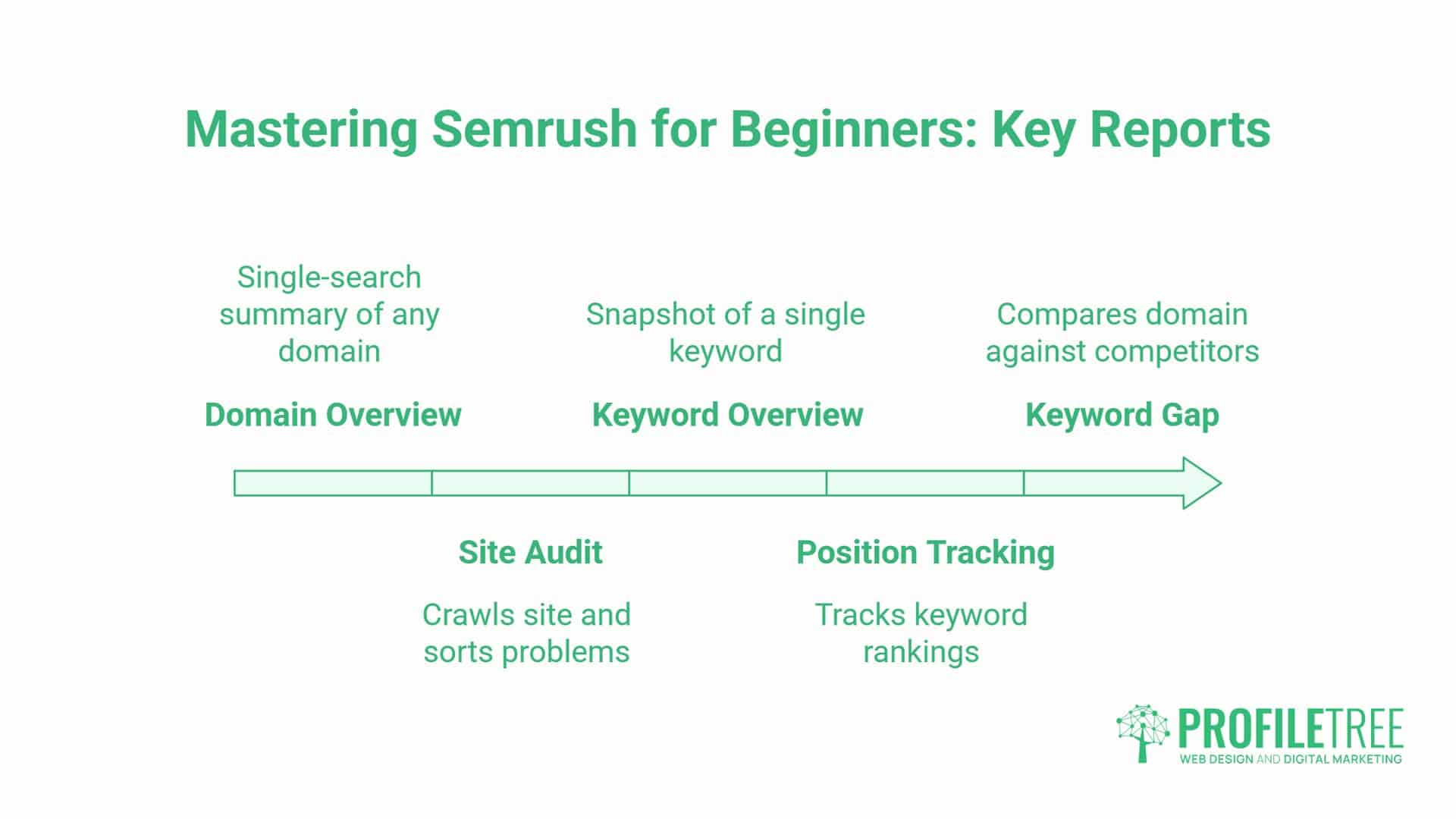
Learning how to use Semrush does not mean learning every tool in the sidebar. Five reports cover almost everything a beginner needs in the first three months, and the rest can wait until a specific question comes up.
- Domain Overview gives a single-search summary of any domain, your own or a competitor’s. Type a domain into the main search bar and select Domain Overview from the results. The report covers Authority Score, estimated organic and paid traffic, referring domains, and traffic share, as well as newer AI Visibility fields that show how often the domain is mentioned or cited in AI-generated answers.
- Site Audit, accessed from the folder dashboard, crawls the site and sorts problems into errors, warnings, and notices, each of which is rolled into an overall Site Health score. Read the errors first: broken internal links, duplicate content, and pages blocked from crawling hold rankings back more directly than anything further down the list.
- Keyword Overview provides a quick snapshot of a single keyword: volume, difficulty, intent, and cost per click on one screen. It’s the sensible starting point before opening the wider Keyword Magic Tool, which takes that same seed term and returns a much longer list of related suggestions, filterable by volume, difficulty, and intent.
- Position Tracking shows where tracked keywords currently rank, split by desktop and mobile, with daily movement and a rolling visibility percentage for the domain overall. A small trend arrow sits next to each keyword, useful for spotting when a page has slipped several places before it becomes a serious problem.
- Keyword Gap compares your domain against up to four competitors side by side and flags keywords they rank for that you don’t, one of the fastest ways to build a content list without guessing at topics.
A Worked Keyword Research Walkthrough
A worked example makes how to use Semrush for keyword research clearer than a list of instructions on its own, so here is one from start to finish using a seed term a UK service business might realistically pick: “website design belfast”.
- Start in Keyword Overview and type in the seed term to see its volume, difficulty, and intent at a glance. Before reading a single number, check the database selector above the results and change it from United States to United Kingdom if it isn’t already set to United Kingdom. This one click resets volume, difficulty, and cost-per-click to figures that reflect an actual UK audience rather than an American one.
- From Keyword Overview, open the fuller Keyword Magic Tool to expand the single term into a list of related suggestions. The results load as a table with columns for volume, Keyword Difficulty (KD), and intent. Filter by Keyword Difficulty first: newer domains, or sites with an Authority Score under 30, should stay within the 20 to 40 range, where consistent content has a realistic chance of ranking inside three to six months. Established domains can push into the 40-60 range, particularly when the page sits within a broader cluster of related content rather than standing alone.
- Next, check the intent column. Semrush labels each keyword as informational, navigational, commercial, or transactional. For a service page, commercial and transactional keywords such as “website design belfast” or “web designer belfast quote” are the priority. Informational variants such as “what does a website designer do” suit blog content aimed at readers still researching rather than ready to enquire.
- Finally, add a location modifier to the seed term if it isn’t there already. “Website design belfast” consistently returns lower competition and clearer buying intent than the generic UK-wide “website design” on its own, and the smaller volume tends to convert at a noticeably higher rate, because the person searching already knows roughly what they want.
As Ciaran Connolly, founder of ProfileTree, puts it: “A Keyword Difficulty score of 60 in the UK is often harder to crack than the same score in the US, because UK results are dominated by fewer, larger legacy brands. Beginners should weigh that concentration alongside the headline number rather than treating KD as a universal scale.”
Export the filtered list, the option sits at the top right of the results table, and there’s a working keyword shortlist for a first content plan, built entirely from the UK database rather than borrowed US figures.
A Worked Competitor Check
A worked competitor check shows how to use Semrush to work out why a rival outranks you, rather than only confirming that they do.
- Start with Domain Overview again, this time entering a competitor’s domain instead of your own. Set the database to the United Kingdom before reading anything; the default view otherwise reflects a market the competitor may not even be targeting. Compare the estimated organic traffic figure against your own domain’s, then click through to Organic Rankings for the full list of keywords driving that traffic. Look at the traffic trend over the past 12 to 24 months rather than the current total alone.
- A competitor whose estimated traffic has climbed steadily over two years is doing something structurally right with its content or technical setup. A site that has plateaued or declined over the same period may have been hit by an algorithm update, which often creates space for others to capture the traffic it has lost.
- From there, open Keyword Gap. Enter your own domain first, then add two or three competitors, and set the database to the United Kingdom or Ireland as before. The report returns a table with a “Missing” filter, keywords that competitors rank for that your site does not appear for, and it serves as a ready-made content gap list without extra analysis. The “Weak” filter matters just as much for a site that already has some content: these are keywords you rank for, just several positions below the competitors shown, and a page sitting between position 12 and 20 for a commercially relevant term often needs targeted improvements rather than a brand-new page built from nothing.
- One more report worth a look at this stage is Backlink Analytics, reached by typing the competitor’s domain into the main search bar and selecting Backlink Analytics from the results. This shows which sites link to the competitor and what anchor text they use. A local business publication or industry body linking to a competitor is usually a credible outreach target for your own site too, since it has a track record of linking to businesses in the same space.
Common Beginner Mistakes
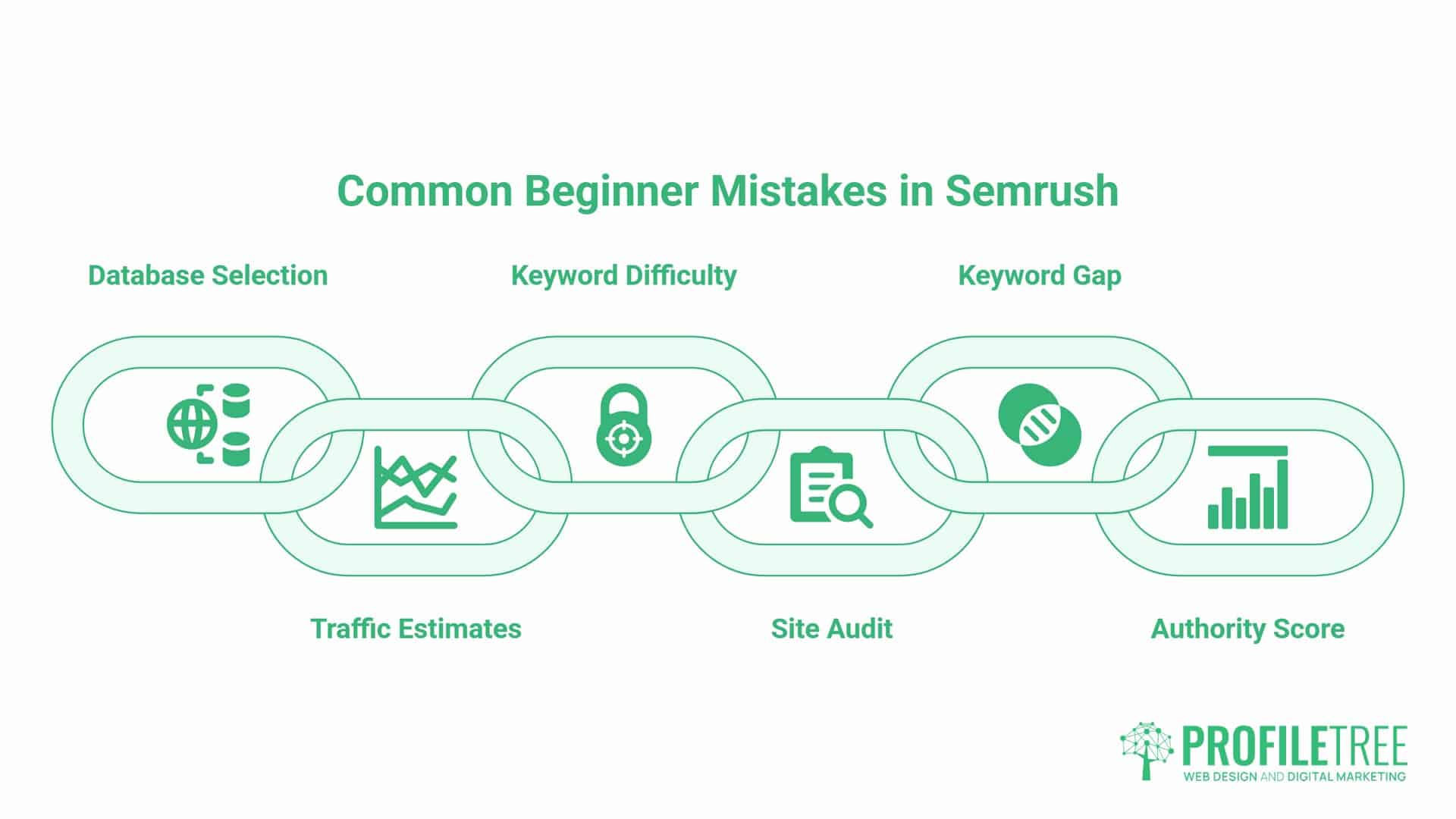
Most beginner mistakes come down to a gap in how to use Semrush correctly at the settings stage, reading a number before checking what produced it, so this section works as a checklist worth running through before trusting anything on screen.
- Leaving the database on the United States is the single most common mistake, and it affects every report at once: search volume, keyword difficulty, cost-per-click, and even which keywords appear at all. Check the database selector before reading any figure, not just once when the account is set up.
- Treating Semrush’s traffic estimates as verified visitor numbers is another common trap. The dashboard figures come from Semrush’s own web crawl and modelling, not directly from Google, so they work as directional estimates rather than precise counts. Google Search Console reports exactly what Google has recorded for a site, and the two should be read alongside each other rather than one replacing the other.
- Chasing a low Keyword Difficulty score without checking search intent wastes effort on pages that will never convert, even if they rank. A KD of 25 on an informational keyword might rank quickly and still bring no enquiries if the page is a service page built for buyers rather than researchers.
- Running a full Site Audit crawl on a large site without limiting the scope can eat through a monthly crawl budget in one go, leaving nothing left for the rest of the month. Set a sensible page limit for the first crawl on any site over a few thousand pages.
- Ignoring the Weak keyword filter inside Keyword Gap in favour of only chasing Missing keywords means passing over pages that often need less work to improve. A page already ranking at position 15 is usually closer to a result than a page that does not exist yet.
- Reading Authority Score as a fixed, permanent number is a smaller mistake, but a common one. It’s recalculated against the wider web each time Semrush updates its database, so a drop doesn’t automatically mean a domain lost links or standing, it can just as easily mean other sites in the same category gained links faster over the same period. Anyone working out how to use Semrush for ongoing monitoring should check the Authority Score trend alongside referring domain counts, rather than reacting to a single number in isolation.
FAQs
How do I use Semrush for a website that has never been tracked before?
Add the domain from the sign-up or folder screen and click “Start now”, then set up Position Tracking and Site Audit from the dashboard’s “Set up” buttons. Run Site Audit first so there’s a baseline before adding any tracked keywords.
Why does Semrush show a completely different search volume to what I expected?
This usually means the database is still set to the United States rather than the United Kingdom or Ireland. Check the database selector above any keyword or Domain Overview report and change it before trusting the figure.
I keep getting confused between Keyword Overview and Keyword Magic Tool, what’s actually the difference?
Keyword Overview provides a quick snapshot of a keyword’s volume, difficulty, and intent. Keyword Magic Tool takes that same seed term and expands it into a full list of related suggestions that can be filtered and exported. Use Overview to check a single term quickly, then Magic Tool once ready to build a wider list.
Is the traffic figure in Semrush’s Domain Overview the same as my actual website visitors?
No, it’s an estimate built from Semrush’s own crawl and modelling rather than a direct count from Google. Treat it as a directional figure for comparing domains, and use Google Search Console for the exact clicks and impressions a site actually received.
Why is my Semrush Site Audit stuck, or showing far fewer pages than my site actually has?
This is usually a crawl setting or a page limit that’s too low for the site’s size, particularly on the free plan’s 100-page cap. Increase the crawl limit in the Site Audit settings, or check that the crawler isn’t being blocked by a robots.txt rule.
What’s a good Keyword Difficulty score to target as a beginner?
For a newer site, or one with an Authority Score under 30, keywords in the 20 to 40 Keyword Difficulty range give the most realistic chance of ranking within three to six months. Established domains with existing topical authority can reasonably target the 40-60 range.
Can I use the free Semrush plan to actually run an SEO campaign, or do I need to pay straight away?
The free plan allows around ten keyword searches a day, a Site Audit capped at 100 pages, and ten tracked keyword positions, which suits evaluation rather than ongoing work. Most businesses running an active campaign need the Pro plan once they’re tracking more than a handful of keywords or auditing a site larger than 100 pages, so treat the free tier as a way to learn how to use Semrush’s interface before committing rather than a long-term working setup.