
Google Analytics 4 Training: Complete GA4 Guide for UK Businesses
Table of Contents
Google Analytics 4 is now the standard web analytics platform for every business with a website. Universal Analytics was switched off in July 2023, which means if you set up GA4 at that point and never looked at it again, there is a reasonable chance your data is incomplete, your settings are wrong for a UK business, or both. This guide covers everything you need to get GA4 working properly: what it is, how to set it up correctly for a UK context, how to read the reports that actually matter, and how to track the actions that tell you whether your website is earning its keep.
It is written for business owners, marketing managers, and anyone managing a website who wants a clear, practical introduction to GA4 without needing a data analyst sitting next to them. If you reach the end and decide you would rather have someone else handle the setup and ongoing reporting, ProfileTree’s digital training service runs structured GA4 sessions for teams across Northern Ireland, Ireland, and the UK.
What is Google Analytics 4, and How Does It Differ from Universal Analytics?
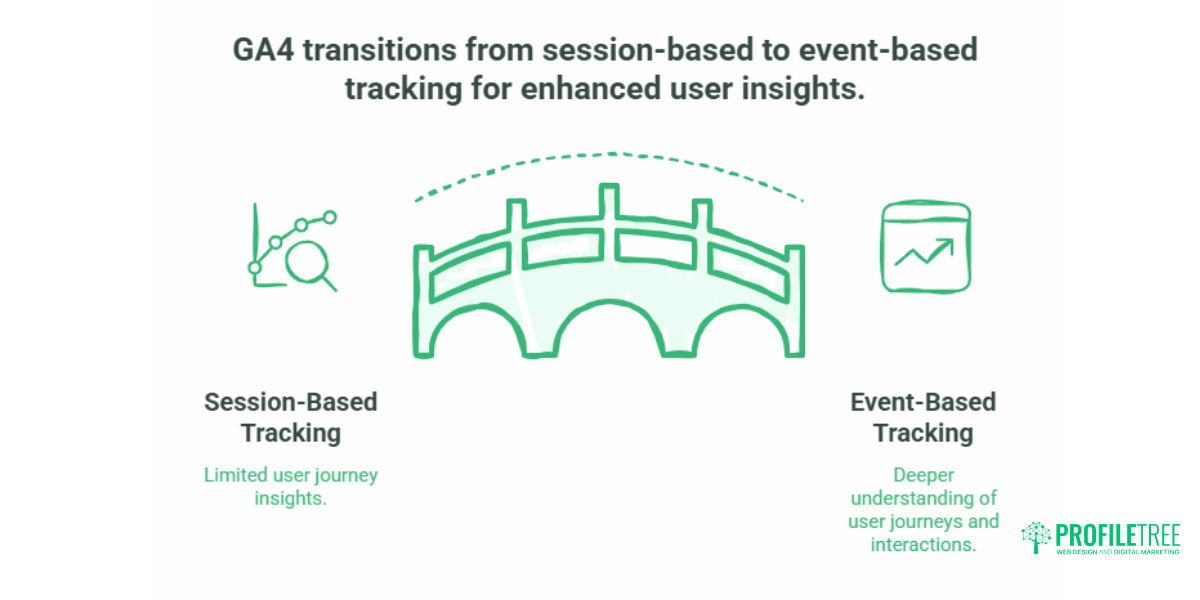
GA4 is Google’s current analytics platform. It replaced Universal Analytics (also called GA3) in July 2023, and it works differently in one fundamental way: Universal Analytics measured activity in sessions, while GA4 measures everything as events.
In Universal Analytics, a session was the container. Every pageview, click, or transaction that happened within a session was grouped together. GA4 removes the session as the primary unit and treats every single interaction as its own event. A page view is an event. A scroll past 90% of a page is an event. A button click is an event. A completed contact form is an event. This shift gives you far more flexibility about what you measure and how you measure it, but it also means the reports look different and the terminology has changed.
Key terminology changes from Universal Analytics to GA4
The table below maps the old terms to their GA4 equivalents. If you are moving from Universal Analytics, this is the single most useful reference to keep nearby while you learn the new interface.
| Universal Analytics term | GA4 equivalent | What changed |
|---|---|---|
| Pageview | page_view event | Now one of many event types rather than the primary metric |
| Goal | Key Event (Conversion) | Renamed; set by marking any event as a key event in Admin |
| Bounce rate | Engagement rate | GA4 replaced bounce rate with sessions where users engaged for 10+ seconds |
| Session | Session (retained, but less central) | Still available in reports,s but no longer the primary measurement unit |
| Transaction | purchase event | E-commerce purchases are now tracked as a standard event type |
| Audience | Audience (with predictive capabilities) | GA4 adds predictive audiences based on machine learning models |
What GA4 does better than Universal Analytics
The event-based model is more than a naming change. It means GA4 can track user behaviour across multiple sessions, devices, and platforms in a way Universal Analytics could not. Someone who visits your site on a mobile phone on Monday and returns on a laptop on Thursday can be recognised as the same user in GA4 (where consent has been given), giving you a clearer picture of how people actually move through their buying journey before they contact you or make a purchase.
GA4 also has stronger built-in privacy controls, which matters for UK businesses operating under UK GDPR and the ICO’s guidance on cookies. The platform was designed with data minimisation in mind from the outset, unlike Universal Analytics, which was retrofitted for compliance. ProfileTree’s digital training team covers the GA4 setup process for business owners and marketing managers.
Step-by-Step GA4 Setup Guide for UK Businesses
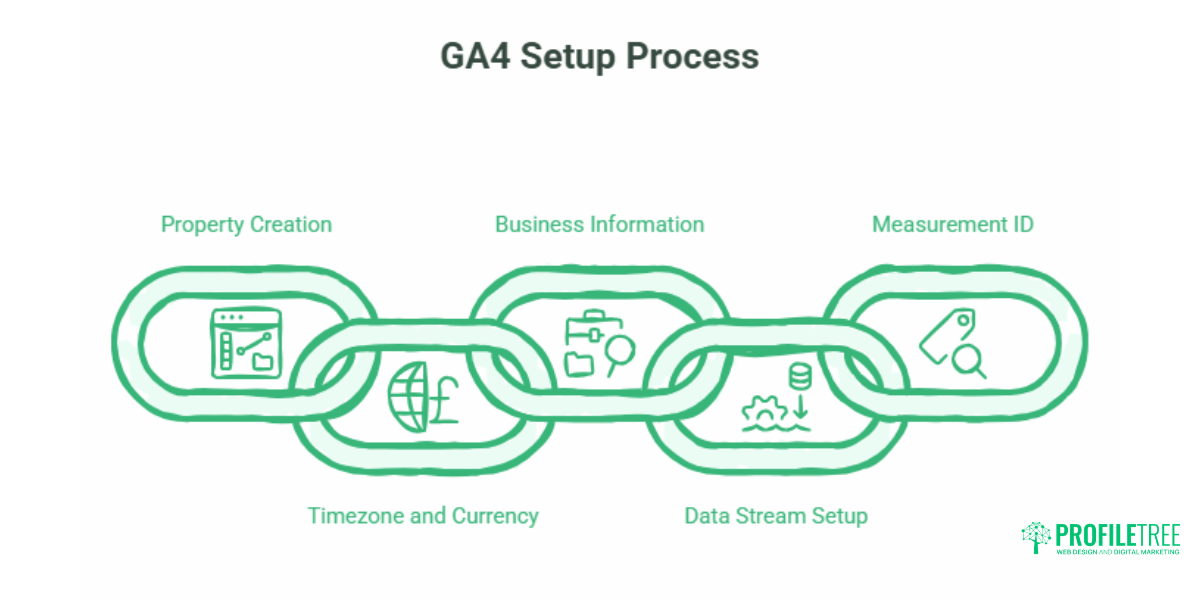
The steps below assume you are starting from scratch: no existing GA4 property, no Google Tag Manager container. If you already have GA4 installed but suspect the settings are wrong, skip to steps 2 and 5, which cover the two configuration errors most commonly found on UK business websites.
Step 1: Create your GA4 property in Google Analytics
Sign in to your Google account at analytics.google.com and follow these steps:
- Click the gear icon (Admin) in the bottom-left corner.
- Under the Account column, confirm you are in the correct Google Analytics account.
- Under the Property column, click Create Property.
- Name the property (your website name is fine), select your reporting time zone as United Kingdom, and set the currency to British Pound (£). Both of these settings matter and are covered in the next step.
- Select your business category and size, then click Next.
- Choose your business objective (getting baseline reports is fine if you are unsure).
- Select Web as your data stream type, enter your website URL and a stream name, then click Create and continue.
- Note your Measurement ID (it starts with G-). You will need this when setting up your tag.
Step 2: Set your UK timezone and GBP currency (do not skip this)
This is the most overlooked step in most GA4 setup guides, and it causes real reporting problems for UK businesses. If your property timezone is set to anything other than the United Kingdom, your reports will attribute traffic and conversions to the wrong time of day. An e-commerce business will see conversion peaks at 2 am when they actually happened at 9 pm. Campaign reports will show activity in overnight hours.
The currency setting is equally important for any business tracking revenue, lead values, or Google Ads spend within GA4. Leaving it set to USD and then importing data into a UK reporting dashboard creates a permanent mismatch that requires manual correction every time you export data.
To check and correct both settings: Admin > Property Settings > Property Details. Confirm the reporting timezone reads United Kingdom (GMT+0 / GMT+1 BST) and the currency reads British Pound (GBP, £).
Step 3: UK GDPR and Consent Mode v2: What You Need to Do Before Going Live
Running GA4 without a compliant consent setup exposes UK businesses to ICO enforcement action. Under UK GDPR and PECR, GA4’s standard tracking uses non-essential cookies, which means you cannot collect full tracking data until the user has actively opted in. This is a common gap in GA4 installations set up before 2024, when Google introduced Consent Mode v2 as the required standard.
What you need in place before GA4 goes live:
- A Consent Management Platform (CMP) that is certified for Google Consent Mode v2. Common options include Cookiebot, OneTrust, and CookieYes. Your web developer or agency can advise on the right choice for your platform.
- Your GA4 tag is configured to fire in “basic” or “advanced” consent mode, meaning it only sends full measurement data after consent is granted. Without this, you are collecting data you are not permitted to collect.
- A privacy policy that accurately describes your analytics tracking and links to your cookie consent options. If ProfileTree built or manages your website, the GDPR-compliant web forms guide covers what the policy needs to include alongside your forms.
Ciaran Connolly, founder of Belfast digital agency ProfileTree, notes that UK GDPR consent configuration is the single most frequently missed step when businesses set up GA4 independently: “Most businesses we work with have GA4 installed but the consent layer isn’t properly connected. They are collecting data they either cannot use or should not have. Getting Consent Mode v2 set up correctly is not optional: it’s the foundation everything else sits on.”
Step 4: Install the GA4 tag via Google Tag Manager
There are two ways to install your GA4 tag: directly in your website code, or through Google Tag Manager (GTM). For most UK businesses managing a WordPress or other CMS-based website, GTM is the better approach. It means future tracking changes (adding conversion events, installing other marketing tags) can be made through the GTM interface without touching the website code each time.
If you do not already have a GTM container on your website, your developer or web agency will need to add the GTM snippet to your site’s header and body. Once that is in place:
- Log in to Google Tag Manager and open your container.
- Click Tags > New.
- Click the tag configuration area and select Google Tag.
- Enter your GA4 Measurement ID (the G- code from step 1).
- Set the trigger to All Pages.
- Save and publish the container.
After publishing, visit your website and check the GA4 Realtime report. If you can see your own session appearing, the tag is firing correctly. If you need a deeper walkthrough of GTM containers, triggers, and variables, the analytics tools guide covers how tracking tags fit into a broader measurement setup.https://www.youtube.com/embed/wqN765k7qukProfileTree’s digital training covers GA4 setup, Google Tag Manager, and practical analytics for SMEs.
Step 5: Change your data retention setting to 14 months (do this immediately)
GA4’s default data retention period is two months. This means user-level data older than 60 days is automatically deleted unless you change the setting. You will not see an error message when this happens. You will simply find that comparisons to data from more than two months ago return no results in the Explore reports.
To fix it: Admin > Data Settings > Data Retention. Change “User data and event data retention” from 2 months to 14 months, then click Save. This is the maximum available on the free version of GA4 and is sufficient for year-on-year comparison reporting for the vast majority of SMEs.
Do this on day one. If your GA4 property has already been running for several months with the default setting, the historical data that has already been deleted cannot be recovered.
| Setting | Default value | Recommended for UK sites | Why it matters |
|---|---|---|---|
| Reporting timezone | Varies by account location | United Kingdom (GMT/BST) | Prevents traffic and conversion data appearing at the wrong time of day |
| Currency | USD (often) | British Pound (GBP, £) | Revenue and ROAS figures display accurately in UK reporting |
| Data retention | 2 months | 14 months | Preserves user-level data for year-on-year comparison |
| Consent Mode | Off / not configured | Advanced Consent Mode v2 | Required for UK GDPR and PECR compliance; enables modelled data for non-consenting users |
Navigating the GA4 Interface and Core Reports
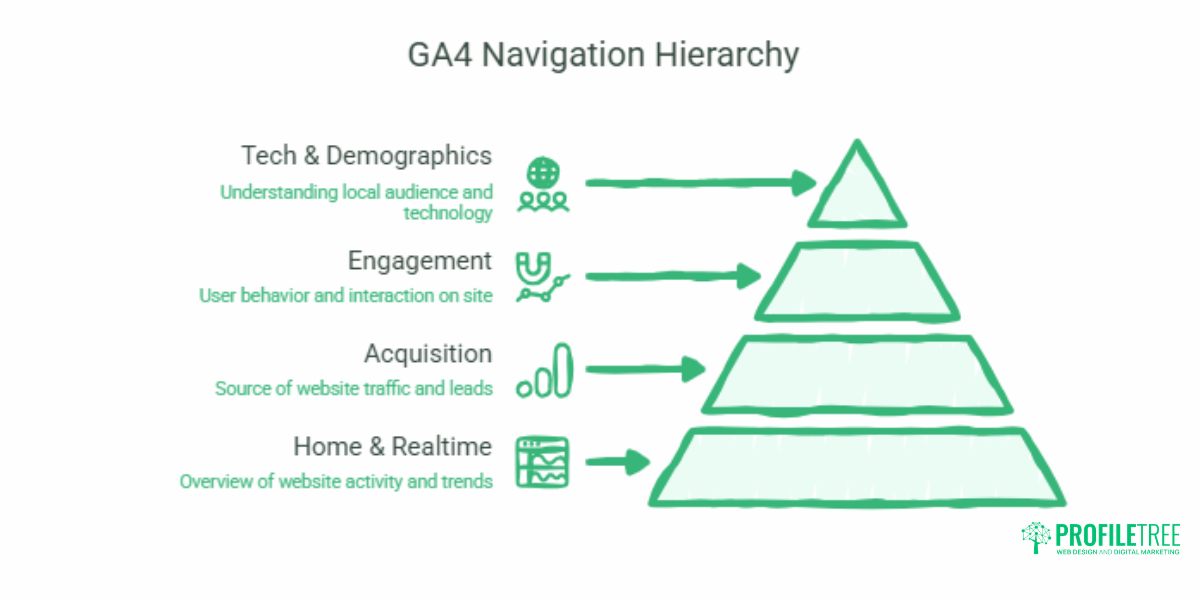
GA4’s left-hand navigation is divided into a small number of main areas. Most business owners only need to check four or five report types on a regular basis. Here is a guide to each one and what it tells you about your website performance.
Home and Realtime reports
The Home screen shows a summary of recent activity alongside cards covering your most important metrics. It is a useful starting point, but not where you will spend most of your time. The Realtime report (accessible from the left navigation) shows who is on your site right now, which pages they are viewing, and which traffic sources they came from. It is most useful for checking that a new campaign is driving traffic or confirming that your tag is working after a new installation.
Acquisition reports: where your UK traffic comes from
The Acquisition section answers the question of how people are finding your website. The two most useful reports here are:
- User acquisition: Shows the channel (organic search, direct, email, paid social, etc.) that brought someone to your site for the first time.
- Traffic acquisition: Shows the channel that brought someone to a specific session, which may differ from how they first found you.
For most SMEs in Northern Ireland and the UK, organic search and direct traffic will be the dominant channels. If you are investing in SEO or paid advertising, the Acquisition reports are where you measure whether those investments are bringing people to your site. For a full picture of how your organic traffic is performing, GA4’s acquisition data works alongside Google Search Console data, which shows the specific search terms people used to find you.
Engagement reports: how users behave on your site
The Engagement section shows what people do once they arrive. The key metrics here are:
- Engaged sessions: Sessions where the user was actively on the site for at least 10 seconds, visited more than one page, or completed a key event. This replaces bounce rate as the primary quality signal.
- Average engagement time: How long users actively interacted with your site (not just had the tab open).
- Pages and screens: Which pages are receiving the most traffic and which are holding attention longest?
The Engagement reports are particularly useful for evaluating content marketing performance. If a page has high traffic but low engagement time and no key events, it is attracting visitors but not serving them well enough to take action.
Tech and demographics: understanding your local audience
The Tech reports show which devices, browsers, and operating systems your visitors are using. For web design decisions, this data is directly useful: if 70% of your traffic comes from mobile devices and your mobile experience is poor, that is a measurable business problem. The Demographics reports (where users have consented to share this data) show age, gender, and location breakdowns. For UK businesses targeting specific regions, the location data in GA4 can inform both content decisions and local SEO priorities.
Tracking Events and Conversions in GA4
This is where GA4 gives you information that Universal Analytics could not easily provide. Events are the foundation of everything GA4 measures, and Key Events (what Universal Analytics called goals) are the events that represent the outcomes your business cares about.
Automatically collected events vs custom events.
GA4 collects a set of events automatically when you install the tag: page_view, scroll, session_start, first_visit, and others. Enhanced Measurement (switched on by default in new properties) adds file downloads, outbound link clicks, video engagement, and site search. For many smaller business websites, this gives you a reasonable baseline without any additional configuration.
Custom events are needed when you want to track something specific to your business: a quote request form submission, a phone number click, or a specific product added to a basket. Setting these up requires either additional configuration in GTM or code-level changes to your website. If you are working with a web development agency, this is worth building into any new website project from the outset rather than retrofitting later.
How to mark an event as a Key Event (conversion)
Once an event is collected, you can designate it as a Key Event, so it appears in your conversion reports:
- Go to Admin > Events.
- Find the event you want to track as a conversion (for example, “generate_lead” for a contact form submission).
- Toggle the “Mark as key event” switch.
- The event will now appear in your Key Events and Conversion reports across the GA4 interface.
For an SME in Northern Ireland generating leads through a contact form, marking that form submission as a key event means you can see, at a glance, which traffic sources are actually driving enquiries rather than just visits. A page receiving 500 organic visits per month with 40 key events is performing; a page receiving 2,000 visits with two key events has a conversion problem. This kind of data is what connects analytics to real business decisions about where to invest in web design improvements, content, or paid advertising.
How GA4 data connects to your wider digital strategy
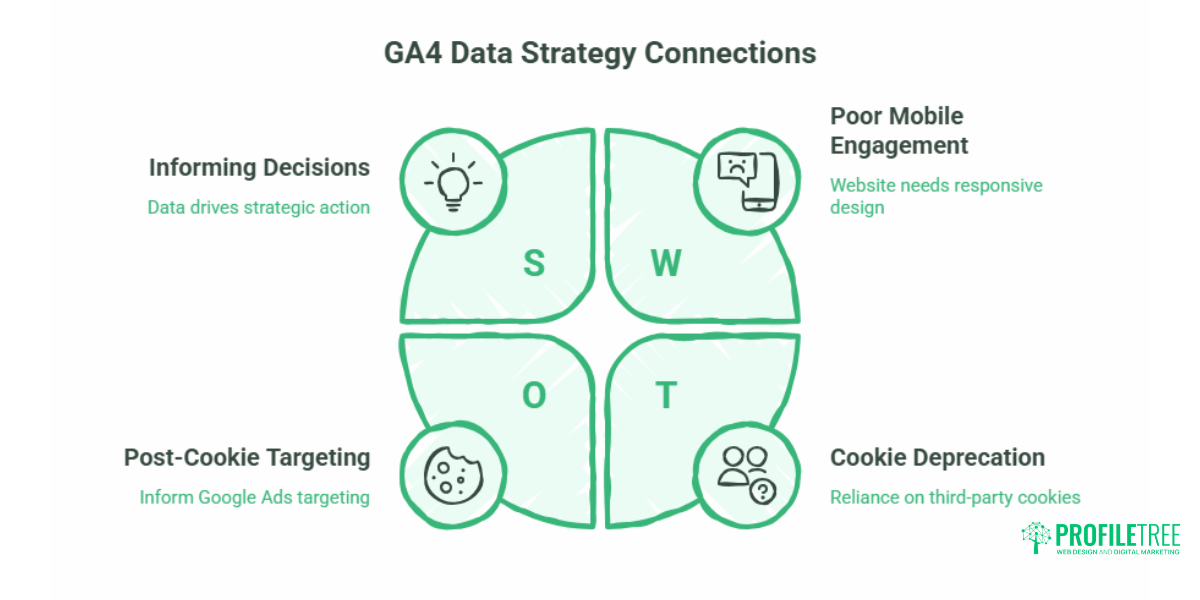
GA4 is most useful when it is informing decisions rather than just recording them. The reports tell you what is happening; your strategy determines what you do about it. Some practical connections for SMEs:
- Low engagement time on a key service page signals a web design or content problem worth addressing.
- High organic traffic with low-key events suggests an SEO strategy that is attracting the wrong audience or a landing page that is not converting.
- A high percentage of mobile traffic with poor mobile engagement time points to a website that needs responsive design improvements.
- GA4’s predictive audiences (available once you have sufficient data) can inform Google Ads targeting without relying solely on third-party cookie data, which is increasingly relevant post-cookie deprecation.
ProfileTree’s digital training for businesses covers how to move from reading GA4 data to acting on it, which is the step most GA4 guides stop short of covering.
Essential GA4 Setup Checklist for UK Businesses
- GA4 property created with the correct name and data stream
- Reporting timezone set to United Kingdom (GMT/BST)
- Currency set to British Pound (GBP, £)
- Consent Mode v2 configured through a compliant CMP
- Privacy policy updated to reflect GA4 cookie usage
- GA4 tag installed via Google Tag Manager and verified in Realtime reports
- Data retention changed from 2 months to 14 months
- Key events (conversions) identified and marked in Admin
- Google Search Console linked to GA4 property
- Google Ads account linked (if running paid campaigns)
Next Steps with GA4
GA4 is a capable platform once the settings are right and you know which reports to focus on. The most common problems for UK businesses are not complexity but configuration: wrong timezone, missing consent setup, and a data retention setting that silently deletes the data you need. Get those four settings right from the start, and the rest of the platform becomes considerably easier to work through. If you want structured GA4 training for yourself or your team, ProfileTree’s digital training sessions cover the full platform in a practical, business-focused format.
Frequently Asked Questions
Is Google Analytics 4 free to use?
Yes. The standard version of GA4 is free for properties collecting up to 10 million events per month. This limit comfortably covers the vast majority of SME websites. There is a paid version called Google Analytics 360, which is designed for enterprise-level data volumes and includes additional features such as extended data retention and higher export limits, but it is not relevant or necessary for most UK small businesses.
Do I legally need a cookie consent banner to run GA4 in the UK?
Yes. Under UK GDPR and PECR, GA4’s standard tracking uses non-essential cookies, which require explicit opt-in consent from UK website visitors before data is collected. You need a compliant Cookie Consent Management Platform (CMP) integrated with Google Consent Mode v2, not just a basic cookie banner. The ICO’s guidance on analytics cookies is clear that implied consent (a banner that says “by continuing to browse, you agree”) is not sufficient. If you are unsure whether your current setup is compliant, your web agency or a data privacy specialist should audit it.
Why can I only see two months of data in my GA4 reports?
GA4’s default data retention setting is two months. After 60 days, user-level data is automatically deleted. If you did not change this setting when you first set up your property, the data from those earlier months is gone and cannot be recovered. The fix is straightforward: Admin > Data Settings > Data Retention > change to 14 months. Do this immediately if you have not done it already, to protect data from this point forward.
How do I change my GA4 currency to British Pounds?
Go to Admin > Property Settings > Property Details. Scroll to the currency field and select British Pound (GBP, £). Save the change. Note that this affects how monetary values are displayed in GA4 reports going forward; it does not retroactively convert historical data that was already recorded in a different currency.
How do I get a free GA4 certification in the UK?
Google’s official free certification is hosted on Google Skillshop. Go to skillshop.withgoogle.com, create a free account using your Google account, and search for “Google Analytics Certification.” The course is called “Google Analytics”, and the exam consists of 50 questions. You need to pass with 80% or higher, and you can retake it if you do not pass the first time. The certification is valid for one year. There is no cost.
How long does it take to learn GA4?
For a basic working understanding of GA4 (navigating the interface, reading acquisition and engagement reports, marking key events), most marketing managers with some prior analytics experience are comfortable within two to four hours of structured training. Setting up GA4 correctly, including consent mode and custom event tracking, takes longer and is often better handled with professional support for the technical elements. For business owners starting from scratch, ProfileTree’s GA4 training sessions are structured to cover the essentials in a half-day format.
What is the difference between GA4 and Google Tag Manager?
They serve different purposes. GA4 is your analytics platform: the tool that collects, stores, and reports on your website data. Google Tag Manager is a tag management system: a tool that sits between your website and the various tracking tags (including GA4) that you want to run on it. GTM makes it easier to install and update tracking tags without editing your website’s code directly. Most professional GA4 setups use GTM to deploy the GA4 tag, but the two tools are separate and have separate login interfaces.