
Designing for Accessibility: Principles for Inclusive UX
Table of Contents
Designing for accessibility means creating websites that everyone can use, regardless of physical ability, cognitive difference, or the device they’re holding. It’s not a compliance checkbox or a niche specialism. It’s a core quality standard that shapes how a site performs for every visitor.
The World Health Organisation estimates that over one billion people live with some form of disability, roughly 15% of the global population. Each one is a potential visitor to your website. Poor web accessibility doesn’t just exclude that audience; it signals a broader quality problem that search engines are increasingly good at detecting.
This guide covers the practical principles behind designing for accessibility, the WCAG standards that define them, and how to build accessibility features for diverse user needs into your process from the first wireframe rather than retrofitting them later.
What Web Accessibility Means in Practice
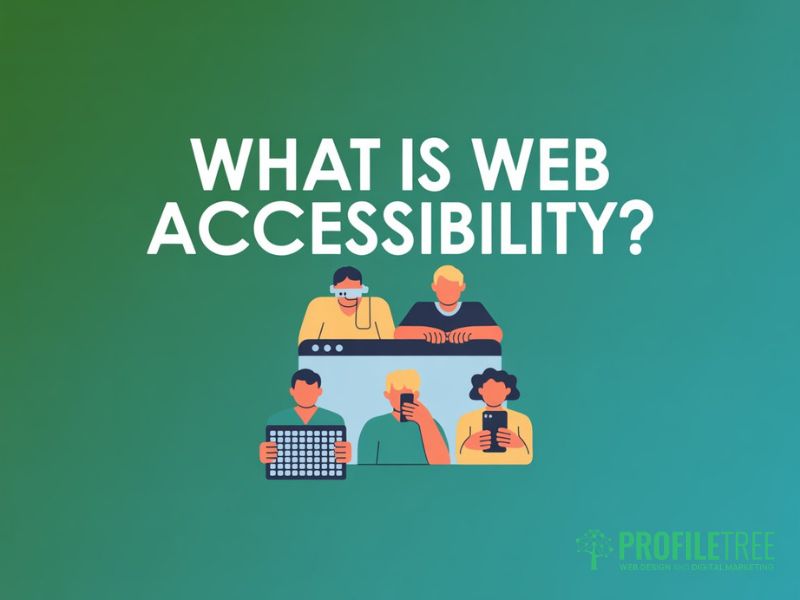
Web accessibility means building digital products that people with a wide range of abilities can perceive, understand, and use. This covers visual impairments, hearing loss, motor limitations, cognitive differences, and temporary situations such as a broken arm or bright sunlight on a screen. Designing for accessibility addresses all of these scenarios.
The WCAG Framework
The Web Content Accessibility Guidelines (WCAG), published by the World Wide Web Consortium (W3C), are the accepted international standard for web accessibility. WCAG is structured around four core principles: Perceivable, Operable, Understandable, and Durable. Designing for accessibility in any professional context means working to these guidelines as your benchmark.
- Perceivable: Information must be presentable in ways users can perceive, including through screen readers and assistive technologies.
- Operable: All navigation and interactive elements must support keyboard navigation and switch access.
- Understandable: Content and interface behaviour must be clear, with predictable navigation and helpful error messages.
- Durable: Content must work across a wide variety of browsers, devices, and assistive technologies.
WCAG 2.1 Level AA is referenced in the EU’s European Accessibility Act and is the target most organisations in the UK and Ireland should aim for. Level A covers only the most critical failures. Level AAA is the most thorough, but it isn’t required universally.
Why Inclusive Design Matters Beyond Compliance
Inclusive design is the practice of creating products usable by as many people as reasonably possible. Three practical reasons support the investment, and legal compliance is the least convincing.
Accessible websites rank better. Search engines follow logical heading hierarchies, read alt text, and reward well-structured content. Every improvement made when designing for accessibility tends to reinforce signals that ranking algorithms already favour.
Accessible websites also convert better. Clear copy, logical navigation, and well-labelled controls benefit every visitor. The overlap between inclusive design and strong UX is substantial; changes that help a screen reader user typically reduce friction for everyone else, too. That’s both an ethical and a commercial argument.
Finally, accessible websites reduce legal risk. The EU’s European Accessibility Act came into force in June 2025. Organisations across Northern Ireland and the UK face obligations under the Equality Act 2010. Addressing web accessibility now is far less disruptive than responding to a complaint later.
Accessibility Features for Diverse User Needs
Designing for accessibility involves a broader range of accessibility features for diverse user needs than most teams anticipate. Beyond screen reader support and keyboard navigation, this includes high contrast mode support, text resizing without layout breakage, captions and transcripts for video and audio, skip navigation links, and focus management in single-page applications.
Each of these accessibility features for diverse user needs addresses a real barrier for a specific user group, and most also improve the experience for users without disabilities. Text resizing helps anyone on a small screen. Captions help users in noisy environments. Skip links reduce friction for keyboard users.
Core Principles of Accessible Design
The core principles of accessible design cover visual presentation, interaction, navigation, and content structure. When designing for accessibility, each principle addresses a specific barrier. Understanding them separates genuine accessible design from a checklist-driven compliance exercise.
Colour, Contrast, and Visual Presentation
Colour contrast is one of the most common failures when designing for accessibility and one of the easiest to fix. WCAG 2.1 Level AA requires a ratio of at least 4.5:1 for normal text and 3:1 for large text. Tools such as the WebAIM Contrast Checker test any colour pair in seconds and confirm whether it meets the WCAG threshold.
Accessible design requires that colour is never the only means of conveying information. A form that shows errors only in red will confuse someone with red-green colour blindness. Pair colour with icons, text labels, or patterns to carry the same meaning through multiple channels.
Typography is a frequently overlooked element of inclusive design. Body text should be at least 16px with a line height between 1.4 and 1.6. Users must be able to resize text to 200% without losing content. Avoid justified alignment, which creates uneven word spacing that makes reading harder for users with dyslexia.
Keyboard Navigation and Motor Accessibility
Keyboard navigation is a foundational requirement for accessibility design. People with motor impairments, repetitive strain injuries, or temporary limitations may rely entirely on a keyboard. Assistive technologies, including switch controls, eye-tracking software, and voice control tools, all depend on the same underlying keyboard navigation infrastructure.
Every interactive element, including links, buttons, form fields, and modals, must be reachable with Tab and activatable with Enter or Space. Focus states must be clearly visible. The browser’s default focus outline is often removed by CSS resets without replacement, effectively destroying keyboard navigation across an entire site. It’s one of the most damaging accessible design failures found in production websites.
On complex interfaces such as carousels or multi-step forms, keyboard navigation must be tested explicitly as part of component review, not assumed from the visual design.
Screen Readers and Semantic HTML
Screen readers convert on-screen content into audio output, giving blind and visually impaired users access to digital products. They’re dependent on well-structured, semantic HTML. Designing for accessibility means understanding how screen readers interpret document structure, not just how the page looks visually.
Semantic HTML means using the right element for the right job: headings for headings, buttons for interactive controls, lists for grouped items. A heading hierarchy that skips levels is disorienting for screen reader users, who rely on it to understand page organisation and move between sections.
Alt text is critical for screen reader users. Every informative image needs descriptive alt text that conveys what it shows. Decorative images should use an empty alt attribute (alt=””) so screen readers skip them. ARIA attributes extend the semantics of custom interactive components, but native HTML elements should always be the first choice.
Forms, Labels, and Error Handling
Forms require particular care when designing for accessibility because they’re where users take action. Every field needs a visible, programmatically associated label; placeholder text disappears when typing starts and provides no context for screen reader users. Error messages must identify the specific field and explain clearly how to fix it. Generic messages fail web accessibility requirements and frustrate all users, not only those relying on assistive technologies.
Building Accessibility Into Your Design Process
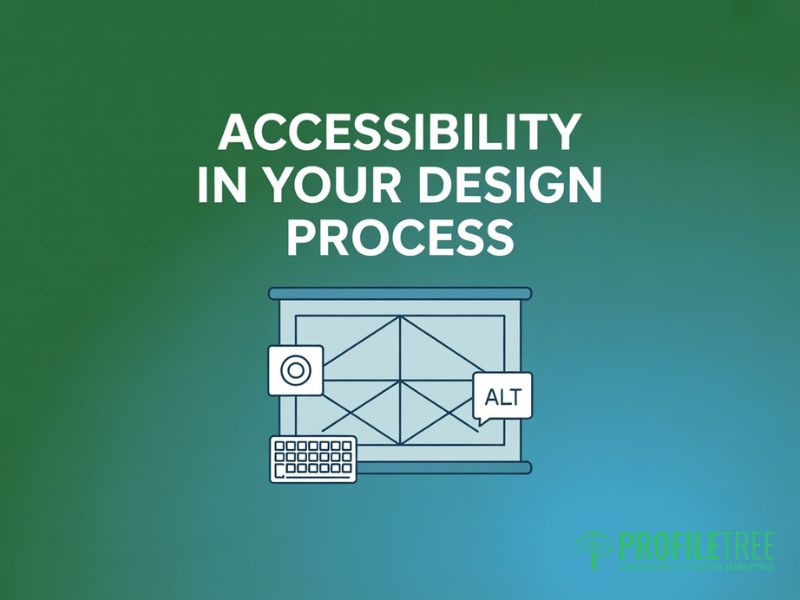
Designing for accessibility throughout a project is faster and more thorough than retrofitting it after launch. Accessible design decisions made at the wireframe stage shape the entire product structure. Late-stage fixes address symptoms rather than root causes, and they cost far more to implement correctly.
Discovery and Wireframing
Starting with a clear accessibility brief is the simplest way to make designing for accessibility manageable at every subsequent stage. Define your WCAG conformance target (Level AA for most projects) and identify which user groups are most likely to visit the site. A healthcare information site has different inclusive design priorities than an e-commerce platform, even where the technical requirements overlap.
During wireframing, map out the heading hierarchy before any visual design begins. This forces a logical content structure from the start, making it easy to confirm that navigation landmarks, form labels, skip links, and interactive elements are planned in from the outset.
Development and Component Design
In development, the most impactful decision when designing for accessibility is to use semantic HTML correctly throughout. A practical build checklist covers the most common web accessibility failures:
- Never remove focus styles without replacing them with a clearly visible alternative that meets WCAG contrast thresholds.
- Test all interactive components using keyboard navigation only before they’re signed off.
- Set alt text on all images at the point of upload, not retrospectively.
- Verify colour contrast ratios meet WCAG 2.1 AA across every page template.
- Provide captions for all video content and transcripts for audio-only content as standard deliverables.
ProfileTree’s web design and development services incorporate accessibility checks at each stage of the build, from wireframe review through to pre-launch testing. For teams looking to upskill on accessible development practices, ProfileTree’s digital training programmes cover inclusive design principles in a practical, implementation-focused format.
Mobile and Responsive Accessibility
Mobile accessibility shares the same foundations as desktop web accessibility but introduces specific considerations. Touch targets should be at least 44×44 pixels for users with reduced dexterity. Pinch-to-zoom mustn’t be disabled. Content that reflows at different viewport sizes must maintain its logical reading order so screen readers and keyboard navigation remain coherent across breakpoints.
Voice control tools on iOS and Android work by overlaying labels on interactive elements. Elements without accessible names are invisible to these tools. Designing for accessibility on mobile means treating accessible names as a required property of every interactive element.
Inclusive Content Writing
Inclusive design isn’t purely technical, and neither is designing for accessibility at the content level. Content itself creates or removes barriers. Plain language reduces cognitive load for everyone but is particularly important for users with cognitive disabilities or those reading in a second language. Keep sentences short, explain jargon, and use clear headings so users can scan and move through the page.
Avoid instructions that rely on spatial descriptions, such as ‘click the button on the left,’ or on sensory cues, such as ‘the red button,’ since these don’t translate across all users and interfaces. Accessible design at the content level matters as much as accessible design at the code level.
Testing and Maintaining Accessibility Standards
Accessibility testing is an ongoing discipline, not a one-off audit at project end. New content, features, and third-party integrations can introduce new web accessibility barriers. Designing for accessibility must be accompanied by a testing culture that runs throughout the product lifecycle.
Automated Testing Tools
Automated tools such as Axe, WAVE, and Google Lighthouse are a practical starting point when designing for accessibility. They catch obvious failures: missing alt text, insufficient colour contrast, missing form labels, and empty links. Published estimates suggest automated tools catch between 30% and 50% of actual web accessibility failures in a given codebase.
Running Lighthouse or Axe as part of a CI pipeline means new accessibility failures are caught before they reach production. It’s a valuable foundation for any accessibility programme, even though it can’t replace manual review.
Manual Testing and Screen Reader Checks
The failures automated tools miss require manual testing: working through the entire site using keyboard navigation only, and testing key journeys with a screen reader such as NVDA (free, Windows), JAWS (Windows), or VoiceOver (macOS and iOS). Reviewing the reading order with CSS disabled also surfaces structure issues that tools overlook.
When designing for accessibility on complex interactive components, manual testing with a screen reader is the only reliable way to verify that the experience is genuinely usable. A component can pass automated checks while still being impossible to complete with assistive technologies in practice.
Testing with Disabled Users
No automated or manual process fully replicates the experience of someone who uses assistive technologies every day. Including users with disabilities in usability testing surfaces things no tool can: confusing error announcements, unexpected navigation behaviour, or pages that are technically conformant but aren’t practically usable.
Even a small round of testing with two or three screen reader or keyboard users will identify issues that internal reviews miss. It’s one of the highest-return activities available when designing for accessibility on a real product.
Accessibility in Ongoing Content Management
Designing for accessibility doesn’t end at launch. The biggest web accessibility risk for most organisations is content added after the site goes live: editors uploading images without alt text, developers shipping components without checking keyboard behaviour, and marketing teams embedding videos without captions. These failures accumulate quietly.
A short accessibility checklist in the publishing workflow addresses this directly. A five-point check covering alt text, heading structure, link text, video captions, and colour contrast catches the majority of common issues before they go live. Inclusive design is a process, and the checklist makes it repeatable across a team.
FAQs
1. What is the difference between WCAG 2.1 Level A, AA, and AAA?
WCAG 2.1 has three conformance levels. Level A covers the most critical web accessibility barriers and is the absolute minimum. Level AA addresses a broader range of barriers and is referenced in most legal frameworks, including the EU’s European Accessibility Act and UK public sector regulations. Level AAA is the most thorough, but it isn’t required universally because some criteria can’t be applied to all content types. For most websites, designing for accessibility to WCAG 2.1 Level AA is the correct target.
2. Does designing for accessibility affect SEO?
Accessible design and SEO share a significant overlap because both depend on well-structured content. Descriptive alt text improves web accessibility for screen reader users and gives search engines context for images. A logical heading hierarchy helps users work through a page and gives search engines an accurate content outline. Fast, mobile-friendly pages perform well for both inclusive design and Core Web Vitals. Accessibility features for diverse user needs consistently produce measurable SEO benefits as a secondary outcome.
3. Who is legally required to make their website accessible in the UK?
Public sector organisations in the UK have been required to meet WCAG 2.1 AA under the Public Sector Bodies Accessibility Regulations since 2018. For private sector organisations, the Equality Act 2010 creates a duty not to discriminate, which courts have extended to digital services. The EU’s European Accessibility Act extended mandatory requirements to a wider range of private-sector products from June 2025. Organisations across Northern Ireland and the Republic of Ireland should consider obligations under both frameworks when designing for accessibility.
4. Can automated tools confirm that a site meets WCAG standards?
No. Automated web accessibility tools, including Axe, WAVE, and Lighthouse, identify a portion of technical failures quickly, but they can’t evaluate the quality of alt text, the clarity of error messages, or how a screen reader user actually experiences working through the page. Automated testing is a useful first pass, but it must be combined with keyboard navigation testing and, where possible, testing with assistive technology users to produce a reliable assessment.
5. How do I write effective alt text for images?
Good alt text describes what an image communicates, not what it looks like. For a photograph of a web designer reviewing a wireframe, appropriate alt text would be ‘a web designer reviewing a wireframe on a monitor’. Decorative images should use an empty alt attribute (alt=””) so screen readers skip them. Images used as links should describe the destination, not the image itself. When designing for accessibility consistently, alt text decisions should be made at the point of content creation, not as a retrospective fix.