
Browser Caching and SEO: A Business Owner’s Guide to Speed and Rankings
Table of Contents
Browser caching and SEO are more closely connected than most SME website owners realise. If your site loads slowly, Google notices, and so do your visitors. Slow pages lose rankings, increase bounce rates, and cost you customers before they’ve read a single word.
Browser caching is one of the most effective, underused tools for fixing this. When a browser stores copies of your site’s files locally, returning visitors load your pages faster because their browser skips re-downloading assets it already has. For businesses across Northern Ireland, Ireland, and the UK competing for local search visibility, that speed difference matters.
This guide explains what browser caching is, how it affects your SEO, and how to implement it,whether you’re handling it yourself or working with a web development team.
What is Browser Caching and Why Does It Matter for Your Business?
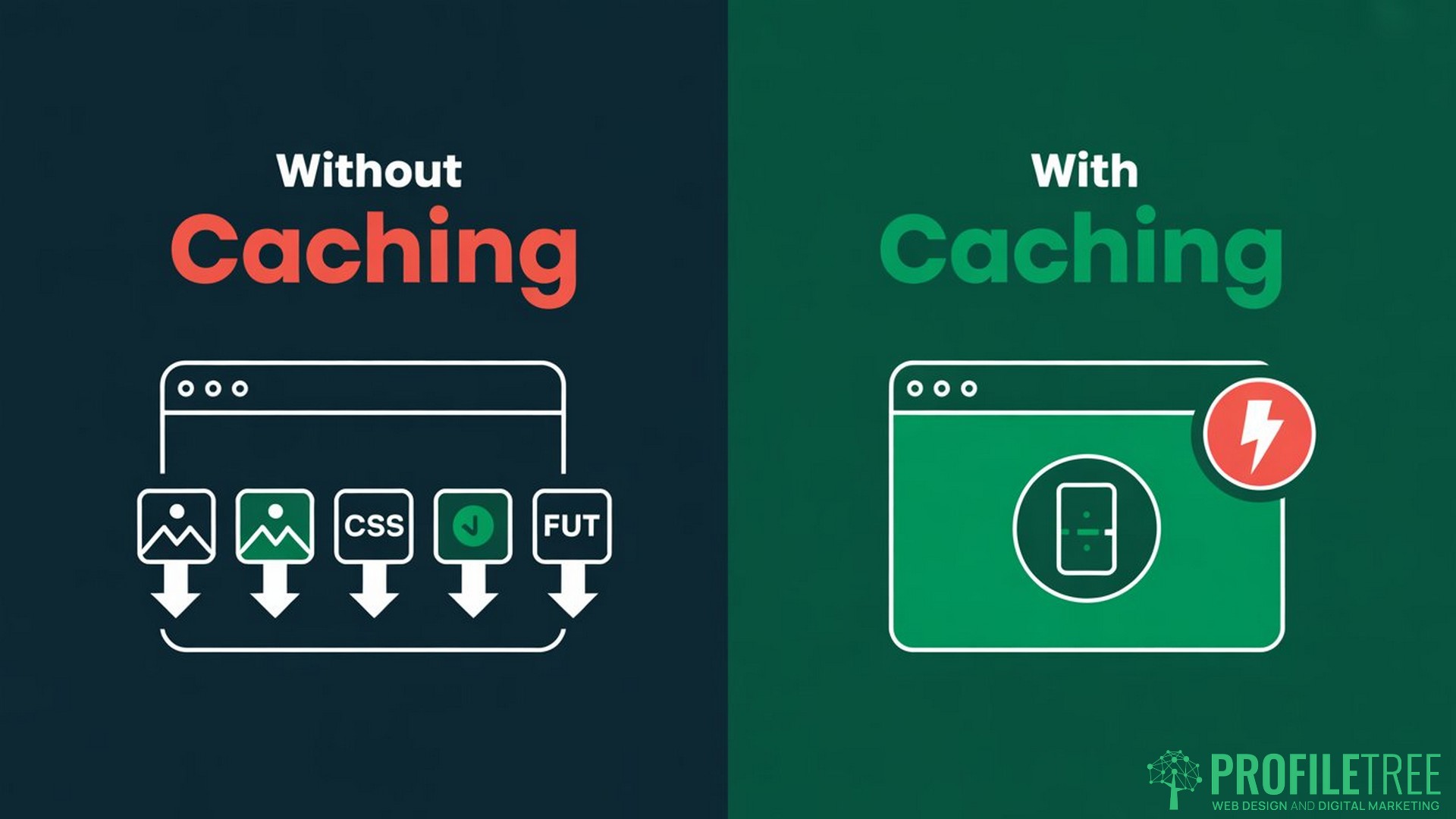
When a visitor lands on your website for the first time, their browser downloads everything needed to display the page: images, CSS stylesheets, JavaScript files, and fonts. On a second visit, without caching in place, it downloads all of those assets again from scratch.
Browser caching changes this. By setting rules that tell the browser how long to cache those assets locally, you reduce the amount of data transferred on repeat visits. Pages load faster. Server load drops. Users get a smoother experience.
For SMEs, the business case is straightforward. Google’s own research found that as page load time increases from one second to three seconds, the probability of a mobile visitor bouncing increases by 32%. Faster pages retain more visitors, which signals quality to Google, which feeds back into rankings.
Browser caching and SEO overlap precisely here: the same technical change that improves user experience also improves how search engines evaluate your site.
The Direct Link Between Browser Caching and SEO Rankings
Google measures page speed through Core Web Vitals, a set of metrics introduced as official ranking signals in 2021. The most important of these for caching is Largest Contentful Paint (LCP), which measures how long it takes for the largest visible element on a page, usually a hero image or headline, to load.
Google’s threshold for a good LCP score is 2.5 seconds or less. Sites that miss this threshold are at a disadvantage in competitive search results.
Browser caching and SEO performance are linked through LCP because cached assets load from local storage rather than the server. Images, stylesheets, and scripts that would otherwise be retrieved over the network are already available in the visitor’s browser, significantly reducing LCP time for returning visitors.
Beyond LCP, caching affects two additional factors that indirectly influence SEO. Lower bounce rates, driven by faster page loads, signal user satisfaction to Google. Reduced server load also means your site is less likely to slow down under traffic, which affects Time to First Byte (TTFB), another performance metric Google monitors.
ProfileTree’s SEO services include technical audits that assess Core Web Vitals performance alongside wider on-site factors. Caching configuration is one of the first items reviewed on any underperforming site.
How to Implement Browser Caching: The Technical Blueprint
There are three main routes to implementing browser caching and SEO improvements, depending on your server environment and technical confidence.
Apache: Configuring Caching via .htaccess
For websites hosted on Apache servers, caching rules are set in the .htaccess file in the root directory of your site. If the file does not exist, it may be hidden by your file manager or not yet created.
The following code activates browser caching for the most common file types by setting expiry periods:
<IfModule mod_expires.c>
  ExpiresActive On

  # Images
  ExpiresByType image/jpg "access plus 1 year"
  ExpiresByType image/jpeg "access plus 1 year"
  ExpiresByType image/gif "access plus 1 year"
  ExpiresByType image/png "access plus 1 year"
  ExpiresByType image/webp "access plus 1 year"
  ExpiresByType image/svg+xml "access plus 1 year"

  # Fonts
  ExpiresByType font/ttf "access plus 1 year"
  ExpiresByType font/otf "access plus 1 year"
  ExpiresByType font/woff "access plus 1 year"
  ExpiresByType font/woff2 "access plus 1 year"

  # CSS, JavaScript
  ExpiresByType text/css "access plus 1 month"
  ExpiresByType application/javascript "access plus 1 month"

  # Other
  ExpiresByType application/pdf "access plus 1 year"
  ExpiresByType image/x-icon "access plus 1 year"
</IfModule>
You can also set Cache-Control headers, which give browsers more precise instructions about how and when to reuse cached files:
<IfModule mod_headers.c>
    Header set Cache-Control "max-age=31536000, public"
</IfModule>
One additional optimisation worth adding to .htaccess is Gzip compression, which reduces the size of HTML, CSS, and JavaScript files before they reach the browser:
<IfModule mod_deflate.c>
  AddOutputFilterByType DEFLATE text/html
  AddOutputFilterByType DEFLATE text/css
  AddOutputFilterByType DEFLATE application/javascript
</IfModule>
A note on risk: editing .htaccess incorrectly can take a site offline. Always take a full backup before making changes, and test on a staging environment where possible. For established business sites, this is work best handled by a developer.
Nginx: Server Block Configuration
For sites running on Nginx, caching is configured within the server block rather than an .htaccess file:
location ~* \.(jpg|jpeg|png|gif|ico|css|js|woff|woff2)$ {
    expires 365d;
    add_header Cache-Control "public, max-age=31536000";
}
This tells Nginx to cache the listed file types for one year. CSS and JavaScript files are sometimes set to a shorter duration (one month) to allow more frequent updates without triggering caching conflicts.
WordPress: The Plugin Route
For most WordPress-based SMEs, a caching plugin is the right choice. It removes the need to edit server configuration files directly and provides a straightforward settings interface.
The two most widely used options are:
| Plugin | Best For | Technical Level |
|---|---|---|
| WP Rocket | Business owners and non-developers | Low settings are clearly labelled |
| W3 Total Cache | Developers and technical users | Medium to high, granular control |
| LiteSpeed Cache | Sites on LiteSpeed servers | Low to medium, auto-configuration available |
WP Rocket handles browser caching, cache expiry, Gzip compression, and file minification from a single settings panel. It is not free, but for a business website where speed directly affects conversion and rankings, it is a cost-effective solution.
W3 Total Cache is free and offers more detailed control, but the configuration options can be confusing for users without a technical background. Incorrect settings can cause CSS not to load properly or leave visitors seeing an outdated version of the site.
ProfileTree’s web development services include performance configuration as standard on all new site builds, covering caching, compression, and Core Web Vitals optimisation.
The Role of Content Delivery Networks in Browser Caching and SEO
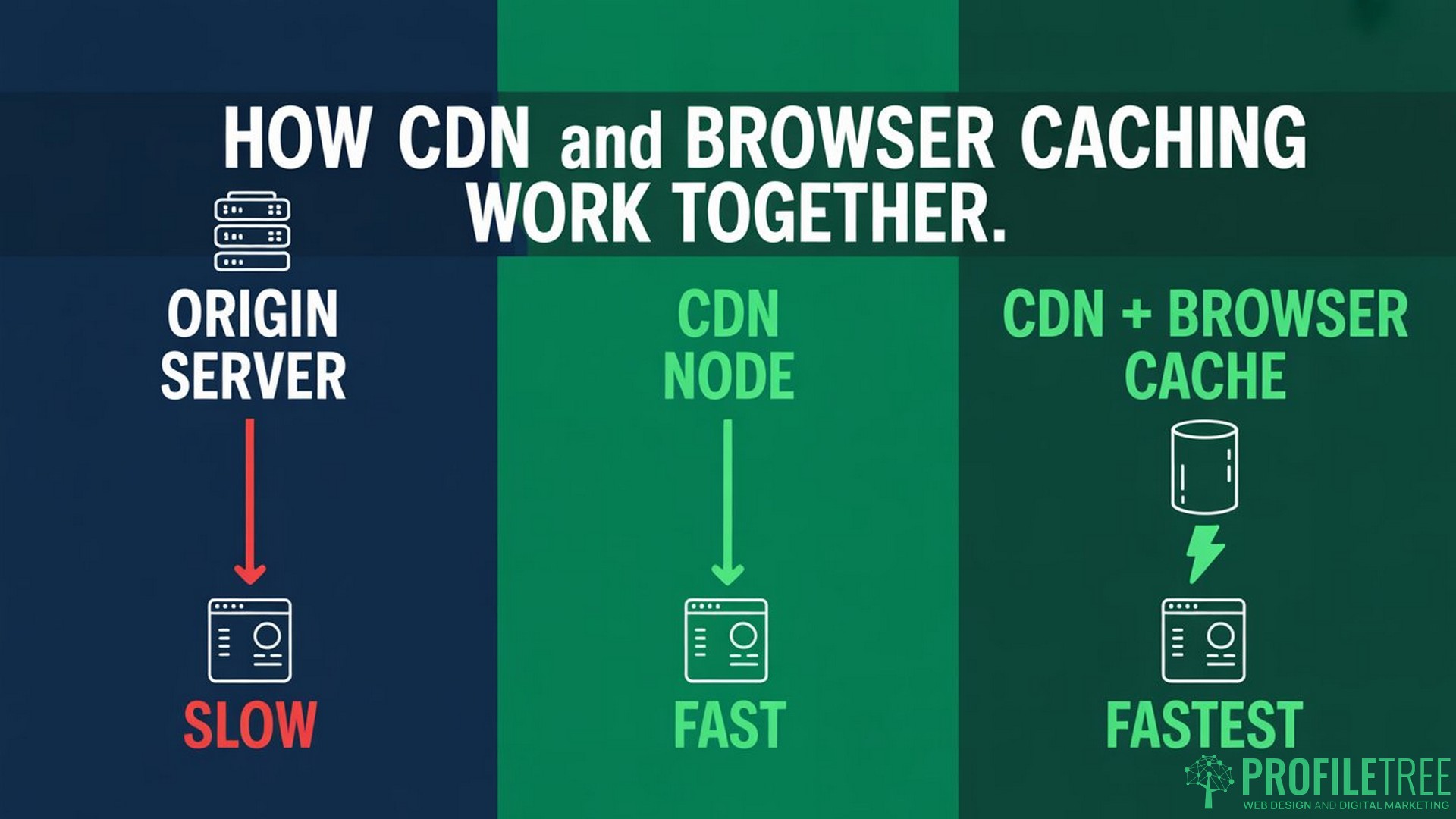
A Content Delivery Network (CDN) works alongside browser caching rather than replacing it. Where browser caching stores files on the visitor’s device, a CDN stores copies of your static assets on servers distributed across multiple geographic locations.
When a visitor in Dublin requests your Belfast-hosted website, a CDN serves the assets from the nearest available node rather than routing the request back to your origin server. For businesses targeting customers across Ireland and the UK, this reduction in physical distance translates directly into faster load times.
CDNs are particularly useful when your audience spans multiple regions. A business based in Belfast serving customers in London, Dublin, and Glasgow will see consistent performance improvements across all three locations with a CDN in place, rather than load time degrading for users furthest from the server.
Browser caching and SEO benefit from CDN integration because the combination addresses two distinct layers of the speed problem: the CDN reduces initial load time for all users, while browser caching further reduces load time for returning visitors. Together, they produce the most significant improvement in measured LCP scores.
Integrating a CDN with your existing cache headers requires configuration to ensure the CDN knows when to serve a cached version rather than fetch a fresh copy from the origin. This is an area where a professional setup prevents performance issues from arising later.
Common Pitfalls: Why Your Site Can Look Broken After Caching
One of the most common problems with browser caching and SEO implementation is the “broken site” issue. A visitor loads an updated version of your homepage, but the new CSS hasn’t applied because their browser is serving a cached stylesheet from three weeks ago. The page looks wrong, and the visitor leaves.
This happens when caching is set aggressively without a cache-busting strategy.
Cache Busting: How to Force Updates
Cache busting is the technique of telling a browser that a file has changed, so it should download the new version rather than serving the cached one.
The most reliable method is file versioning. When you update a CSS or JavaScript file, change its filename or append a version number to the URL:
style.css?v=2
style.v2.css
The browser treats this as a new file and downloads it fresh, while all unchanged assets continue to be served from cache. This preserves the performance benefits of caching for unmodified files while ensuring visitors always see the latest content.
WordPress caching plugins handle this automatically for assets they manage. For custom themes and manually managed files, versioning needs to be built into your deployment process.
“The most avoidable caching mistakes come from setting long cache durations without a clear process for busting the cache when content changes,” says Ciaran Connolly, founder of ProfileTree. “For a business site, that can mean customers seeing an outdated pricing page or a broken contact form for days without anyone realising.”
Browser Caching, GDPR, and UK Compliance
For businesses in the UK and Ireland, one question that comes up regularly is whether browser caching affects GDPR compliance or requires disclosure in a cookie policy.
Standard browser caching, storing static assets like images, stylesheets, and scripts, is considered strictly necessary for the functioning of a website. It does not track users, store personal data, or set persistent identifiers. It falls outside the scope of the UK GDPR and the Privacy and Electronic Communications Regulations (PECR) regarding cookie consent.
Where compliance becomes relevant is in more advanced caching setups that involve authenticated sessions, personalised content, or third-party tracking scripts that are themselves cached. If your caching configuration extends to scripts that identify or track users, those elements require consent under UK and EU law.
For most SMEs running a standard business website, browser caching requires no additional compliance steps beyond what your existing cookie policy already covers.
Testing Your Browser Caching Performance
Two tools are standard for checking whether browser caching and SEO configuration is working correctly.
- Google PageSpeed Insights (pagespeed.web.dev) analyses your URL and flags specific issues, including missing or poorly configured caching headers. The “Serve static assets with an efficient cache policy” audit lists every asset that lacks proper cache headers, along with the recommended fix.
- GTmetrix provides a waterfall view of your page load, showing which assets are cached, how long they take to load, and where the largest delays occur. This is particularly useful for identifying assets served by third parties that you cannot directly control.
Run these tools before and after making caching changes to measure the actual improvement. A well-configured site should show significantly fewer requests on repeat page loads and a measurable reduction in LCP time.
Where Browser Caching Fits in a Technical SEO Audit
Browser caching and SEO optimisation do not exist in isolation. Caching is one component of a broader set of technical improvements that affect how Google evaluates and ranks a site.
A full technical SEO audit covers crawlability, indexation, site architecture, Core Web Vitals (including page speed), structured data, and internal linking. Caching addresses the speed layer, but it does not compensate for poor site structure, thin content, or missing schema markup.
For SMEs that have not had a technical audit, caching is often one of the quickest wins, particularly for WordPress sites, where a plugin can be installed and configured in under an hour. But it should be treated as part of a structured improvement process rather than a standalone fix.
ProfileTree works with SMEs across Northern Ireland, Ireland, and the UK to audit site performance and implement technical improvements as part of a wider digital marketing strategy. If your site is underperforming in search and you’re not sure why, a technical audit is the right starting point.
Getting browser caching and SEO right is one of the most accessible technical improvements available to SME websites. It does not require a major rebuild or ongoing maintenance once it is correctly configured. If your site is currently flagging speed issues in PageSpeed Insights or you’re not sure whether caching is in place at all, get in touch with ProfileTree’s web development team to discuss a technical review.
Frequently Asked Questions
Does browser caching affect my SEO?
Yes. Browser caching and SEO are linked through Google’s Core Web Vitals, specifically Largest Contentful Paint (LCP). Cached pages load faster for returning visitors, which improves LCP scores, reduces bounce rates, and signals quality to Google’s ranking systems. Sites with poor cache configuration consistently score lower on PageSpeed Insights, which feeds into Google’s overall page experience assessment.
How long should I set my browser cache for?
Static assets that rarely change, such as images, fonts, and logo files, are typically cached for one year. CSS and JavaScript files are usually set to one month, as they change more frequently with site updates. Dynamic content, such as HTML pages, is often set to a few hours or left uncached to ensure visitors always see current information. These are general guidelines; the right values depend on how often your site changes.
Will caching break my website layout?
It can, if cache busting is not in place. If a browser caches a CSS file for one year and you update your site’s design, returning visitors may see the old stylesheet until the cache expires. The solution is file versioning: updating the filename or appending a version parameter when the file changes forces browsers to download the new version. WordPress caching plugins handle this automatically for most assets.
What is the difference between browser caching and server caching?
Browser caching stores assets on the visitor’s device. Server caching (or server-side caching) stores pre-built versions of pages on the server, so the server does not need to regenerate the page each time it is requested. The two work at different points in the request process and complement each other. Browser caching benefits returning visitors; server caching benefits all visitors, including first-time ones.
How do I fix the “Leverage Browser Caching” warning in PageSpeed Insights?
This warning appears when assets are served without cache headers or with headers set to a very short duration. Fix it by adding Cache-Control or Expires headers to your server configuration, as detailed in the implementation section above. For WordPress sites, a caching plugin will resolve most instances of this warning automatically. For assets served by third parties, such as Google Analytics or advertising scripts, you cannot control the cache headers directly.
Do I need a caching plugin for WordPress?
You do not need one, but for most business owners, it is the safest option. Configuring cache headers via .htaccess achieves the same result but carries more risk if the file is edited incorrectly. Caching plugins abstract the configuration into a simple interface, handle cache busting automatically, and typically include additional performance features such as Gzip compression and file minification. For a non-technical user, a plugin is the more reliable route.