
Adobe XD for Beginners: A Practical UI/UX Design Guide
Table of Contents
Adobe XD is a vector-based design tool built for creating wireframes, prototypes, and interactive mockups for websites and mobile apps. It runs on both Windows and Mac, integrates with the Adobe Creative Cloud suite, and has been a go-to starting point for UI/UX design students and professionals for over a decade.
Before spending serious time learning it, you should know where it currently stands. Adobe placed XD in maintenance mode following the collapse of its planned Figma acquisition in late 2023. The product still works and existing subscribers can still access it, but no new features are being added. That context matters. It does not make Adobe XD useless for beginners. The fundamentals of UI design you build here transfer directly to Figma and any other tool you pick up later. It does mean you should treat XD as a learning environment and a bridge, not a career destination.
This guide covers everything about Adobe XD for beginners to get started: the XD workspace, its core features, how it compares to Figma for UX design, and the transferable design thinking that makes learning XD worthwhile regardless of where your web design career takes you next.
What Adobe XD Is Used For
Adobe XD covers the core stages of the UI/UX design process: sketching layouts on a digital canvas, creating reusable components, building interactive prototypes that behave like real apps, and sharing those prototypes with clients or developers for feedback.
For web and app projects, that workflow typically runs: wireframe the screens in Design mode, connect them with interactions in Prototype mode, then share a live link that anyone can click through in their browser. Developers can also access design specifications (dimensions, fonts, colour codes, spacing) directly from the shared file, which removes a significant amount of guesswork from the build phase. This end-to-end process is one of the reasons Adobe XD became a popular entry point for UX design beginners; you can take a project from blank canvas to shareable prototype inside a single tool.
Web design teams at agencies and in-house at product companies use XD specifically for the speed of its prototyping loop. A designer can sketch a screen, wire it to three others, and share a clickable prototype for stakeholder review within a few hours. For beginners learning to work with clients, that rapid feedback cycle is a practical skill in itself. If you want to understand how professional web design projects are structured from concept to handoff, ProfileTree’s web design services page covers how that process works for real client projects in Northern Ireland and across the UK.
Setting Up and Navigating the Workspace
Getting comfortable with the Adobe XD workspace is the first practical step for any beginner. The interface is deliberately lean; Adobe XD was designed to get out of the way of the design process rather than overwhelm new users with options. Understanding the layout of the workspace, where to start a new project, and which tools do what will take most beginners less than a session to grasp.
Your First Artboard
Open Adobe XD and press A to open the artboard tool. You’ll see preset sizes for common devices: iPhone, iPad, Android, Web 1280, Web 1920, and custom. For a beginner project, start with iPhone 14 (390 × 844px) or Web 1280. Each artboard represents one screen or page in your design. A typical mobile app prototype has ten to twenty of them.
Name every artboard clearly from the start: “Home”, “Login”, “Product Detail”. This matters more than it sounds. On a twenty-artboard file, the layers panel becomes difficult to read within an hour if you leave everything as XD’s default auto-names like “Rectangle 47” or “Text 12”. The same naming habit carries into Figma and every other design tool; it is one of the simplest things beginners can do to work more like professionals from day one.
The Design vs Prototype Mode Toggle
With your artboards in place, the next thing to understand is how Adobe XD splits its workspace into two distinct modes. The toolbar at the top of the screen switches between Design and Prototype. Design is where you build your screens. Prototype is where you connect them and define how users navigate between them. Many beginners spend weeks in Design mode before touching Prototype. That is a mistake. Wire up basic navigation from day one. It teaches you how user journeys work at a structural level, which is central to UX design regardless of the tool you eventually settle on.
Core Drawing Tools
Once you understand the two modes, the drawing tools are straightforward. Adobe XD’s tools are resolution-independent vectors, meaning every shape scales cleanly regardless of screen size. The tools you will use most as an XD beginner:
| Key | Tool | Common Use |
| V | Select | Move and resize elements |
| R | Rectangle | Buttons, cards, image placeholders |
| E | Ellipse | Avatars, circular icons |
| L | Line | Dividers, separators |
| P | Pen | Custom icons and brand shapes |
| T | Text | Headlines, body copy, labels |
| A | Artboard | New screens or pages |
The key shift from Photoshop or general image editing is that Adobe XD works with objects, not pixels. You are always editing scalable vector shapes, not rasterised layers. For web design work, this matters because your assets export cleanly at any resolution without quality loss.
Core Adobe XD Features Every Beginner Must Learn
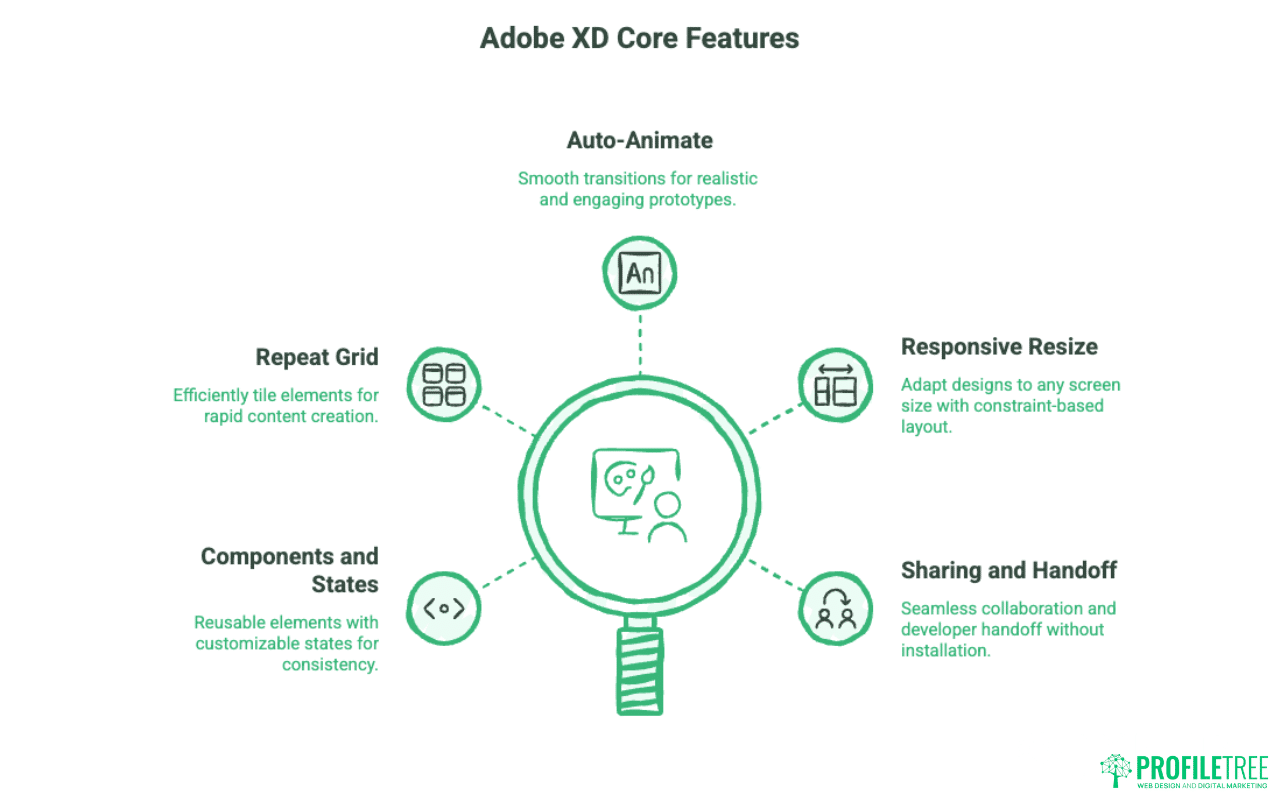
Adobe XD has five features that go beyond basic drawing and genuinely shape how you think about UI/UX design. Mastering these moves a beginner from placing boxes on a canvas to making real design decisions: the kind that hold up when a developer tries to implement them or a client tries to use them.
Components and States
Components (called Symbols in older Adobe XD documentation) are reusable design elements: buttons, navigation bars, form fields, cards. When you edit the master component, every instance across every artboard updates automatically. For UX design beginners, this is where Adobe XD starts to feel like a professional tool rather than a digital sketchpad.
States extend that further by letting you define different appearances of a single component: default, hover, pressed, and disabled, for example. This is the foundation of design systems thinking: instead of recreating the same button in five slightly different ways across your artboards, you define it once and adjust the state. The concept maps directly to how Canva’s design system features work and to Figma’s component architecture. Learning it in Adobe XD means you will arrive in Figma already thinking in the right way.
Repeat Grid
Beyond individual components, Adobe XD has a feature that handles repetition at scale. Repeat Grid is the feature most XD users cite as their first genuine time-saver. Select any group of elements (a product card, a list item, a table row), press Cmd/Ctrl + R, and XD tiles it horizontally or vertically as many times as you need. Adjust spacing by dragging the pink handles between copies.
What makes Repeat Grid powerful for web design work: drag a folder of images directly onto the grid and Adobe XD distributes them automatically. Do the same with a plain text file and it populates each card with different copy. This turns a full product listing or team grid from a thirty-minute manual task into a two-minute one, and it means your prototype can show real content rather than placeholders.
Auto-Animate for Prototyping
With your screens built and components in place, the next step in the Adobe XD workflow is bringing them to life with animation. Auto-Animate detects differences between two artboards and creates smooth transitions when a trigger fires. Move an element from one position to another, change its opacity, scale a button, animate a menu expanding. XD interpolates the in-between frames automatically.
For client presentations, this feature is the difference between a static click-through and something that feels like a functional app. A UX design beginner who masters Auto-Animate early will produce prototypes that land significantly better in review sessions. The feature takes around twenty minutes to understand but adds a level of fidelity that usually takes months to reach in other tools.
Responsive Resize
Once you have a design working at one screen size, Responsive Resize handles what comes next. XD’s Responsive Resize uses constraint-based layout: pin elements to edges, set scaling rules, and the design adapts when you resize the artboard. This is how you start thinking about responsive web design: designing once and adapting intelligently rather than treating each screen size as a completely separate task.
The concept maps directly to how CSS constraints work, which makes Responsive Resize genuinely useful context for any Adobe XD beginner who goes on to work closely with front-end developers or eventually learns to build their own layouts in code.
Sharing, Collaboration, and Developer Handoff
The final stage in the Adobe XD workflow is getting your work in front of other people effectively. XD lets you share a live prototype link so clients and stakeholders can view designs in their browser without installing anything. They can leave comments directly on the design. This is how most professional UX design review cycles actually run.
Developers access design specifications (dimensions, typography, spacing, colour values) from the shared file without needing to ask the designer for every measurement. Getting comfortable with this handoff process early is one of the most practical things an XD beginner can do. It reflects how real website development projects are delivered: the designer owns the visual layer, the developer owns the build, and the shared XD or Figma file is the bridge between them. Building that habit now makes you a significantly easier collaborator to work with.
Adobe XD vs Figma: An Honest Comparison
Most people learning UI/UX design today will encounter the same question early on: should I be using Adobe XD or Figma? The short answer is that both tools teach the same design principles, and the concepts learned in one transfer cleanly to the other. The longer answer depends on your goals and circumstances.
| Adobe XD | Figma | |
| Learning curve | Lower; cleaner interface for beginners | Moderate; more features visible upfront |
| Cost (UK) | Via Creative Cloud (~£55/mo) | Free starter tier available |
| Collaboration | Limited (late addition) | Real-time, class-leading |
| Future development | Maintenance mode (no new features) | Actively developed |
| UK job market | Low; mostly legacy enterprise roles | High; listed in most design job specs |
| Best for | Learning UI/UX fundamentals | Professional and collaborative work |
If career outcome is the primary goal, start with Figma. If you already have a Creative Cloud subscription for Photoshop or Illustrator, starting with Adobe XD is a reasonable path to the same destination. XD has a shallower learning curve for the first two to four weeks. The interface is cleaner and less feature-dense. If Figma feels overwhelming in the first session, XD is a legitimate way to build foundational UX design confidence before switching. The design concepts (artboards, components, constraints, prototype wiring) are identical in both tools. Learning one genuinely accelerates learning the other.
The Transferable Skills Strategy
The strongest case for Adobe XD beginners learning this tool today is not the software itself. It is the design thinking you build while using it. Every core concept in Adobe XD maps directly to Figma, Sketch, or any other professional UX design tool:
| Skill in Adobe XD | Equivalent in Figma | Transfer difficulty |
| Components/Symbols | Components | Very easy |
| Repeat Grid | Auto Layout + Components | Easy |
| Artboards | Frames | Very easy |
| Auto-Animate | Smart Animate transitions | Easy |
| Asset panel | Assets panel | Very easy |
| Share for Review | Share link / Dev mode | Very easy |
| Prototype wiring | Prototype mode | Very easy |
The concepts that do not transfer directly (Figma’s variables system, advanced auto layout) are things Adobe XD never built. You would not have encountered them in XD anyway, so there is no gap to bridge when you make the switch.
Ciaran Connolly, founder of Belfast-based digital agency ProfileTree, puts the tool question in perspective: “The designers we hire don’t get hired because of which tool they use. They get hired because they understand layout, hierarchy, spacing, and how real users navigate. Those skills are tool-agnostic.”
This is why the essential skills for web designers extend well beyond any single application. Typography, colour theory, grid systems, and user-centred thinking are the foundations that move with you from Adobe XD to whatever tool comes next.
For businesses and teams looking to build these capabilities more formally, ProfileTree’s digital training programmes cover web design fundamentals, digital tools, and practical UX skills in a structured format suited to professionals at any level.
Building a Design System from Day One
One of the most valuable habits an Adobe XD beginner can build early is thinking in design systems, not just screens. A design system is a shared collection of reusable components, colour styles, and typography rules. You can build a minimal one in XD within your first week: define your primary colour, your heading typeface, your body text size, and a button component. Then use those consistently rather than restyling elements on each artboard manually.
This discipline matters beyond Adobe XD. Understanding why a website’s colour scheme matters gives useful context for making design decisions that go beyond personal taste. Colour communicates trust, hierarchy, and brand identity in ways that directly affect how users experience a web design. Building that awareness in XD carries straight into professional web design practice.
Common Beginner Mistakes to Avoid
Alongside building good habits, it helps to know the mistakes that slow most Adobe XD beginners down before they realise what is happening. These are the four that come up most often.
Not naming layers. Adobe XD auto-names layers “Rectangle 47” and “Text 12”. Name every layer as you create it. On a complex file the layers panel becomes unworkable within a session, and the habit of clear naming is expected in every professional UX design environment.
Designing at the wrong scale. Design at 1x. XD handles retina export scaling automatically. Designing at 2x to “be safe” creates unnecessary complexity and breaks the export workflow.
Skipping the grid system. Turn on the layout grid under View > Show Layout Grid. Designing to a consistent column structure produces web design layouts that developers can actually implement cleanly. Ignoring the grid produces screens that look fine in Adobe XD but fall apart in the browser.
Treating prototyping as optional. Wire up navigation between screens from your very first XD project. Understanding user flows (how people move between screens) is a core UX design skill, not an advanced one. The earlier you practise it, the more naturally it becomes part of how you think about every design decision.
For a broader look at how visual design decisions shape user behaviour, how graphic design works in content marketing covers the connection between visual choices and how audiences actually respond to them.
Your 30-Day Adobe XD Learning Path
Knowing the features and understanding the principles is one thing. Having a structured path through the first month of learning Adobe XD is another. This schedule assumes around 45 minutes per day and is designed to move a complete beginner from blank canvas to a portfolio-ready prototype.
Week 1: Foundations
- Days 1–2: Install Adobe XD, explore the workspace, create your first artboard with basic shapes and text
- Days 3–4: Typography, colour styles, and the asset panel
- Days 5–7: Build a three-screen mobile wireframe from scratch
Week 2: Core Features
- Days 8–9: Create your first Component and apply it across artboards
- Days 10–11: Repeat Grid with real placeholder content
- Days 12–14: Prototype mode; wire up your wireframe and share the link with someone
Week 3: Intermediate Skills
- Days 15–17: Auto-Animate; add one animated transition to your prototype
- Days 18–19: Responsive Resize; adapt your mobile XD design to a tablet artboard
- Days 20–21: Icons and an introduction to design systems
Week 4: Apply and Transition
- Days 22–25: Redesign the home screen of an app you use daily. This forces real layout and UX design decisions rather than following a tutorial.
- Days 26–28: Open Figma and map each Adobe XD concept to its Figma equivalent
- Days 29–30: Build a small project in Figma from scratch; by this point the tool will feel familiar
Building a portfolio as you work through this path makes the learning process more concrete and gives you something to show. The guide to creating a portfolio website covers how to present design work alongside other skills in a way that holds up to professional scrutiny. It is worth reading before you finish week four.
Conclusion
Adobe XD for beginners offers a clean, well-structured introduction to UI/UX design and web design prototyping. The workspace is accessible, the core features are genuinely useful, and the design thinking you develop here (components, layout grids, responsive constraints, prototype flows) transfers directly to Figma and beyond. The maintenance mode status is worth knowing about, but it does not reduce the value of what you learn.
Work through the 30-day path, build something you can share, and treat Adobe XD as the first chapter of a longer design education. If you are exploring how professional web design and digital strategy can work for your business, get in touch with the ProfileTree team to discuss your project.
Frequently Asked Questions
Is Adobe XD being discontinued?
Adobe XD is not discontinued, but it is in maintenance mode. Adobe stopped adding new features after its planned Figma acquisition collapsed in late 2023. Existing subscribers can still access and use it, and no shutdown date has been announced. It is stable software. It is just not evolving.
Is Adobe XD free?
Adobe discontinued the free standalone tier. XD is now available through Creative Cloud subscriptions. Students can often access it at significantly reduced cost through Creative Cloud for Education. Check Adobe’s UK pricing page directly for current plans, as these change regularly.
Is Adobe XD good for beginners?
Yes, particularly in the first few weeks. The Adobe XD interface is less cluttered than Figma’s, which makes it easier to find core tools quickly. The limitation is that most UK design roles now list Figma as a requirement, so you will need to make that transition eventually. Think of XD as a strong entry point to UI/UX design, not a final destination.
Which is better for beginners: Adobe XD or Figma?
If a UX design or web design career is the goal, learn Figma. It has a free tier, active development, and is listed in most UK product design job specs. If you already have Creative Cloud access, Adobe XD is a reasonable starting point. The concepts are identical and the switch to Figma is straightforward once you have the fundamentals.
Can I open Figma files in Adobe XD?
Not natively. Third-party tools like Magicul can convert between formats, but the results are imperfect and interactive elements often do not transfer cleanly. The more practical approach is to rebuild in Figma using your Adobe XD project as a reference.
Does Adobe XD work on Windows and Mac?
Yes, Adobe XD runs on both Windows 10/11 and macOS. This was a genuine advantage when it launched over Sketch (Mac-only) and still makes it accessible to Windows-based design students and professionals.
How do I start learning Adobe XD?
Follow the 30-day path in this guide. Start by creating an artboard, placing shapes and text, and sharing a basic prototype. Then move to components and Repeat Grid. Adobe’s learn portal has video tutorials for each feature, and there is a large library of free beginner walkthroughs on YouTube. Build something specific each session rather than watching tutorials passively.
What skills does Adobe XD teach that apply to other tools?
Layout and grid thinking, component-based design, responsive constraints, user flow mapping, prototype interactions, and design handoff: all of these transfer directly from Adobe XD to Figma, Sketch, or any similar UX design tool. The software is the vehicle; the design thinking is what you are actually building.