
Wix Tutorial: How to Build a Website for Beginners (Step by Step)
Table of Contents
Wix is one of the most accessible website builders available, and for small businesses and sole traders in the UK and Ireland that need a professional online presence without the cost of a custom build, it’s a practical starting point. This Wix tutorial walks you through the full process of creating a website from scratch: from setting up your account and choosing a template through to publishing a live, functional site.
By the end of this guide, you’ll understand how Wix works, which design decisions matter most, and what you’ll need to do after launch to make your site visible in search.
“Wix is a genuinely capable platform for SMEs that need a website quickly and want to manage it themselves without relying on a developer for every update. The key is understanding its structure before you start, so you don’t build yourself into a corner that limits what you can do later,” says Ciaran Connolly, founder of ProfileTree.
If you’re weighing up whether Wix is the right choice for your business at all, our guide on web design for Belfast businesses covers how different platforms compare for SMEs with different requirements.
What Is Wix and Who Is It For?
Wix is a cloud-based website builder that lets you create and publish a website without writing code. You design your pages using a drag-and-drop editor, choose from thousands of templates, and manage everything through a browser-based dashboard.
It’s well-suited for:
- Small businesses that want to build and update their own site without hiring a developer for every change
- Sole traders who need a professional portfolio, service page, or online booking presence
- Businesses launching a new service that needs a fast, cost-effective web presence
- Anyone who wants full visual control over their layout without learning HTML or CSS
It’s less well-suited for large e-commerce operations with hundreds of product variants, businesses that need deep custom integrations with enterprise software, or sites where SEO is the primary growth channel and technical performance is critical. For those scenarios, WordPress is typically the better long-term choice.
Step 1: Create Your Wix Account
Go to wix.com and click “Get Started.” You’ll be prompted to create a free account with an email address or sign in with Google or Facebook.
Wix offers a free plan that lets you publish a site on a Wix-branded subdomain (yourbusiness.wixsite.com/yoursite). For a professional business site, you’ll want a paid plan that connects your own domain (yourbusiness.co.uk), removes Wix branding, and gives you access to analytics and e-commerce features.
Wix pricing at the time of writing starts at around £10 to £13 per month for the entry Business plan, rising to £22 to £35 per month for plans that include full e-commerce and priority support. Prices vary, so check the current plans at wix.com/upgrade/website before committing.
Wix ADI vs the Wix Editor
When you first start, Wix gives you two options:
- Wix ADI (Artificial Design Intelligence) asks you a series of questions about your business and automatically generates a customised site. It’s the faster option and produces a working result quickly, but the output is a starting point rather than a finished product, and the level of creative control is limited.
- The Wix Editor lets you build from a template or blank canvas with full drag-and-drop control. It takes longer but gives you far more flexibility over layout, design, and functionality.
For most business owners who want a site that genuinely reflects their brand, the Wix Editor is the better choice. This tutorial focuses on the Editor approach.
Step 2: Choose a Template
After selecting the Editor, you’ll be taken to Wix’s template library. There are over 800 templates, organised by industry and purpose (business, portfolio, restaurant, health and wellness, e-commerce, and more).
How to choose a template well:
Look for a template whose layout structure matches what you need, not just one that looks visually attractive. If you need a homepage, an about page, a services page, and a contact form, choose a template that already includes those sections. Adding sections from scratch is possible, but slower.
Check the template on mobile as well as desktop. The templates are responsive, but some are better optimised for mobile than others. Given that Google ranks your mobile version first, this matters.
Don’t overthink colour and font at this stage. These are easy to change. Structure and layout are harder to redesign later.
Once you’ve chosen a template, click “Edit” to open it in the Editor.
Step 3: Understand the Wix Editor
The Editor workspace has three main areas:
- The left panel contains your page list, app market, media library, and site elements. This is where you access everything you need to add or edit.
- The main canvas is where your pages live. You can click on any element to select it, drag it to reposition it, or double-click to edit its content.
- The top toolbar contains preview, undo/redo, and publish controls. The blue “Publish” button in the top right is what makes your site live.
Take five minutes to click around before making changes. Understanding where things are saves significant time.
Pages and Structure
Click “Pages & Menu” in the left panel to see all your current pages. The template will have created several by default. Delete any you don’t need, and add pages that are missing.
A typical small business site needs:
- Home: your main landing page with a clear value proposition, primary services summary, and call to action
- About: who you are, your background, and why clients should trust you
- Services: a separate page per service if you have more than two or three offerings, or a combined services overview page
- Contact: a contact form, phone number, email address, and (if relevant) a map with your location
- Blog (optional, but valuable for SEO if you’ll maintain it consistently)
Step 4: Customise Your Header and Navigation
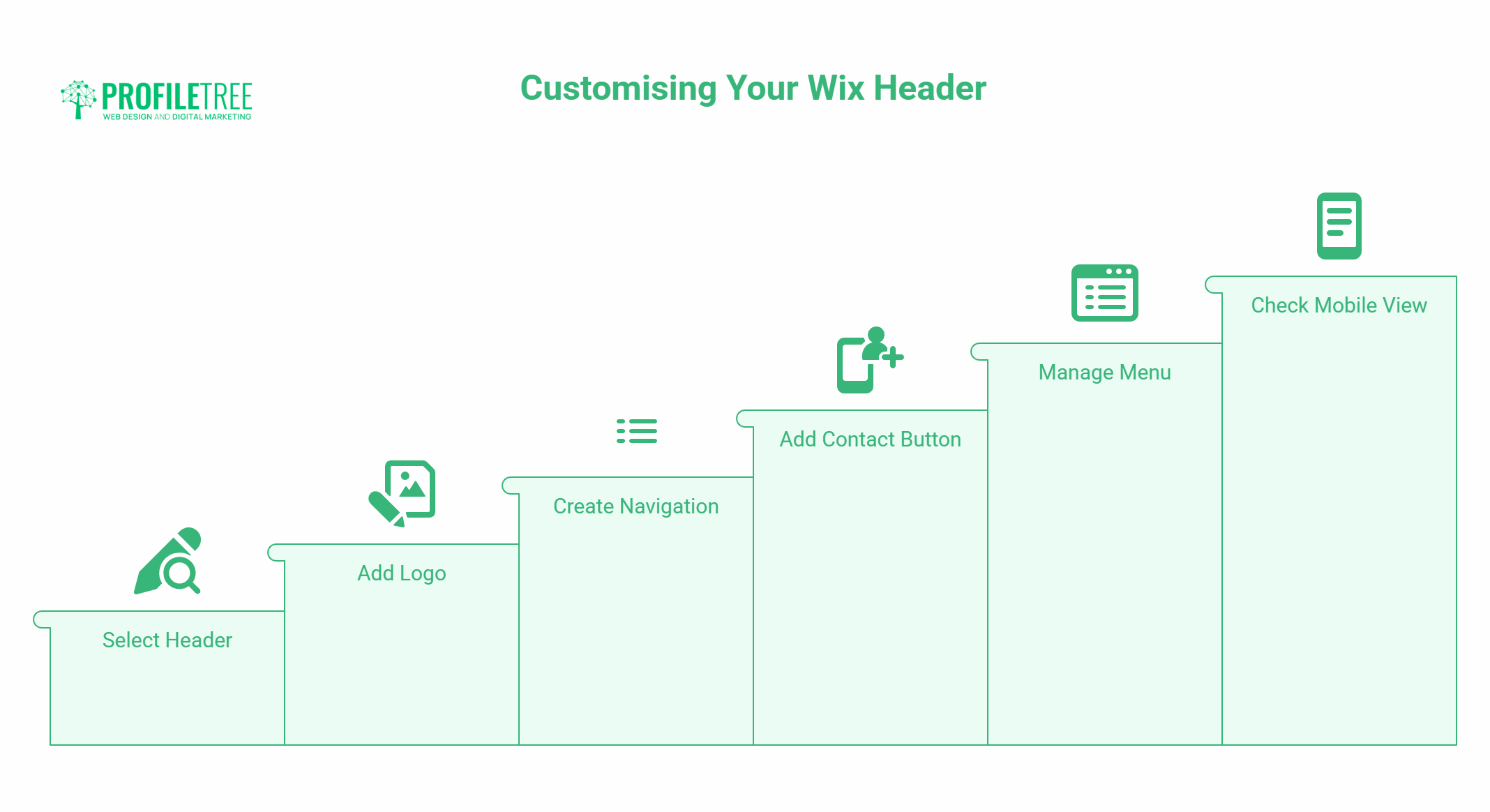
Your header appears on every page of your site, so it’s worth getting right. Click on the header area to select it.
Essentials for a business header:
- Your logo or business name in a legible font, linked to your homepage
- Navigation menu with clear, concise page names
- A prominent contact button or phone number, if lead generation is the site’s primary goal
To edit the navigation menu, click on it and select “Manage Menu.” From here, you can reorder pages, add dropdown items, or hide pages from the public menu without deleting them.
For mobile, check how your header looks by clicking the mobile icon at the top of the Editor. It provides a separate mobile editor that lets you adjust how elements appear on smaller screens without affecting the desktop layout.
Step 5: Build Your Homepage
Your homepage is the most important page on your site. It needs to communicate what you do, who you do it for, and what the visitor should do next, all within the first few seconds of loading.
The Hero Section
The hero is the section at the top of the page, visible without scrolling. It should include:
- A headline that clearly states what you offer (not your company name; that’s in the logo)
- A one-sentence sub-headline that adds context or a key benefit
- A call to action button (book a consultation, get a quote, view services)
- A strong visual: either a background image or a video that reinforces your brand
Avoid stock photos of people shaking hands or generic office scenes. For a business in Belfast or anywhere across Northern Ireland, a photo that references your actual location, team, or work environment carries far more credibility.
Sections Below the Fold
After the hero, your homepage should typically include:
- A brief services overview with links to individual service pages
- Social proof: customer reviews, a Google rating, client logos, or case study snippets
- A secondary call to action mid-page (many visitors scroll without clicking the first CTA)
- Your contact details or a short contact form at the bottom
To add a new section in Wix, hover over the gap between two existing sections and click the “+” that appears, or use “Add” in the left panel and select “Strip.”
Step 6: Set Up Your Pages
About Page
An About page that converts visitors into enquiries typically includes:
- A clear statement of what the business does and who it serves
- The founder’s or team’s background, with specific credentials that matter to clients (years of experience, qualifications, industries served)
- A photo of the team or founder, which builds the familiarity that service businesses depend on
- A brief statement of values or approach that differentiates your business from generic competitors
Services Pages
Each service should have its own page if it’s a distinct offering. A combined services page works for businesses with three or fewer tightly related offerings.
For each service page, include: what the service involves, who it’s for, what the process looks like, what results clients can expect, and a clear call to action. Pricing information, even as a range, dramatically improves conversion rates by qualifying visitors before they make contact.
Contact Page
Your contact page should make it as easy as possible to get in touch. Include:
- A contact form (Wix’s built-in form tool handles this. Go to “Add” and search “Contact Form”)
- Your phone number as a click-to-call link on mobile
- Your email address
- Your physical address if you have premises (this also helps local SEO)
- A Google Maps embed (in Wix, search “Google Maps” in the Add panel)
Step 7: Connect Your Domain
If you’re on a paid plan, go to the top left and click your site name, then “Connect Domain.” You can purchase a domain through Wix or connect one you’ve already bought elsewhere (from 123-reg, GoDaddy, or another registrar).
Connecting an existing domain requires updating DNS settings at your registrar. Wix provides step-by-step instructions for the most common providers. Allow up to 48 hours for DNS changes to propagate, though it typically happens within a few hours.
Step 8: Wix SEO Basics
Wix has improved significantly as an SEO platform in recent years, but there are specific steps you need to take for your site to be found in search.
Page Titles and Meta Descriptions
For each page, click the three-dot menu next to the page name in the Pages panel, then select “SEO Basics.” Set a unique title tag (under 60 characters, including your primary keyword and location) and a meta description (under 160 characters) for every page.
Wix SEO Setup Checklist
Go to “Marketing & SEO” in your left panel and run the Wix SEO Setup Checklist. This guides you through connecting Google Search Console, submitting your sitemap, and enabling basic structured data.
Image Alt Text
Click on any image on your site, select “Settings,” and add descriptive alt text. This helps both search engines and visually impaired users understand your content. Describe what’s in the image and include your keyword where it fits naturally.
Site Speed
Wix sites can be slow on mobile if images aren’t optimised. Before publishing, compress all images to under 150KB where possible. Wix has a built-in image optimiser, but manually reducing file size before upload produces better results.
For a more detailed breakdown of how Wix handles search visibility, our guide on Wix SEO and Google rankings covers what Wix does well and where its limitations are.
Step 9: Preview and Publish
Click “Preview” in the top right of the Editor to see how your site looks without the editing interface. Check every page on both desktop and mobile. Click every link and button to verify they go where expected. Fill in and submit your contact form to confirm it delivers correctly.
When you’re satisfied, click “Publish.” Your site is now live.
After You Publish: What Comes Next
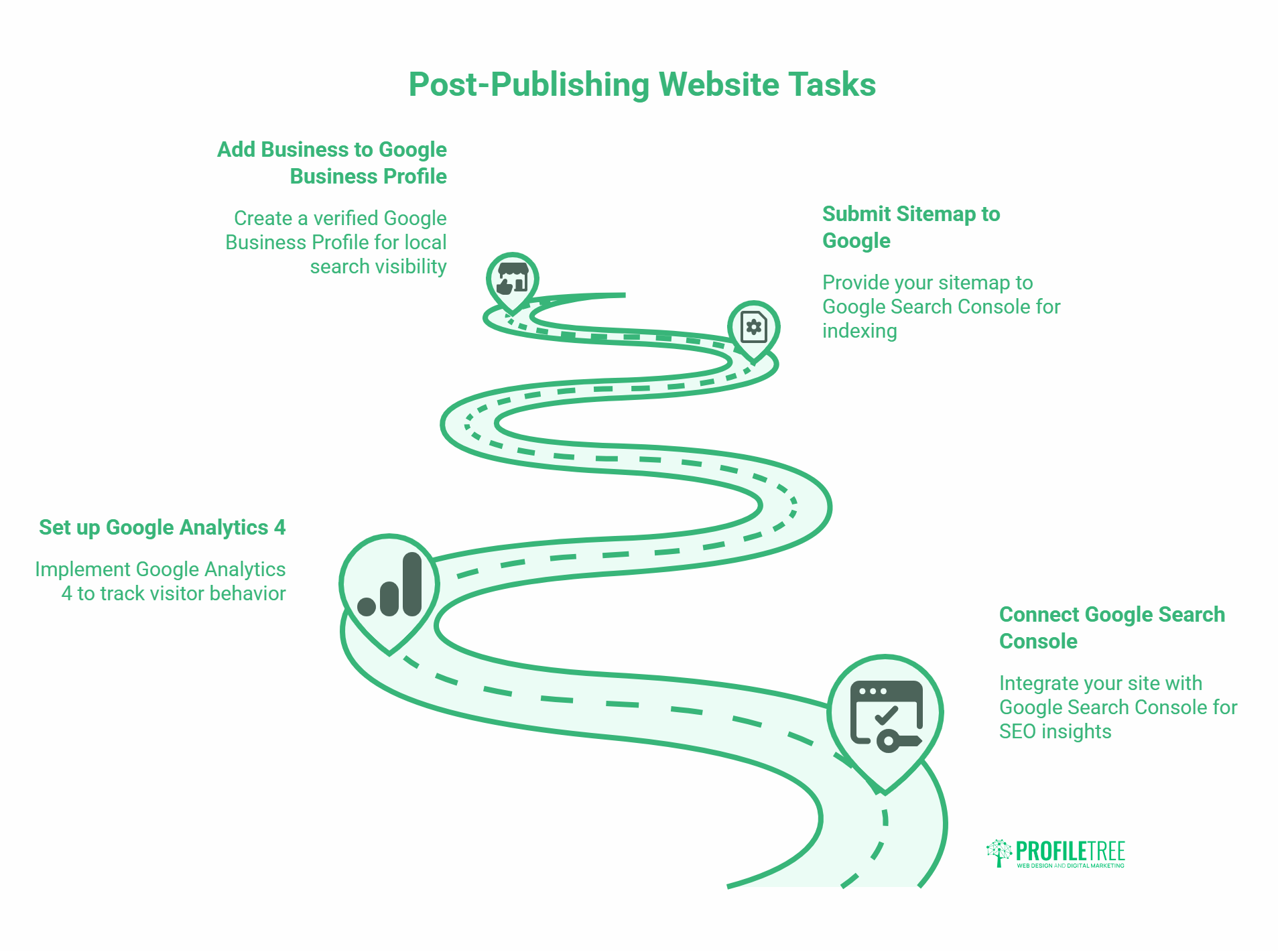
Publishing is the beginning, not the end. A few things to do immediately after going live:
- Connect Google Search Console. This is free and tells you how Google sees your site, which queries are sending visitors, and any technical errors that need fixing. Wix’s SEO checklist walks you through this.
- Set up Google Analytics 4. This tracks visitor behaviour on your site. Go to “Marketing & SEO” in Wix and follow the Google Analytics connection process.
- Submit your sitemap. Wix automatically generates a sitemap (yourdomain.com/sitemap.xml). Submit this to Google Search Console to help Google find and index all your pages quickly.
- Add your business to Google Business Profile. For local businesses in Northern Ireland and the UK, a verified Google Business Profile is one of the most powerful local search tools available. It’s free and directly affects whether you appear in Google Maps results and the local pack at the top of search results.
Frequently Asked Questions
Is Wix good for small business websites?
Wix is a practical choice for SMEs that want to build and manage their own website without ongoing developer costs. It’s particularly suited to service businesses, portfolio sites, and straightforward e-commerce. For businesses where SEO performance is critical or complex custom functionality is needed, WordPress typically offers more flexibility and better long-term performance.
How long does it take to build a website on Wix?
A basic business website on Wix can be built in a day if you have your content (copy, images, and key information) ready before you start. Most small businesses take one to two weeks, accounting for the time needed to write service page copy, gather images, and review and revise. Rushing content quality to hit a deadline typically produces a site that needs rebuilding sooner rather than later.
Do I need to know how to code to use Wix?
No. Wix is designed for non-technical users and requires no coding knowledge to build a standard business website. For advanced customisation (custom animations, integrations with third-party systems, or specific functionality), Wix’s Velo development platform allows JavaScript-based customisation, but this is entirely optional and not needed for most SME sites.
Can Wix websites rank on Google?
Yes, but with some caveats. Wix has improved considerably as an SEO platform and modern Wix sites can rank well for local and competitive queries with the right content and setup. Page speed is the main area where Wix can underperform compared to a well-optimised WordPress site. For local service businesses targeting specific geographic keywords, Wix is generally sufficient. For high-competition national keywords, a better-optimised platform may be worth the additional investment.
What is the difference between a free and paid Wix plan?
The free Wix plan publishes your site on a Wix-branded subdomain (yourbusiness.wixsite.com) and displays Wix ads on your pages. Paid plans connect a custom domain, remove Wix branding, provide analytics, and give you access to e-commerce, email marketing, and other business features. For a professional business presence, a paid plan is necessary. Plans start at roughly £10 to £13 per month.
Should I use Wix ADI or the Wix Editor?
Wix ADI is faster to set up but offers less creative control. The Wix Editor takes more time initially but gives you full control over layout and design. For a business site that needs to communicate a specific brand identity, the Editor is the better choice. ADI is useful if you need something live quickly and plan to refine it later.