
Progressive Web Apps: A Practical Implementation Guide
Table of Contents
Progressive Web Apps give you app-like reliability and speed from a single codebase that runs in the browser. For most SMEs weighing a native build against the web, Progressive Web Apps are usually the more sensible starting point: lower cost, faster to ship, and no app store gatekeeping. This guide walks through the architecture, the build decisions, and the production details that separate a Progressive Web App that works in a demo from one that holds up on a patchy mobile connection in rural Tyrone.
Three things to take away before the detail:
- Progressive Web Apps rest on three parts working together: service workers, a web app manifest, and a cached application shell.
- Offline behaviour is a design decision, not a switch you flip. You choose a caching strategy per resource type.
- Performance has to be built into the architecture from day one, because retrofitting it later is slow and expensive.
What Progressive Web Apps Actually Are
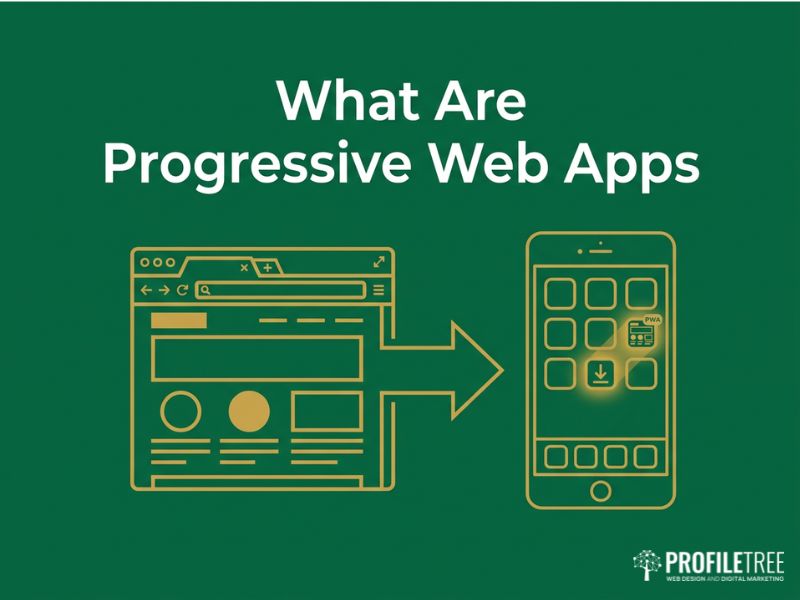
Progressive Web Apps are websites built to behave like installed applications, using browser features to add offline support, home-screen installation, and push notifications. The point is to close the gap between a normal website and a native app without the cost of maintaining separate iOS and Android builds. A well-made Progressive Web App loads instantly on repeat visits, keeps working when the network drops, and can sit on a user’s home screen with its own icon.
The reason this matters commercially is reach. In Northern Ireland and across the UK, mobile coverage is uneven, and a site that fails the moment a signal weakens loses the visitor. Progressive Web Apps built with an offline-first mindset stay usable in those conditions, which protects conversions you would otherwise never see.
The Three Technical Components
Every Progressive Web App is built on three parts. The service worker is a JavaScript file that runs separately from the main browser thread, intercepting network requests and serving cached responses. The web app manifest is a JSON file holding metadata such as the app name, icons, and display mode, which is what lets the app install to a device. The application shell is the core interface and infrastructure, cached in full so the layout appears instantly regardless of network state.
How the Components Work Together
These parts follow a predictable flow. On the first visit the browser loads the app from the server and registers the service worker in the background. The service worker then caches the application shell and the assets the app needs to run. On every later visit it intercepts requests and serves cached content where appropriate, only reaching the network for fresh data. The result is near-instant loading and dependable performance even when connectivity is poor.
Setting Up Your Development Environment
Getting the environment right before you write application code saves hours of debugging later. Progressive Web Apps have a few non-negotiable requirements, and missing one of them tends to produce confusing failures that look like bugs in your own code when they are really environment problems.
You need three things in place. A modern browser, Chrome or Firefox, with developer tools for inspecting service workers and cache storage. A secure context, because Progressive Web Apps require HTTPS even in development, so a local server with a TLS certificate is essential; a tool such as mkcert generates locally trusted certificates without browser warnings. And a Node.js environment with npm or Yarn for build tooling and dependency management.
Choosing a Modern Build Setup
Plenty of tutorials still start with a single HTML file and hand-written service worker. That is fine for learning, but it is not how production Progressive Web Apps are built today. A modern bundler such as Vite handles ES modules out of the box and, through the vite-plugin-pwa plugin, automates the most tedious parts: generating the manifest and the service worker, and wiring up cache versioning. You do not need React or Vue to build a strong Progressive Web App, but you do want a build tool, because hot module replacement makes debugging cache logic far less painful.
This is the kind of foundational decision where a development partner earns its fee. ProfileTree handles this groundwork through website development services, setting up tooling and workflows so the build is maintainable rather than a one-off that nobody can safely touch later.
Building Service Workers
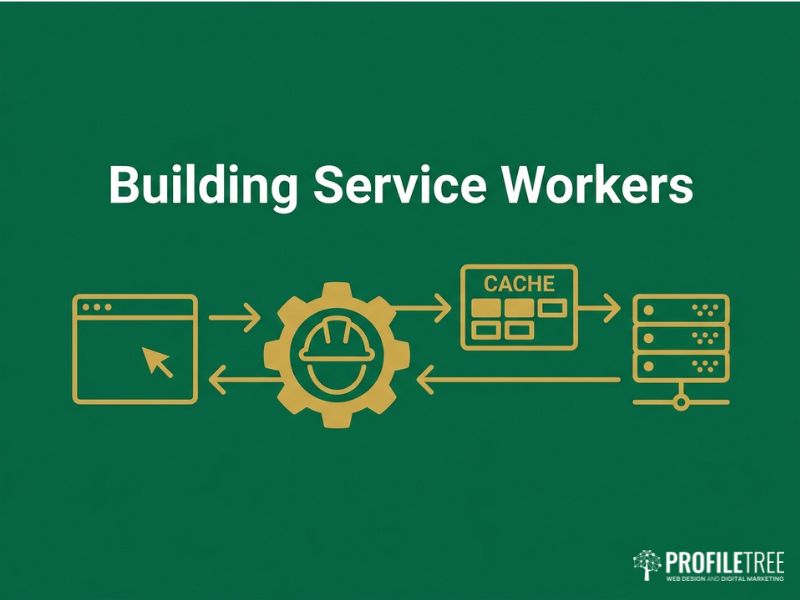
The service worker is the engine of any Progressive Web App, and understanding its lifecycle is the single most useful thing a developer can learn here. Most offline bugs trace back to a misunderstanding of when a service worker installs, activates, and takes control of a page.
The lifecycle runs in order. The browser registers the service worker script. It then installs, caching the initial set of resources. It activates and takes control of the pages within its scope. Between events it sits idle to conserve memory, waking to handle fetch requests or messages, and the browser may terminate it when it is not needed. When you ship a new version, the browser detects the change and begins the cycle again, though the new worker waits until existing pages close before taking over unless you tell it otherwise.
What to Cache During Installation
During the install phase, a service worker typically caches the application shell, critical CSS, core JavaScript, and key images. Caching these on install is what gives Progressive Web Apps their instant repeat loads, because those assets never need a network round trip again until you deploy an update.
Using a Service Worker Library
Writing service worker logic by hand is error-prone once you move past a simple cache. Workbox, Google’s service worker library, provides tested implementations of the common caching patterns and manages versioning and cache cleanup for you. For production Progressive Web Apps it removes a whole category of subtle bugs, and it is worth adopting early rather than rewriting hand-rolled logic later.
Creating the Web App Manifest
The manifest is the small JSON file that turns a website into something installable, and getting it right is what makes Progressive Web Apps feel like first-class citizens on a device. Without a valid manifest, the browser will not offer to install the app, no matter how good the service worker is.
A working manifest needs a handful of properties. The name and short_name give the full and abbreviated app titles. The start_url sets where the app opens from. The display property controls presentation, with standalone removing the browser chrome for an app-like feel. The background_color and theme_color style the launch screen and interface. The icons array supplies images at several sizes for different contexts. The manifest must be linked from the head of your HTML, alongside the platform-specific meta tags that improve integration, particularly on iOS where Safari reads its own set of tags.
Handling Installation Across Platforms
Browsers show their own install prompts, but you can capture and defer that prompt to trigger it at a better moment in the user journey. iOS deserves particular attention, because Safari’s support for Progressive Web Apps has historically lagged and its install path differs from Android. Testing the install flow on a real iPhone, not just a simulator, is the only reliable way to confirm it behaves.
Offline Functionality and Caching Strategies
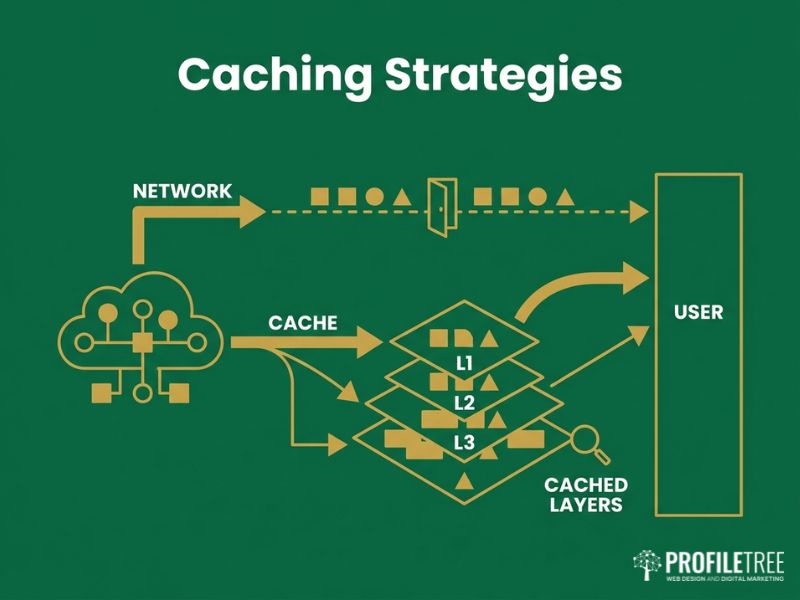
Offline support is the feature people most associate with Progressive Web Apps, and it is entirely a matter of choosing the right caching strategy for each type of content. There is no single correct approach; you match the strategy to how often the content changes and how much freshness matters.
Five strategies cover almost every case. Cache First checks the cache and only falls back to the network on a miss, which suits static assets like fonts, images, and CSS that rarely change. Network First tries the network and falls back to cache, which suits frequently updated content where freshness matters. Stale-While-Revalidate serves cached content immediately while fetching an update for next time, a good fit for content that changes periodically but does not need to be perfectly current. Cache Only always serves from cache, useful for shell components. Network Only always hits the network, for things like analytics or form submissions that must never be cached.
Designing a Useful Offline Page
A considered offline fallback page lifts the experience when the network is gone. Rather than a browser error, it should explain the offline state plainly, give access to whatever content is already cached, and offer a retry. This small piece of design is often what makes a Progressive Web App feel trustworthy rather than broken.
Performance Optimisation
Performance is where many Progressive Web Apps quietly fail, because teams treat it as a final polish rather than an architectural choice. Google’s Core Web Vitals, Largest Contentful Paint, Interaction to Next Paint, and Cumulative Layout Shift, are the metrics to watch, and they are easier to hit when performance is designed in from the start.
A handful of techniques carry most of the weight. Lazy loading and code splitting load resources only when needed and break large bundles into smaller chunks. Preloading and prefetching prioritise critical assets and fetch likely-needed ones early. Inlining critical above-the-fold CSS while deferring the rest reduces render-blocking. Serving correctly sized images in modern formats such as WebP cuts payload sharply. Moving CPU-heavy work to web workers keeps the main thread responsive.
Ciaran Connolly, founder of ProfileTree, puts it directly: “Performance is the part teams skip until it hurts. We build Core Web Vitals targets into the architecture on day one, because trying to bolt speed onto a finished Progressive Web App is far harder than designing for it from the start.”
Measuring What Matters
You cannot improve what you do not measure. Lighthouse, built into Chrome’s developer tools, audits performance, accessibility, and Progressive Web App specifics, giving you a repeatable score to work against. Aim for an LCP under 2.5 seconds, an INP under 200 milliseconds, and a CLS under 0.1, then track those numbers across releases rather than checking once and moving on.
Push Notifications and Re-engagement
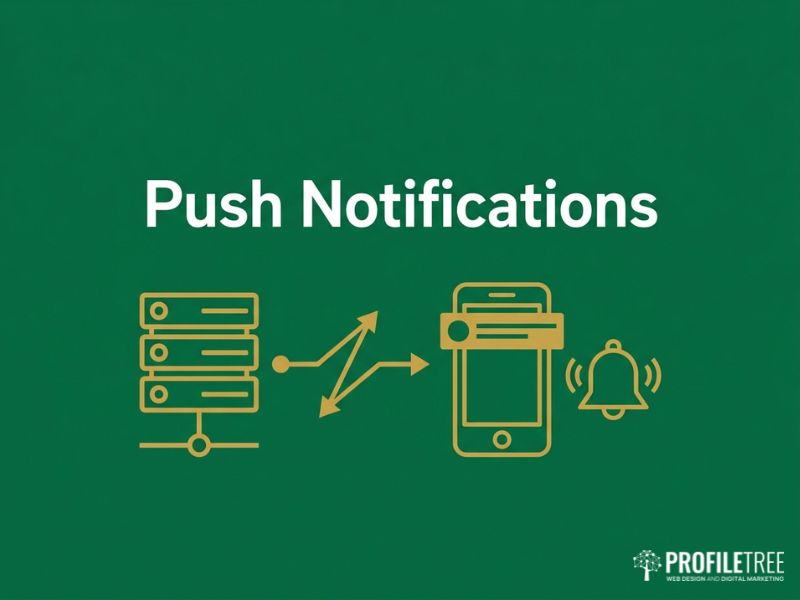
Push notifications let a Progressive Web App reach users when the app is closed, which is a strong engagement tool used carefully and a fast way to lose trust used badly. The system involves three parts: a backend server that generates the message, a push service such as Firebase Cloud Messaging that delivers it, and the service worker that receives and displays it on the device.
The judgement is all in the timing and the value. Ask for permission at a moment where the benefit is obvious, not on first load before the user knows what your app does. Keep notifications relevant and respect time zones, and always make opting out easy. A Progressive Web App that respects attention earns the right to keep sending; one that does not gets its notifications switched off within a day.
Testing and Deployment
Testing a Progressive Web App means checking it across browsers, devices, and network conditions, because feature support varies and the failure modes are not obvious from a single happy-path test. Safari in particular supports fewer features than Chrome, so cross-browser testing is not optional.
Cover five areas. Inspect service worker registration, installation, and activation in developer tools, and confirm the update flow works. Simulate offline and slow connections to see how the app degrades. Test across browsers, paying close attention to Safari and iOS. Verify the install process on real devices. And run the full push notification flow from permission request through to interaction. On deployment, HTTPS is mandatory, HTTP should redirect to HTTPS, and HTTP caching headers should complement rather than fight your service worker strategy, with short caching for HTML and longer caching for static assets.
Managing Updates in Production
Service worker updates are the most common source of post-launch confusion, because a new version waits in the background until old pages close. Build in a check for updates and, where it suits the app, prompt users to refresh for the latest version rather than leaving them on a stale cache without explanation. Tracking Progressive Web App specific metrics such as install rate and offline usage tells you whether the work is paying off.
Implementation Checklist
Before a Progressive Web App goes live, a short checklist catches the common omissions. Treat this as the final pass rather than the whole plan, because each item below assumes the design work behind it is already done.
Confirm HTTPS is configured with HTTP redirecting to it. Confirm the manifest has all required properties, icons at multiple sizes, and is linked in the HTML head. Confirm the service worker is registered, the right caching strategy is in place per resource, and an offline fallback exists. Confirm Core Web Vitals are within target and assets are optimised. Confirm key content is reachable offline and the offline experience has been tested on real devices. And confirm a passing Lighthouse audit across performance and Progressive Web App categories. If you would rather hand the build to a team that does this daily, ProfileTree’s web design and development team in Belfast takes projects from architecture through to launch.
FAQs
How do I debug service worker issues?
Use Chrome DevTools’ Application tab to inspect, update, and unregister service workers. Add console logging to the worker’s events, and test in an incognito window for a clean cache.
What storage options do Progressive Web Apps have?
The Cache API stores HTTP resources for offline use. IndexedDB handles structured application data. localStorage suits small, simple values. Most apps combine them.
Can Progressive Web Apps work on iOS?
Yes, though Safari supports fewer features than Chrome and has its own install path. Always test the install and offline behaviour on a real iPhone.
What performance targets should I aim for?
Largest Contentful Paint under 2.5 seconds, Interaction to Next Paint under 200 milliseconds, and Cumulative Layout Shift under 0.1. Use Lighthouse to track them.
How do I handle API requests offline?
Queue user actions while offline using IndexedDB and process them when connectivity returns. Show clear status feedback, and plan for conflicts between queued actions and server state.