
How to Add Pages and Manage Content on Wix
Table of Contents
You have a Wix site live, and now you need to add a page, tidy the menu or get a blog working without breaking what you already built. The platform makes the clicks easy. The decisions behind them are where most business owners get stuck.
This guide covers how to manage content on the Wix website: adding and organising pages, working with dynamic content through the CMS, and setting up the SEO and permission controls that decide whether anyone finds your work.
You will also find practical notes for UK and Irish businesses, plus the Wix Studio workflow that is fast becoming the professional standard. By the end, you should be able to manage a Wix site with the confidence of someone who has done it before.
Adding and Organising Pages in Wix
Most Wix site management starts here: getting a new page created, named and slotted into the menu so visitors can reach it. The mechanics differ slightly between the Classic Editor and Wix Studio, so it helps to know which workspace you are in before you click anything.
Adding a New Page in the Classic Editor
In the Wix Editor, open the Pages panel on the left, then choose Add Page. You can start blank or pick a pre-built layout. Give the page a clear name, such as Services or Pricing, because that name shapes both the menu label and the default URL slug.
Clarity beats cleverness for navigation. A visitor scanning your menu should know what each label means in under a second. Once the page exists, preview it and check that it appears where you expect it in the main menu before you publish. If you are still weighing up the platform itself, our breakdown of free website builders sets out where Wix fits.
The Wix Studio Difference
Wix Studio handles pages through a Layers panel rather than the simpler Classic list, and it leans on responsive breakpoints instead of fixed positions. That means a page you add in Studio adapts across desktop, tablet and mobile from one layout, rather than asking you to nudge elements per device.
For growing businesses, this matters. Studio’s global sections let you change a header or footer once and have it update across every page, which removes a tedious, error-prone job. If you expect your site to scale past a handful of pages, learning the Studio workflow early saves rework later.
The Layers panel is the part that trips people up most. It stacks every element on a page in a list, so you can select something hidden behind another object without dragging the whole layout apart. Spend ten minutes mapping a single page in the panel before you build a complex one, and the rest of the workspace makes far more sense. Teams that want structured help can look at our digital training courses.
“Most businesses outgrow their first Wix setup faster than they expect. The ones that scale smoothly are the ones that move to CMS-driven content early, rather than rebuilding the same page layout twenty times by hand.”Ciaran Connolly, founder of ProfileTree
Building Sub-pages and Drop-down Menus
Drop-down menus keep a busy site readable. To create a sub-page in the Classic Editor, drag a page slightly to the right beneath a parent page in the Menus and Pages panel, and Wix nests it into a drop-down automatically.
Group related pages this way, for example, several service pages under one Services heading, so your top-level menu stays short. A focused menu reduces decision fatigue and tends to improve how long visitors stay. Good navigation is a core part of professional web design, not an afterthought once the pages exist.
Managing Dynamic Content with the Wix CMS
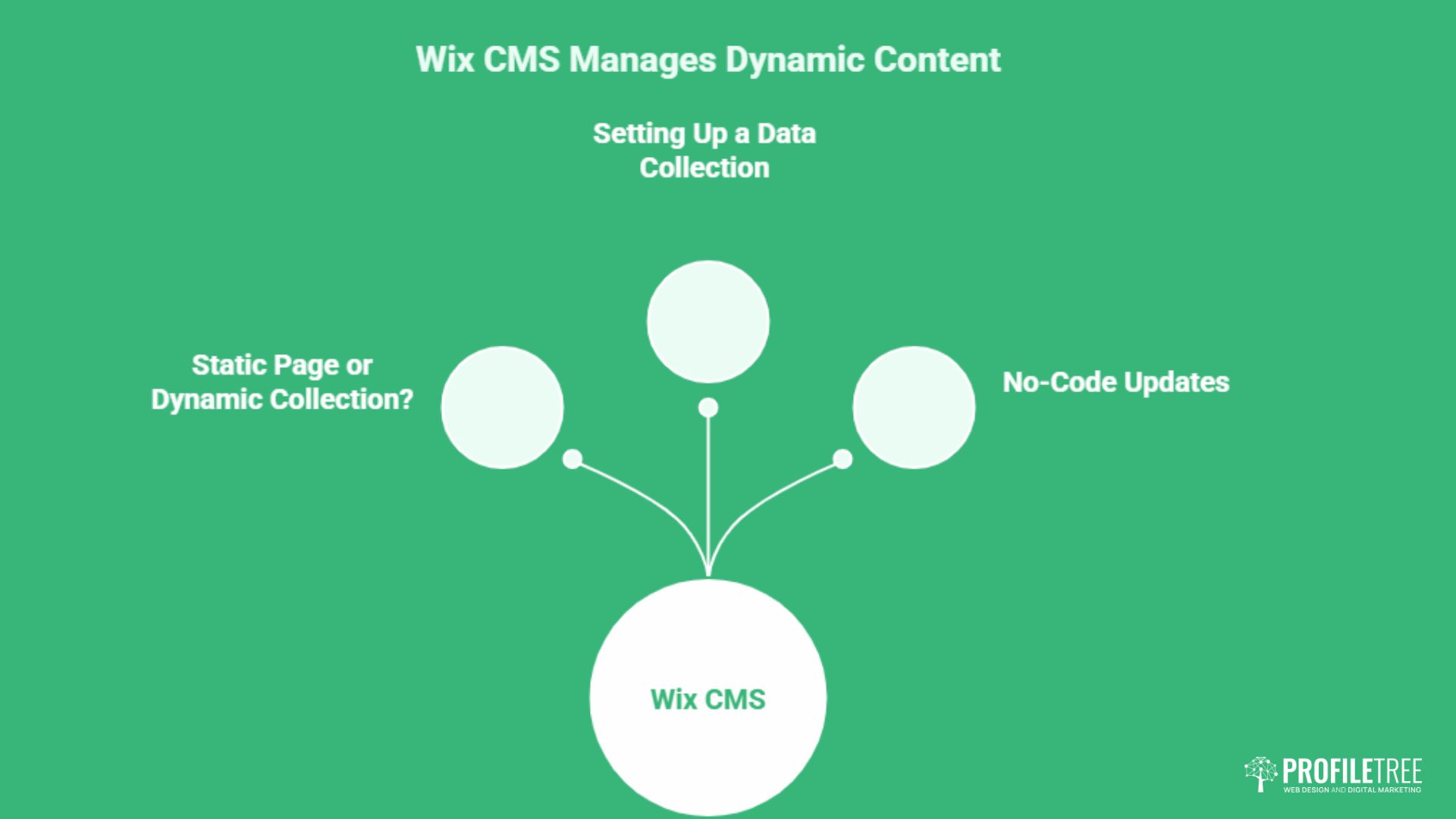
Static pages work well until you have dozens of similar items to publish. That is the point where the Wix CMS, which links a data collection to a page template, saves hours. Knowing when to reach for it is half the skill.
Static Page or Dynamic Collection?
Use a static page when the content is one of a kind: a homepage, an about page, or a single service overview. Reach for a dynamic collection when you have a repeating pattern, such as property listings, a staff directory or a product catalogue.
Picture two businesses. A single-site cafe needs a static menu page and little else. A Belfast estate agent listing forty properties would waste days building each one by hand, so a dynamic collection that feeds one template is the sensible call. The test is simple: if you are copying a layout more than three or four times, a collection is usually the better choice.
| Content type | Best approach | Why |
|---|---|---|
| Homepage, about, single service | Static page | One-of-a-kind content, no repetition |
| Property or product listings | Dynamic collection | One template feeds many records |
| Staff or team directory | Dynamic collection | Add or remove people without rebuilding |
| Campaign landing page | Static, hidden from the menu | Targeted, linked from adverts only |
Setting Up a Data Collection
In the Editor’s left-hand menu, add a Database Collection and define your fields, for example, Title, Description, Price and Image. Populate the collection, then connect each element on your template page to its matching field so Wix generates a page per record.
The payoff comes with updates. Change a price or a photo in the collection, and every linked page reflects it instantly, with no page-by-page editing. You can also add filters and a search bar so visitors can sort large content sets themselves. This kind of scalable structure is something we plan into website development projects from the start.
No-Code Content Updates
Once a collection is built, day-to-day editing needs no technical skill. You update rows in a spreadsheet-style table inside the Wix dashboard, and the live site follows. That lets non-technical staff keep listings current without touching the design.
It pays to agree on a simple update routine: who edits what, and how often. Content that drifts out of date quietly erodes trust, so a fortnightly review of key collections is a reasonable habit for most small teams.
One practical tip is to keep a short content brief for each collection: the fields that must always be filled, the image size that fits the template, and the tone of any descriptions. New staff can then update listings without breaking the layout or leaving gaps, and the site stays consistent even as the people maintaining it change.
Essential Pages for UK and Irish Businesses
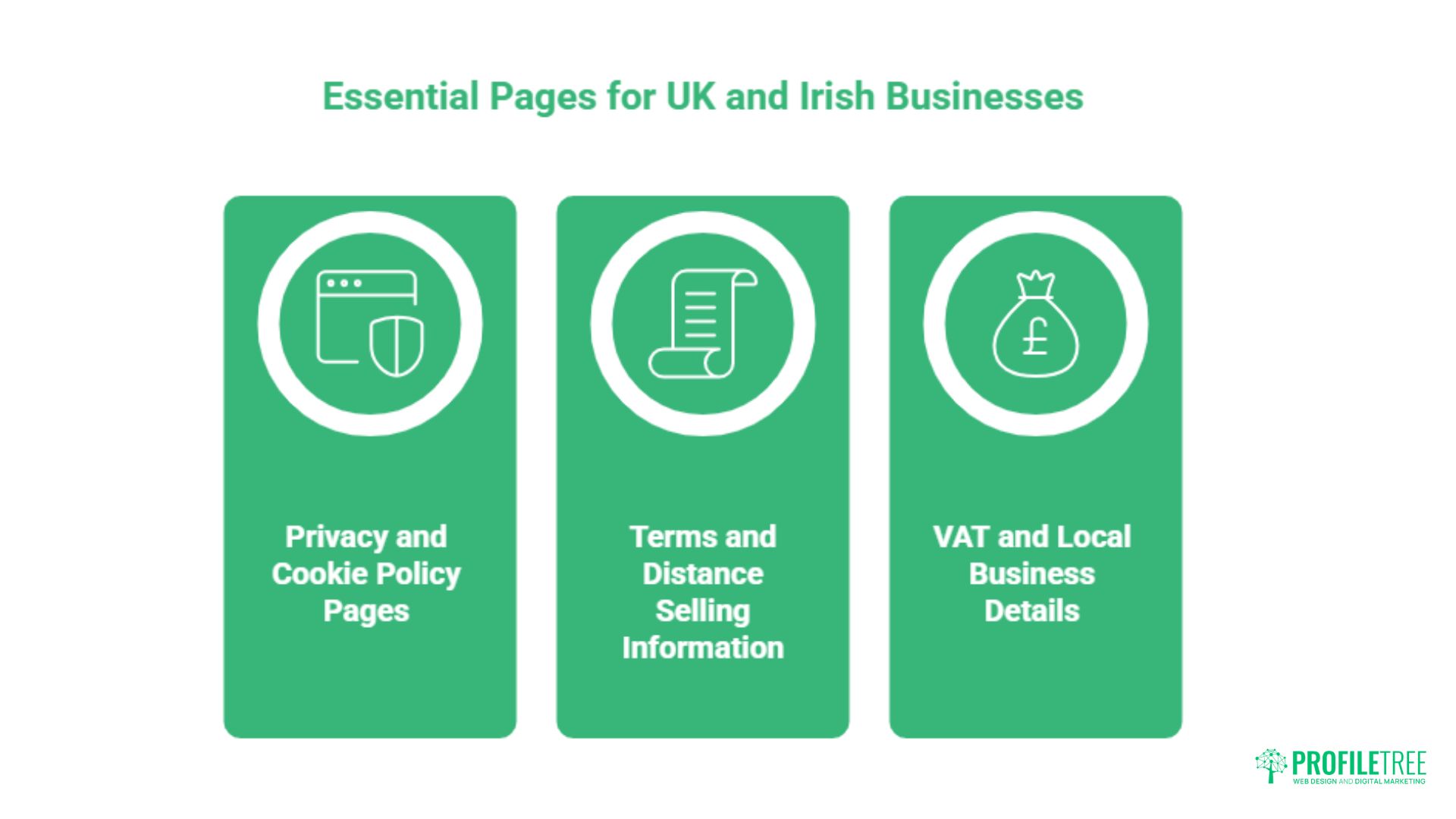
Adding pages is not only a design task. UK and Irish businesses carry legal obligations that translate directly into specific pages, and most generic Wix guides skip this entirely. Getting these right protects you and reassures customers.
Privacy and Cookie Policy Pages
If your site collects any personal data, including contact form entries or analytics, UK GDPR and the Data Protection Act 2018 require a clear privacy policy. Create a dedicated page explaining what you collect, why, and how someone can request their data.
A separate cookie policy, paired with a consent banner, covers the tracking side. Wix offers a built-in cookie consent tool, but the policy text itself needs to reflect your actual setup rather than a generic template. When in doubt, take proper legal advice on the wording.
Terms and Distance Selling Information
Businesses selling online to UK consumers fall under the Consumer Contracts Regulations, which cover cancellation rights and clear pre-sale information. A terms and conditions page should set out delivery, returns and the statutory fourteen-day cancellation window.
Keep this page in plain language. Customers who can find your returns policy easily are more likely to buy in the first place, so treat it as part of the sales journey rather than legal boilerplate hidden in the footer.
VAT and Local Business Details
VAT-registered sellers must display prices in a way that makes the VAT position clear, and post-Brexit trade between Northern Ireland, Ireland and Great Britain can add shipping and duty nuances worth spelling out. A short shipping and VAT information page heads off repetitive customer queries.
Local context builds confidence, too. Listing a real address and being upfront about where you ship signals a genuine business. A Northern Ireland seller shipping to Great Britain and the Republic, for instance, benefits from a short note explaining any duty or VAT differences so customers are not surprised at checkout. For a wider regional marketing context, this overview of cities across Northern Ireland is a useful backdrop, and our team can help shape a fuller digital strategy around it.
All prices and figures in this guide are indicative UK examples and correct at the time of writing; use them as a benchmark rather than fixed quotations.
Advanced Page Management and Permissions
Beyond public pages, Wix gives you control over who sees what and how pages behave behind the scenes. Used well, these settings support membership models, staging and safe duplication without harming your rankings.
Members-Only and Hidden Pages
To restrict a page, open its settings and use the Permissions tab to set it to members only. Wix then prompts visitors to sign up or log in before they can view the content, which suits course material, client portals or pricing held behind a gate.
Hiding a page from the menu is different from restricting access. A hidden page stays live at its URL but does not appear in navigation, which is handy for landing pages you link to from campaigns. Remember to check the mobile layer separately, since a page can show on desktop yet sit hidden on mobile.
This split between desktop and mobile visibility is one of the most common sources of confusion. Wix keeps a separate mobile arrangement, so a page you set up on desktop can quietly fail to appear for the majority of visitors who arrive on a phone. Check both views every time you add a page, and preview on mobile before you publish.
Duplicating Pages Without SEO Damage
Duplicating a page is a quick way to reuse a layout, but two near-identical pages can trigger duplicate-content problems. Before you publish a copy, change the URL slug, the page title and the meta description so search engines treat them as distinct.
If the duplicate is only a working draft, set it to hidden or noindex until it is genuinely different. Thoughtful internal structure underpins ranking, which is why we treat it as part of every search engine optimisation engagement rather than a one-off fix.
Previewing and Publishing Safely
Always run Preview before going live, toggling between desktop and mobile to catch layout slips. Click through your links and forms in preview, because a broken contact form can cost real enquiries.
Publishing is reversible: you can edit and republish at any time. Small, frequent refinements tend to serve visitors better than rare, sweeping overhauls, so build a habit of light, regular maintenance.
Page-Level SEO Settings in Wix
A well-built page still needs to be findable. Wix exposes the core on-page SEO controls per page, and using them properly is what moves a page up the results rather than leaving it stranded on page three.
Titles, Descriptions and Slugs
In each page’s SEO settings, write a unique title tag and meta description that reflect the page’s actual content and include the term people search for. Keep the URL slug short, lowercase and free of dates or version numbers so it stays permanent.
Avoid keyword stuffing. A natural, specific title earns more clicks than a crammed one, and the description is your pitch in the results, so give a clear reason to choose your page. A useful habit is to write the title as the answer to the question a searcher is typing, then make the description expand on it in one plain sentence. These are the same principles behind effective content marketing.
Images, Alt Text and Speed
Give images descriptive filenames and alt text rather than leaving camera defaults in place. Alt text helps accessibility and gives search engines context, while compressing large images keeps pages loading quickly.
Speed is a ranking and conversion factor, so reducing oversized media is one of the highest-value tasks on any Wix site. Reliable hosting and performance management matter just as much, which is where ongoing website hosting management earns its keep.
Structured Data and Ongoing Reviews
Wix supports custom structured data and lets you edit robots meta tags per page, which helps search engines and AI tools understand your content. A schema for how-to steps or FAQs can improve how your pages appear in results.
SEO is not a one-off setup. Review your top pages quarterly using Wix Analytics or Google Analytics, check which queries bring visitors, and refresh content that is slipping. Steady attention beats sporadic effort every time.
It also helps to watch how your pages are indexed. Wix connects to Google Search Console, which shows the exact terms people use to reach each page and where you rank for them. That data turns guesswork into a clear list of which pages to improve first, and which titles or descriptions to rewrite for a better click-through rate.
Conclusion
Managing a Wix site well comes down to clear structure, the right tool for each content type, and SEO settings that are actually filled in. Add pages with purpose, use the CMS when content repeats, cover your legal pages, and review performance regularly. Do that consistently, and your site keeps working for you. Need a hand getting it right? Talk to our team about your Wix project.
FAQs
How do I add a new page to my Wix website?
Open the Pages panel in the Wix Editor, click Add Page, then choose a blank page or a template and give it a clear name. The name sets the menu label and the default URL slug, so keep it descriptive. Preview the page and confirm it sits where you want in the menu before publishing.
Why is my new page not showing in the navigation menu?
The most common cause is that the page is set to hidden, or it is hidden specifically on the mobile layer while visible on desktop. Open the page settings and check both the menu visibility toggle and the separate mobile view. Wix treats desktop and mobile navigation independently, so a page can appear on one and not the other.
How do I create a drop-down menu in Wix?
In the Menus and Pages panel, drag a page slightly to the right so it nests beneath a parent page. Wix then groups it into a drop-down automatically. This keeps your top-level menu short and your related pages organised under clear headings.
Can I password-protect a specific page on Wix?
Yes. Open the page’s settings, go to the Permissions tab, and set the page to members only or password-protected. Visitors are then prompted to log in or enter a password before they can view it, which suits client areas, course content or gated resources.
How do I delete a Wix page without losing my SEO ranking?
Before removing a page that gets traffic, set up a 301 redirect from its URL to the most relevant remaining page. Wix lets you add redirects in the SEO settings of your dashboard. This passes most of the page’s authority to the new destination and avoids leaving visitors on a dead link.