
WordPress Website Without Hosting: Free, Local and Managed Options
Table of Contents
WordPress is software. It has to run somewhere. So “a WordPress website without hosting” now covers three genuinely different things: a site running inside your browser, a site running on your own computer, or a free account on a platform that hosts it for you on a shared subdomain.
All three are useful. A browser or local install lets you build, break and rebuild at zero cost with no risk to anything live. A free platform gets something online in minutes. What none of them gives you is a fast, private, fully controlled site on your own domain. That is the trade-off, and it is worth understanding before you pick a path.
If your goal is a business site that ranks and converts, you will move to proper hosting eventually. The question is whether to start free and migrate later, or build it right the first time. ProfileTree, the Belfast digital agency, has run managed WordPress hosting for clients across Northern Ireland, Ireland and Great Britain since 2011, and this guide covers both routes, what each one costs you in practice, and how to move a build onto a live server when the time comes.
Running WordPress in a Browser Tab With No Server at All
The fastest way to use WordPress without hosting is WordPress Playground, an official WordPress.org project that runs a full WordPress install inside your browser. WordPress.org describes it plainly as a way to run WordPress instantly on any device without a host. There is nothing to install, no database to create and no account to open.
It works because PHP has been compiled to WebAssembly, so your browser becomes the server. You get the real admin dashboard, the real block editor and a real database, all running on your own machine inside the tab.
The catch is storage, and it is the thing people get caught by. A new Playground is autosaved when browser storage is available, and the Playground documentation notes that it keeps up to five recent autosaves, which you can open again from the Dock. A Playground started with the temporary storage option is discarded the moment you refresh or close the tab. Browser storage also belongs to the browser, so clearing site data can take a saved Playground with it. For anything you care about, use the Export option to download a ZIP containing the files, database, plugins, themes and uploads, which can be restored later or hosted on a server that supports PHP and SQLite.
Playground suits three jobs well: trying a theme or plugin before committing to it, teaching someone WordPress without asking them to install anything, and testing how a block or setting behaves on a different PHP or WordPress version. It is not where a client project should live.
Building WordPress Locally on Your Own Machine
A local install runs WordPress on your computer using a small server package, and it remains the standard way to prototype a site, test plugins or trial a redesign without touching anything live. Our team builds in local environments daily before work moves onto a live server for a client.
What a Local Install Actually Needs to Run
WordPress is written in PHP and stores content in a MySQL or MariaDB database, so any machine running those two things can host it. Versions matter more than people expect. Building locally on an old PHP release and then deploying to a modern server is a reliable way to discover bugs at the worst possible moment.
The official WordPress.org requirements page separates what the project recommends from what still technically functions. The gap between the two columns is wide.
| Component | Recommended by WordPress.org | Legacy floor, past end of life |
|---|---|---|
| PHP | 8.3 or greater | 7.4 and above |
| Database | MySQL 8.0+ or MariaDB 10.11+ | MySQL 5.5.5 and above |
| Web server | Apache or Nginx with mod_rewrite | Any server supporting PHP and MySQL |
| HTTPS | Required for every install | Required for every install |
Two practical points for local work. WordPress.org states that HTTPS is required for every install, which applies to anything public, so a browser security warning on localhost is normal rather than a fault. And if you are matching a local environment to a client’s live server, check the server’s PHP version first under Tools, then Site Health, then Info, and set the local stack to the same release instead of whatever your installer defaults to.
Note that the official requirements page sets no PHP memory limit. Local packages each pick their own, so if an import or a page builder fails locally and works on the host, the memory limit in your local configuration is the first thing to check.
Windows: XAMPP or WAMP
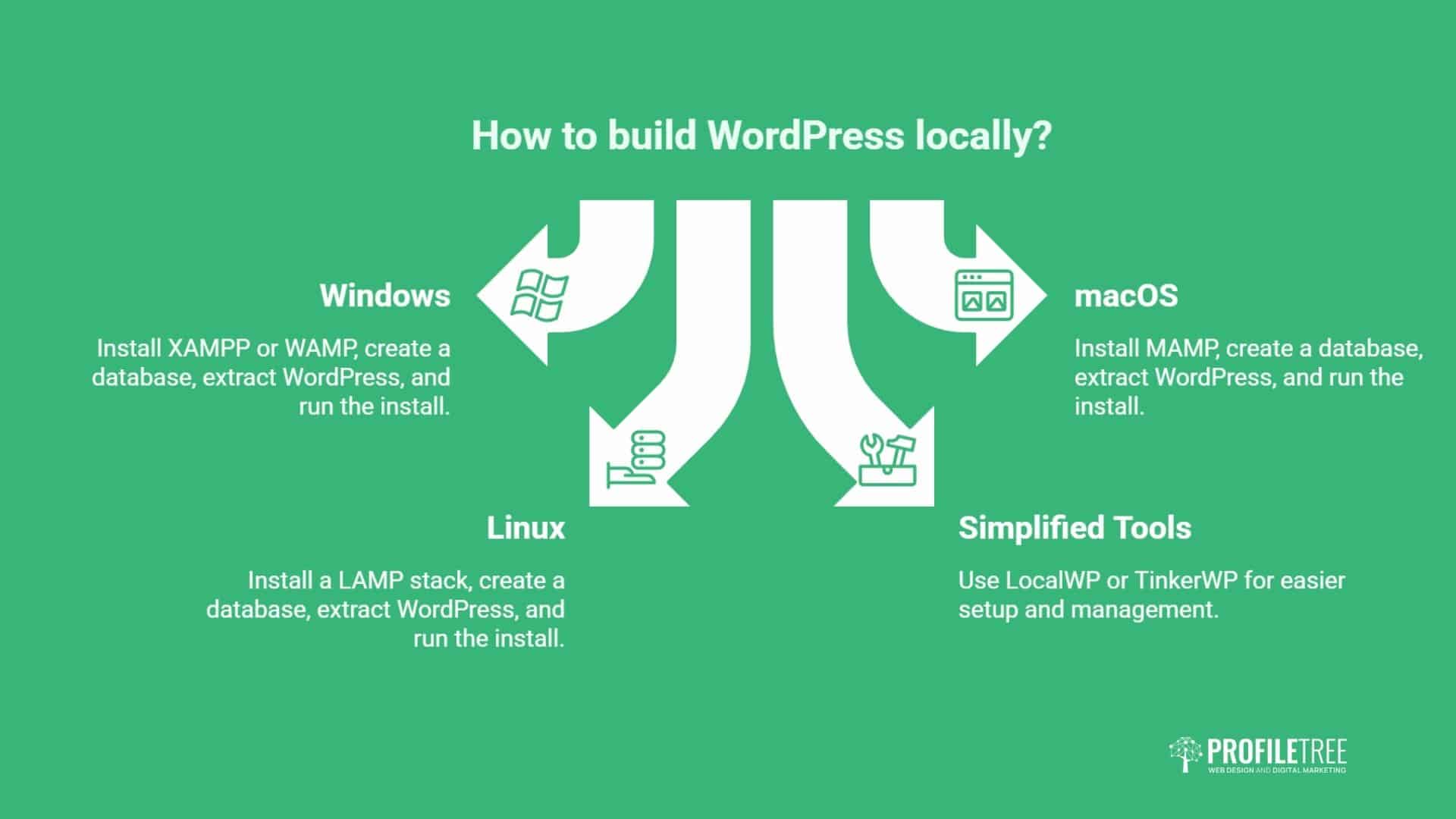
Install XAMPP or WAMP, start the Apache and MySQL modules, then create a database. Download WordPress from WordPress.org and extract it into the htdocs folder (XAMPP) or www folder (WAMP). Open localhost/yourfolder in a browser and run the five-minute install.
macOS: MAMP
MAMP is the usual pick on a Mac. Install it, start the server, then create a database in phpMyAdmin. Extract WordPress into the MAMP htdocs folder and visit http://localhost:8888/yourfolder to begin setup.
Linux: a LAMP Stack
Install a LAMP stack (Linux, Apache, MySQL, PHP), drop WordPress into your document root, usually /var/www/html, create a MySQL database and user, then load http://localhost/yourfolder to install.
Tools That Skip the Stack Entirely
If assembling a stack feels fiddly, two free desktop apps now do the whole job for you, and both have moved on considerably since this guide was first written.
LocalWP, formerly Local by Flywheel, creates a local WordPress site through a single installer on Windows, macOS or Linux, bundling its own PHP, web server and database. It can later push the finished site to live hosting.
WordPress Studio is a free desktop app from the makers of WordPress.com, available for macOS, Windows and Linux. Its own documentation describes spinning up local sites in seconds with SSL and custom local domains, defining what plugins, themes and content each site starts with through Blueprints, and syncing in both directions with WordPress.com or Pressable so you can pull a live site down to work on it locally and push it back when it is ready. It also includes a debug log, phpMyAdmin and Xdebug, and it can push work in progress to a temporary preview site with a public URL, which is a tidy way to show a client a build that is not live yet.
Studio is the closest thing available to a free answer for people who want a site that behaves like a hosted one without paying for hosting during the build.
Free Online Platforms With a Subdomain
If you want something reachable on the internet without paying, a few platforms will host WordPress for you on a shared subdomain. This is the only route on this page that produces a public address, and every one of them trades control for that convenience.
WordPress.com and WordPress.org Are Not the Same Thing
This trips up more people than any other part of the topic. WordPress.org is the free, open-source software. You download it and install it wherever you like: a browser tab, a local machine, a shared host, a managed server. Nobody charges you for the software itself.
WordPress.com is a commercial hosting business built on that same software, run by Automattic. It handles the server side and sells tiered plans, with a free tier at the bottom. So when someone says WordPress is free, both statements are true and they mean different things. The software is free. The place to run it usually is not. We have set out how the two platforms differ in practice if you are weighing one against the other.
What the Free WordPress.com Plan Includes
Sign up for a free account and you get a yoursite.wordpress.com address. According to WordPress.com’s own plan documentation, every site including the free one gets hosting, automatic updates, unlimited pages and posts, unlimited users, the last seven days of traffic stats, and 1 GB of storage for media.
The restriction that matters most for a business is plugins. WordPress.com states that installing plugins is available on its paid plans, and that free sites need an upgrade to install anything. The paid tiers also remove the ads that WordPress.com displays on free sites, and unlock a custom domain. For a personal blog, the free plan is fine. For a site that needs an SEO plugin, a form builder or a booking tool, it stops at the first hurdle.
Free Hosting Services
Free hosts are a different proposition, because they give you standard self-hosted WordPress rather than a managed platform. InfinityFree publishes its free tier specification openly: 5 GB of disk space, PHP 8.3, MySQL 8.0 or MariaDB 11.4, free SSL certificates, free subdomains across 25 or more extensions, and the option to point a domain you registered elsewhere at it. WordPress installs through Softaculous in a few clicks.
One correction worth making, because this guide previously suggested otherwise. InfinityFree states clearly that it does not place advertisements on your site, and that free hosting is permanent rather than a trial. The real constraints on free hosts are resource limits rather than ads: accounts share server capacity, so daily request caps, file count limits and CPU throttling are where a growing WordPress site runs out of road, and a site that exceeds them can be suspended.
Pros, Cons, and the Catch Nobody Mentions
Browser, local and free platforms each earn their place. The catch is that none of them produces a site you would run a business on long-term.
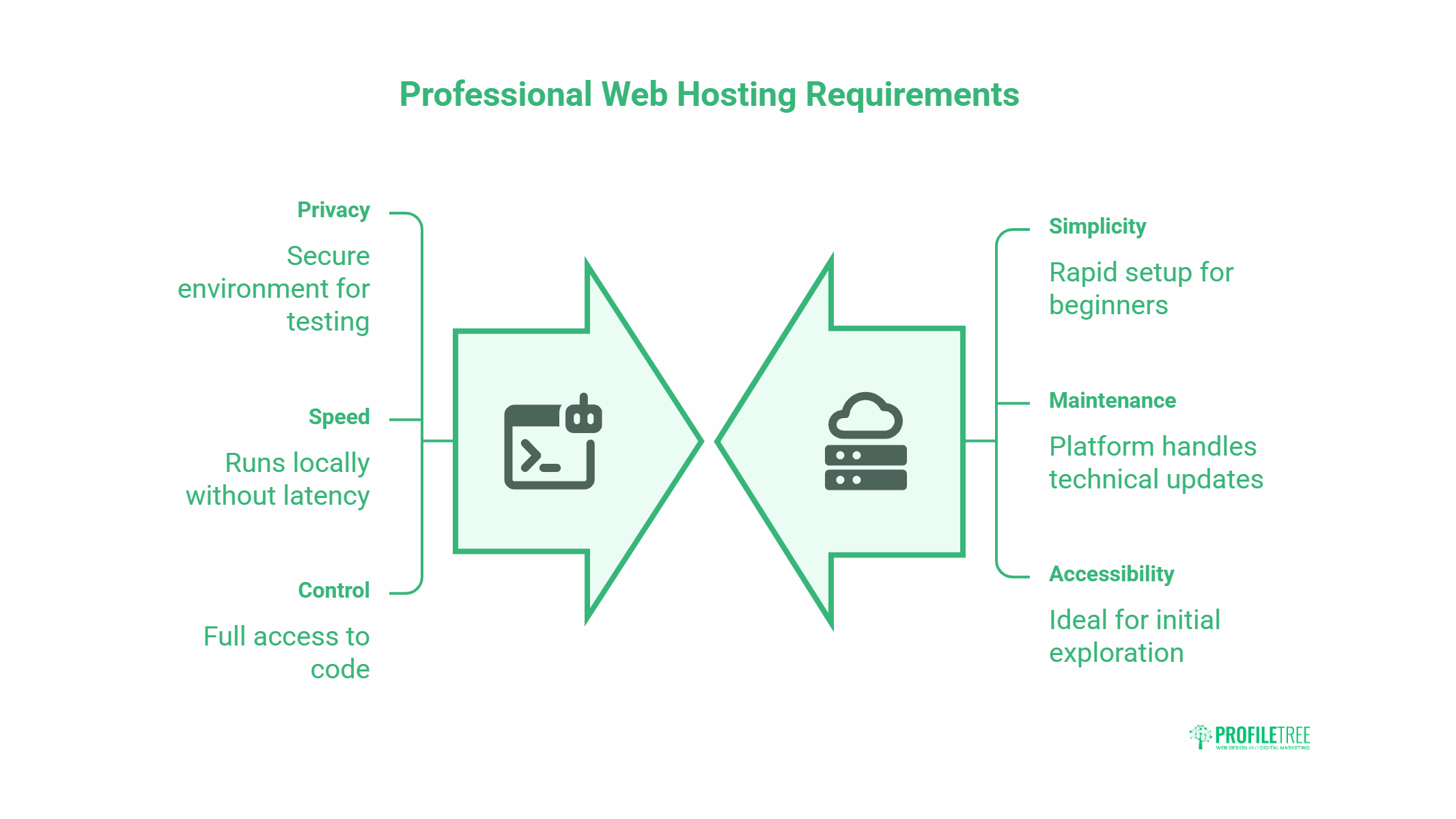
Where browser and local development win. They are free, private, and fast because everything runs on your own machine. You can experiment with themes, plugins and code with no risk to a live site, work offline, and plug into version control. For learning WordPress or staging changes, this is hard to beat.
Where free platforms win. Setup takes minutes and the platform handles the technical upkeep. Good for hobbyists, students, or anyone testing whether WordPress suits them before committing to a budget.
The limits for a business. A browser or local site is not reachable by anyone else, so it cannot serve customers. Going public means migrating to a live server, which can get messy and occasionally lose data. Free platforms restrict plugins and customisation, often impose a subdomain that looks less credible than your own name, and cap storage and bandwidth as you grow. Neither route reflects real-world performance, and support is usually thin or absent.
There is a subtler cost as well. A subdomain address cannot be moved with you. If you spend two years publishing on a free tier and then buy your own domain, you are starting that domain’s search history from nothing, and any links people have shared point at an address you no longer use. The free tier saved you a hosting fee and charged you the compounding value of your own domain instead. If the address itself is your sticking point rather than the hosting bill, we cover building a site before you buy a web address separately.
| Approach | Cost | Public access | Best for |
|---|---|---|---|
| Browser (WordPress Playground) | Free | No, runs in your tab | Instant testing, demos, learning |
| Local install (XAMPP, MAMP, LocalWP, Studio) | Free | No | Development, client builds, testing |
| Free platform (WordPress.com free plan) | Free | Yes, subdomain | Blogs, hobby sites |
| Free hosting (InfinityFree) | Free | Yes, subdomain or your own domain | Experiments, student projects |
| Managed WordPress hosting | Paid | Yes, own domain | Business and commercial sites |
When Managed Hosting Makes Sense
For most businesses, the answer is as soon as the site needs to earn its keep. Once you want a custom domain, plugins of your choosing, reliable speed and someone to call when something breaks, free options run out of road.
Managed WordPress hosting puts your site on servers tuned for WordPress, with one-click installs, automatic updates, daily backups, SSL and security monitoring handled for you. You stop being your own sysadmin and get back to running the business. If you are starting from scratch rather than migrating an existing build, our website development work sets the site up on that footing from day one.
What to Weigh Up When Choosing a Host
Look at performance first: fast server response, a 99.9% uptime guarantee or better, and a CDN to speed delivery to visitors. Then security: automated backups, free SSL, firewalls and malware scanning. Check it can scale with your traffic, and that support is genuinely WordPress-literate.
Watch the cost structure too. Low introductory prices often jump at renewal, and migration or extra service fees can hide in the terms. Our breakdown of what WordPress hosting really costs in the UK sets out the real annual figure once VAT, add-ons and renewal rates are counted. Data centre location matters as well, since closer servers mean faster load times, and the host should meet UK and EU data protection requirements under UK GDPR.
One question is worth asking before you sign anything: what does leaving look like? A host confident in its service will tell you plainly how an export works and what it costs. Vague answers about migration fees, or an export process that only produces a partial copy of your site, tell you something useful about the next three years.
A well-hosted site is also a stronger SEO asset. Speed and uptime feed into rankings, which is why search engine optimisation works best on a solid hosting foundation.
“People come to us after a free build hits a wall: no custom domain, no plugins, and a migration they’re scared to attempt. There’s nothing wrong with starting on a local install to learn the ropes. The mistake is running a real business on a setup that was only ever meant for testing. Get the hosting right early and everything after it, speed, security, SEO, gets easier.” Ciaran Connolly, founder of ProfileTree
Moving a Local Site to Live Hosting
This is the step people put off, and it is the reason a lot of local builds never make it online. It is not difficult, but a small mistake in the middle produces a site that looks broken in a way that is hard to diagnose. Follow this sequence.
- Sort the hosting and domain first. Have the account active and the domain pointing at the right nameservers before you touch the site. DNS changes can take a few hours to settle, so starting them early removes a wait from the middle of the job.
- Take a full copy of the local site. A migration plugin such as Duplicator, All-in-One WP Migration or WP Migrate will package the files and database into a single archive. Doing it by hand works too: copy the whole site folder, then export the database from phpMyAdmin as a .sql file. If you built in Playground, use its Export option to download the ZIP instead.
- Upload the files. Move the site folder to the server’s public directory over SFTP, or through the host’s file manager. Keep the folder structure identical to the local one.
- Create the live database and import. Make a fresh database and user on the host, note the credentials, then import your .sql file into it.
- Update wp-config.php. Change the database name, username, password and host to the live values. Nothing will load until this matches.
- Replace the old URLs properly. Your database is full of references to localhost that need to become your live domain. Use WP-CLI’s search-replace command or a migration plugin that handles this for you. Do not run a plain find-and-replace query in SQL: WordPress stores some settings as serialised PHP arrays that record the character length of each value, and a raw replacement changes the length without updating the count, which quietly corrupts theme and widget settings.
- Reset permalinks and check media. Visit Settings, then Permalinks, and save once to rebuild the rules. Then load a few pages and confirm images resolve rather than returning a broken icon.
- Turn on SSL and force HTTPS. Install the certificate, then confirm the site address in Settings uses https. Mixed content warnings usually trace back to a URL replacement that missed a few rows.
- Let search engines in. Local and staging installs are often set to discourage indexing. Check Settings, then Reading, and untick that box once the site is genuinely ready, not before.
Budget an evening for a small site rather than twenty minutes, and keep the local copy untouched until the live version is confirmed working. That copy is your rollback.
FAQs
Can you really run WordPress without hosting?
Not as a public website. WordPress is software that needs somewhere to run, and for a site real visitors can reach at your own address, that means hosting of some kind. You can run it in your browser through WordPress Playground, install it locally on your own computer, or use a free platform that hosts it for you on a shared subdomain, and all three are legitimate ways to build a WordPress website without hosting costs while you learn or test.
Is a local WordPress site visible online?
No. A local install runs only on your machine and is not accessible to anyone else over the internet, which is exactly why it is good for building and testing without risk. Some tools offer a temporary preview link that shares your local site with a client for a short period, but the site itself still lives on your computer. To make it genuinely public, you migrate it to a live server.
Can I build a WordPress site in a browser tab without installing anything?
Yes. WordPress Playground runs a full WordPress install inside the browser using PHP compiled to WebAssembly, with no server, account or download involved. Treat it as a sandbox rather than a home for real work, because temporary Playgrounds are discarded on refresh and browser storage can be cleared without warning.
I built something in Playground and lost it when I closed the tab. Can I get it back?
Possibly. New Playgrounds are autosaved when browser storage is available, and the documentation says up to five recent autosaves are kept, so open Your Playgrounds in the Dock in the same browser and profile you used, and check whether yours is listed. If it is not there, it is gone, which is why the Export option that downloads a ZIP of the files and database is worth using every time you do work you would mind repeating.
What is the catch wth free WordPress platforms?
On the free WordPress.com plan, the catches are 1 GB of storage, no plugin installs, a subdomain rather than your own address, and ads the platform places on your site. On free hosts the catch is different: you get standard WordPress, but shared server resources mean daily request caps and file limits, and exceeding them can suspend the account. Both are fine for blogs and learning, and both get in the way once a site needs to perform commercially.
Everyone says WordPress is free, but every guide ends up telling me to pay for hosting. Which is it?
Both statements are true, and the confusion is fair. The WordPress software from WordPress.org costs nothing and always has, so you will never be charged a licence fee. What costs money is the server that runs it, the domain that points at it, and any premium theme or plugin you choose, which is why a free build and a paid one can both be described accurately as “WordPress”.
When should I move from free to paid hosting?
When the site needs to do a job: rank in search, load quickly, use a custom domain, or run plugins the free tier blocks. For most businesses, that is from day one. Migrating a free build later is doable but fiddly, so building on proper hosting from the start often saves trouble.
Does hosting affect SEO?
Yes. Server speed and uptime feed into how search engines rank a site, and slow or unreliable hosting drags performance down regardless of how good the content is. Managed WordPress hosting on fast servers gives SEO work a solid base to build on, which matters more now that page experience signals are measured on real visitor data rather than lab tests.