
Advanced Hover Effects: Techniques That Improve Web Design
Table of Contents
Hover effects do a small but useful job: they tell a visitor that something on the page will respond to them. A button that lifts, a link that underlines, an image that brightens. Get them right, and a site feels considered. Overdo them, and the same site feels busy and slow. This guide covers the advanced hover effects worth knowing, the technology behind each one, and the judgment calls that separate a polished interaction from a distracting one.
If you would rather hand this off, ProfileTree’s website design services cover front-end interaction work as part of the build, so the effects support the design rather than fight it.
What Are Hover Effects?
A hover effect is a visual change triggered when a pointer moves over an element. The simplest versions change text colour or add an underline. Advanced versions move, rotate, or transform elements, reveal hidden content, or animate whole menus. The point stays the same throughout: confirm to the user that an element is interactive and worth their attention.
CSS defines most of this through the: hover pseudo-class. More involved interactions bring in JavaScript and SVG. The Mozilla Developer Network reference for: hover is the standard place to check exactly how the state behaves across browsers.
Why They Matter in Web Design
Good hover feedback lowers the effort a visitor spends working out what they can click. That has a direct line to how long people stay and whether they convert. Clear interaction cues are part of why a well-built site outperforms a pretty but static one.
Where Accessibility Fits In
Hover is not available to keyboard users or most screen-reader users, so it can never be the only way to reach content. Anything revealed on hover should also appear on focus and on tap. The W3C WAI guidance on accessible interactions sets the baseline here, and it is worth treating as a hard requirement rather than a nice-to-have.
The Commercial Angle
Interaction polish is one signal among many that a site has been built with care. It works best alongside fast load times and clean code, which is why front-end interaction sits inside broader website development rather than being bolted on at the end.
Types of Advanced Hover Effects
The effects below cover the range most business sites need, from subtle to attention-grabbing. Pick by purpose, not by how impressive the demo looks.
Transformations
Transformations change an element’s shape, size, or position. Scaling grows or shrinks a button or image on hover. Translation slides an element along an axis. Rotation flips or tilts it. Combined carefully, these add depth without heavy code, since CSS handles them natively.
Colour and Gradient Transitions
A smooth colour shift is the most common effect for a reason: it reads instantly as ‘this is clickable’. Background colour, text colour, and gradient transitions all work well when the change is gradual rather than abrupt. A short transition timing, around 0.2 to 0.3 seconds, feels responsive without dragging.
Text Animations
Letter spacing that expands, an underline that grows from the centre, or a soft text shadow can lift headings and navigation. These are best kept quiet. Heavy text animation distracts from reading, which is the opposite of what a content page needs.
3D Effects, Reveals, and Menus
3D transforms tilt cards or images for a sense of depth. Hover reveals are popular in portfolios and galleries, showing a title or description when a visitor hovers over an image. Navigation menus often use sliding borders or animated underlines. Parallax movement, where layers shift at different speeds, adds drama but costs performance, so reserve it for hero sections rather than spreading it across a page.
Effect type, what it does, and when to use it:
| Effect type | Built with | Best used for |
| Colour / gradient | CSS | Buttons, links, calls to action |
| Scale / translate | CSS | Cards, product images, icons |
| Text animation | CSS | Headings and navigation, sparingly |
| 3D transform | CSS / JS | Feature cards, hero elements |
| Hover reveal | CSS / JS | Galleries, portfolios, case studies |
| Parallax | JS | Hero sections only, watch performance |
The Technology Behind Advanced Hover Effects
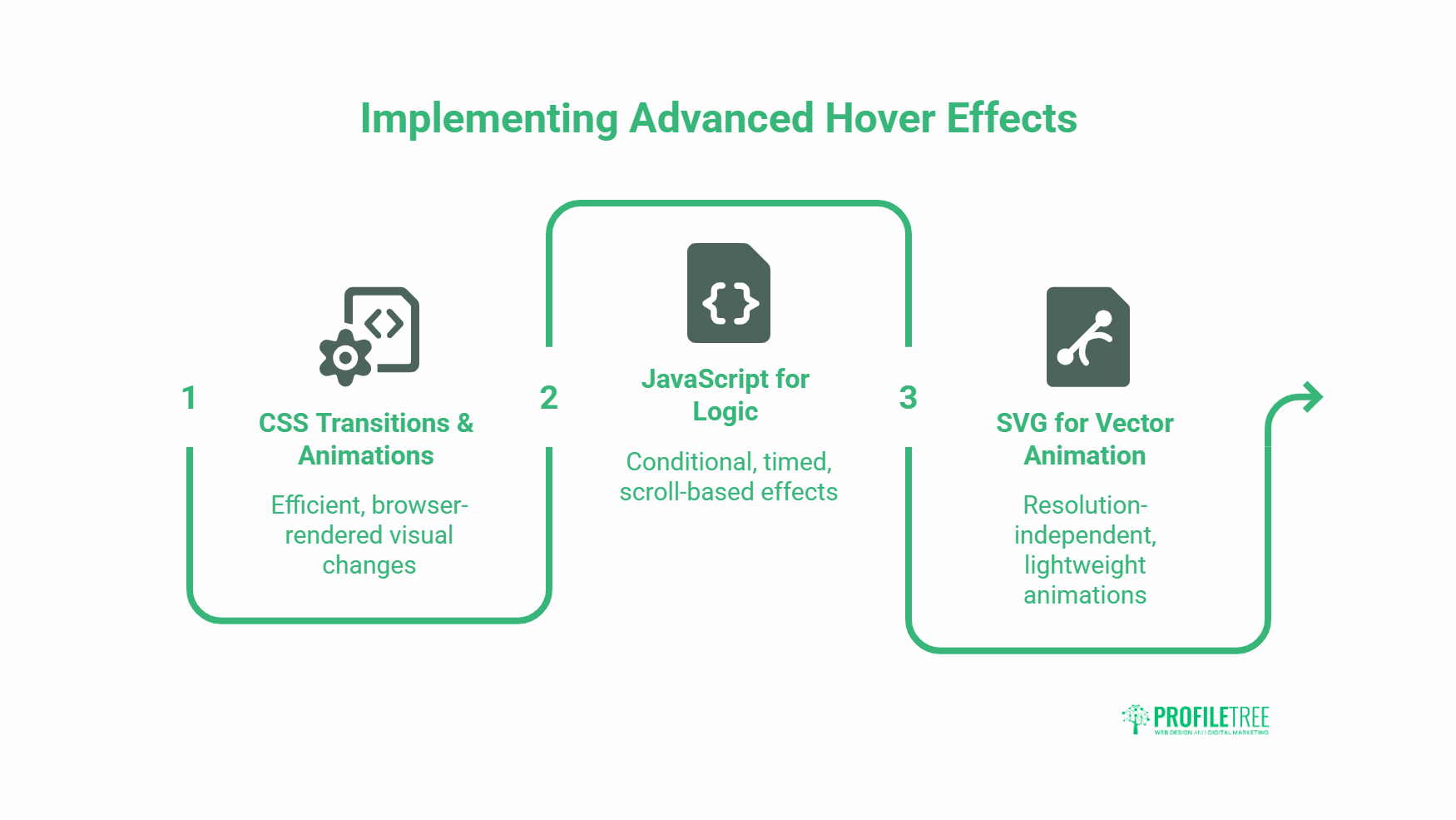
Most effects are achievable in CSS alone. JavaScript and SVG come in when an interaction needs logic, timing control, or vector animation. Knowing which tool fits keeps a site fast.
CSS Transitions and Animations
CSS is the foundation. Transitions handle gradual changes between two states; animations handle multi-step sequences. Because the browser renders these efficiently, CSS should always be the first choice before adding any script.
JavaScript When CSS Cannot Cope
JavaScript earns its place when an effect depends on conditions, scroll position, or delays that CSS cannot express. The trade-off is weight and complexity, so use it deliberately rather than by default.
SVG, Preprocessors, and Maintainable Code
SVG suits resolution-independent, lightweight vector animations. Preprocessors such as Sass keep the code modular and reusable across a site. Both matter more on larger builds, where consistency saves time later. Clean, maintainable code here also feeds into long-term site speed, which is why interaction work overlaps with ongoing website hosting and management, where performance is monitored after launch.
“The best hover effect is one a visitor barely notices. It should confirm what they can do next, not perform for them. When clients ask for animation everywhere, we usually talk them down to two or three deliberate moments that actually guide the eye.”
Ciaran Connolly, founder of ProfileTree
Best Practices for Implementing Hover Effects
Hover effects help when they serve the user and hurt when they serve the designer’s ego. These four rules keep them on the right side of that line.
Keep Them Subtle
A small, fast response beats a flashy one. Two or three considered effects across a page read as quality. A dozen competing animations read as noise and slow everything down.
Build for Accessibility and Touch
Every hover interaction needs a focus and tap equivalent. On phones and tablets, there is no hover state at all, so test what happens on first tap and make sure no content is trapped behind a hover that touch users can never trigger.
Test Across Devices and Watch Performance
3D transforms and parallax can stutter on lower-powered devices. Check on real hardware, not just a desktop browser window, and measure load time before and after adding heavy effects. If interaction polish matters to your conversions, it is worth pairing with the structural work covered in ProfileTree’s search engine optimisation services, since page speed feeds both rankings and the on-page experience.
Common Hover Effect Mistakes to Avoid
Most hover problems come down to a handful of repeat offences. Spotting them early saves a redesign later, and they tend to show up in the same places: navigation, mobile, and pages that try to do too much at once.
Hiding Important Content Behind Hover
If a menu item, price, or description only appears on hover, anyone on a phone or using a keyboard may never see it. Treat hover as an enhancement layered on top of content that is already reachable, not as the gate that controls access to it. A useful test: turn the hover off entirely and check the page still makes sense.
Transitions That Are Too Slow or Too Fast
An instant snap feels harsh; a long, drawn-out animation feels sluggish and gets in the way of a fast clicker. Most interactions sit comfortably in the 0.2 to 0.3 second range. Anything past half a second on a button starts to annoy people who know exactly where they are going.
Inconsistent Behaviour Across the Site
When buttons lift on one page, glow on another, and slide on a third, the site feels stitched together. Pick a small set of effects and apply them consistently. Shared, reusable styles, the kind a preprocessor makes easy, keep this under control as a site grows and more pages get added.
Ignoring Performance Until Launch
Heavy effects added one at a time rarely feel slow during development on a fast machine. They add up. Measure load and interaction speed on real, mid-range hardware before sign-off, not after a client complains that the homepage stutters on their phone.
How Hover Effects Fit Into a Wider Web Project
Hover effects are one detail in a much larger picture. On their own, they change very little. Inside a site that loads quickly, reads clearly, and points visitors toward an action, they pull their weight. The order you tackle things in matters.
Structure and Content Come First
Before any interaction polish, a page needs a clear job and content that does it. Animating a button that nobody has a reason to click solves nothing. Getting the message and structure right is groundwork that sits alongside content marketing services, where the words earn the click that the hover effect then confirms.
Effects Should Support the Conversion Path
Use hover feedback to draw attention to the things you actually want people to do: the enquiry button, the key call to action, the next step. Decorative animation on a footer link adds nothing. A subtle lift on a primary button reinforces the path you want a visitor to take, which is where interaction design and commercial goals meet.
Plan for Maintenance From the Start
Effects that look great at launch can break as the site changes, plugins update, or new sections get added. Building them on shared, documented styles makes them easier to keep working on over time. That ongoing care is part of why interaction work overlaps with a wider digital strategy rather than being a one-off cosmetic job at the end of a build.
Putting Hover Effects to Work
Advanced hover effects reward restraint. Start with CSS, lead with feedback over decoration, and give every interaction a touch and keyboard path. If you want these built properly into a site that also loads fast and ranks, ProfileTree’s Belfast web design team can take it from design through to launch. Talk to us about your project.
Frequently Asked Questions
Are hover effects bad for mobile users?
They are not bad, but mobile devices have no hover state, so effects need a tap or focus equivalent. Test that nothing important is hidden behind a hover that touch users cannot reach.
Should I use CSS or JavaScript for hover effects?
Start with CSS. It handles colour changes, transforms, and reveals efficiently. Only add JavaScript when an effect needs logic, timing, or scroll behaviour that CSS cannot provide.
Do hover effects slow down a website?
Simple CSS effects have almost no impact. Heavy 3D transforms and parallax can, especially on lower-powered devices, so test performance after adding them.
How many hover effects should a page have?
Fewer than you think. Two or three deliberate effects guide the eye. A page full of animations distracts and feels cluttered.