
What is AutoCAD Used For? The Definitive Guide to Modern CAD Workflows
What is AutoCAD used for in modern design and engineering? AutoCAD is computer-aided design (CAD) software that allows professionals to create precise 2D and 3D technical drawings for architecture, engineering, construction, and manufacturing. The use of AutoCAD spans from building floor plans and mechanical part drawings to electrical schematics and infrastructure designs. Since 1982, AutoCAD has been the industry standard for technical drafting, with millions of professionals relying on its precision daily.
The uses of AutoCAD are remarkably diverse. Architects use AutoCAD for construction documentation. Civil engineers rely on AutoCAD for infrastructure planning. Mechanical engineers create detailed part drawings using AutoCAD. The AutoCAD features that enable this versatility include precise measurement tools, parametric design capabilities, and compatibility with industry-standard file formats like .dwg and .dxf. Whether you’re wondering what AutoCAD is used for in your industry or evaluating AutoCAD applications for your business, this guide covers everything from basic functionality to UK compliance requirements and practical learning pathways for Belfast and Northern Ireland professionals.
Table of Contents
A Non-Technical Definition of AutoCAD
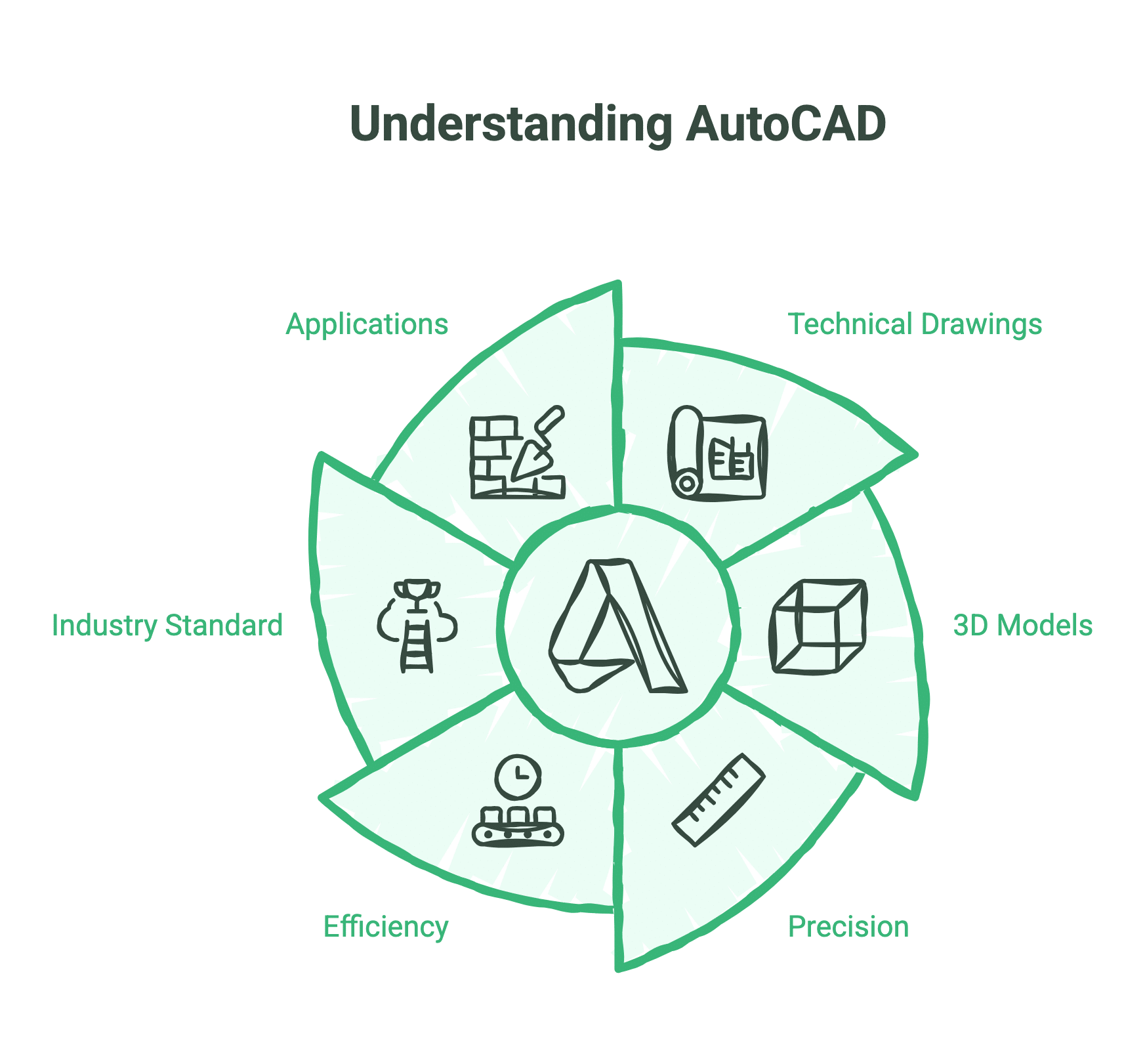
What is AutoCAD in simple terms? AutoCAD is computer-aided design software that allows you to create detailed technical drawings and 3D models on your computer. Think of it as a digital draughtsman’s board, but with vastly more power and precision than anything possible with pencil and paper. Understanding what AutoCAD is helps clarify why it has become the industry standard for technical design work.
The software takes its name from “Computer-Aided Design”—CAD for short. Where traditional drafting required rulers, compasses, and endless manual calculations, the use of AutoCAD handles the mathematics automatically. You draw a line, and the software ensures it’s exactly the length you specified. You create a circle, and it’s perfectly round down to fractions of a millimetre.
What makes AutoCAD particularly powerful is its precision. When designing a building, a mechanical part, or an electrical system, measurements need to be exact. A wall that’s specified as 3.5 metres must be exactly 3.5 metres in the drawing, not 3.49 or 3.51 metres. AutoCAD maintains this precision automatically, while also allowing you to modify designs quickly without starting from scratch.
The software has been the industry standard since Autodesk released it in 1982. Before AutoCAD, every technical drawing was done by hand. A single architectural plan might take days to produce, and any change meant redrawing entire sections. AutoCAD compressed weeks of work into hours, fundamentally changing how designers and engineers work.
Today, the uses of AutoCAD span millions of professionals across architecture, mechanical engineering, civil engineering, electrical design, and dozens of other fields. If you’ve ever looked at a construction site plan, an engineering schematic, or a manufacturing blueprint, there’s a strong chance it was created using AutoCAD. The AutoCAD application has become so widespread that understanding what AutoCAD is used for is essential knowledge for anyone working in design-focused industries.
Key Features of AutoCAD
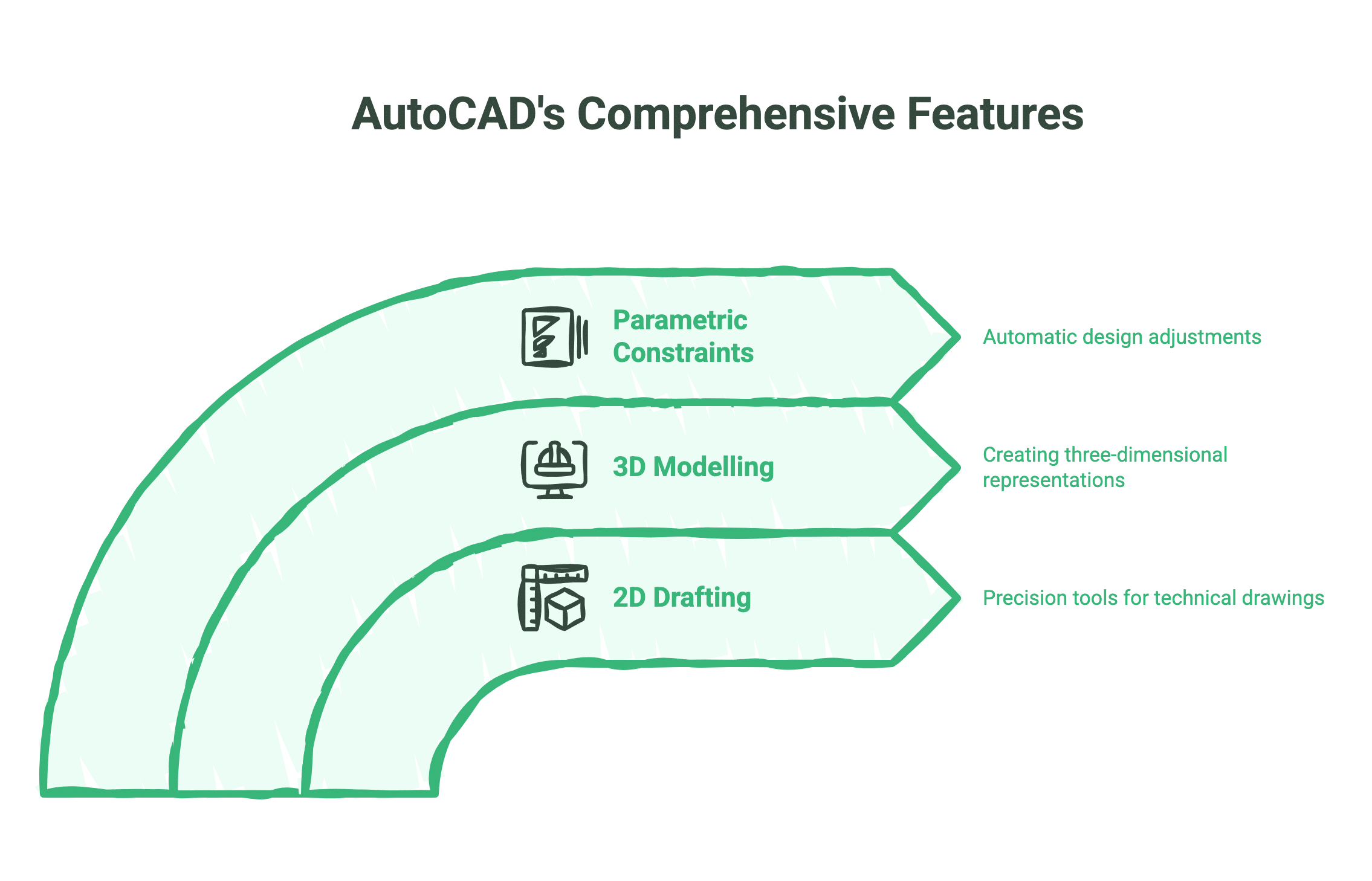
What is AutoCAD used for in practical terms? The use of AutoCAD encompasses everything from simple 2D line drawings to complex 3D models, making it suitable for basic floor plans through to intricate mechanical assemblies. The AutoCAD features available support diverse applications across multiple industries, each taking advantage of the software’s precision and flexibility in different ways. Understanding the features of AutoCAD helps professionals determine whether the software meets their specific project requirements.
2D Drafting and Technical Documentation
The foundation of AutoCAD is its 2D drafting tools, which represent some of the most essential AutoCAD features for technical drawing creation. These allow you to create technical drawings with absolute precision — floor plans, elevations, sections, site plans, and detailed construction drawings.
When creating 2D drawings in AutoCAD, you work with geometric primitives: lines, circles, arcs, polylines, and splines. These aren’t just visual elements. Each object contains mathematical data about its dimensions, position, and relationships to other objects. A line isn’t merely something that looks like a line on screen — it has a defined start point, end point, length, and angle.
This precision makes AutoCAD ideal for construction documentation. An architect designing a house can specify exactly where walls sit, what their thickness is, where windows and doors go, and how different building elements connect. The software ensures everything aligns properly and that dimensions are accurate before construction begins.
AutoCAD’s annotation tools add another layer of usefulness and rank among the most frequently used features of AutoCAD. You can add dimensions, text notes, hatching patterns, and leaders to explain what’s shown in the drawing. These annotations automatically update when you modify the geometry, so if you move a wall, the dimension showing that wall’s position updates automatically.
Layer management is another critical 2D feature. Complex drawings might contain hundreds or thousands of individual elements. AutoCAD’s layer system lets you organise these into logical groups — walls on one layer, furniture on another, electrical systems on a third. You can then turn layers on or off to control what’s visible, making it easier to work on specific aspects of a design without visual clutter.
3D Modelling and Visualisation
While AutoCAD is primarily known for 2D drafting, it also offers robust 3D modelling capabilities that extend the AutoCAD features beyond traditional drafting work. These tools allow you to create three-dimensional representations of designs, which is particularly useful for visualising how something will look once built and for catching design conflicts that aren’t obvious in 2D plans.
AutoCAD’s 3D workspace provides tools for creating solid models, surface models, and mesh models. Solid modelling is most common for mechanical parts — you can create basic shapes like boxes, cylinders, and spheres, then combine them using Boolean operations (union, subtract, intersect) to build complex forms.
For architectural work, AutoCAD allows you to extrude 2D profiles into 3D forms. Draw the outline of a wall section, then extrude it upwards to create a 3D wall. This approach makes it straightforward to convert 2D floor plans into 3D building models.
The software includes rendering capabilities that let you apply materials, lighting, and shadows to 3D models. While not as sophisticated as dedicated rendering software, AutoCAD’s rendering tools are sufficient for creating presentable visualisations of designs for client presentations.
However, it’s worth noting that for complex 3D architectural work, many professionals now use Autodesk Revit or similar Building Information Modelling (BIM) software instead of AutoCAD. AutoCAD remains the preferred choice for 2D documentation and simpler 3D work, but BIM software offers advantages for large-scale architectural projects.
The Power of Parametric Constraints
One of the most powerful but often overlooked features of AutoCAD is its parametric constraint system. This advanced capability allows you to define relationships between different elements of your drawing, so changes propagate automatically through the design. Parametric constraints represent one of the AutoCAD features that dramatically improves design efficiency.
For example, imagine you’re designing a rectangular room. You could draw four walls and specify dimensions manually. But with parametric constraints, you can define that opposite walls must be parallel, that adjacent walls must be perpendicular, and that the room must maintain specific proportions. Now, if you modify one wall, the others adjust automatically to maintain those relationships.
This becomes particularly valuable in mechanical design. If you’re designing a bracket that needs to fit around a pipe of a certain diameter, you can constrain the bracket’s opening to match the pipe diameter. Change the pipe size, and the bracket adjusts automatically.
Parametric constraints dramatically reduce the time needed to explore design alternatives. Rather than manually redrawing elements to test different configurations, you modify a few key dimensions and watch the entire design adjust accordingly.
What is AutoCAD Used for? Industry-Specific Applications
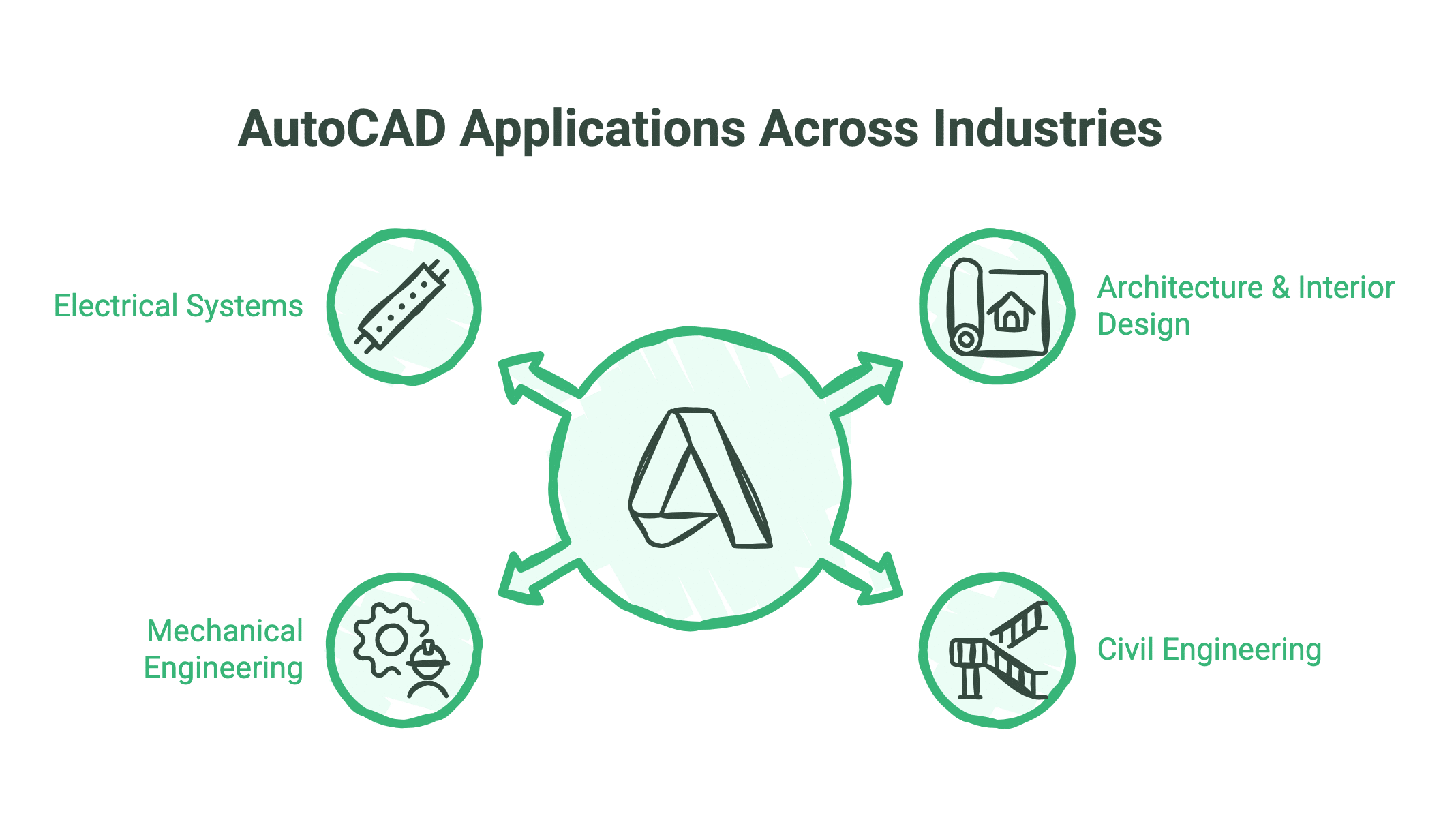
What are AutoCAD uses across different industries? The AutoCAD application varies significantly depending on the sector, but four industries account for the majority of AutoCAD uses: architecture and interior design, civil engineering, mechanical engineering, and electrical systems design. Understanding what AutoCAD is used for in each sector helps professionals determine whether the software meets their specific requirements.
Architecture & Interior Design
For architects, AutoCAD is the go-to tool for creating construction documentation. This includes floor plans showing room layouts and dimensions, elevations depicting how buildings look from different sides, sections cutting through buildings to show internal construction, and site plans showing buildings in relation to property boundaries and surrounding features.
AutoCAD integrates with the RIBA (Royal Institute of British Architects) stages commonly used in UK projects. During RIBA Stage 3 (Spatial Coordination), architects use AutoCAD to develop detailed floor plans and elevations. By RIBA Stage 4 (Technical Design), they’re producing the comprehensive construction drawings that builders will work from.
Interior designers use AutoCAD for similar purposes but with greater focus on furniture layout, lighting plans, and material specifications. An interior design project might include detailed furniture plans showing exact placement and dimensions, reflected ceiling plans indicating lighting fixture positions, and finish schedules specifying materials for floors, walls, and other surfaces.
The precision AutoCAD offers is critical in both fields. When designing a kitchen, for instance, cabinets must fit exactly into available spaces, appliances need clearances specified by manufacturers, and work triangles between sink, hob, and refrigerator should follow ergonomic best practices. AutoCAD ensures these elements work together properly before anything is ordered or installed.
Civil Engineering and Infrastructure
Civil engineers use AutoCAD for infrastructure design — roads, bridges, drainage systems, site development, and utility networks. The software is particularly strong for creating topographic surveys, grading plans, and utility layouts.
A typical civil engineering project might start with a topographic survey showing existing ground conditions. Engineers then use AutoCAD to design new roads, determine cut and fill requirements for grading, plan drainage systems to manage water runoff, and lay out utility services including water, sewerage, electricity, and communications.
AutoCAD Civil 3D, a specialised version of the software, adds capabilities specifically for civil engineering work. It can create dynamic models of road corridors that update automatically when you modify alignments or profiles, perform earthwork calculations to determine how much material needs moving, and generate cross-sections showing how roads and other linear features change along their length.
For UK civil engineering work, AutoCAD integrates with standards like the Design Manual for Roads and Bridges (DMRB) and allows engineers to incorporate specifications from Highways England and local authorities. This ensures designs comply with regulatory requirements before construction begins.
Mechanical and Aeronautical Engineering
Mechanical engineers use AutoCAD to design parts, assemblies, and mechanical systems. This includes everything from simple brackets and fasteners to complex machinery and vehicle components.
The typical mechanical engineering workflow in AutoCAD involves creating detailed part drawings with dimensions and tolerances, assembly drawings showing how parts fit together, and bill of materials listing every component needed for manufacture.
AutoCAD’s precision is particularly critical in mechanical engineering. Parts often need to fit together with tolerances measured in hundredths of a millimetre. A shaft needs to fit into a bearing with just the right amount of clearance — too loose and it wobbles, too tight and it won’t fit. AutoCAD allows engineers to specify these tolerances precisely.
For aerospace work, AutoCAD handles the exacting requirements of aircraft design. Even small errors in aeronautical engineering can have serious consequences, so the software’s ability to maintain mathematical precision throughout the design process is essential.
However, many mechanical engineering firms now use Autodesk Inventor or SolidWorks for 3D modelling work, reserving AutoCAD for 2D documentation. These specialised mechanical design tools offer parametric modelling, assembly simulation, and stress analysis capabilities that go beyond what AutoCAD provides.
Electrical Systems and Schematic Mapping
AutoCAD Electrical, a specialised version of the software, is designed specifically for electrical control systems design. Electrical engineers and designers use it to create schematic diagrams, panel layouts, and wiring documentation.
The software includes libraries of standard electrical symbols complying with international standards. Rather than drawing each switch, relay, or motor from scratch, designers select standardised symbols and place them into schematics. AutoCAD Electrical then handles the numbering and cross-referencing automatically.
For building services, AutoCAD is used to create electrical plans showing power outlet locations, lighting layouts, emergency lighting systems, fire alarm components, and data network infrastructure. These plans need to coordinate with architectural and mechanical drawings to ensure electrical systems fit within the building without conflicts.
UK electrical designs must comply with BS 7671 (the IEE Wiring Regulations). AutoCAD allows electrical engineers to incorporate these requirements into their designs, ensuring installations meet safety and performance standards.
AutoCAD in the UK & Ireland: Standards and Compliance

For professionals working in the UK and Ireland, AutoCAD integrates with specific regulatory frameworks and industry standards that differ from other markets. Understanding these regional requirements is essential for producing compliant designs.
The most significant framework is the UK’s Building Information Modelling (BIM) mandate. Since 2016, all centrally procured government construction projects in the UK have required BIM Level 2 compliance. This means different project team members working in different software platforms need to share information in common file formats.
AutoCAD fits into BIM workflows by producing drawings that can be referenced in BIM models created in software like Revit. The key is ISO 19650, the international standard replacing the previous BS 1192 framework. ISO 19650 specifies how information should be named, structured, and exchanged between project parties.
For AutoCAD users, this means following naming conventions for files and layers, producing drawings in specified formats, and ensuring information is properly coordinated. Many UK architecture and engineering practices now have BIM managers who oversee these processes and ensure AutoCAD drawings integrate properly with the broader BIM workflow.
British Standards also influence how AutoCAD is used. BS 8888, the standard for technical product documentation, specifies how engineering drawings should be presented, including requirements for line types, dimensioning practices, and geometric tolerancing. Engineers working in AutoCAD need to configure their drawings to meet these standards.
For architectural work, compliance with Building Regulations is critical. While AutoCAD doesn’t enforce Building Regulations automatically, the software allows architects to incorporate regulatory requirements into their designs. This includes minimum room sizes, required window areas for ventilation and light, fire safety requirements including escape routes and compartmentation, and accessibility standards ensuring buildings are usable by people with disabilities.
Environmental considerations are increasingly important in UK construction. BREEAM (Building Research Establishment Environmental Assessment Method) is the UK’s leading sustainability assessment method for buildings. While BREEAM assessment happens outside AutoCAD, the designs created in the software form the basis for that assessment. Architects need to design with BREEAM criteria in mind from the start, incorporating energy-efficient features, sustainable material specifications, and water conservation measures into their AutoCAD drawings.
For firms working in both Northern Ireland and the Republic of Ireland, there are additional considerations. While much design practice is similar, Building Regulations differ between the two jurisdictions. Engineers and architects operating across the border need to be familiar with both regulatory frameworks and ensure their AutoCAD drawings comply with whichever applies to each specific project.
The Future: AI, Machine Learning, and Automation in AutoCAD

AutoCAD is evolving beyond traditional CAD functionality to incorporate artificial intelligence and automation features that streamline repetitive tasks and augment designer capabilities. These new AutoCAD features represent a significant shift in how the software supports professional workflows.
One significant recent addition is AI-assisted drafting. AutoCAD’s machine learning features can now recognise patterns in your drawing behaviour and suggest completions. If you’re drawing a series of similar elements — say, repeating structural bays in a building — the software learns the pattern and offers to complete the sequence automatically.
Smart Blocks represent another AI-driven improvement. Previously, if you had a PDF or image of a drawing and wanted to convert it to editable AutoCAD geometry, this required manual retracing. Smart Blocks uses machine learning to recognise common architectural and mechanical elements in images and convert them to proper AutoCAD objects automatically. This is particularly useful when working with legacy drawings that only exist as scanned paper documents.
Markup Assist is an AI feature aimed at reducing coordination time. When reviewing marked-up drawings, the software can recognise hand-drawn annotations and convert them into actual geometry changes. A reviewer sketches a wall in a different location on a PDF markup, and AutoCAD understands this means “move this wall” and suggests the appropriate command.
These AI features don’t replace the designer’s expertise — they reduce time spent on mechanical tasks so designers can focus on creative and technical problem-solving. The software is learning to handle the tedious parts while humans handle the judgement calls. As these features of AutoCAD continue to develop, the software becomes more intuitive and efficient for everyday use.
Automation extends to cloud connectivity as well. AutoCAD’s web and mobile apps allow designers to access and edit drawings from anywhere, with changes syncing automatically. This makes remote collaboration significantly more practical than when everyone needed to work from the same physical location or exchange files manually.
For Belfast businesses and Northern Ireland SMEs looking to adopt AutoCAD or upgrade their existing CAD workflows, ProfileTree offers digital training programmes covering both traditional AutoCAD skills and these newer AI-assisted features. Our training is specifically designed for UK-based teams, incorporating regional standards and typical project workflows.
AutoCAD vs The Competition: When to Use Which?
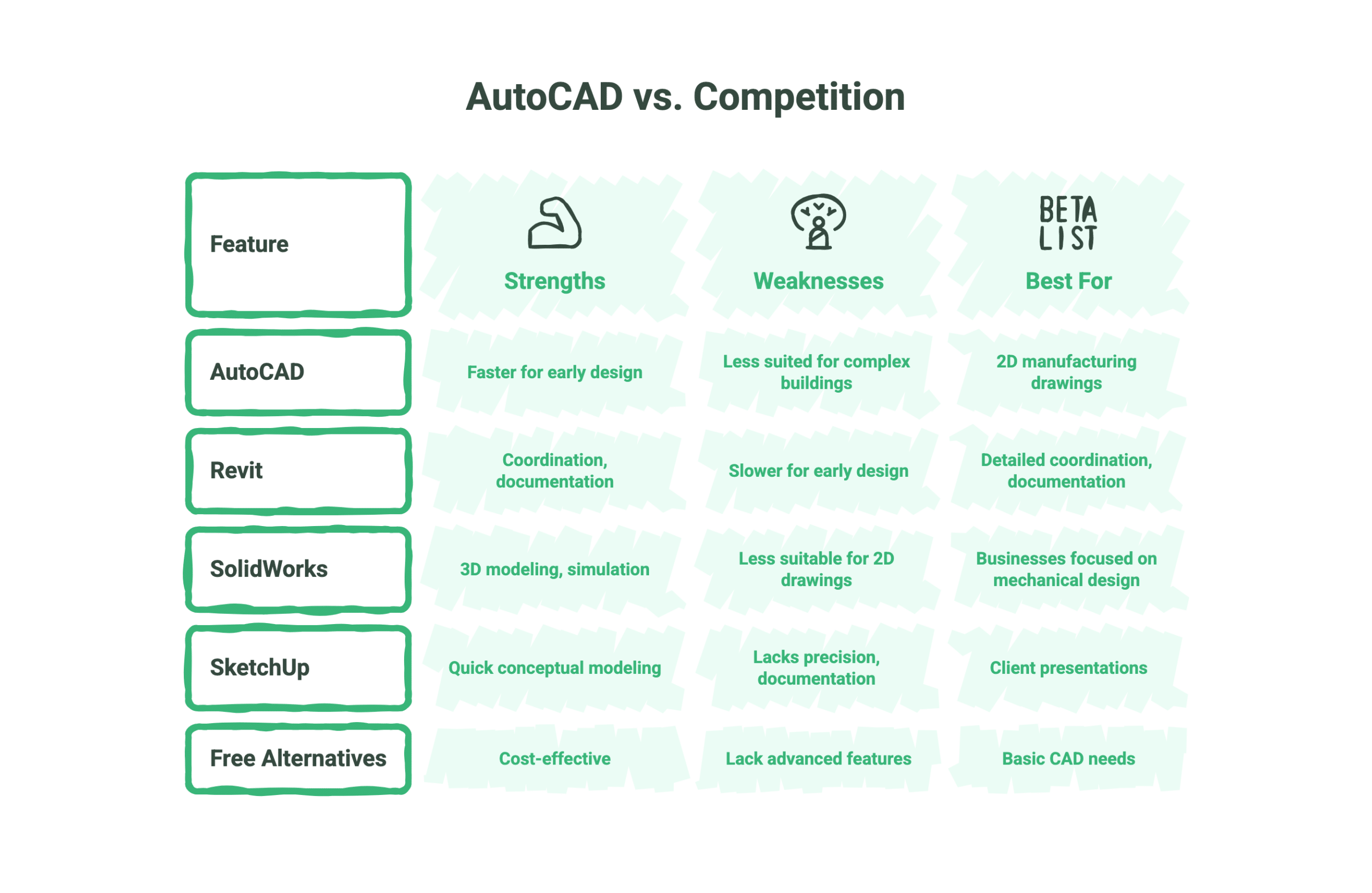
AutoCAD faces competition from numerous alternatives, each with particular strengths. Understanding when to use AutoCAD versus other options helps you choose the right tool for each project.
AutoCAD vs Revit: Revit is Autodesk’s Building Information Modelling software designed specifically for architecture and construction. While AutoCAD excels at 2D documentation and is faster for early design stages, Revit is better suited for large, complex buildings where coordination between different disciplines is critical. Most architectural practices now use both — AutoCAD for initial design development and Revit for detailed coordination and documentation. For Belfast architectural firms, AutoCAD remains the starting point, with Revit introduced when projects reach a certain size or complexity.
AutoCAD vs SolidWorks: SolidWorks is a parametric 3D modelling package primarily used in mechanical engineering and product design. While the features of AutoCAD can handle mechanical drawings, SolidWorks offers more sophisticated 3D modelling, assembly simulation, and analysis tools. For businesses primarily focused on mechanical design and product development, SolidWorks may be more appropriate. However, AutoCAD remains valuable for 2D manufacturing drawings and documentation.
AutoCAD vs SketchUp: SketchUp is a 3D modelling tool popular in architecture and interior design for its intuitive interface and quick conceptual modelling capabilities. It’s excellent for early-stage design exploration and client presentations but lacks AutoCAD’s precision and documentation capabilities. Many designers use SketchUp for initial concepts, then move to AutoCAD for technical documentation.
AutoCAD vs free alternatives: Several free alternatives exist, including DraftSight, LibreCAD, and FreeCAD. These can open .dwg files and provide basic CAD functionality. However, they lack many of the advanced features of AutoCAD, don’t receive the same frequency of updates, and may have compatibility issues with drawings created in current AutoCAD versions. For professional work where precision and reliability are critical, the investment in AutoCAD and its comprehensive feature set is generally worthwhile.
The choice often comes down to what your clients and collaborators use. If you’re working on projects where other parties expect AutoCAD files, maintaining compatibility matters more than theoretical advantages of alternatives. AutoCAD’s market dominance means it remains the common language of technical design across many industries.
Is AutoCAD Hard to Learn? A Beginner’s Roadmap
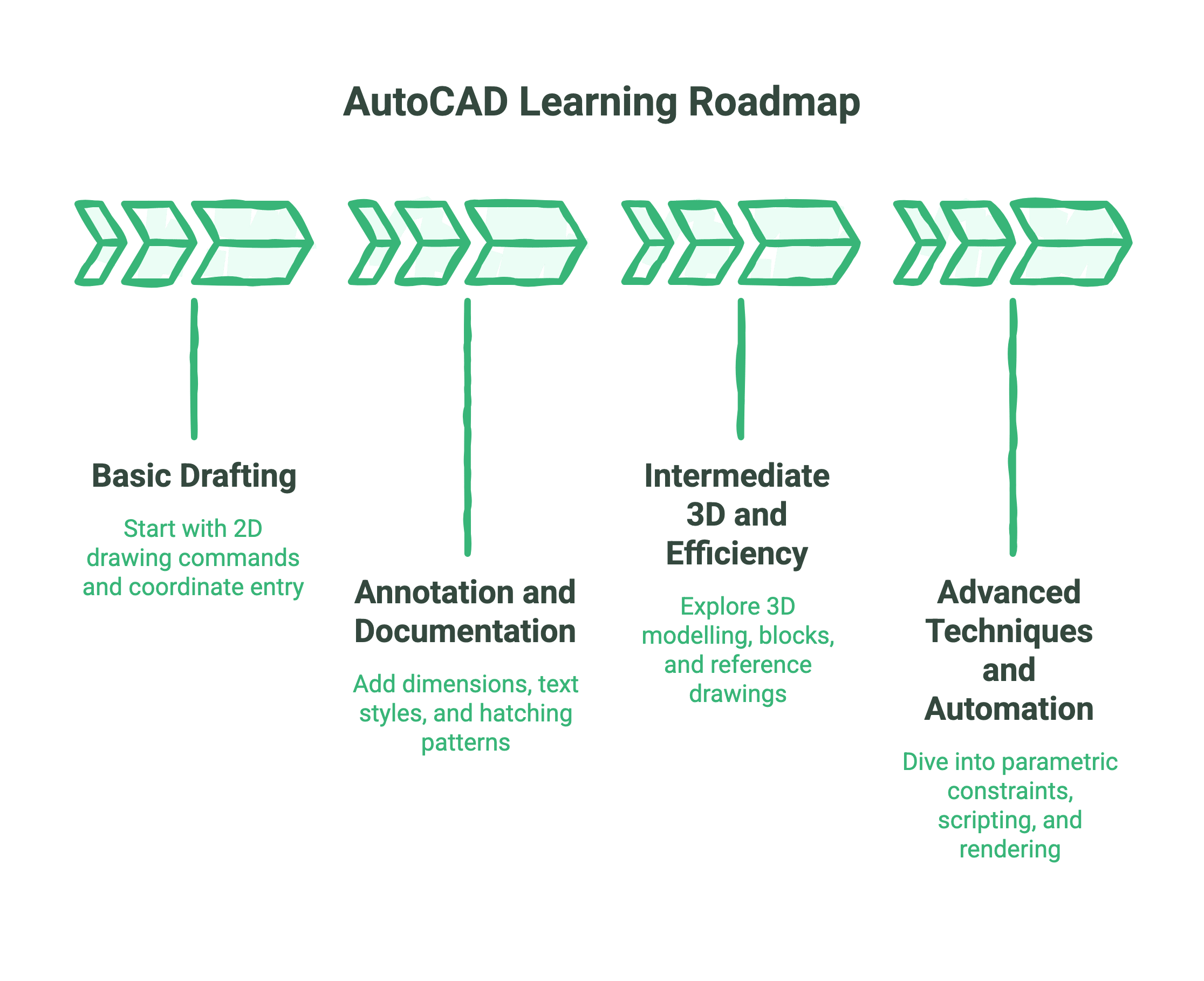
AutoCAD has a reputation for complexity, but this largely stems from the software’s depth rather than fundamental difficulty. A structured learning approach makes AutoCAD accessible to beginners while allowing progression to advanced techniques.
Stage 1: Basic Drafting (Weeks 1-2) — Start with 2D drawing commands: lines, circles, rectangles, and arcs. Learn to use coordinate entry for precision, understand how layers organise drawings, and practise basic modification commands like move, copy, and rotate. At this stage, you should be able to create simple floor plans and basic mechanical drawings.
Stage 2: Annotation and Documentation (Weeks 3-4) — Add dimensions to drawings, create and use text styles, apply hatching patterns to show materials, and learn to set up different scale views in layouts. By the end of this stage, you can produce finished drawings ready for printing or sharing with collaborators.
Stage 3: Intermediate 3D and Efficiency (Weeks 5-8) — Explore 3D modelling basics, learn to create and use blocks (reusable drawing components), understand reference drawings (xrefs) for coordinating multiple files, and develop faster workflows using keyboard shortcuts and customisation. This stage transforms you from a competent drafter to an efficient CAD operator.
Stage 4: Advanced Techniques and Automation (Weeks 9-12) — Dive into parametric constraints, explore AutoLISP or other scripting for automation, learn advanced 3D modelling and rendering, and understand how AutoCAD integrates with other software in your industry. At this level, you’re approaching professional-grade proficiency.
Most people can reach practical competence for their specific industry within 3-4 months of regular practice. The key is consistent use on real projects rather than just following tutorials. Working on actual design problems forces you to learn problem-solving approaches rather than just memorising commands.
Conclusion & Career Outlook
What is AutoCAD used for in today’s design landscape? AutoCAD remains the foundational tool for technical design across architecture, engineering, and manufacturing. The uses of AutoCAD continue to expand with AI-assisted features and cloud connectivity, while its core strengths in precision drafting and documentation remain unmatched. Understanding what AutoCAD is and what AutoCAD is used for opens career opportunities across multiple sectors, from architectural practices to civil engineering firms to manufacturing businesses.
For businesses in Belfast and across Northern Ireland, AutoCAD proficiency is a valuable skill that creates competitive advantages in the construction, engineering, and design sectors. The AutoCAD application in UK projects requires understanding of local standards like BIM Level 2, ISO 19650, and relevant British Standards. Smaller firms particularly benefit from AutoCAD’s versatility — the same software handles architectural floor plans, mechanical part drawings, and electrical schematics without needing multiple specialised packages.
Looking forward, the use of AutoCAD continues evolving to incorporate AI and automation while maintaining the precision and control that professionals depend on. The AutoCAD features being added focus on reducing repetitive tasks and augmenting designer capabilities rather than replacing human expertise. For anyone working in technical design or planning a career in these fields, understanding what is AutoCAD used for and developing proficiency in the software remains a practical investment with applications across numerous industries.
Need help implementing AutoCAD in your business? ProfileTree provides digital training, web design, and digital strategy services for Belfast and Northern Ireland businesses. Whether you need AutoCAD training for your team, help integrating CAD workflows with your website and online presence, or strategic guidance on design software selection, our experts understand the local market and UK regulatory requirements. Contact ProfileTree today to discuss how we can support your business with practical technology solutions tailored to how Northern Ireland companies actually work.
Frequently Asked Questions
What is AutoCAD used for?
AutoCAD is used for creating architectural floor plans and elevations, mechanical part drawings and assemblies, civil engineering infrastructure designs, electrical schematics and panel layouts, interior design furniture plans, and construction documentation. It serves any application requiring precise technical drawings.
What are the main features of AutoCAD?
AutoCAD’s main features include 2D drafting and annotation tools, 3D modelling and visualisation, parametric constraints for design relationships, extensive symbol and block libraries, layer management for complex drawings, dimensioning and documentation tools, and compatibility with industry-standard file formats (.dwg, .dxf).
Who uses AutoCAD?
Architects, civil engineers, mechanical engineers, electrical engineers, interior designers, construction managers, manufacturing designers, and landscape architects use AutoCAD. Any profession requiring precise technical drawings benefits from AutoCAD, with architecture and engineering accounting for the largest user base.
Is AutoCAD hard to learn?
AutoCAD has a learning curve but most users achieve basic competence within 2-3 months of regular practice. Starting with 2D drafting commands, then progressing to annotation and layouts, and eventually 3D modelling provides a logical learning path. Industry-specific training accelerates proficiency significantly.
Can you use AutoCAD for free?
Autodesk offers free educational licences for students and educators (renewable annually for non-commercial use) and a 30-day free trial of the commercial version. Professional use requires a paid subscription. Free alternatives like DraftSight and LibreCAD can open .dwg files but lack AutoCAD’s advanced features.
What is the difference between AutoCAD and Revit?
AutoCAD excels at 2D drafting and technical documentation with faster workflows for early design stages. Revit is Building Information Modelling (BIM) software designed for complex buildings, where you create 3D models containing construction information, materials, and costs. Most practices use AutoCAD for initial design and Revit for detailed coordination.