
Accessibility Tools for UK Websites: A Practical Guide
Table of Contents
Most accessibility audits start the same way: a developer runs an automated scanner, it finds a handful of colour contrast issues and missing alt text, and the report gets filed somewhere. A few months later, the same problems reappear because nobody built accessibility into the site’s design and content workflow from the start.
This guide covers the accessibility tools worth using, the UK regulations that matter, and the realistic gap between automated scanning and genuine compliance. It covers the tools worth using, the UK regulations that matter, and the realistic gap between what automated tools can find and what actually needs fixing.
Why Web Accessibility Matters for UK Businesses
A website that does not account for visual, auditory, motor, or cognitive impairments turns away a real share of its potential audience, and the same fixes tend to help both groups of user and search engine: semantic HTML, descriptive alt text, and clear heading hierarchy are rewarded by both. For what UK and Irish law actually requires, see our guide to web accessibility law. For the full WCAG framework and how the principles fit together, see Web Accessibility Basics. This guide focuses on what comes next: the tools that tell you where your site actually stands.
Ciaran Connolly, founder of Belfast-based digital agency ProfileTree, puts it plainly: “Accessibility is where good web design and commercial sense converge. A site that works for everyone converts better, ranks better, and carries far less legal risk than one that was built without those users in mind.”
The Core Accessibility Tools: What to Use and When
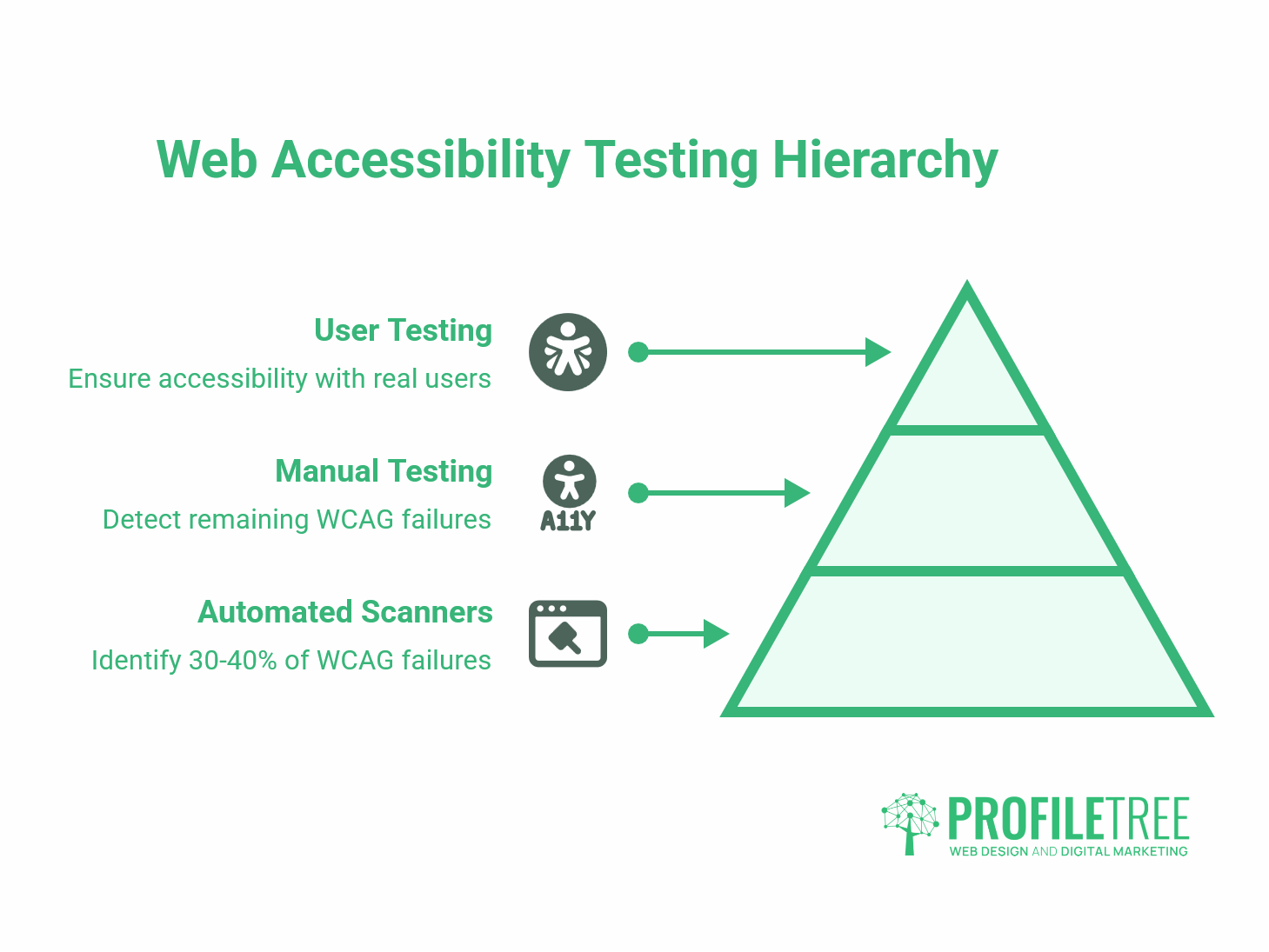
No single tool catches everything. Automated scanners typically identify around 30 to 40% of WCAG failures. The rest require manual testing and, ideally, testing with real users. The tools below are grouped by what they are actually useful for.
Automated Testing Tools
These accessibility tools are the right starting point. They’re fast, free, and surface the most common issues without requiring any specialist knowledge.
WAVE (Web Accessibility Evaluation Tool), developed by WebAIM, is the most accessible automated tool for non-developers. Install it as a browser extension, and it overlays your page with visual indicators: red icons for errors, yellow for alerts, and green for structural elements. It is particularly good at flagging missing alt text, form labelling issues, and low contrast ratios. Start here if you are new to accessibility auditing.
Axe DevTools Axe runs inside Chrome or Firefox developer tools and produces a clean, categorised report with direct links to WCAG guidance for each issue. It has no false positives, which makes it more reliable than some alternatives for prioritising what to fix. The free browser extension is sufficient for most small-business needs; the enterprise version integrates with testing pipelines.
Google Lighthouse, built into Chrome’s developer tools, includes an Accessibility audit alongside its performance and SEO checks. It uses the Axe engine under the bonnet, so the accessibility findings are largely the same, but Lighthouse is useful because it presents all performance, SEO, and accessibility signals in one report. If you are having a conversation with a web development agency about site improvements, a Lighthouse report gives you a shared benchmark.
| Tool | Cost | Best For | WCAG Version | Automation Level |
|---|---|---|---|---|
| WAVE | Free | Non-technical users, quick page checks | 2.1 | Automated |
| Axe DevTools | Free / Paid | Developers, CI/CD integration | 2.1 / 2.2 | Automated |
| Google Lighthouse | Free | Full-site overview, dev conversations | 2.1 | Automated |
| NVDA | Free | Screen reader testing (Windows) | N/A | Manual |
| VoiceOver | Free (macOS/iOS) | Screen reader testing (Apple) | N/A | Manual |
| Colour Contrast Analyser | Free | Visual design checks | 2.1 / 2.2 | Manual |
Manual Testing Tools
Automated tools cannot test whether a form is genuinely understandable to a screen reader user, whether keyboard focus order makes logical sense, or whether complex interactive elements behave as expected. Manual testing is where the real work happens.
Screen Readers: NVDA, JAWS, and VoiceOver
NVDA (NonVisual Desktop Access) is the standard choice for testing on Windows. It is open-source, free, and widely used by the disability community, which means testing with it reflects how a significant portion of your visually impaired audience actually experiences your site. JAWS is the dominant commercial screen reader in workplace environments. VoiceOver is built into macOS and iOS and is the right tool for testing mobile accessibility on Apple devices.
Testing with a screen reader does not require expertise in using one. Run through your key user journeys: landing on the homepage, finding a service or product, completing a contact form. If you cannot complete those journeys solely through audio, neither can your users.
Colour Contrast Analyser
The Colour Contrast Analyser from TPGi is a desktop application that lets you pick colours directly from your screen and check them against WCAG contrast ratios. The minimum requirement for normal body text is 4.5:1 against the background. Large text (18pt or 14pt bold) should have a 3:1 ratio. Use this tool whenever a designer proposes a colour palette, not after the site goes live.
WCAG 2.2: What Changed and Why It Matters
Most competitor resources still reference WCAG 2.1. WCAG 2.2 became the official W3C standard in October 2023, introducing 9 new success criteria. For UK businesses, the most practically significant additions are:
Focus Appearance (AA): Keyboard focus indicators must meet minimum size and contrast requirements. Many websites style these elements entirely away, making keyboard navigation impossible for sighted users who cannot use a mouse.
Dragging Movements (AA): Any functionality that requires dragging must also work with a single-pointer alternative (e.g., a tap or click). This matters for carousels, sliders, and drag-to-reorder interfaces.
Accessible Authentication (AA): Log-in processes must not rely solely on a cognitive function test (such as solving a puzzle or transcribing distorted text) unless an alternative is provided.
If your site was built or last audited against WCAG 2.1, the focus appearance criterion alone will flag issues on a large proportion of UK business websites.
Beyond Automation: The Manual Testing Process
Running WAVE or Axe takes five minutes. Fixing what they find takes longer, and doing it properly requires understanding what each tool cannot see.
Keyboard Navigation Testing
Close your mouse, open your website, and try using it with only the Tab, Enter, and arrow keys. You should be able to reach every interactive element (links, buttons, form fields, and modal dialogues) in a logical order. Focus should be visible at all times; you should never lose track of where you are on the page.
“Skip navigation” links are a small addition with a significant impact. Placed before the main navigation, they let keyboard and screen reader users jump directly to the page content without having to tab through the full menu on every page load.
If your site was built on WordPress, many themes handle keyboard navigation reasonably well out of the box, but custom components and page builder elements often introduce focus issues. This is worth flagging in any web development brief. ProfileTree’s web development services include accessibility checks at the build stage, which is far cheaper than addressing these issues in a post-launch audit.
Screen Reader Compatibility Testing
A structurally sound website uses semantic HTML: headings in the correct hierarchical order (H1, H2, H3), properly labelled form fields, descriptive link text, and ARIA attributes where native HTML is insufficient. The ARIA (Accessible Rich Internet Applications) specification provides a set of roles, states, and properties that help screen readers interpret live and interactive content. Used correctly, ARIA enhances accessibility for complex components like tab panels, modal windows, and live regions. Used incorrectly, it actively interferes with screen reader behaviour.
The most common screen reader failures on typical business websites are: unlabelled image links (a logo that links to the homepage with no alt text), form fields labelled only with placeholder text (which disappears when the user starts typing), and error messages that are not programmatically associated with the field they relate to.
Colour and Visual Testing
Beyond contrast ratios, visual accessibility covers a wider set of design decisions. Information should never be conveyed solely by colour: a red/green status indicator without a text label fails users with colour vision deficiency. Text should be scalable up to 200% without horizontal scrolling. Animations and auto-playing content should be pausable.
ProfileTree’s guide to web colour design covers the design decisions that feed into these requirements. Getting them right at the design stage means they do not need to be retrofitted later.
Building an Accessibility Roadmap
Running WAVE and Lighthouse once gives you a snapshot, not a strategy, and the same issues tend to reappear after the next content update or redesign if nobody owns the follow-through. For the full sequence, from naming an owner through to scheduling regular reviews, see our roadmap in Web Accessibility Basics.
Accessibility Compliance for Northern Ireland: Specific Considerations
Northern Ireland’s public sector sits within the scope of the UK Public Sector Bodies Accessibility Regulations 2018 and must meet WCAG 2.1 AA, publish an accessibility statement, and follow the Government Digital Service (GDS) assessment framework. The GDS publish a detailed manual on meeting the standard, and NISRA (the Northern Ireland Statistics and Research Agency) and other public bodies are subject to periodic third-party audits.
For private-sector businesses in Northern Ireland doing business with public-sector clients, accessibility compliance is increasingly a contractual requirement in procurement frameworks. If your business website or client portal interacts with public-sector workflows, it is worth treating compliance as a practical commercial requirement rather than just a legal one.
The specific nuance of Northern Ireland’s position (under the UK Equality Act 2010, while maintaining close trading relationships with the Republic of Ireland and EU markets) means the EAA is more commercially relevant here than elsewhere in Great Britain. Businesses serving customers across the border should treat WCAG 2.1 AA as the working standard for now, with WCAG 2.2 the direction of travel.
When to Call in a Professional: What DIY Tools Can’t Fix
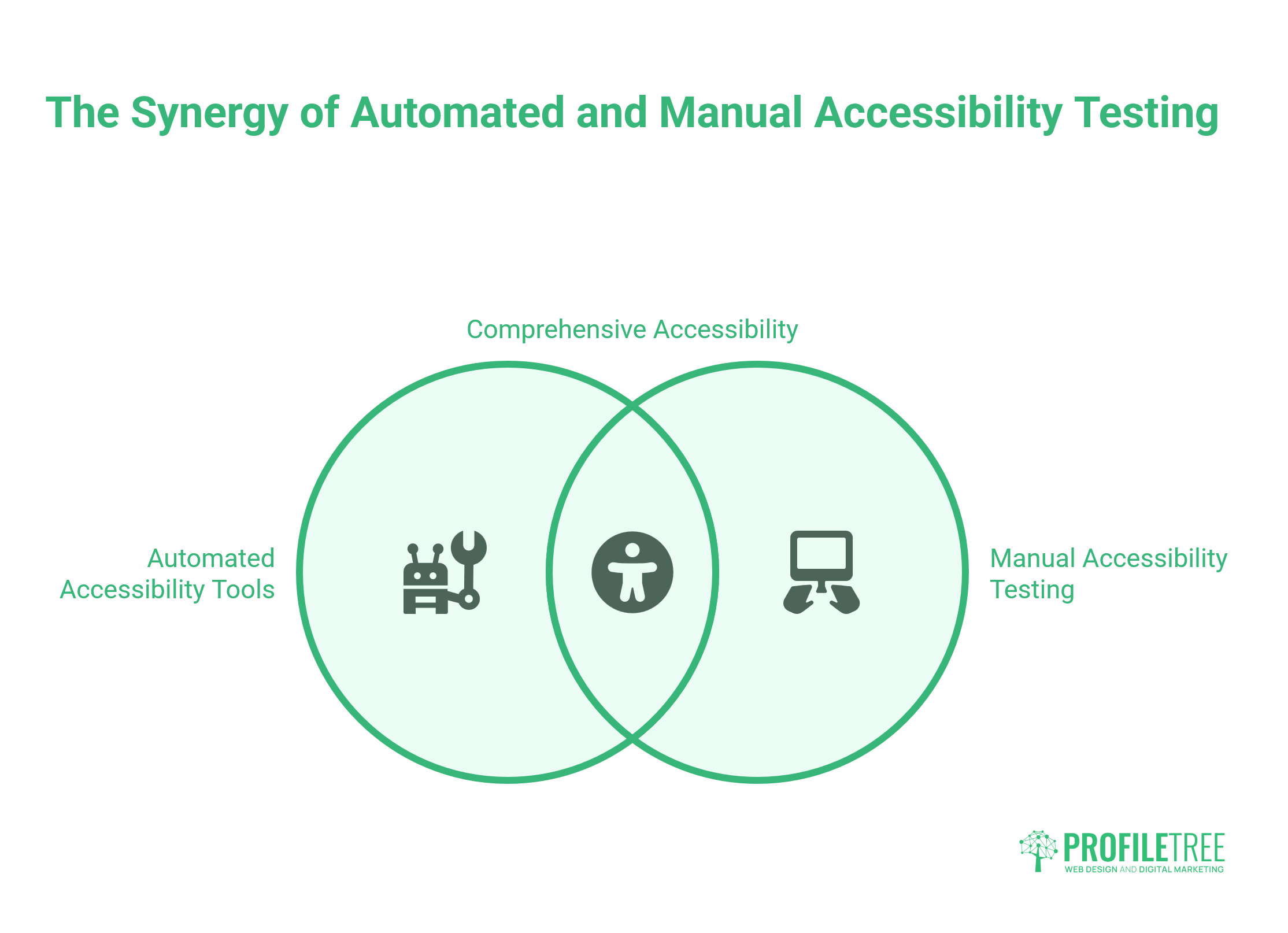
Automated accessibility tools have a hard ceiling. WAVE and Axe will surface missing alt text, contrast failures, and mislabelled form fields. They will not tell you whether your checkout flow is navigable by someone using a switch device, whether your modal dialogues trap keyboard focus correctly, or whether the reading order announced by a screen reader matches the visual layout of your page.
There are specific situations where self-service auditing is not enough.
If your site has custom-built interactive components (date pickers, multi-step forms, drag-and-drop interfaces, animated carousels), each needs manual testing with assistive technology. Automated tools scan static HTML; they cannot simulate how a screen reader user moves through a dynamic component.
If you are a public sector body in Northern Ireland or a business bidding for public sector contracts, a documented audit trail matters as much as the fixes themselves. The GDS assessment process requires evidence of testing methodology, not just a clean scan report.
If your site was built more than three years ago without an accessibility review, the issues are likely structural. Retrofitting WCAG compliance onto a site with poor semantic HTML or a page builder that generates non-standard markup is often more expensive than a targeted rebuild. A professional audit separates content-level fixes from development work, so the budget goes to the right places.
ProfileTree’s web development services include accessibility assessments as part of new builds and as standalone audits for existing sites. The output is a prioritised report with development-ready recommendations, not a raw list of WCAG failures.
Conclusion
Web accessibility is an ongoing part of how a site is built, maintained, and updated. The tools covered here give any UK business owner a practical starting point. What they cannot replace is sound architecture, clean semantic HTML, and a team that understands accessible publishing in practice. Start with a WAVE scan of your five most-visited pages; what it surfaces will quickly tell you whether you need content fixes or development work. ProfileTree works with SMEs across Northern Ireland, Ireland, and the UK on both. Contact our team to discuss your site.
FAQs
What is the best free accessibility tool for someone without technical knowledge?
WAVE is the right starting point. Install it as a browser extension, and it visually flags issues directly on the page, with each flag linking to an explanation and guidance on how to fix it. No developer knowledge needed.
Do automated accessibility tools guarantee WCAG compliance?
No. Automated tools catch around 30-40% of WCAG failures. They cannot assess keyboard navigation order, screen reader output, or how interactive elements behave with assistive technology. Manual testing is required for meaningful compliance.
What is the difference between an accessibility overlay and proper remediation?
Overlays are third-party scripts that attempt to patch issues automatically on top of an existing site. They are widely criticised for frequently interfering with screen readers and other assistive technologies. Proper remediation fixes the underlying HTML, CSS, and content. Overlays are not a legal substitute under UK law.
Which screen reader should I use for testing on Windows?
NVDA. It is free, open-source, and widely used by visually impaired people in the UK, so testing with it reflects how a significant share of your audience experiences your site.